
Toshiba TV Remote App Free: Find the App That Fits Your TV
Short answer: Choose Amazon Fire TV, Google TV, VIDAA’s recommended app, or Toshiba Smart Center to match your Toshiba Remote App. The right toshiba tv remote app free option depends on the software inside the set, not simply the Toshiba name on its frame.
Toshiba sells different television platforms across markets, and an app for one family may never discover another. The useful starting point is the TV’s Home screen, model number, and regional support information. This guide explains the separate setup routes, including Smart Center’s Virtual Remote setting, then helps you check everyday controls and free-use limits. It also distinguishes a connected smart television from an older infrared-only set and explains what to do when changing the router leaves your phone unable to find the screen.
Start Your Toshiba TV Remote App Free Search with the TV Platform
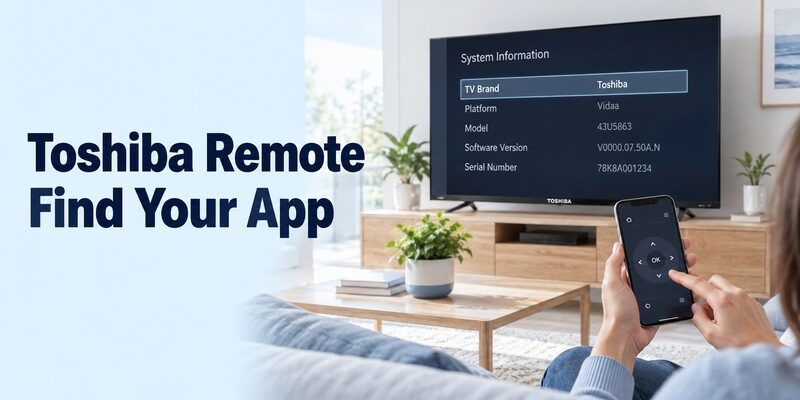
Identify the television before downloading a brand-named remote. Press Home on the existing controller and inspect the system information or the model’s manual. If you are already watching an HDMI player, return to the television’s own menu first.
- Fire TV: Start with Amazon’s Fire TV mobile app for a television running Fire TV.
- Google remote TV or Android TV: Check Google’s platform-remote instructions for your supported television and phone.
- VIDAA: Follow the mobile-app guidance and any app QR code provided by that television.
- Smart Center support: Use Toshiba TV Smart Center only when the model’s documentation supports that route.
- No supported smart platform: Check a compatible physical remote or a genuine hardware-based control method.
Toshiba’s regional Smart TVs page specifically describes Smart Center, while its product catalog also includes other operating systems. This is why a toshiba tv remote app free result can be valid for one household and irrelevant to another. Record the full model suffix, country of purchase, and platform before following instructions from a different region.
Read more: How to Control Google TV With Phone: Android & iPhone Guide
Connect a Toshiba Fire TV through Amazon’s App
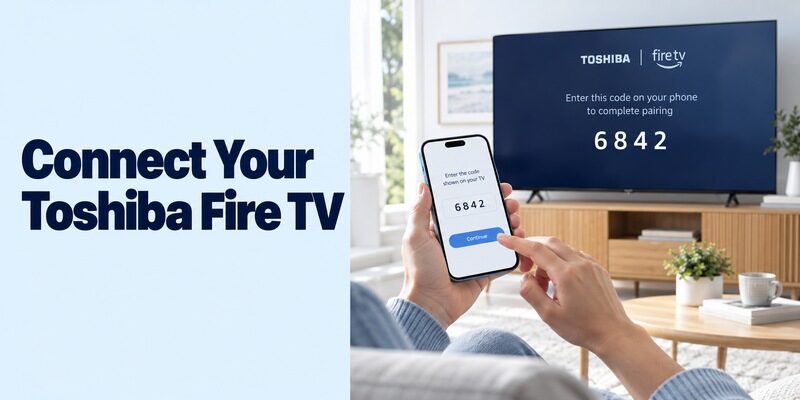
Use the Amazon-published app for this platform. Amazon’s current mobile-remote help covers both the Apple App Store and Google Play. You do not need to find a separate Toshiba-branded edition of the same remote.
Open the remote setup on your phone
Connect the phone to the same Wi-Fi network as the Fire TV, open the app, and sign in as directed. Amazon’s current instructions then use the remote icon and Set Up New Fire TV. Follow the displayed authorization process for the selected television.
Keep the TV screen visible while completing setup. For toshiba tv remote app free control, a response on the television is more useful than an app’s saved-device label. Check that the selected name belongs to this room before accepting a prompt.
Verify navigation and a short search
Move the highlight once, select an ordinary item, and return Home. Open a search field and try a short word using the available keyboard. These checks establish that the phone is controlling the Fire TV interface, rather than merely showing related content on the phone.
If the television is offline, the app cannot automatically solve that missing connection. Restore the TV’s supported network access first. A toshiba tv remote app free installation is a useful substitute during everyday use, but it is not a guaranteed route through every initial-setup screen.
Enable Virtual Remote for Toshiba Smart Center
Toshiba’s Smart Center store description gives a particular prerequisite: Virtual Remote must be enabled on the supported television. That setting belongs to this documented route; do not search for it on an unrelated Fire TV or VIDAA menu.
Confirm the model and required connections
Check the manufacturer’s regional support information and the app publisher before installing. The official Smart Center listing identifies the Toshiba application and includes Vestel support information. A similar title from another developer is a separate product, even when its icon includes a television.
For this toshiba tv remote app free route, follow the listed requirements: the television connected to the internet, Virtual Remote enabled, and the phone on the same Wi-Fi network. Use the model manual to locate the setting when menu names differ.
Add the television and check supported extras
Start Add TV and follow the app’s instructions. Once basic directional control responds, test the particular features you need. Toshiba describes guide access and phone keyboard or mouse functions; the store listing qualifies additional features by television support.
Do not assume recording, content sharing, and all app shortcuts work on every set. Keep a short note of the functions verified on your own model. A toshiba tv remote app free choice should be judged on that usable set of controls, rather than the longest feature list in a search result.
Follow the Television’s App Guidance on VIDAA Models
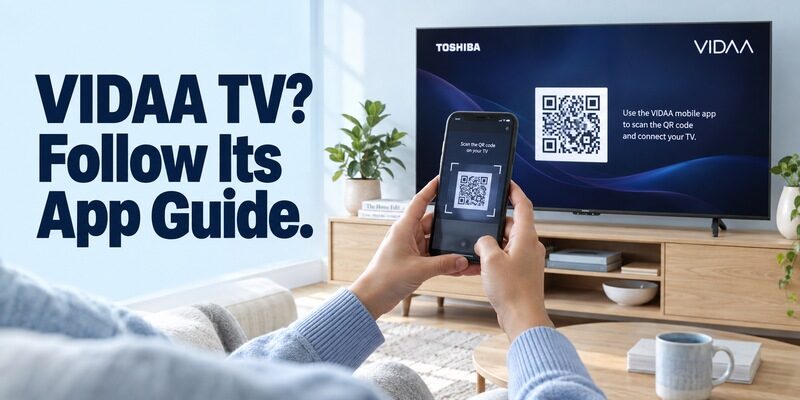
Let the television identify the appropriate mobile-app version. VIDAA’s support instructions provide a more reliable starting point than choosing a similarly named remote from an unrelated publisher.
Find the app reference on the television
VIDAA’s connection guidance points to Support, then Mobile App, where a QR code can direct you to the correct app version. Follow the equivalent instructions shown on your model. Platform branding and regional app names can change, so avoid treating an older screenshot as a permanent download label.
When setting up a toshiba tv remote app free connection, read the destination before installing. A code on the TV’s own supported settings screen has a clear context; a code in an advertisement for a remote app is a different source.
Complete the supported local connection
VIDAA instructs users to put the phone and TV on the same network and complete the relevant TV agreements before selecting the device in the mobile app. Check those prerequisites if discovery fails, then reopen the app and select the intended television.
Test Home and one menu selection before trying optional functions. A toshiba tv remote app free recommendation for VIDAA does not establish that Smart Center, Google TV, or an infrared app will also control that model through the same connection.
Read more: Apple remote tv app: Complete Apple TV Remote Guide for iPhone, Siri Remote, Pairing & Fixes
Pair Google TV with a Supported Toshiba Google or Android TV
Use the Google platform route only for a compatible platform. The presence of YouTube or another Google service on a television is not, by itself, proof that the television runs Google TV or Android TV.
Choose the nearby television and authorize it
Google TV’s Android help describes its nearby-TV connection control, selecting the television, and entering the code displayed on the TV before pairing. Keep the devices on the required local network and follow the current labels in your app.
If a toshiba tv remote app free search brought you to an old Android TV Remote Control listing, consult current Google guidance before installing a legacy package. The goal is a supported control path, not recreating the exact app icon shown in an old tutorial.
Distinguish television control from casting
After pairing, test directional navigation, selection, Back, and text entry where supported. Casting a video from another phone app does not demonstrate that the remote can open the television’s settings or change its selected menu item.
For an iPhone, check the current app availability and compatibility for your platform separately. Do not assume that every Android setup screen also exists on iOS. A working toshiba tv remote app free arrangement must match the phone as well as the television.
Decide Whether an Older Toshiba Can Work without Wi-Fi
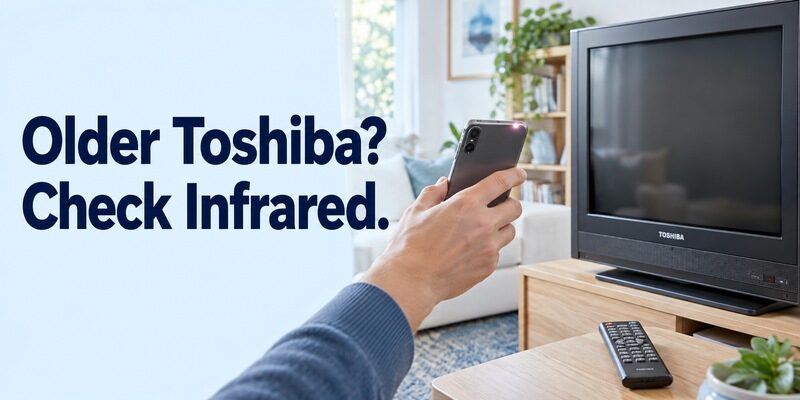
Software cannot replace missing transmission hardware. A television that accepts infrared commands needs a compatible infrared transmitter; a network remote needs a reachable supported network service.
Check actual infrared hardware
An Android app advertising infrared control requires a phone or accessory that can transmit it. Consult the phone’s specifications rather than assuming a camera, flashlight, or charging port can perform the same job. The app also needs the correct command profile for the television.
For toshiba tv remote app free use on an older set, test several essential buttons if the hardware is supported. Power alone is not enough: verify volume, input selection, and navigation. A partially matching profile can switch the screen on while leaving the controls you need unavailable.
Separate an internet outage from an offline television
Losing the internet connection does not necessarily switch off the router’s local network. However, whether an existing app session continues to work depends on that product’s requirements. Smart Center’s documented internet prerequisite should not be replaced with a blanket offline promise.
If the television has never joined the current network, a toshiba tv remote app free download cannot automatically supply its Wi-Fi password. Use a documented physical-control route to restore access, then configure the phone as a convenient additional remote.
Check Volume, Inputs, and Connected Equipment Separately
One successful command does not prove complete equipment control. A Toshiba television, an HDMI streaming player, and a soundbar may each be involved in what you see and hear.
| Task | What to test | What success establishes |
|---|---|---|
| Menu navigation | Move one highlight and press Select | The chosen interface receives commands |
| TV volume | Change the level and restore it | The current audio path accepts volume control |
| HDMI input | Select the intended source | The app exposes a usable TV input control |
| Streaming search | Enter a short word | That field accepts phone text entry |
| Standby recovery | Wake the TV after a normal pause | This configuration supports that wake scenario |
Amazon’s current Fire TV app help documents volume and power setup on supported equipment and notes HDMI-CEC limitations. Therefore, neither “all phone remotes control volume” nor “Fire TV apps never control volume” is a dependable general rule.
For a toshiba tv remote app free comparison, test the actual configuration shown in the app. If sound comes from a separate receiver, check its supported setup too. Keep the original audio remote nearby until the phone reliably changes the sound you hear.
Read Free-Use Terms before Trying Another App
A free installation can still include paid functions or a renewing trial. Read the current store listing and the screen presented before accepting an offer. Compatibility should be established independently of the price.
Compare the control functions you need
Check whether navigation, volume, keyboard entry, and device selection remain available without a subscription. A toshiba tv remote app free option with optional extras may be sufficient if its basic controls solve your problem. Conversely, a free-looking app is not useful if the only required function is locked.
Do not pay to fix a platform mismatch. If the app supports a different operating system, purchasing a premium tier does not normally change the television’s software or create the missing control connection.
Review permissions in context
Local-device discovery can need phone permissions, while voice features may require microphone access. Follow the selected app’s documentation and distinguish required connection access from optional features. The exact settings depend on the phone and software version.
A toshiba tv remote app free trial should not begin with approving every prompt automatically. Read what each request enables, grant the documented access needed for your task, and test again. If you decline an optional feature, keep track of that choice when interpreting its absence later.
Keep an Alternative for a Specific Control Gap
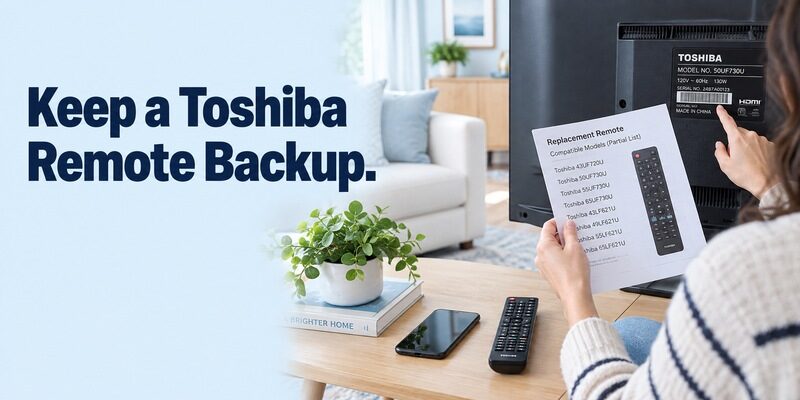
Choose an alternative around a verified need. Perhaps the official app works but its layout is inconvenient, or you want another supported interface when the physical remote is misplaced. Those are clearer goals than installing several universal remotes at once.
Compare another supported interface
Review and check support for your Toshiba platform and phone. On a supported connection, it can provide navigation while the physical controller is unavailable. It does not bypass the TV’s authorization, add an infrared transmitter, or make an unsupported model compatible.
Preserve a usable physical backup
Before replacing a working toshiba tv remote app free setup, compare Home, Back, volume, input, and reconnection using the same television state. Retain the option that performs your everyday tasks consistently. Keep a compatible physical controller accessible for network changes or a phone with an empty battery.
A backup should match the television rather than only resemble the original remote. Compare its supported model list and the buttons needed to reach Settings and Input. If you choose a universal physical controller, keep its own instructions with it; its programming codes belong to that controller, not to a phone app pairing screen.
For a shared household, show another person how to select the correct TV in the phone app and where the backup is stored. Test whether the app reconnects after the phone locks, and avoid renaming several devices at once. Clear room names and a known recovery method matter more than adding features that nobody uses.
Diagnose a Toshiba That Disappears from the App
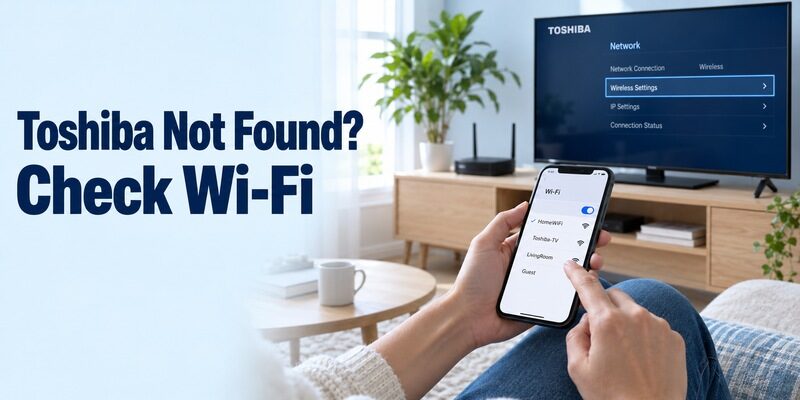
Locate the first failed step before resetting anything. A blank device list, a rejected pairing request, and a missing volume button call for different checks.
| Symptom | Check first | Next useful action |
|---|---|---|
| No television listed | Correct platform and shared network | Wake the TV and compare connections |
| Smart Center cannot add TV | Model support and Virtual Remote | Follow that model’s setting guidance |
| VIDAA connection stops at setup | TV agreements and app version | Use the TV’s mobile-app instructions |
| Another room responds | Selected device name | Cancel and select the correct television |
| Navigation works but audio fails | Audio device and supported control path | Test the receiver or TV configuration |
After a router replacement, verify the television’s saved network connection with an existing supported controller. A phone joining the new Wi-Fi does not automatically transfer those details to the TV. Avoid a factory reset while you lack a reliable route through initial setup.
For intermittent toshiba tv remote app free failures, note the TV’s power state and the last successful command. Repeat that same action after one adjustment at a time. A model number, app name, and precise symptom give support a more useful starting point than a long list of unrelated reinstalls.
Read more: How to Use an Apple TV Remote: Buttons, Navigation & Shortcuts
Frequently Asked Questions
Is Toshiba Smart Center the right app for every Toshiba TV?
No. Toshiba Smart Center applies to supported models, while other televisions use Fire TV, Google TV, or VIDAA routes. A toshiba tv remote app free choice should follow the model’s regional documentation. The brand name alone does not identify the television’s mobile-control system.
Can a free app operate an old infrared-only Toshiba?
Yes, if the phone or accessory has suitable infrared transmission hardware and the app supports the television’s commands. Without that hardware, a download alone cannot send infrared. A compatible physical remote is the practical alternative when the television has no supported network-control route.
Does a Fire TV app always control a connected soundbar?
No. Audio control depends on the supported Fire TV features, television connection, and external-speaker configuration. Amazon documents CEC and equipment-control conditions. Test the actual volume response separately from menu navigation, and keep the soundbar controller available if the phone cannot manage that audio path.
Should I reset the television when the app cannot find it?
Not as the first step. Check the platform, power state, network, app permissions, and required TV settings. A reset may erase the connection needed for discovery. Restore a usable control route before considering a model-supported reset, particularly when the original remote is missing.
Final Thoughts
A reliable toshiba tv remote app free setup begins with the correct platform-specific app. Use Amazon’s route for Fire TV, Google’s supported remote for Google or Android TV, the TV’s own guidance for VIDAA, or Smart Center where the model supports it.
Authorize the connection, test your everyday commands, and read any paid-feature terms separately. With a verified app and an accessible physical backup, a misplaced remote becomes a manageable interruption rather than a reason to reset the entire television.
