
Home Theater System Remote App: Receiver and TV Control
Short answer: Use a receiver or theater app approved for your exact system model; a generic TV remote app rarely controls every audio component.
A home theater system remote app may control a network receiver, soundbar, wireless speakers, or a newer integrated theater system, but those are not the same device class. Sony’s Music Center and BRAVIA Connect cover selected products; other makers have their own apps. Identify the main receiver model, connect it to the supported network, and test source, volume, sound mode, and speaker zones. Keep TV power and HDMI input as separate tasks.
1. Choose the App by Receiver Model: Home Theater System Remote App
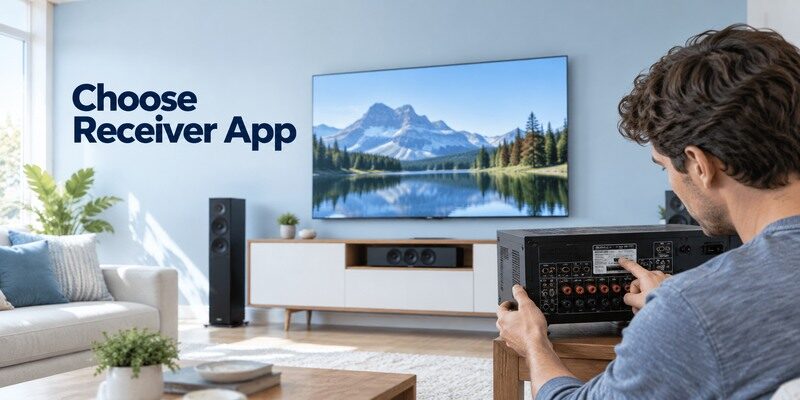
The receiver or theater control unit is the central target, even when the TV shows the interface. Find its model label before searching an app store. A home theater system remote app search should start with the receiver or soundbar model that actually handles sound in the room.
| Component | Likely app/control | Core job |
| Network receiver | Maker-compatible app | Inputs, volume, modes |
| Television | TV platform or remote | Display power and input |
| Streamer/console | Own controller or app | Playback and interface |
Official compatibility
Sony Music Center supports selected wireless audio systems, while BRAVIA Connect targets specified home entertainment products. Other manufacturers publish their own compatible receiver lists. An app name that mentions your TV brand does not prove it can control the audio receiver.
Read more: Soundbar Remote App: Brand Options and Setup
Legacy infrared system
An older DVD home theater or receiver may have no network control. In that case use a model-matched physical remote or a universal IR unit with a compatible audio code library. A Wi-Fi-only phone app cannot reach an offline IR component without additional hardware.
A home theater system remote app should be selected by the receiver’s model, not by the screen’s brand. A Sony TV paired with a receiver from another maker still needs a controller for that receiver. Read the exact product manual and app compatibility list. If the equipment predates network control, a physical IR replacement may be more reliable than a Wi-Fi app that only discovers the television.
A receiver is the best starting point for selecting software because it owns the input switching, audio modes, and often zone controls. Photograph or transcribe the model label and compare it with the app maker’s compatibility list. Do not infer that a current app supports a decade-old receiver with the same brand badge. If your receiver has no network capability, an ordinary Wi-Fi phone application cannot add it. A model-matched infrared controller or supported accessory is the likely route.
2. Map the Devices in Your Theater
List TV, receiver, streaming box, soundbar, and speakers. Decide which device should respond to each command before pairing a phone. For home theater system remote app, check whether the component has the network or Bluetooth connection required by its official app. When choosing a physical replacement, review the universal remote compatibility guide and confirm that the controller supports the receiver’s audio-device profile.
TV versus audio receiver
The television handles display power and HDMI input; the receiver may handle source switching, volume, and speakers. HDMI CEC can pass some commands, but a TV remote app does not necessarily expose all receiver sound modes. Test the control target separately.
External source devices
A Fire TV Stick, console, or Blu-ray player may sit behind the receiver. Its app controls that source, not automatically the receiver’s input or TV power. Label HDMI ports and the receiver input names so a phone command can be interpreted correctly.
Draw a small map before using a home theater system remote app: source player to receiver input, receiver output to TV input, and speakers connected to the receiver. This explains why a phone can change source while the TV still displays a different HDMI device. Label cables or save a photo of the connections, then test one command target at a time.
A small equipment map saves time: write TV input, receiver input, source device, and which app controls each. Without it, an app may switch a receiver source while the TV remains on a different HDMI port, creating a false “no signal” diagnosis.
3. Connect the Receiver to the Network
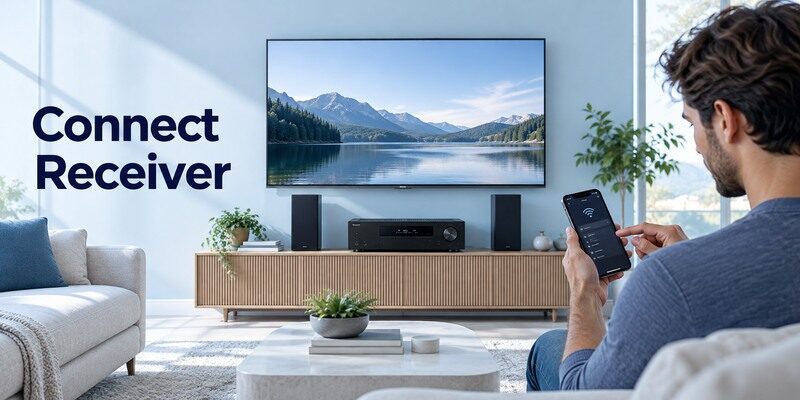
For a network-control app, follow the manufacturer’s setup steps and put phone and receiver on the same reachable local network. The home theater system remote app setup screen must name the intended audio device before you approve registration. A compatible remote TV app can handle supported television controls, while the receiver’s own app remains responsible for audio modes and zones.
Wi-Fi or Ethernet
An Ethernet-connected receiver can be controlled from a Wi-Fi phone on the same permitted LAN. Guest isolation or VLAN separation can block discovery. Confirm the receiver’s IP or network status in its settings before reinstalling the mobile app.
Initial setup
Some receivers require on-screen setup with a physical remote or front-panel controls before mobile pairing. A phone app cannot discover a unit whose network has never been configured. Save the network credentials and current input assignment before resetting the system.
A home theater system remote app may discover an Ethernet receiver from a Wi-Fi phone if both are on the same LAN. Guest Wi-Fi, a separate VLAN, or a VPN can prevent this without interrupting audio over HDMI. Confirm the receiver’s network status and the phone’s connection. Do not reset speaker calibration because a router setting isolated the app.
4. Pair and Test the Official App
Install the current app from an official store, select the exact receiver, and follow its confirmation prompts. With home theater system remote app, compare the supported controls against volume, source, and sound-mode commands you use.
Select the right room
If the house has multiple receivers or speakers, check the model and room name before connecting. A mobile app can appear to work while sending volume to another zone. Test with a low safe volume level and watch the receiver display.
Validate core controls
Try power, main-zone volume, mute, input selection, and a sound mode. A configuration app may not duplicate every remote button. Document which functions require the physical unit or TV control; this prevents a false claim of full replacement.
When pairing a home theater system remote app, use a low volume and watch the receiver’s front display. It should show the input or volume change on the unit you intend to control. If a second zone changes instead, select the main room in the app. Keep the TV visible for any on-screen confirmation and do not assume a successful account sign-in proves local device pairing.
Read more: Chromecast Remote App: Google TV Setup and Limits
5. Control Inputs and HDMI Equipment
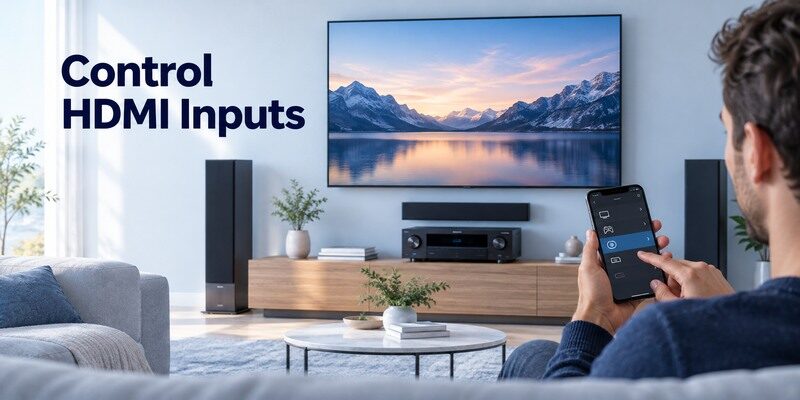
A theater app can change receiver sources, while the TV may still need its own input or power command. A home theater system remote app command may target the audio component while the television remains on another HDMI input.
| Action | Command target | Verify |
| Choose HDMI source | Receiver or TV | Correct input selected |
| Change volume | Receiver or soundbar | Right speaker path |
| Wake room | Several devices | Expected CEC behavior |
Receiver source selection
Map “Game,” “Media,” and “Blu-ray” labels to physical HDMI ports. If the app changes an input but the screen stays black, confirm the source device is powered and the TV is on the receiver’s HDMI output. Do not assume the app failed because one source is inactive.
For an Amazon streaming source, the Fire TV Stick remote app guide explains which commands reach the Stick and which may depend on the TV or audio equipment.
HDMI CEC and ARC
HDMI CEC can relay selected power or volume commands; ARC/eARC handles audio return. Enable both only as directed by the connected manuals. An optical audio connection has no HDMI CEC signaling. A receiver inserted in the chain can alter which device receives a command.
A home theater system remote app can change receiver input without waking a connected console or switching the TV’s own input. Check the source device power and the HDMI chain before calling the app defective. If HDMI CEC is enabled, test whether a command passes through the receiver and whether ARC/eARC audio returns from the TV. Optical audio does not carry the same HDMI control path.
Keep volume low during first pairing, especially with a multi-zone receiver. Watching the receiver display while tapping a phone control confirms the right room and device were selected.
Draw a small device inventory before configuring an activity: which HDMI input receives the console or streamer, where the receiver outputs video, and which device plays audio. Test a basic source switch, then volume, then power states. HDMI CEC can simplify daily use but also create unexpected wake or input switching if several components compete. A phone app connected to the receiver may report its selected input accurately while the TV shows a different source; inspect the physical signal chain instead of repeatedly pairing the phone.
Read more: Sceptre TV Remote App: What Works for IR and Smart Models
6. Sound Modes, Zones, and Speakers
Advanced features are often the reason to use the official theater app instead of a generic TV remote. When home theater system remote app volume fails, trace audio output and HDMI CEC separately from mobile discovery.
Listening modes
Check whether the app can select stereo, surround, or other sound profiles on your model. A TV volume key may change loudness but not decoder mode. Avoid changing speaker calibration or crossover values without noting the previous settings.
Multi-room zones
Some receivers expose Zone 2 or multi-room controls in an app. Confirm the selected zone before raising volume. A phone connected to the correct receiver but wrong zone can look unresponsive in the main room while sound changes elsewhere.
Advanced sound modes and zones are where a home theater system remote app can add value beyond a TV volume key. Note the selected zone before raising volume and avoid changing speaker calibration casually. If the app does not list a mode shown on the physical remote, compare firmware and model support. Do not infer that a marketing screenshot for another receiver applies to yours.
7. Troubleshoot App Discovery
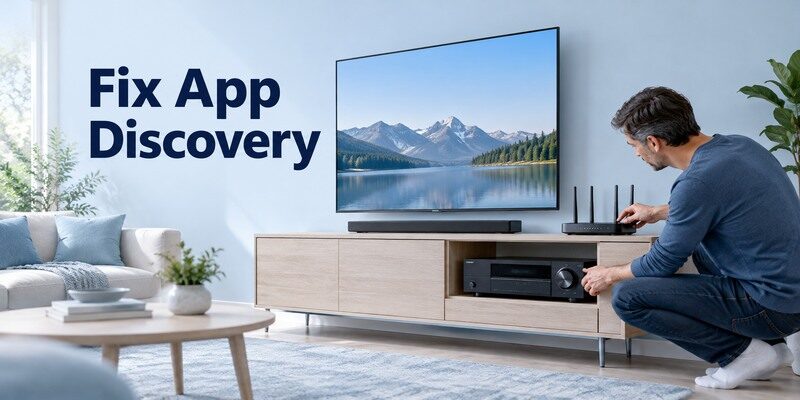
The receiver can output sound without being reachable to a phone. Treat audio success and network control as separate observations. If home theater system remote app cannot find the device, verify its setup mode, local network, and exact model compatibility.
Check model and firmware
Confirm the app lists the receiver model and that firmware meets its requirements. An older network receiver may use another app generation. Do not install an unofficial APK just because the current app omits the model.
If the audio component is a Samsung soundbar, see how to control a Samsung soundbar with a TV remote and compare the HDMI CEC and optical-control paths.
Check network isolation
Compare phone and receiver networks, disable guest isolation, and approve local-network permission. Restart the app after a correction. If a router update changed subnet rules, ask the network administrator before factory resetting the theater system.
If a home theater system remote app loses the receiver after a software update, compare the current app’s supported models and your receiver firmware. Keep the front-panel controls available during troubleshooting. A receiver that still outputs sound proves the audio path is alive but not necessarily the network interface. Check permissions and LAN reachability before a factory reset that erases inputs and calibration.
8. When the Phone Is Not Enough
Keep a way to power and set up the receiver when Wi-Fi is down. App control is convenient but cannot repair every hardware or wiring failure. Choose a home theater system remote app alternative for a specific missing function, not merely because it has a similar icon.
Front-panel and physical remote
A receiver’s front controls can select sources and volume even if its app is unavailable. A model-matched remote usually provides setup access and special audio keys. Verify the part number before buying a replacement.
TV app fallback
The may control a supported smart television while the receiver app controls audio. That is two separate control paths. If HDMI CEC passes volume to the theater, test the actual chain; do not claim direct receiver support from a successful TV pairing.
A home theater system remote app is a convenient second controller, not the only recovery method. A front panel can often select input and volume even without Wi-Fi, and a model-matched remote may access setup functions the app lacks. If TV remote HDMI CEC covers daily volume, decide whether the app’s sound modes or zones justify keeping it installed.
Before replacing a remote, compare the missing control with the receiver front panel and TV CEC path. A physical replacement is most valuable for setup, special sound modes, and offline operation.
For multiroom use, note that a zone may have its own amplifier assignment, speaker terminals, and source restrictions. An app screen showing a second zone does not establish that every input can play there. Start with the main room at a modest volume, then verify the extra zone against the receiver manual. If guests will use the system, keep a simple documented fallback for basic TV and audio control so a disconnected phone does not make the room unusable.
Source: illustrates model-specific receiver control of input, volume, and sound modes. Check your receiver maker’s current compatibility list.
If the television itself is a supported smart model, is another option to assess after the official device method. Check the current listing and in-app purchase terms, then test navigation, power, and volume on your actual setup. It cannot add IR hardware or restore an offline device.
Read more: Sanyo TV Remote App: Roku TV and Older Model Options
9. Safe Setup and Permission Choices
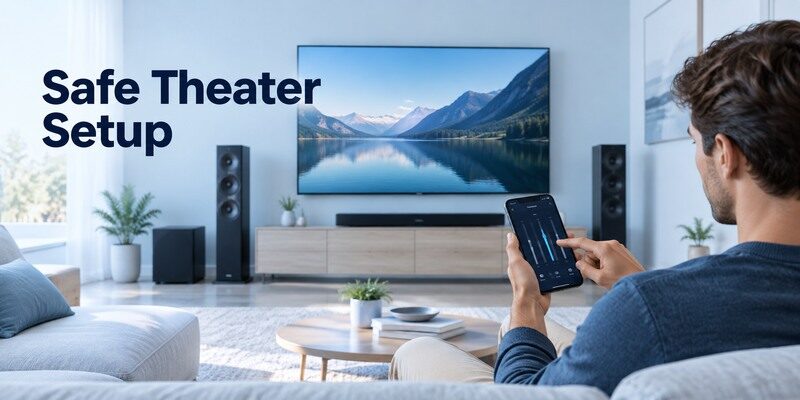
Audio apps may request local network, Bluetooth, or account sign-in for device setup. Confirm each request corresponds to the connection method. Before relying on home theater system remote app, keep a physical path for basic power and volume after a router change.
Use the correct publisher
Check the app-store developer and the manufacturer’s support page. A similarly named third-party app can have different subscriptions and model support. Record the app version when reporting a bug to the maker.
Avoid destructive resets
A factory reset may erase speaker calibration, inputs, Wi-Fi, and multi-room groups. First try app restart, network checks, and a non-destructive receiver restart. Save settings or use the maker’s backup feature if provided before any full reset.
Review a home theater system remote app listing for publisher, exact model support, required connection, and permissions. Avoid granting broad unrelated access or sideloading a discontinued APK just because a device is older. Save receiver settings before risky changes and keep a photo of its current input map. Those habits make future troubleshooting reproducible rather than a sequence of blind resets.
10. Frequently Asked Questions
These answers resolve the remaining practical questions about home theater system remote app.
Can one app control the TV and receiver?
Sometimes a maker ecosystem or compatible HDMI CEC setup coordinates some controls, but a TV app and receiver app often have different supported functions.
Does a network receiver need Wi-Fi?
It needs local reachability for a network app. Ethernet can work with a Wi-Fi phone when both are on the same permitted LAN.
Can a phone control an old IR theater system?
Only with compatible infrared hardware or an external accessory and a supported command profile. A Wi-Fi-only app cannot reach an IR-only receiver.
Why does sound play while the app cannot connect?
Audio may arrive over HDMI or optical cable while app control depends on a separate network or Bluetooth connection. Check the latter independently.
11. Final Thoughts
Choose a home theater system remote app by the exact receiver or theater model, then map TV and source controls separately. The official app is best for supported sound modes and zones; a physical remote or front panel remains useful for offline setup and recovery.
