
Chromecast Remote App: Google TV Setup and Limits
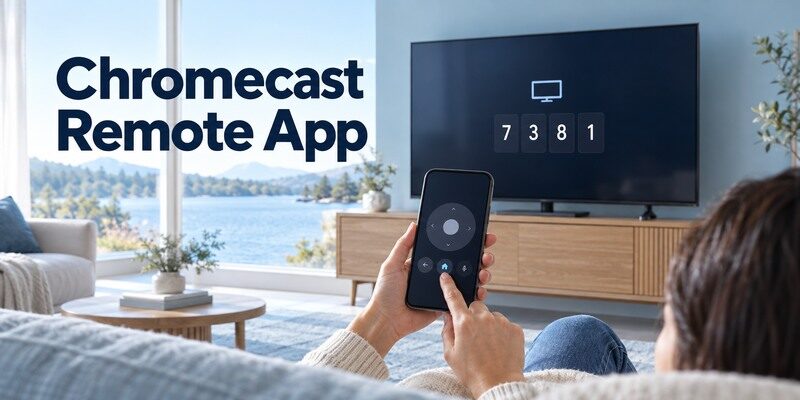
Short answer: Use the Google TV phone remote for a Chromecast with Google TV; older cast-only Chromecast models do not have the same on-screen remote interface.
A chromecast remote app search mixes two different tasks: casting content to an older Chromecast and navigating the Google TV interface on a Chromecast with Google TV. Identify the device generation first. For a supported Google TV device, use Google’s app to connect, select the device, enter the code shown on the screen, and test navigation. Casting from an app is useful but is not a replacement for a full TV remote.
1. Identify Your Chromecast Before Installing: Chromecast Remote App
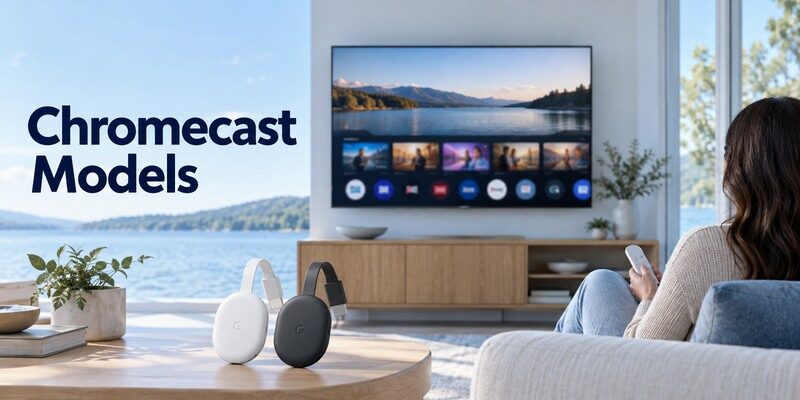
Look at the device and TV home screen. A Chromecast with Google TV has an interface designed for remote navigation; an older cast-only Chromecast primarily receives media from compatible apps. A chromecast remote app choice depends on the interface displayed by the actual streaming device, not merely the TV brand.
| Model | Phone control | Limit |
| Chromecast with Google TV | Google TV virtual remote | Pair supported interface |
| Google TV Streamer | Google TV virtual remote | Check current model support |
| Older cast-only Chromecast | Casting app playback | No full Google TV D-pad |
Google TV interface
If you see a Google TV home screen with apps, settings, and an on-screen pairing code, Google’s virtual remote guidance applies. The exact phone UI can vary by Android or iPhone. Confirm the device is powered and on the same network before trying to pair.
Read more: Westinghouse TV Remote App: Roku TV Setup and Phone Controls
Cast-only Chromecast
An older Chromecast can receive streams from supported phone apps, but it does not expose the same full Google TV menu and remote control. The phone can play, pause, or adjust content within a casting app. Do not promise a directional pad or TV input control where no Google TV interface exists.
For a chromecast remote app, write down whether you own a Chromecast with Google TV or an older cast-only dongle. A Google TV home screen is the fastest visible clue. If you can navigate rows of installed apps and settings on the TV, a virtual remote can make sense; if content starts only after tapping Cast inside a phone app, seek casting controls. This distinction keeps a missing directional pad from being mistaken for an app defect.
2. Choose the Official Phone Remote
Google’s support article “Use your phone as the remote for your Chromecast or Google TV Streamer” is the best starting point for supported devices. For chromecast remote app, confirm local reachability while the device is awake before attempting a pairing code.
Google TV app on Android
Open the Google TV app, tap Connect TV, choose the device, enter the displayed code, and tap Pair. Google also describes a Quick Settings remote shortcut on Android. The screen wording may change with app updates; follow the device prompt instead of a screenshot from an old blog post.
For a device with the Google TV home screen, this Chromecast with Google TV remote guide can help confirm which controls should work from a phone versus the physical controller.
iPhone and other supported routes
Check Google’s current instructions for your phone and device before assuming the same button names. Ensure the phone and Chromecast share a reachable network and approve any code shown on the television. A generic third-party app can add a different interface, but it cannot invent unsupported device functions.
A chromecast remote app that claims universal compatibility should be checked against Google’s current phone-remote instructions for your device. The official pairing flow gives a useful baseline: the phone identifies the device and the television displays a confirmation code. If the official route cannot see the unit, investigate power, network, and device generation before trying several paid alternatives. A new app cannot give an older cast-only model a Google TV interface.
A quick compatibility check is to ask whether the Chromecast shows a navigable Google TV home screen. That single observation determines whether you need a virtual remote or merely a Cast-capable app. Use the device model when the home screen is unavailable.
3. Pair With the On-Screen Code
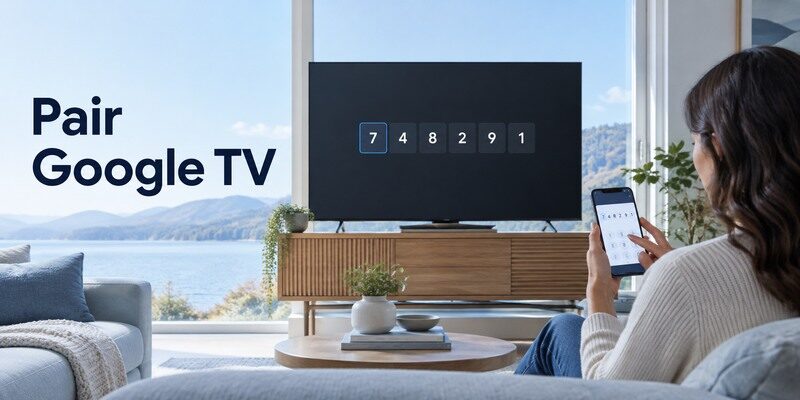
The code ties the phone to the correct Google TV device. Keep the TV visible during pairing, especially in homes with more than one streamer. The chromecast remote app pairing prompt should appear on the screen of the device you selected in the phone app.
For additional setup details, use a compatible Google TV remote app for Android and verify that the Chromecast appears on the same local network.
Select the device name
Open the remote control surface in the supported app, then choose the Chromecast or Google TV device by name. If a neighbor’s or another room’s device appears, verify your own screen before entering anything. A wrong selection can be mistaken for a dead remote.
Enter a fresh code
Type the code displayed on the TV and confirm Pair. If it expires, request a new code rather than reusing an old one. Test Home and directional navigation after pairing. If text entry works but volume does not, inspect the television’s audio path separately.
The chromecast remote app code confirms the device you selected, which matters in apartments or homes with several TVs. Read the device name on the television and enter only its current code. If the code disappears before entry, rescan instead of guessing. After acceptance, press Home once and watch the screen; a response proves navigation is connected even if a separate TV volume command still needs HDMI CEC or equipment setup.
Read more: Sceptre TV Remote App: What Works for IR and Smart Models
4. Use the Remote on Android and iPhone
Once connected, use the phone for navigation and text where supported. Keep the difference between controlling the Chromecast interface and controlling the TV panel in mind. Once connected, chromecast remote app controls may differ between iPhone and Android releases; test the same basic navigation keys.
Navigation and text
The virtual remote can be convenient for entering search text and moving through menus. Verify Back, Home, select, and playback on your own device. A successful app pairing does not establish that the phone can switch TV inputs or wake a disconnected television.
Volume and power
Google TV remote volume and power behavior can depend on the Chromecast’s remote settings, HDMI CEC, infrared equipment setup, and soundbar routing. Try the TV’s own remote and speakers when these commands fail. Do not erase app pairing to solve a separate audio configuration problem.
When a chromecast remote app works on one phone but not another, compare the two phones’ Wi-Fi, local-network permission, VPN, and app version. Do not change the Chromecast itself until these differences are checked. On Android, the remote shortcut may appear in Quick Settings; on iPhone, use the supported Google route available for that device. Interface placement can change, but the same local pairing requirement remains.
iPhone users can compare the available Google TV remote app for iPhone options before relying on a generic Chromecast controller.
5. Casting Versus Remote Control
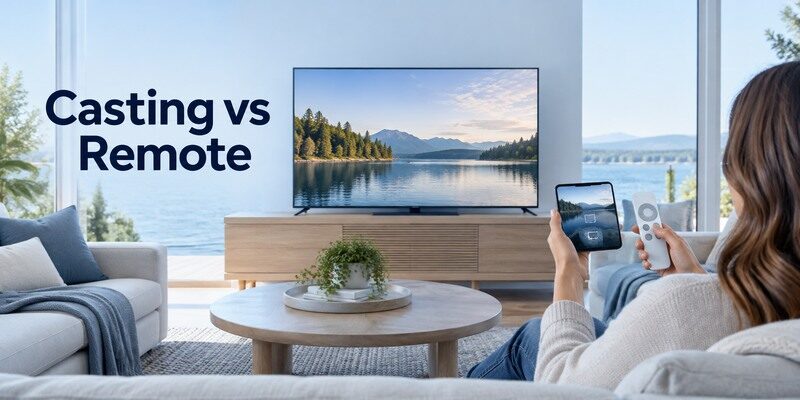
Casting sends media from a supported phone app; a virtual remote navigates the Google TV device. They are related but distinct features. A successful chromecast remote app connection establishes streaming-device navigation, while TV power and sound may take another route. Use this guide on how to control Google TV with a phone to confirm the correct device-selection and phone-remote steps.
| Action | Cast-only device | Google TV interface |
| Start video | Cast from supported app | Cast or launch on TV |
| Navigate home | No general home screen | Virtual remote after pairing |
| TV power | Depends on HDMI CEC | Depends on TV and HDMI CEC |
When casting is enough
If you only want to start a video and pause it from the phone, the Cast button inside a supported streaming app may be all you need. The phone and Chromecast generally need the same network. Availability depends on the app and content service.
When a remote is necessary
Changing Google TV settings, selecting HDMI-connected equipment, and recovering from a stuck home screen may require a full virtual or physical remote. Older cast-only models do not become Google TV devices through an app download. Identify the required action before installing another “Chromecast remote” listing.
A chromecast remote app question often really means “how do I pause the video from my phone?” If the content was started through a Cast-enabled app, control playback in that app first. A Google TV virtual remote is better for system menus and typing. Test the action you actually need, then choose the route. Keeping these two jobs separate prevents unnecessary installs and explains why a Cast button can work when a virtual remote is unavailable.
If pairing fails, write down the exact point: device absent from list, code not shown, code rejected, or remote connected but one key missing. Each outcome directs you to a different fix and prevents a needless factory reset.
A Cast button inside a video app sends playback to a compatible device; it is not the same as a full directional remote. On a model with a Google TV interface, test Home, Back, volume, and text entry after pairing. On an older cast-only dongle, the sending application may provide playback controls without a general on-screen menu to navigate. Identify what the attached device actually displays before treating a missing D-pad as an installation failure.
6. Why Chromecast Is Not Discovered
Check the TV input and device power first, then Wi-Fi and phone permissions. A connected router can isolate guests from one another. If a chromecast remote app fallback requires the physical controller, identify its compatible generation before ordering one.
Same network and permissions
Confirm the phone and device are on the same reachable network. Turn off VPN routing for the first test and check local-network permission on iPhone or nearby-device permissions on Android as relevant. A guest network can provide internet while blocking local discovery.
Restart in a safe order
Close and reopen the app; if necessary, restart the Chromecast and wait for its home screen. Restart the router only when other local devices are also affected. Avoid a factory reset while the phone is the only functioning remote, because setup may again require on-screen control.
If chromecast remote app discovery disappears after a router replacement, the streamer may still be trying the old Wi-Fi credentials. First check whether its home screen reports a connection; the phone cannot pair over a network the device has not joined. Guest isolation can also block discovery despite working internet. Use the current Google setup procedure and a compatible physical control where required; a factory reset is a last resort, not a routine connection refresh.
Read more: Sanyo TV Remote App: Roku TV and Older Model Options
7. No Physical Chromecast Remote
A phone remote can help if the Google TV device is already connected and discoverable. Offline or first-time setup changes the recovery path. When chromecast remote app discovery fails, record the first failure and check only that layer before resetting hardware.
Use a reachable phone
Keep the Chromecast with Google TV powered and on its known Wi-Fi, then connect through Google’s documented app. Once inside settings, check available remote-and-accessory pairing options. Record the device model before buying a replacement voice remote.
Recover an offline streamer
If the device was reset or the router changed, a phone may not find it. Follow Google’s current setup instructions and use a compatible physical control where needed. Restoring the old network name is sometimes discussed as a workaround but is not a dependable general instruction. If the physical remote also needs attention, review how to pair a Google TV remote before assuming the Chromecast itself has failed.
A chromecast remote app is a useful backup for a lost physical Google TV remote only while the device is reachable. Record the model and keep the TV’s input control available. If the streamer is asleep, try waking the television and selecting the HDMI input before rescanning. If the device was never configured or is offline, follow Google’s first-setup guidance rather than assuming the phone can bypass every on-screen step.
8. Compare Google and Universal Apps
An official app establishes whether the device supports phone navigation; a universal app may be useful for a household with several supported televisions. Compare chromecast remote app alternatives by the missing command they restore and the device each one actually reaches.
Compatibility first
Test Google’s virtual remote before paying for an alternative. If it connects, evaluate whether the third-party app adds a control you actually need. A can explain universal smart-TV control, but Chromecast-specific functionality still needs to be tested on your device.
Permissions and pricing
Check the developer, current compatibility details, local-network permissions, and any subscription before installing. Avoid apps that imply a cast-only dongle gains a Google TV home screen. A clear store listing should say which Chromecast generation it supports.
Before paying for a chromecast remote app, compare its promised buttons with the official Google control path. A universal app may be convenient for a second supported smart TV, but subscription cost and local-network permission should be explicit. Reject claims that an older cast-only Chromecast becomes a full Google TV platform. Test Home, Back, volume, and text entry on the actual device during any trial period.
Keep a physical route for input and power while testing mobile control. The Chromecast, TV, and soundbar can each accept commands through different paths; a successful stream does not prove all three are controllable by one phone.
Sources: and describe supported phone controls. Check the model interface first.
If the television itself is a supported smart model, is another option to assess after the official device method. Check the current listing and in-app purchase terms, then test navigation, power, and volume on your actual setup. It cannot add IR hardware or restore an offline device.
Read more: JVC TV Remote App: Roku TV Setup and Compatibility
9. TV, Soundbar, and HDMI Limits
A Chromecast controls media and can send some commands through connected equipment. That does not make the phone a universal controller for every HDMI or audio device. A chromecast remote app download should come from the verified publisher and document its supported devices and terms.
HDMI CEC path
If the TV supports and enables HDMI CEC, some power and volume behavior may pass through the HDMI connection. Names vary by TV maker. Test whether the physical Chromecast remote behaves the same way before treating the phone app as the cause.
Separate soundbar control
A soundbar connected by optical cable, HDMI ARC, or Bluetooth may route volume differently. Test TV speakers and the soundbar’s own control. Do not repeatedly reset the Chromecast when the only failure is a separate audio receiver command.
The chromecast remote app may send a command to the streamer while the TV or soundbar ignores volume. Trace the audio route: TV speakers, HDMI ARC/eARC, optical soundbar, or external receiver. A Cast session playing normally already demonstrates the streamer is alive; changing its app cannot repair a disconnected audio cable. Use the TV and soundbar’s own controls to isolate the missing command before adjusting HDMI CEC.
10. Frequently Asked Questions
These answers resolve the remaining practical questions about chromecast remote app.
Does every Chromecast have a remote app?
No. A Chromecast with Google TV supports a virtual remote interface; older cast-only models are primarily controlled through the Cast function in compatible phone apps.
Can I use the Google TV remote without Wi-Fi?
Normally no. The phone and Google TV device need a reachable local connection for discovery and pairing.
Why does casting work but remote navigation fail?
Casting and virtual remote control are different features. Check the device generation, phone permissions, same-network access, and the on-screen pairing step.
Will the app turn on my television?
Only on supported setups and power states, often through HDMI CEC or configured equipment control. Keep the TV’s physical remote or panel button available for recovery.
11. Final Thoughts
Choose a chromecast remote app only after identifying the device generation. Google’s virtual remote is the practical route for Chromecast with Google TV; older Chromecast models are mainly cast targets. Preserve a physical way to restore network or TV input when the device is offline.
