
Remote Control App for Non Smart TV: IR Options and Limits
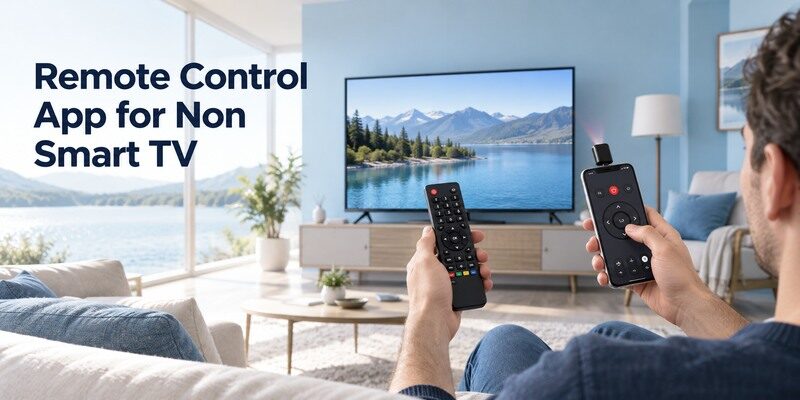
Short answer: A remote control app for non smart TV works only with a phone that can transmit IR or a compatible external IR accessory.
A basic television normally listens for infrared commands and has no Wi-Fi remote service for a phone app to discover. Some Android phones have built-in IR transmitters; a standard iPhone does not act as a generic IR remote without extra hardware. Confirm your TV model, check the phone’s official specifications, and choose a matching IR code profile. A universal physical remote is often the most reliable and simplest fallback.
1. What a Non-Smart TV Can Receive: Remote Control App For Non Smart TV
Start with the television hardware. An older set with an IR receiver expects line-of-sight coded light, not a message over the home router. The first remote control app for non smart tv check is the hardware and access method available on the exact display or phone.
| TV/device | Receives | Phone route |
| Basic television | Model-specific infrared | Only with phone IR/accessory |
| Smart streaming stick | Network commands | Its platform app |
| Network-capable TV | Supported network protocol | Compatible TV app |
Identify the receiver
Find the TV model label and the front sensor location in its manual. A basic remote often has a small emitter at its tip. Some older sets also have front-panel power, volume, and input controls. Use those controls to confirm the TV itself responds before buying another remote. Before installing an IR remote app, check whether your phone has an IR blaster using the manufacturer’s specifications for its exact model.
No Wi-Fi discovery
If the set has no network control, an app scanning local Wi-Fi will never discover the panel. A streaming stick attached to HDMI may be controllable by phone, but that controls the stick’s interface rather than the TV’s physical input and power. Treat them as separate devices.
A remote control app for non smart tv must send the kind of signal the panel can receive. Find the exact TV model and its physical buttons first. If the set accepts only infrared, a phone connected to the same Wi-Fi router changes nothing, because the TV has no network receiver. A streaming box on HDMI may accept phone commands while the TV power and input still require separate control.
Determine whether the set has an infrared receiver by checking its original remote and model documentation. A television from a pre-network era normally listens for IR light, not local Wi-Fi packets. Some sets also have side-panel controls for power, channel, or input; locate those before troubleshooting software. A connected smart stick can provide its own mobile app, but it does not create an IR emitter in the phone or add a wireless receiver to the display. List which commands belong to each device.
2. Check Whether Your Phone Can Send IR
The decisive feature for direct control of a basic TV is an infrared transmitter in the phone, not a camera or proximity sensor. For remote control app for non smart tv, distinguish a network app from an infrared transmitter or a property-managed control system. If you also own a supported smart television, a free TV remote app for iPhone can use network control without implying that the iPhone has a built-in IR transmitter.
Android model specifications
Look up the exact Android model on the maker’s official site for IR blaster or IR transmitter. Some Android phones have it and many do not. A small hole on the top edge is not proof; rely on the model specification and test.
iPhone hardware limit
A standard iPhone does not send generic TV IR commands on its own. A network remote app can still control a supported smart TV, but a non-smart set has no network receiver. Consider a compatible accessory or a physical replacement rather than a misleading “free iPhone IR remote” claim.
The phone hardware is the decisive prerequisite for a remote control app for non smart tv. Check the official Android model specification for an IR transmitter; a camera or face sensor is not equivalent. A standard iPhone needs a compatible external accessory for generic IR. Do not install several Wi-Fi-only apps hoping one will discover a television that never joined the network.
A quick test distinguishes the TV from the streamer: use the panel button to turn the TV on and switch input, then use the streaming phone app only after its HDMI screen appears. This sequence shows which control path is missing.
Read more: Android Remote TV: Complete Guide to Control Any Smart TV From Android
3. Use an Android IR Remote App
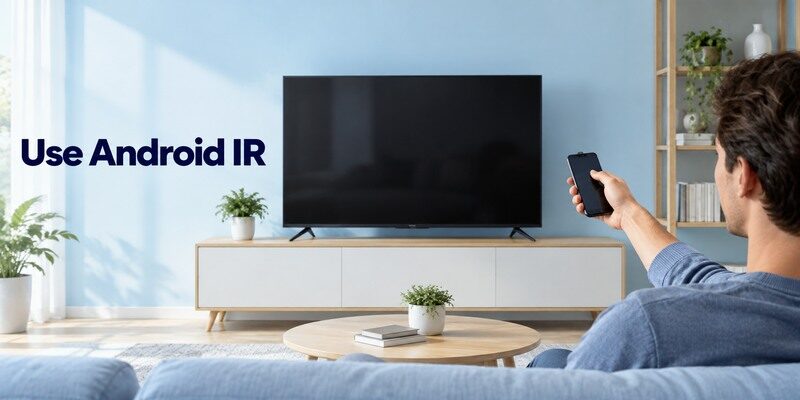
When a phone has confirmed IR hardware, install an app that supports its transmitter and your TV command profile. Follow a remote control app for non smart tv setup route only when its required hardware, connection, and permission actually exist.
Select a TV brand profile
Use the official app store, choose the TV brand and profile, point the phone’s emitter toward the TV sensor, and test power from a short distance. Try alternate profiles when volume or input fails. Save the working one with the exact TV model.
Test the important keys
Power alone does not establish a full match. Check volume, mute, input, channel, and menu. If the original remote used special settings keys, a generic code library may not reproduce them. Keep a matched physical controller for setup and occasional functions.
When testing a remote control app for non smart tv on an IR-equipped Android phone, start within a few feet of the TV sensor. Select a brand profile, test power, and then volume, input, and menu. Keep notes on which profile works. A plastic phone case may cover the emitter, while furniture may block the TV receiver. These physical details matter more than router settings for direct IR.
4. External IR Accessories and Hubs
An accessory can add a transmitter to some phones or send IR commands from a hub, but it brings another compatibility layer. Test remote control app for non smart tv on the specific phone and television, since a product-family name cannot confirm compatibility.
Accessory checklist
Verify connector or wireless pairing with the exact phone, the accessory app’s current OS support, and a code profile for the TV. Check power requirements and return policy. A claimed “works with any TV” label is less useful than a model-specific compatibility list. Use this guide to find the correct TV code for your universal remote by matching the controller’s maker, model, and code-list version.
IR hub location
A hub must have a clear path to the TV’s receiver or a supported emitter lead. Its app may require Wi-Fi, meaning it can fail during router outages even though the TV itself is IR-only. Decide whether this extra setup is worthwhile for one television.
An external hub can make a remote control app for non smart tv possible without a phone IR emitter, but it adds a second device, a power supply, and sometimes Wi-Fi setup. Check that the accessory supports the phone connector or wireless protocol and the TV code profile. Place its emitter with a clear path to the set. A simple matched remote is often easier for one television.
5. Physical Universal Remote as a Fallback
A well-matched IR remote works without phone battery, app permissions, or Wi-Fi. Find the TV model before purchasing. A remote control app for non smart tv result is useful only if the intended TV responds to the particular button being tested.
| Option | Best use | Check |
| Matched physical remote | Reliable offline control | Part/model number |
| Universal IR remote | Several basic devices | Official code list |
| IR-enabled phone | Occasional fallback | Emitter and TV profile |
Original or model-matched remote
An original replacement is most likely to preserve input, menu, and uncommon functions. Compare the full TV model and remote part number rather than appearance. Some buttons on visually similar remotes can have different command mappings.
Programmable universal remote
Use the code list for the remote’s own maker and revision, enter the TV brand code, and test several keys. Jasco and RCA offer official lookup or code-search routes for their products. Do not copy a random number from another controller’s list.
A physical universal controller is a dependable alternative to a remote control app for non smart tv when phone hardware is unsuitable. Use the controller maker’s own code list and revision, not a random TV brand number. Test input and menu after power. If the original TV remote had uncommon functions, a model-matched replacement can be safer than a generic IR profile.
An IR profile is only useful if it covers your required functions. Record power, volume, input, and menu results separately; a partial match may be acceptable for viewing but not for changing setup.
Read more: How Do You Program a Universal Remote to a TV? Complete Setup, Pairing, and Troubleshooting Guide
6. A Streaming Stick Does Not Upgrade the TV Receiver
A Roku, Fire TV, or Chromecast device can add streaming to HDMI, but the panel still retains its original control hardware. When remote control app for non smart tv fails, identify whether the device is offline, lacks IR, or restricts outside control.
Phone controls the streamer
The platform app may navigate streaming menus while the stick is already on Wi-Fi. It might send selected TV power or volume commands through HDMI CEC on a supported setup, but that is conditional. It does not create a Wi-Fi receiver in the non-smart TV.
Input and power remain separate
If the TV is on the wrong HDMI input or off, a phone may be unable to bring up the streamer. Keep the panel buttons or a physical remote available. A soundbar adds another control target and may need a separate method.
A streaming stick can confuse a remote control app for non smart tv test. A phone may navigate Roku or Fire TV on HDMI but not change the panel’s input. Some HDMI CEC setups pass power or volume, but support varies by TV. Verify the panel button and physical remote separately. This prevents a useful streamer app from being mistakenly described as full control of the old television.
7. Control an Old TV With No Original Remote
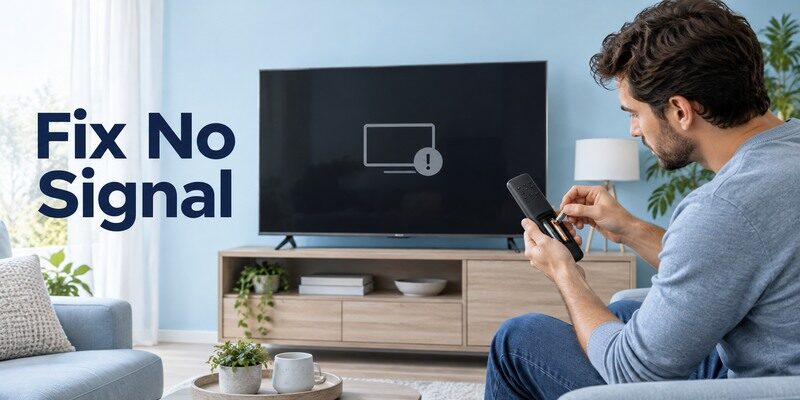
Use the TV’s built-in buttons to establish power and input, then decide which replacement will provide reliable everyday control. Record the remote control app for non smart tv failure without changing service settings or erasing a working television configuration. For an online Roku streaming device, a free Roku remote control app can navigate the stick, while the older television may still need its own IR remote for input and power.
Find the panel buttons
Check the underside, back, or side edge for power and input controls, as described in the model manual. Some sets use a single joystick button. Avoid forcing hidden service menus or opening the cabinet.
Select a replacement path
If an IR Android phone is available, test it while arranging a physical remote. Otherwise choose an original or model-compatible universal controller. Write down the TV model and any old remote code from a working manual before the batteries are lost.
If the original remote is gone, begin a remote control app for non smart tv recovery with the TV’s panel buttons. Confirm power and select the HDMI or antenna input before testing a phone. Photograph the model label for a replacement search. Do not open the cabinet or try a service-menu sequence from another model; those steps can create a larger problem than a missing remote.
When the original handheld unit is missing, use the label on the back of the TV to find a compatible replacement or a universal controller with matching instructions. Try the panel buttons first to verify the display turns on and that you can select the desired HDMI input. If a phone does have documented infrared hardware, a reputable IR app may replace some basic keys, but model support should be tested in the room. Keep the working code or remote part number for future recovery.
8. Why an IR App Does Not Work
A failed test can be caused by missing phone hardware, an incorrect command profile, blocked sensor, or an unpowered television. Compare remote control app for non smart tv alternatives by model support, cost, and a dependable physical recovery method.
Hardware and app mismatch
Confirm the phone maker lists an IR transmitter. A camera flash test is not proof. Check the app supports that hardware and the TV brand. If power works but menu does not, try another profile rather than blaming the phone transmitter.
Signal and TV checks
Aim from a short distance with a clear path, move bright lights or objects away from the receiver, and verify the TV works via panel buttons. Weak phone battery or a case covering the emitter can also affect a test. Try a known-good physical remote to isolate the panel.
A failing remote control app for non smart tv test should be split into phone transmitter, code profile, signal path, and TV power. A camera flash test of the old remote is not proof of phone IR hardware. Try a known-good physical controller if available. If no controller works while panel buttons do, the TV’s receiver may need service.
If the old TV has no working panel buttons and no original remote, preserve the complete model label before purchasing. Do not enter a hidden service mode based on another television’s button sequence.
If the television itself is a supported smart model, is another option to assess after the official device method. Check the current listing and in-app purchase terms, then test navigation, power, and volume on your actual setup. It cannot add IR hardware or restore an offline device.
Read more: Fire TV Stick Remote App: Setup, Pairing, and Fixes
9. Costs, Safety, and Download Choices
Free to download does not mean full control is free. Inspect developer, permissions, and compatibility before paying. For remote control app for non smart tv, read current permissions and access rules before relying on a third-party app.
Avoid fake compatibility
A Wi-Fi-only app promising control of an offline non-smart TV without IR hardware is missing a necessary link. Read the connection method in the listing. Avoid sideloading unknown APKs or entering account details into unrelated setup pages.
Choose the least complex option
A is intended for supported connected televisions. For an IR-only panel, a correct physical remote or confirmed IR phone setup is the direct route. Compare cost and offline reliability before buying an external IR hub.
Before paying for a remote control app for non smart tv, read how it sends commands. A listing that only says Wi-Fi control is unlikely to help an IR-only panel. Compare a reputable IR app with a matched physical replacement or accessory, including offline reliability and return terms. A free download with an unsupported TV code library still costs time and may request unnecessary permissions.
10. Frequently Asked Questions
These answers resolve the remaining practical questions about remote control app for non smart tv.
Can I use a free app for a non-smart TV?
Yes, if the phone has supported IR hardware and the app includes the TV command profile. A Wi-Fi-only app cannot discover an IR-only TV.
Can an iPhone control an old TV directly?
A standard iPhone does not emit generic TV IR. It needs compatible external hardware, or you can use a physical replacement remote.
Will a Roku stick let my phone change TV input?
Not automatically. The app controls the stick; TV input and power may need the panel or remote, with HDMI CEC available only on compatible setups.
What if no IR app profile works?
Try a model-matched remote or a universal IR remote using its official code list. Confirm that the TV receiver responds to a known-good controller.
11. Final Thoughts
A remote control app for non smart TV is an infrared solution, not a Wi-Fi download alone. Confirm phone hardware and the TV command profile, and keep a model-matched physical remote as the reliable offline option.
