
Best TV Remote App for iPhone in 2026: Which One Fits Your TV Brand?
The best TV remote app for iPhone depends on how many TV brands you own: for a mixed household, we pick Universal Remote TV Control, and for a single-brand home the official brand app is the safest runner-up. Apple’s built-in Control Center remote wins if you use an Apple TV or an AirPlay TV.
This guide is for anyone who lost a remote, wore out its batteries or is tired of typing with arrow keys. We compared eight apps on compatibility, price, ads, account requirements and setup effort.
Disclosure: We recommend our own featured app, Universal Remote TV Control, and list it first. We still list its drawbacks, and every other app below gets a Cons list too. App prices and ratings change often, so check the App Store before you download.
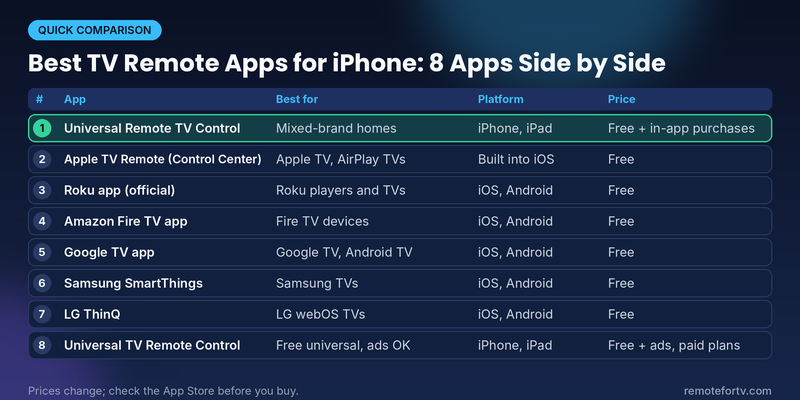
Quick Comparison: Best TV Remote Apps for iPhone
| # | App | Best for | Platform | Price | Standout feature |
|---|---|---|---|---|---|
| 1 | Universal Remote TV Control | Homes with more than one TV brand | iPhone, iPad | Free, premium via in-app purchase | Auto-detects TVs, casts photos and videos (per developer) |
| 2 | Apple TV Remote (Control Center) | Apple TV and AirPlay-compatible TVs | iPhone, iPad (built in) | Free | Nothing to download |
| 3 | Roku app (official) | Roku players and Roku TVs | iOS, Android | Free | Private listening through headphones |
| 4 | Amazon Fire TV app | Fire TV Stick, Cube and Fire TV TVs | iOS, Android | Free | Voice and keyboard search, 1.4M ratings |
| 5 | Google TV app | Google TV and Android TV devices | iOS, Android | Free | Remote plus a cross-service watchlist |
| 6 | Samsung SmartThings | Samsung smart TVs | iOS, Android | Free | Doubles as a smart-home hub |
| 7 | LG ThinQ | LG webOS TVs | iOS, Android | Free | Controls modeled on the Magic Remote |
| 8 | Universal TV Remote Control (Codematics) | A free universal remote on a budget | iPhone, iPad | Free with ads, paid plans | Claims support for 100+ brands (per developer) |
Prices change, so check the store listing before you buy or subscribe.
Quick picks
- Best all-rounder for mixed brands: Universal Remote TV Control
- Best for Apple TV or AirPlay TVs: Apple TV Remote in Control Center
- Best for a single brand: the official app for Roku, Fire TV, Samsung or LG
- Best for Google TV or Android TV: the Google TV app
Read more: Best LG TV Remote App in 2026: 8 Top Picks Compared
How We Chose the Best TV Remote App for iPhone
We judged each app on four things:
- Compatibility. Does it work with the TV you own, and does it need a specific model year or OS version?
- Cost and friction. Is it truly free, or does it push ads and subscriptions? Does it demand an account?
- Setup. How many steps stand between installing the app and changing the volume?
- Extras that matter. Keyboard typing, voice search, app launching, casting and private listening.
We pulled facts from App Store listings, brand support pages and independent reports. Where a claim comes only from an app’s own description, we label it “per developer.” We did not run lab tests on every TV model, so treat our verdicts as research-based guidance, not benchmark results.
Universal Remote TV Control: Best All-in-One iPhone TV Remote App
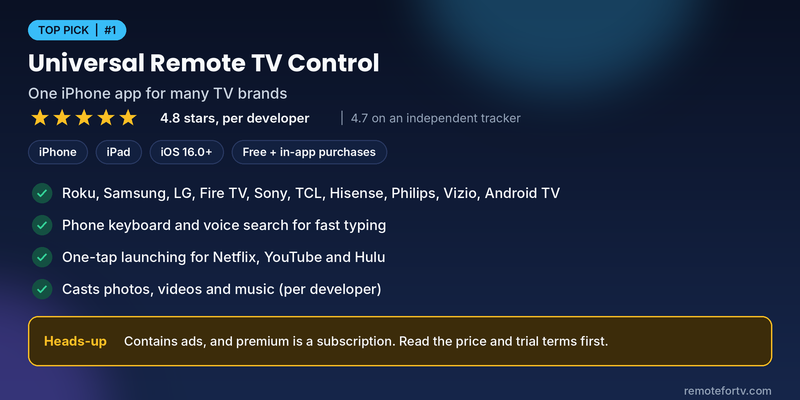
Platform: iPhone and iPad (iOS 16.0 or later) · Price: free to download, premium through in-app purchase · Developer: BEGAMOB GLOBAL LIMITED
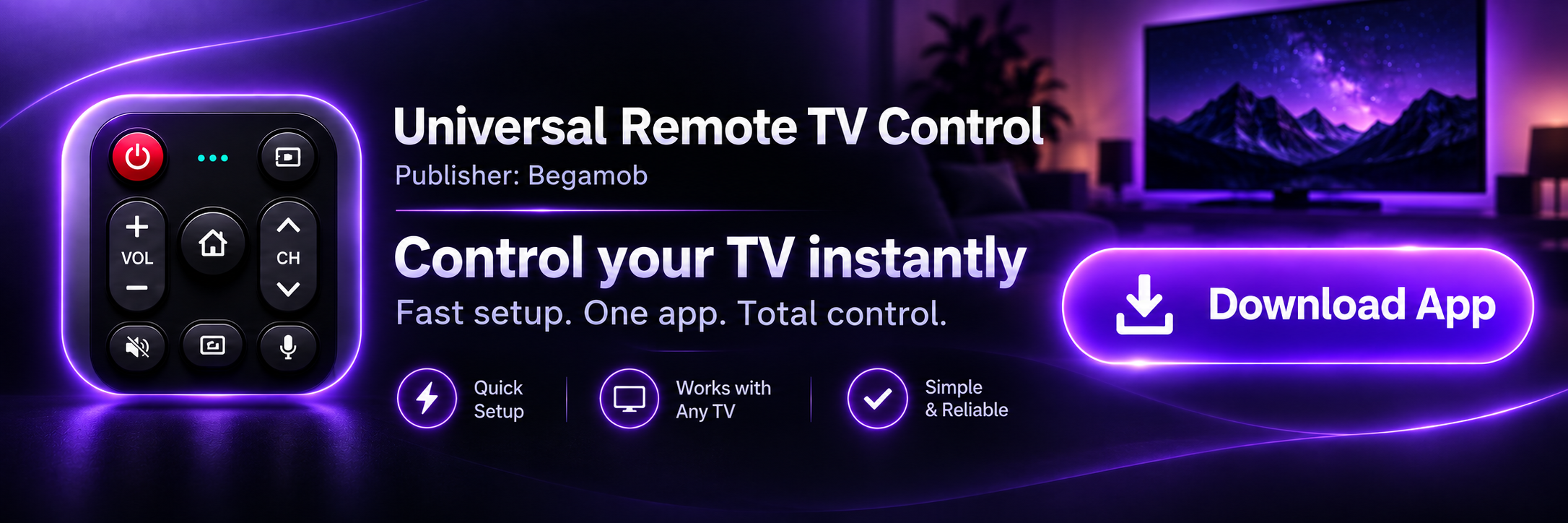
If your living room has a Samsung, the bedroom has a Roku and the guest room has a Fire TV, Universal Remote TV Control is the simplest way to control all of them from one iPhone app. The App Store description lists Roku, TCL, Sony, LG, Samsung, Android TV, Hisense, Fire TV, Philips and Vizio.
What it does well
- One app for many brands. You do not need a separate download for every TV in the house.
- Quick connection. The listing says it detects your TV on the same Wi-Fi network with no pairing code (per developer).
- Typing and voice search. You can use the phone keyboard or voice instead of the on-screen letter grid.
- App launching. The description mentions one-tap launching of Netflix, YouTube and Hulu.
- Casting. It can push photos, videos and music from your phone to the TV (per developer).
- Social proof, with a caveat. The description claims 10M+ downloads and a 4.8 rating with 50K+ reviews (per developer). An independent tracker shows 4.7 stars across roughly 108,000 reviews, though that snapshot dates from late 2025.
Pros
- Covers the most popular smart TV and streaming platforms in one place
- Phone keyboard and voice search save time on long searches
- Works on iPad as well as iPhone
- Free to download and try
Cons
- Ads and upsells. The App Store lists the app as containing advertising, and the description says you upgrade to premium to remove ads and unlock all features.
- Subscription pricing. The listing describes a weekly subscription, and the in-app purchase list shows several tiers. Read the price and trial terms before you confirm.
- Privacy label. The developer’s own App Store privacy section says identifiers may be used to track you across other companies’ apps and sites. Apple notes this information is not verified by Apple.
- Needs Wi-Fi. It controls TVs over your home network, so it will not run a TV that is offline or an old TV with only an infrared sensor.
- Not an official app. The developer states it is not affiliated with any TV brand, so a brand app can still be steadier on a feature the brand controls.
- Large download. The listing shows about 237 MB.
Our take: For a household with mixed brands, this is the most convenient pick, and the free download lets you test whether it finds your TV before paying anything. If you own one brand and want zero ads, start with the brand’s own app below. Download Universal Remote TV Control on the App Store.
Apple TV Remote in Control Center: Best Built-In iPhone TV Remote
Platform: iPhone and iPad, built into iOS · Price: free
You may not need to install anything. Apple’s Remote control lives in Control Center and works with Apple TV 4K, Apple TV HD and AirPlay-compatible smart TVs, according to Apple Support. For an AirPlay smart TV you first add the TV to the Home app and assign it to a room.
To add it, open Control Center, tap the Add Controls button, choose Add a Control and pick Remote. On iOS 17 and earlier you add it from Settings > Control Center instead. Tech press reported that Apple retired the standalone Apple TV Remote app and pointed people to this Control Center version.
Pros
- No download, no ads, no account
- Handles navigation, playback and keyboard entry for Apple TV
- Backed by Apple’s own support documentation
Cons
- Only works with Apple TV and AirPlay-compatible TVs, so it is no help for many Roku, Fire TV or older smart TVs
- AirPlay TVs need extra Home app setup
- Volume buttons only control Apple TV volume if it is set up with an AirPlay speaker such as a HomePod or soundbar (per Apple)
Our take: If you own an Apple TV, stop here. It is the best TV remote app for iPhone you already have.
Read more: Best TV Remote App for Android in 2026: 8 Apps Compared
Roku App (Official): Best Roku Remote App for iPhone
Platform: iOS and Android · Price: free
Roku’s official mobile app turns a phone into a full Roku remote, with voice and keyboard search, channel launching and private listening through headphones. An App Store tracker lists a 4.7 rating from about 6.4 million ratings, so it has the largest user base of any app here.
Pros
- Free and made by Roku, so it targets Roku players and Roku TVs directly
- Private listening lets you watch late at night without waking anyone (available on supported players and TVs)
- Browse and add channels from your phone
Cons
- Works with Roku devices only
- Private listening is not available on every Roku model
- It doubles as a streaming companion, so the screen has more than a plain remote
Our take: For a Roku-only home, this is the best Roku remote app for iPhone to try first.
Amazon Fire TV App: Best for Fire TV Stick and Fire TV TVs
Platform: iOS and Android (iOS 15.1 or later) · Price: free
Amazon’s own app controls Fire TV streaming players and Fire TV Edition TVs. The App Store listing shows 4.5 stars from 1.4 million ratings and describes control, search and fast text entry with the phone keyboard. It requires an Amazon account and the same Wi-Fi network as your Fire TV, and the latest update introduced a redesigned remote with a directional pad and touchpad.
Pros
- Official, free and widely used
- Fast text entry and search
- Doubles as a watchlist and discovery tool
Cons
- Needs an Amazon account
- Some App Store reviewers report the TV not appearing in the device list or laggy button presses, so reliability can vary with your network
- Only controls Fire TV devices
Our take: Great for a Fire TV Stick, and the first thing to try when its remote battery dies.
Google TV App: Best for Google TV and Android TV
Platform: iOS and Android · Price: free
Google’s Google TV app includes a remote for Google TV and Android TV devices, which covers many Sony, TCL, Hisense and Philips sets plus Chromecast with Google TV. Google also added the same remote to the Google Home app, according to 9to5Google. A 2022 report said it works with Android TV OS devices running Android 8.0 or higher, so older hardware may fall outside it.
Pros
- Official and free
- Phone keyboard for search and sign-in screens
- Gives you a watchlist across streaming services in the same app
Cons
- The remote is one feature of a larger app, so it is not a pure remote
- Requires a compatible Google TV or Android TV device
- Android version requirements may exclude older streaming boxes
Our take: The right first stop if your TV runs Google TV or Android TV.
Samsung SmartThings: Best Samsung TV Remote App for iPhone
Platform: iOS and Android · Price: free
Samsung’s support page explains that SmartThings turns a phone into a remote for a Samsung TV or projector. The TV must first be added to SmartThings as a device, and a Samsung Account is required. In the app, open Menu, choose All devices and select the TV to see the on-screen remote.
Pros
- Official support for Samsung TVs, including volume, channels and input switching
- Also controls other SmartThings-compatible smart home devices
- Samsung’s support pages are updated frequently
Cons
- Needs a Samsung Account and a one-time device setup
- Remote layout and features can vary by app version and TV model, according to Samsung
- A broader smart home app, so it is heavier than a simple remote
Our take: If you are all-Samsung and already use SmartThings, it is the logical choice.
Read more: Best Universal TV Remotes: Apps vs Physical Remotes Compared
LG ThinQ: Best LG TV Remote App for iPhone
Platform: iOS and Android · Price: free
LG’s help library says that with ThinQ set up, you can control the TV, launch apps and share content from your phone. The controls are similar to the LG Magic Remote: input, volume, channel, pointer, scroll, arrow keys and OK. You log in with an LG account, and the phone and TV must be on the same network. LG’s note says that if you use Wi-Fi, both devices should be on the same 2.4 GHz network.
Pros
- Official LG app with Magic Remote-style controls
- Also manages other LG ThinQ appliances
- LG documents the setup clearly
Cons
- Needs an LG account
- On iPhone, powering the TV on works over Wi-Fi only (Android can also use Bluetooth), and webOS versions before 3.5 can only be powered off
- Overkill if you only want a remote
Our take: Best for LG owners who do not mind creating an account.
Universal TV Remote Control (Codematics): A Budget Universal Option
Platform: iPhone and iPad (iOS 15.0 or later) · Price: free with in-app purchases
This universal remote’s listing says it controls 500+ TVs, with support for Samsung Tizen, LG webOS, Roku, Fire TV, Android TV, Vizio SmartCast and Hisense VIDAA (per developer). The App Store shows 3.6 stars from about 4,100 ratings and marks the app as containing advertising. One reviewer called it “awesome but lots of ads.”
Pros
- Free to start, with a long list of supported platforms
- Works on iPhone and iPad
- Frequent updates, with new TV support added regularly
Cons
- Ads, plus several paid options for removing them or unlocking more
- A lower rating than most apps on this list
- The developer’s privacy label says identifiers may be used for tracking
Our take: A reasonable backup if your TV is unusual, but check the ad load before you commit.
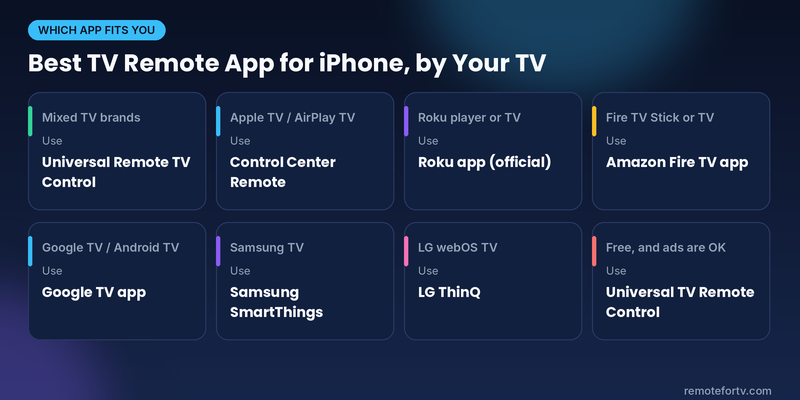
Which Is the Best TV Remote App for iPhone for You?
| Your situation | Best choice |
|---|---|
| More than one TV brand at home | Universal Remote TV Control |
| Apple TV or AirPlay-compatible TV | Apple TV Remote in Control Center |
| Roku player or Roku TV | Roku app (official) |
| Fire TV Stick or Fire TV TV | Amazon Fire TV app |
| Google TV, Chromecast with Google TV, Android TV | Google TV app |
| Samsung TV, and you already use SmartThings | Samsung SmartThings |
| LG webOS TV | LG ThinQ |
| Free, with a tolerance for ads | Universal TV Remote Control (Codematics) |
Reviewers are split on one point: a brand app is often the most reliable once you know your TV, while a universal app is easier when you own several. We agree with both, which is why the table splits by situation.
What to Look For in the Best TV Remote App for iPhone
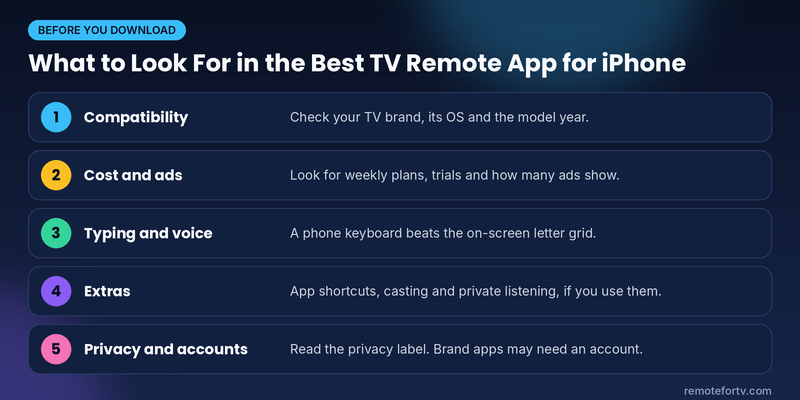
- Compatibility first. Check the brand and the operating system (Roku OS, Fire OS, Tizen, webOS, Google TV). Support can depend on the model year.
- Cost transparency. A free download is not always a free app. Check for weekly subscriptions, trial terms and ads.
- Typing and voice. The keyboard and voice search are the biggest upgrades over a physical remote.
- Extras. App shortcuts, casting and private listening are nice, but only if you will use them.
- Privacy. Read the App Store privacy section. Apps with ads often list identifiers and usage data.
- Account requirements. Official Samsung, LG and Fire TV apps ask for an account. Universal apps may not.
Read more: Best Remote TV App: Top Apps for iPhone, Android & Smart TVs
How to Set Up a TV Remote App on Your iPhone
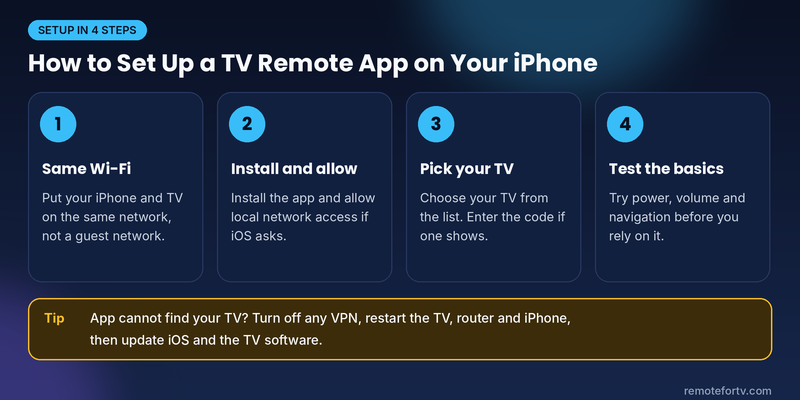
- Put both devices on the same Wi-Fi network. This is the most common requirement, and Amazon, LG and Apple all say it in their guides.
- Install the app from the App Store.
- Allow local network access if iOS asks, because the app needs it to find your TV.
- Select your TV from the list. Some TVs show a pairing code you enter on the phone.
- Test the basics: volume, power and navigation.
Brand-specific tips
- Apple TV or AirPlay TV: Add the Remote to Control Center. For a smart TV, add it to the Home app first (Apple Support).
- Samsung: Add the TV to SmartThings, then open the on-screen remote from the Devices list (Samsung).
- LG: Sign in to ThinQ with an LG account and add the TV (LG). To power on from an iPhone, enable the TV’s mobile power-on setting.
- Fire TV: Install the Fire TV app, sign in to Amazon and connect to the same Wi-Fi (App Store listing).
If the app cannot find your TV
- Confirm both devices share the same network, not a guest network.
- Turn off any VPN. Amazon’s help material names VPNs as a cause of Fire TV discovery failures.
- Restart the TV, the router and the iPhone.
- Update iOS and the TV’s software, which Apple recommends for Control Center issues.
Read more: Remote TV App: How to Control Your Smart TV From Your Phone
FAQ
What is the best TV remote app for iPhone?
The best TV remote app for iPhone depends on your TV. For a home with several brands, Universal Remote TV Control is our pick because it covers many platforms in one app. For Apple TV, use Control Center. For a single brand, try the official Roku, Fire TV, Samsung or LG app first.
Is there a free TV remote app for iPhone?
Yes. The official Roku, Amazon Fire TV, Google TV, Samsung SmartThings and LG ThinQ apps are free to download and use, and Apple’s remote is built into iOS. Universal apps are usually free to download but may show ads or sell premium plans, so read the listing first.
Can my iPhone control a TV without Wi-Fi?
Usually not. iPhones have no built-in infrared blaster, and remote apps talk to smart TVs over your home network. For a TV without network features, an external IR blaster accessory or a replacement physical remote is the practical route.
Why can’t my iPhone remote app find my TV?
The iPhone and TV are probably on different networks. Put both on the same Wi-Fi, turn off any VPN, allow the app’s local network access, and restart the TV and phone. For LG, use the same 2.4 GHz network if you use Wi-Fi, per LG.
Final Verdict: The Best TV Remote App for iPhone
For most households, the best TV remote app for iPhone is the one that covers every screen you own. That is why we put Universal Remote TV Control first: it supports the major platforms, and the free download lets you test it on your TV before you pay for anything. Just watch the ads and subscription terms.
If you own one brand, the official app is a strong choice, and an Apple TV owner should use Control Center. Whichever way you go, the fastest test is simple: install, connect to the same Wi-Fi and see whether it finds your TV in under a minute.
