
How to Connect Gaming Console to TV: HDMI and 4K Setup
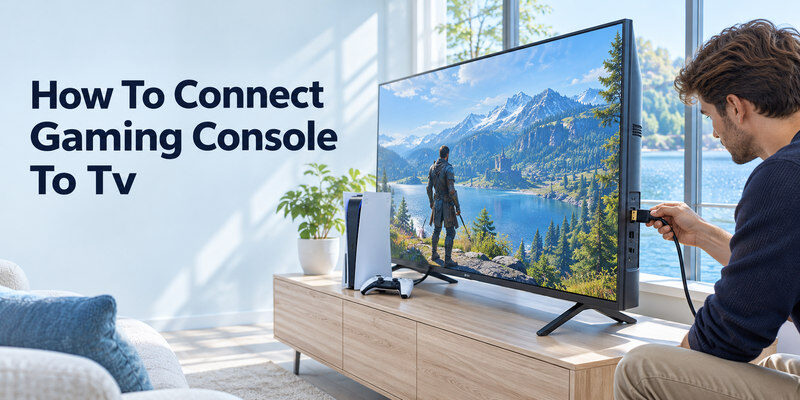
Learning how to connect gaming console to tv is easy when you have the right HDMI cable and know which input to select. Most modern gaming systems, including PlayStation 5, Xbox Series X|S, and Nintendo Switch, can connect to compatible televisions through HDMI.
Quick answer:
- Turn off your gaming console and television.
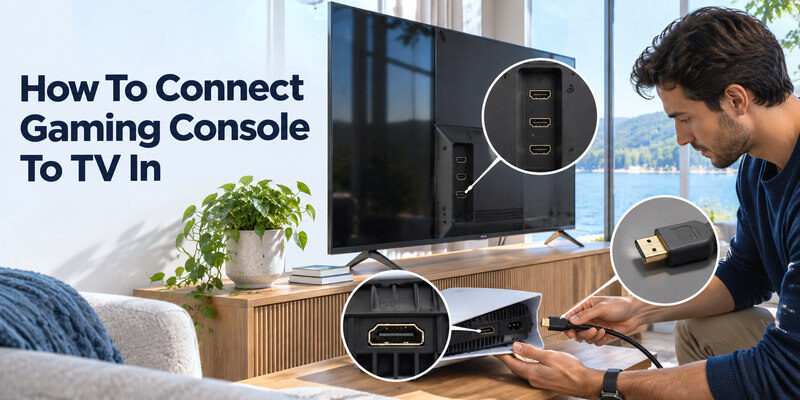
- Connect an HDMI cable to the console’s HDMI OUT port.
- Plug the other end into an available HDMI IN port on your TV.
- Turn on the television and gaming console.
- Press Input or Source on your TV remote.
- Select the HDMI port connected to your console.
- Enable Game Mode for a more responsive gaming experience.
For gaming at 4K resolution and up to 120 Hz, use compatible hardware, an appropriate HDMI input, and an HDMI cable capable of carrying the required signal.
This guide explains how to connect gaming console to tv across different devices, configure display settings, connect multiple consoles, and troubleshoot common connection problems.
1. How to Connect Gaming Console to TV: Quick Setup
The simplest way to connect a modern gaming console is through HDMI.
HDMI carries digital video and audio through a single cable, eliminating the need for separate audio connections in most installations.
Step 1: Check your television’s HDMI ports
Look at the back or side of your television.
Most modern smart TVs include several HDMI inputs labeled HDMI 1, HDMI 2, HDMI 3, or HDMI 4.
Some televisions also identify ports that support advanced gaming features such as 4K at 120 Hz, VRR, or eARC.
Important: Not every HDMI port supports the same capabilities. Check your television’s specifications before choosing a port for high-refresh-rate gaming.
Step 2: Choose the correct HDMI cable
An HDMI cable connects your console to the television.
For basic 1080p gaming, a compatible High Speed HDMI cable may be sufficient.
For demanding 4K 120 Hz configurations, an Ultra High Speed HDMI cable is recommended.
According to the HDMI Licensing Administrator, certified Ultra High Speed HDMI cables are designed for bandwidth up to 48 Gbps.
This helps support high-bandwidth video signals when the connected devices are compatible.
Step 3: Connect the console
Follow these instructions:
- Find HDMI OUT on your gaming console.
- Insert one end of the HDMI cable.
- Connect the other end to HDMI IN on the TV.
- Connect the console’s power cable.
- Turn on both devices.
For most modern gaming systems, this is all the physical setup required.
How to Connect Soundbar to TV: HDMI ARC, Optical, and Bluetooth
Step 4: Select the correct HDMI input
Press the Input or Source button on your television remote.
Choose the HDMI input where you connected the gaming console.
For example, if you plugged the console into HDMI 2, select HDMI 2 on your TV.
The console’s home screen should appear automatically.
If your physical remote is unavailable, a compatible Remote TV app may help you access television controls and input settings.
Step 5: Configure the display
Open your console’s video settings.
Choose a resolution and refresh rate supported by your television.
Start with automatic settings unless you have a specific reason to change them.
Pro tip: When learning how to connect gaming console to tv, always confirm that the display supports the selected resolution before enabling advanced settings.
Download TV Remote App2. How to Connect PlayStation, Xbox, and Nintendo Switch to TV
The exact setup varies slightly depending on the console manufacturer.
However, HDMI remains the standard connection for most current home gaming consoles.
How to connect PS5 or PS4 to a TV
If you are asking can we connect playstation to tv, the answer is yes.
PlayStation 4 and PlayStation 5 support HDMI video output.
Follow these steps:
- Connect the HDMI cable to the PlayStation’s HDMI OUT port.
- Connect the other end to your television.
- Plug the PlayStation into a power outlet.
- Turn on your TV and select the correct HDMI input.
- Power on the PlayStation.
- Follow any initial setup instructions displayed on the screen.
For PS5, navigate to:
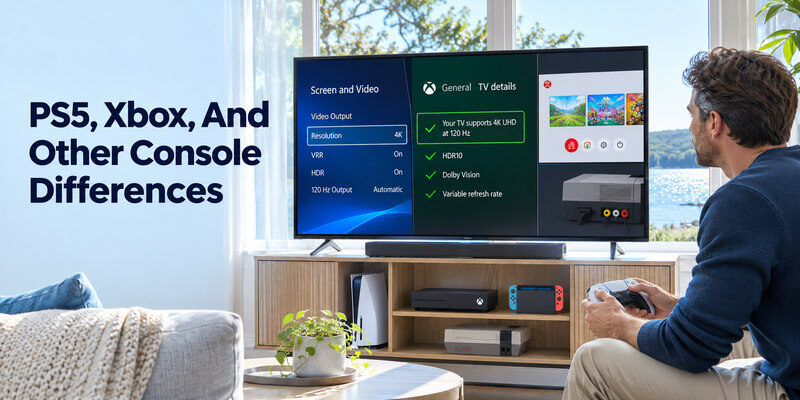
Settings > Screen and Video > Video Output
Here, you can configure resolution, HDR, VRR, and 120 Hz output when supported.
Sony confirms that PS5 supports HDMI 2.1 and 4K video output at up to 120 Hz.
However, actual performance depends on the television and game.
Not every PS5 game runs at 120 frames per second.
For most users researching how to connect gaming console to tv, leaving PS5 resolution on Automatic is the best starting point.
How does Xbox connect to TV?
If you are wondering how does xbox connect to tv, the process is similar to PlayStation.
Xbox Series X, Series S, Xbox One, and many older HDMI-equipped Xbox models connect directly through HDMI.
Xbox setup instructions:
- Connect the Xbox HDMI output to your television.
- Turn on the TV.
- Select the correct HDMI source.
- Turn on your Xbox.
- Complete the setup process.
- Open the display settings to adjust resolution and refresh rate.
On Xbox Series X|S, navigate to:
Settings > General > TV & display options
Choose the appropriate display resolution.
If your television supports 120 Hz, you can select that refresh rate when available.
Microsoft lists Xbox Series X with up to 120 FPS performance targets, HDMI 2.1, Auto Low Latency Mode, and HDMI Variable Refresh Rate.
These capabilities require compatible displays and supported games.
Tip: Use Xbox’s TV details or compatibility information to check which advanced display features your television accepts.
How to connect Nintendo Switch to TV
Nintendo Switch uses a docking station for television output.
For the original Nintendo Switch and Nintendo Switch OLED Model:
- Open the back panel of the dock.
- Connect the appropriate Nintendo AC adapter to the dock.
- Insert the HDMI cable into HDMI OUT.
- Connect the other end to the television.
- Turn on the television.
- Insert the Nintendo Switch into the dock.
- Select the matching HDMI input.
Once correctly docked, the console should display its output on the television.
Important: Nintendo Switch Lite does not support TV mode.
Nintendo Switch 2 also supports television play using its compatible dock and accessories; follow the instructions for that model rather than assuming all Switch docks and power adapters are interchangeable.
Understanding how to connect gaming console to tv for Nintendo devices is especially important because the docking system differs from a direct HDMI connection.
How to Connect Bluetooth Speaker to TV: Pairing and Sound Fixes
3. How to Connect a Gaming PC or Laptop to a TV
A gaming computer can use a television as a large display.
If you want to connect gaming pc to tv, HDMI is usually the easiest solution.
How to connect gaming PC to TV with HDMI
The process for how to connect gaming pc to tv with hdmi is straightforward.
- Locate the HDMI output on your gaming computer.
- Connect an HDMI cable to the TV’s HDMI input.
- Turn on your computer and television.
- Select the correct HDMI source.
- Open Windows Display Settings.
- Choose your preferred resolution and refresh rate.
On Windows 11, navigate to:
Settings > System > Display
If you are using multiple displays, select the television you want to configure.
For gaming computers with dedicated graphics cards, connect the HDMI cable to the graphics card’s video output rather than the motherboard when appropriate.
This ensures the intended graphics processor drives the display.
How to connect gaming laptop to TV
If you are searching for how to connect gaming laptop to tv, check which video output ports your laptop provides.
Many gaming laptops include HDMI.
Some support video output through USB-C or Thunderbolt using DisplayPort Alternate Mode.
For HDMI connections:
- Connect the laptop to your TV.
- Press Windows + P.
- Select Duplicate or Second screen only.
- Open Advanced display settings.
- Choose the desired refresh rate.
Second screen only can be useful when gaming exclusively on a television.
If your laptop lacks HDMI, use a compatible USB-C video adapter or docking solution.
However, verify the adapter’s maximum supported resolution and refresh rate before purchasing.
Can I connect gaming PC to TV?
Yes.
The answer to can i connect gaming pc to tv is generally yes, provided that the computer has a compatible video output.
Modern televisions can function as large computer displays.
For smoother gaming, confirm that your PC, graphics card, cable, and TV support your desired refresh rate.
A television supporting 4K 120 Hz does not guarantee that every computer will output 4K at 120 Hz.
Is a gaming TV better than a monitor?
A gaming television is useful for couch gaming, local multiplayer, and large-screen experiences.
A dedicated gaming monitor may be preferable for close-range competitive gaming, especially when you want very high refresh rates.
When researching how to connect gaming console to tv, consider viewing distance, screen size, input lag, and refresh rate rather than resolution alone.
How to Connect Laptop to TV HDMI: Picture, Sound, and Display Modes
4. How to Connect Multiple Game Consoles to One TV
Many gaming enthusiasts own several systems.
Understanding how to connect multiple game consoles to one tv can help simplify your entertainment setup.
Method 1: Use multiple HDMI ports
The easiest solution is to connect each gaming console to a separate HDMI input.
For example:
| TV input | Connected device |
|---|---|
| HDMI 1 | PlayStation 5 |
| HDMI 2 | Xbox Series X |
| HDMI 3 | Nintendo Switch |
| HDMI 4 | Gaming PC |
To switch consoles, select the appropriate HDMI input from your television’s source menu.
This approach avoids additional equipment and generally offers a straightforward connection.
Method 2: Use an HDMI switch
If your television has fewer HDMI ports than gaming systems, consider an HDMI switch.
An HDMI switch allows several input devices to share one television HDMI port.
For example, a four-input HDMI switch can connect multiple consoles to a single TV input.
Setup instructions:
- Connect each console to an HDMI input on the switch.
- Connect the switch’s HDMI output to the television.
- Power the switch if required.
- Select the appropriate input on the switch.
- Choose the corresponding HDMI input on the TV.
Important: Not every HDMI switch supports 4K 120 Hz, HDR, VRR, or HDMI 2.1 features.
Check its specifications carefully.
Some inexpensive HDMI switches are limited to 4K 60 Hz.
Method 3: Use an AV receiver
An AV receiver can connect multiple gaming devices while managing television audio.
This setup is especially useful for home theaters with surround sound speakers.
However, the receiver must support the required HDMI video bandwidth and gaming features.
How to organize a TV console gaming setup
A practical tv console gaming setup should balance convenience, performance, and cable management.
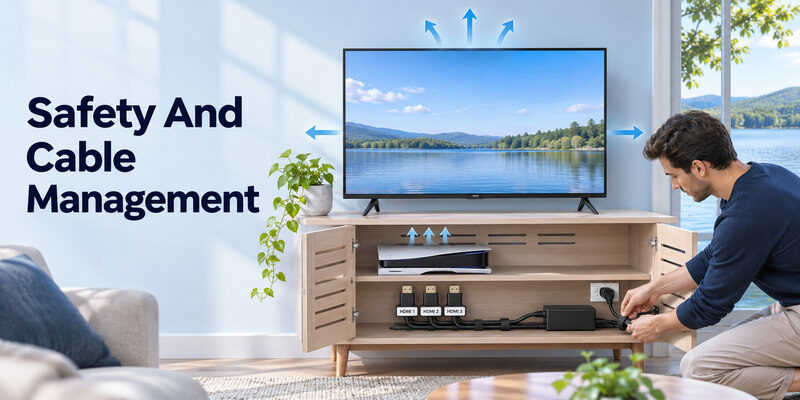
Place consoles where they have adequate ventilation.
Keep HDMI cables clearly labeled and avoid sharply bending them.
If you frequently switch between systems, consider assigning recognizable device names to the television inputs.
For gamers researching how to connect gaming console to tv, an organized setup can make troubleshooting much easier.
5. How to Connect Retro Consoles or Play Wirelessly
Modern HDMI connections are convenient, but older gaming systems use different video standards.
Some players also want to avoid running long HDMI cables across the room.
How to connect retro game console to TV
If you are researching how to connect retro game console to tv, start by identifying the console’s video output.
Older systems may use:
- Composite RCA cables
- Component video
- SCART
- RF coaxial output
- Proprietary AV connectors
Many modern televisions no longer include these legacy inputs.
As a result, you may need a compatible converter or video scaler.
For example, a retro console with composite RCA output may require a composite-to-HDMI conversion device.
Basic setup:
- Connect the retro console’s video and audio outputs to a compatible converter.
- Connect the converter’s HDMI output to the TV.
- Provide power to the converter if required.
- Select the correct HDMI input.
- Adjust the converter settings if necessary.
For retro gaming, a good-quality scaler can provide better image handling and lower latency than some basic adapters.
Note: A passive cable alone cannot convert every analog video format into digital HDMI. Check whether active signal conversion is required.
Can you connect a game console to TV wirelessly?
Some users want to connect game console to tv wirelessly to reduce cable clutter.
Traditional home gaming consoles generally use HDMI for their primary local television output.
However, alternative solutions exist.
Wireless HDMI: Compatible transmitter-and-receiver kits can send video between devices without a long HDMI cable. Performance, supported resolution, and latency vary significantly.
Remote Play: Some gaming ecosystems allow supported games to stream from a console over a network to compatible devices.
Sony recommends at least 5 Mbps for PS Remote Play and 15 Mbps for a better experience.
Remote streaming quality depends on network conditions and device support.
Important: Wireless display methods are not necessarily suitable for competitive gaming because additional latency may affect responsiveness.
For users learning how to connect gaming console to tv, a direct HDMI connection remains the most dependable option for low-latency play.
Can one gaming console connect to two TVs?
A 2 tv gaming setup can be created using suitable HDMI distribution equipment or supported streaming functionality.
An HDMI splitter may send the same image to two televisions when properly matched with the source and displays.
This normally mirrors the same output rather than creating two independent gaming sessions.
Check that any splitter supports the required resolution, refresh rate, and copy-protection standards.
How to Connect Headphones to TV: Bluetooth, Wired, and Private Listening
6. Best TV Settings for Gaming: 4K, 120 Hz, and Input Lag
After connecting your console, adjusting the television settings can improve your gaming experience.
Understanding how to connect gaming console to tv is only the first step. The TV must also be configured for the desired performance.
Enable Game Mode
Game Mode reduces unnecessary image processing to help lower input latency.
Input lag is the delay between a controller action and the corresponding response appearing on the screen.
Lower input lag can make games feel more responsive.
On many televisions, navigate to:
Settings > Picture > Picture Mode > Game
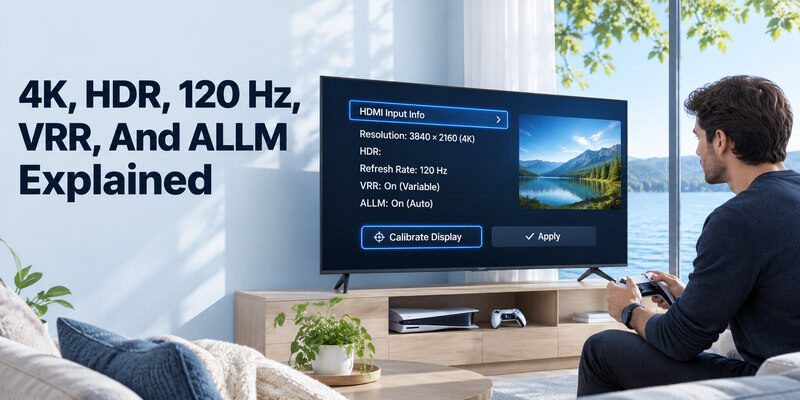
Some TVs automatically enable Game Mode when a compatible console sends an Auto Low Latency Mode signal.
According to the HDMI Licensing Administrator, ALLM allows supported devices to request a low-latency display mode automatically.
Choose the correct resolution and refresh rate
Common gaming display configurations include:
| Resolution | Refresh rate | Typical use |
|---|---|---|
| 1080p | 60 Hz | Basic console gaming |
| 1080p | 120 Hz | Compatible high-frame-rate games |
| 1440p | 120 Hz | Supported consoles and displays |
| 4K | 60 Hz | Standard 4K gaming |
| 4K | 120 Hz | Compatible premium gaming setups |
A higher refresh rate can make motion appear smoother, but the game and hardware must actually produce compatible output.
120 Hz means the display can refresh up to 120 times per second. It does not guarantee that every game runs at 120 FPS.
Enable VRR when supported
Variable Refresh Rate helps coordinate the television’s refresh timing with the frames produced by a compatible gaming device.
This can reduce visible tearing and improve the smoothness of gameplay.
VRR support depends on the television, console, and active video mode.
Configure HDR
High Dynamic Range can provide brighter highlights and better contrast in compatible games.
However, incorrect HDR settings may produce washed-out colors or crushed shadow details.
Use the console’s HDR calibration tools and enable compatible HDR settings on the TV.
Tip: When optimizing how to connect gaming console to tv for 4K gaming, prioritize correct HDMI configuration, Game Mode, and compatible refresh-rate settings before making detailed picture adjustments.
Control your TV more conveniently
Switching HDMI inputs and navigating TV menus becomes more convenient when you have a reliable remote.
If you use a compatible Samsung television, a samsung tv remote app may provide an alternative way to access supported television controls.
You can also explore universal remote tv control for compatible smart televisions.
A remote app can help with TV navigation and input selection, but it does not replace the console controller or HDMI connection.
7. How to Fix Common Console-to-TV Connection Problems
Even after following the correct steps for how to connect gaming console to tv, you may experience problems involving video, sound, resolution, or HDMI recognition.
Most connection issues can be diagnosed using a few basic checks.
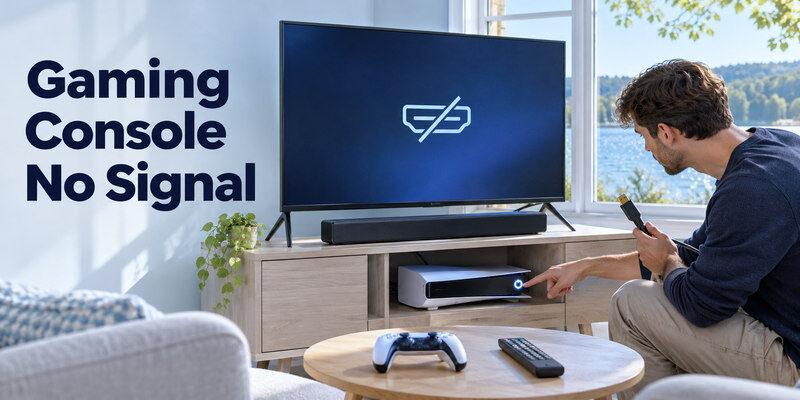
Problem 1: TV says No Signal
A No Signal message usually means the television is not receiving a usable video signal from the selected input.
Try these fixes:
- Confirm that the console is powered on.
- Select the correct HDMI input.
- Disconnect and reconnect the HDMI cable.
- Try another television HDMI port.
- Test another compatible HDMI cable.
- Restart the console and TV.
If possible, connect the console directly to the television, temporarily removing HDMI switches or receivers.
Problem 2: Black screen after connecting
A black screen can occur when a device outputs a resolution or refresh rate that the display cannot handle.
Try restarting the console.
If the issue persists, use the manufacturer’s supported low-resolution startup or recovery procedure.
For PlayStation, follow the appropriate Safe Mode video-output instructions for your model.
Avoid repeatedly changing advanced settings without checking which video formats the television supports.
Problem 3: Console connected but no sound
If video works but audio is missing:
- Check that the TV is not muted.
- Increase the television volume.
- Select the correct audio output.
- Confirm the console is configured for HDMI audio.
- Temporarily test a basic stereo or PCM audio format.
If you use a soundbar, verify its connection and the TV’s audio passthrough settings.
Problem 4: TV only displays 60 Hz
If your console supports 120 Hz but the TV reports 60 Hz, verify the entire signal chain.
Check that:
- The television supports the requested refresh rate.
- You are using an appropriate HDMI input.
- The HDMI cable supports the required bandwidth.
- The console has 120 Hz output enabled.
- The selected game supports 120 FPS mode.
Some games require a dedicated performance setting before higher frame rates become available.
Problem 5: Input lag is too high
High input lag can make gaming controls feel delayed.
Enable Game Mode and disable unnecessary picture processing.
For PC gaming, select a supported refresh rate in the operating system.
If you use wireless video transmission, test a direct HDMI cable to determine whether the wireless connection contributes to the delay.
Problem 6: Console keeps disconnecting
Intermittent HDMI connections may result from cable problems, loose connectors, incompatible intermediary devices, or software issues.
Try another cable and direct connection.
Update the console and TV software when appropriate.
For users learning how to connect gaming console to tv, testing one connection component at a time is the most effective troubleshooting approach.
8. Frequently Asked Questions About Connecting Gaming Consoles
How to connect console to TV without a remote?
If you are wondering how to connect console to tv without a physical television remote, use the TV’s built-in buttons to select the appropriate HDMI source.
Some televisions also support compatible smartphone remote applications.
A Remote TV app may help you navigate supported TV menus.
However, initial pairing or network setup might still require confirmation on the television.
Do I need an HDMI 2.1 cable for gaming?
Not always.
Basic 1080p or 4K 60 Hz gaming can work with other suitable HDMI cables.
For 4K 120 Hz output and advanced high-bandwidth configurations, a certified Ultra High Speed HDMI cable is recommended.
Can I connect a gaming console to a non-smart TV?
Yes.
A non-smart television with a compatible HDMI input can display modern gaming console output.
Smart TV functionality is not required for a standard HDMI connection.
For older televisions without HDMI, a compatible converter may be necessary.
Does connecting a console to a TV require Wi-Fi?
No.
HDMI video and audio connections do not require Wi-Fi.
However, downloading games, accessing online multiplayer, updating software, and using certain services may require an internet connection.
Is HDMI better than wireless gaming?
For most direct console-to-TV installations, HDMI is preferable because it provides a stable connection without network-streaming latency.
Wireless options can be useful in specialized situations but may introduce additional delays or compatibility limitations.
Can I use my TV as a gaming monitor?
Yes.
A television can function as a display for a gaming console or PC.
Choose a TV with appropriate resolution, refresh rate, input lag, and HDMI connectivity for your gaming requirements.
What should I do if my TV remote is lost?
You may be able to switch HDMI inputs using the television’s physical controls or a compatible mobile remote application.
If you want a convenient backup for supported smart TVs, you can Download universal remote tv control on your iPhone.
Compatibility and available features depend on the television model.
Conclusion
Learning how to connect gaming console to tv becomes straightforward once you identify the correct HDMI ports, select the matching television input, and configure the console’s display settings.
For most modern consoles, HDMI is the easiest and most reliable connection method.
PlayStation and Xbox systems typically connect directly to a television, while compatible Nintendo Switch models use a docking station.
Gaming PCs, laptops, and multiple consoles can also share a television through suitable HDMI connections and accessories.
For the best gaming experience, enable Game Mode, select a supported resolution, and configure advanced features such as 120 Hz, HDR, and VRR when available.
With the right setup, your television can deliver responsive gameplay, clear graphics, and an enjoyable large-screen gaming experience.
Download TV Remote App