
How to Connect PS5 to TV: HDMI Setup, 4K, HDR, and 120 Hz
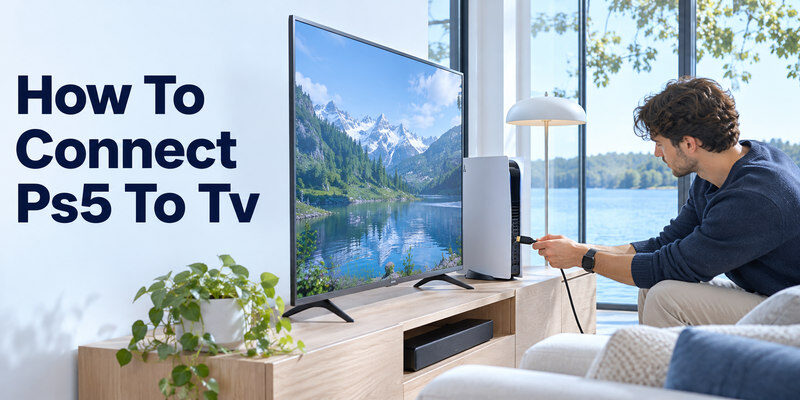
Short answer: How to connect ps5 to TV? Connect the PS5’s HDMI OUT to a TV HDMI input with the included cable, select that input, and follow the console’s setup screen.
A basic picture should work before you enable 4K, HDR, 120 Hz, or VRR. The TV port, cable, console setting, game, and any receiver in the path all affect advanced modes. PlayStation’s official support recommends a direct TV connection and the included or certified Ultra High Speed cable when investigating 4K/120 trouble.
How to connect ps5 to TV? Connect PS5 to a TV in Six Steps
Step 1 – Identify the TV’s intended HDMI input
Read the TV manual to find the port supporting the gaming mode you want. Some ports accept 4K at 60 Hz while only selected ports accept 4K at 120 Hz and VRR. The ARC/eARC label refers to audio return and does not alone prove gaming capability. Note the port number so you can select it later. If a soundbar occupies the eARC port, check which remaining input supports the PS5’s video mode.
Step 2 – Use the included HDMI cable
Plug the supplied cable into HDMI OUT on the PS5 and the chosen TV HDMI IN. Seat both ends securely without forcing them. For a first test, avoid a receiver, HDMI switch, capture card, or soundbar passthrough. If the included cable is missing, a certified Ultra High Speed cable is the sensible choice for a 4K/120 path; a cable cannot upgrade an incompatible TV port.
Step 3 – Connect power and select the input
Connect the PS5’s power cable as PlayStation instructs, turn on the TV, and select the recorded HDMI input. Power on the console from its button. A TV can say No Signal when the right cable is attached but the console is off or the wrong input is selected. Give a mode change a moment to complete; do not repeatedly pull the power cord during an update.
Step 4 – Pair the controller and finish first setup
Follow the PS5 on-screen instructions to connect the DualSense controller, choose language and region, connect to a network if available, and sign in. The HDMI connection itself does not require the TV to join Wi-Fi. Install official console and TV updates when the basic picture is stable. Preserve account credentials before making large changes.
Step 5 – Verify a basic picture and sound
Open the PS5 home screen and play a familiar menu sound or game at low volume. If picture works but audio does not, check the PS5 audio-output device and TV sound output. A headset connected to the controller can redirect audio. Test TV speakers first, then an ARC/eARC soundbar, to separate the console-to-TV and TV-to-bar routes.
Step 6 – Enable advanced modes one at a time
Open Settings → Screen and Video → Video Output, inspect the TV information, and use Auto for resolution as a baseline. Enable or test HDR, 120 Hz, VRR, and ALLM only when the TV and game support them. Run HDR adjustment in the intended TV picture mode. If the screen goes black after one change, return to the last known-good mode using PlayStation’s official recovery instructions.
To understand which television controls are available through a console or its accessories, see how to control a TV with PS5 or Xbox and check compatibility with your TV.
Basic Connection Versus Advanced Gaming
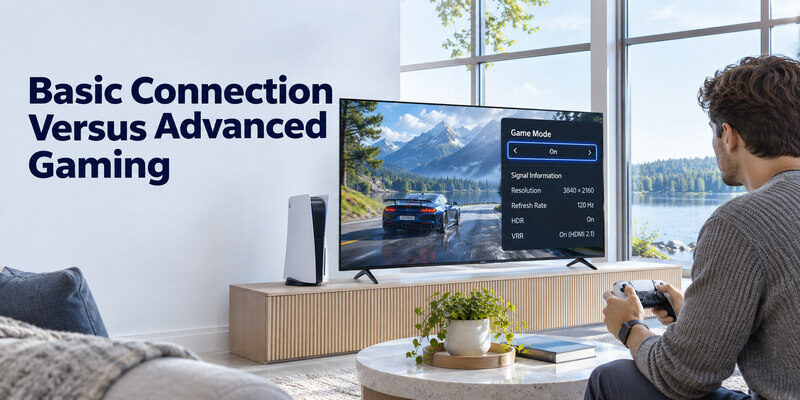
| Goal | PS5 setting/check | TV/route requirement |
| Basic 1080p/60 picture | Resolution Auto | Working HDMI input and cable |
| 4K/60 HDR | Resolution Auto or 2160p, HDR setup | 4K/HDR-capable port and TV setting |
| 4K/120 | 120 Hz output and game mode | 4K/120 port, suitable cable, direct or capable receiver |
| VRR | VRR enabled where supported | TV port and game/system support |
| Soundbar audio | Appropriate PS5 audio format | TV passthrough plus ARC/eARC or optical route |
Do not treat 120 Hz output as a game frame-rate guarantee. A compatible television can receive a 120 Hz signal while a game renders fewer frames or offers only a 60 fps mode. PlayStation support confirms PS5 HDMI 2.1 and 4K/120 output, but it also directs users to the TV’s exact port, firmware, cable, and intermediary when that mode fails.
Verify the negotiated signal
Use the TV’s information display or PS5 video-output information rather than only a TV store label. If 4K/120 is absent, confirm the selected input supports it and that the TV’s enhanced-signal setting is enabled if required. A receiver or soundbar may pass 4K/60 yet cap a higher mode. Test PS5 → TV directly, then add the intermediary back. If the problem also appears with other sources, review common TV picture quality issues to help identify whether the display, input, or connected device needs attention.
Choose Game Mode deliberately
Game Mode generally reduces video processing to improve response. ALLM may turn it on automatically when both devices support it, but the TV’s implementation varies. Compare input response and picture with the same game. For a film app, the TV may prefer a different mode. Do not change HDR calibration, motion processing, and console output simultaneously; each has a different effect.
Read more: How to Fix Smart TV Problems: A Symptom-First Guide
Fix PS5 No Signal on TV
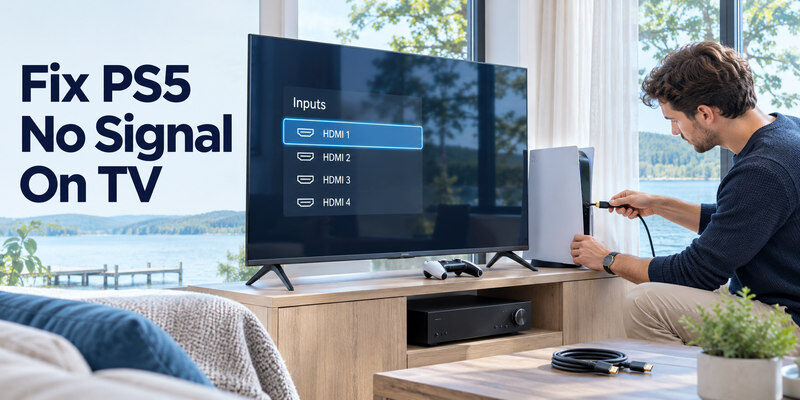
First check console power and TV input. Reseat the included cable, try another known-good cable and port, and connect directly if a receiver is in between. If the TV menu appears, the display is responding; focus on the HDMI route. Test another source on that TV port, then the PS5 on another display. Each comparison narrows the failing device or setting.
No picture on one port
Use the same console and cable on a second compatible TV input. If it works there, inspect the original port’s mode or condition. If another source also fails on the original port, the port or TV setting is more likely. Avoid forcing a loose socket. Record the PS5’s video mode and TV port number for support.
Black screen after 120 Hz or HDR change
A changed video mode can exceed what the selected input or intermediary accepts. Use PlayStation’s official safe video recovery procedure to regain a basic picture, then inspect the TV’s capability and re-enable one feature. Do not repeatedly reset the TV’s entire configuration. A brief blank during a normal HDMI handshake is different from a persistent blackout.
Picture works on another TV only
Compare the original TV’s firmware, enhanced HDMI setting, cable, and port. PlayStation recommends the included or Ultra High Speed cable and a direct path for 4K/120 trouble. If a basic 1080p mode still fails on the original TV with two tested cables while another source works, manufacturer support may need the model and observed test results. If you need to check the soundbar’s input or settings, explore soundbar remote app options and confirm support for your exact model.
Read more: TV Wont Turn On: Power, Standby, and Remote Checks
Set 4K, HDR, 120 Hz, and VRR Safely
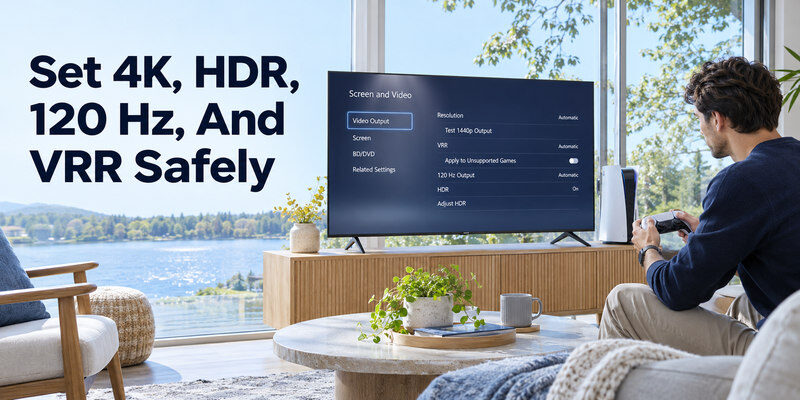
Start from Resolution Auto. Check whether the TV reports 4K and the refresh rates supported on the chosen input. Enable HDR and run the PS5 adjustment against a stable picture. For 120 Hz, use a game that offers the mode and a suitable TV port and cable. VRR depends on the connected display and can interact with ALLM; check the specific TV and software version.
HDR is a calibration step
A TV can accept HDR yet show washed-out or clipped detail when its picture mode and console adjustment disagree. Use the PS5 HDR calibration after choosing the TV’s gaming picture mode. Avoid copying another person’s brightness values because room light and display model differ. Confirm one HDR game and one SDR screen rather than declaring all picture issues fixed by a single setting.
Intermediaries must pass every desired feature
If a soundbar or AV receiver sits between PS5 and TV, read its supported video passthrough specifications. A working 4K image does not prove 4K/120, VRR, or ALLM. If the direct PS5-to-TV path works at a higher mode, consider returning TV audio to the soundbar by eARC instead of passing console video through an older bar. Test both sound and video after rewiring.
If your setup uses a compatible Samsung soundbar, learn how to control a Samsung soundbar with a TV remote and test the volume after configuring the audio connection.
Fix PS5 Sound Without Changing Video
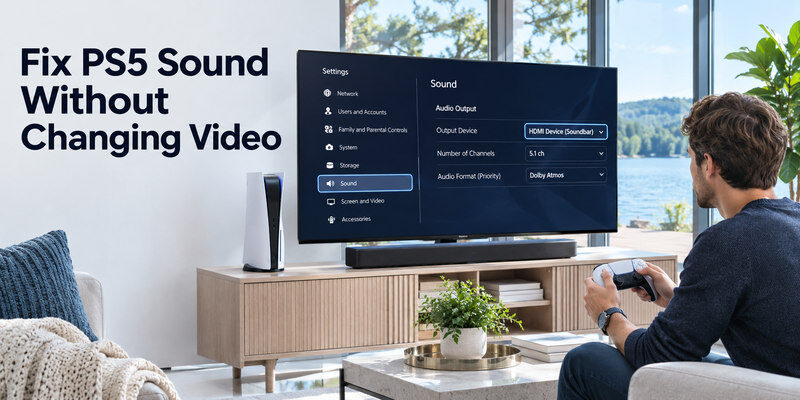
If the console image is fine, compare TV speakers and the soundbar. In PS5 Settings → Sound → Audio Output, select the device layout and format that matches the connected equipment. PlayStation’s official audio guidance covers HDMI device type and output-format options. A headset can take over audio unexpectedly; disconnect it for the test.
TV speakers work, soundbar silent
The PS5-to-TV leg is carrying sound. Inspect the TV’s Sound Out selection, ARC/eARC ports, HDMI-CEC/eARC mode, and bar input. Test a built-in TV app through the bar. If that also fails, diagnose the TV-to-bar path; if it works, inspect PS5 audio format or TV passthrough. Avoid replacing a console cable before isolating the second audio leg.
Sound but no picture
Audio continuing while video disappears can indicate an unsupported video mode or unstable HDMI path. Check the TV menu and revert the most recent video setting. Test a direct connection and another known-good cable at a basic mode. Do not assume that hearing a soundbar proves the TV’s panel is healthy, especially if the bar is playing from a separate source.
Read more: How to Control AC With Phone: Wi-Fi, IR Blaster, and Hub Steps
Cables, Ports, and Physical Setup
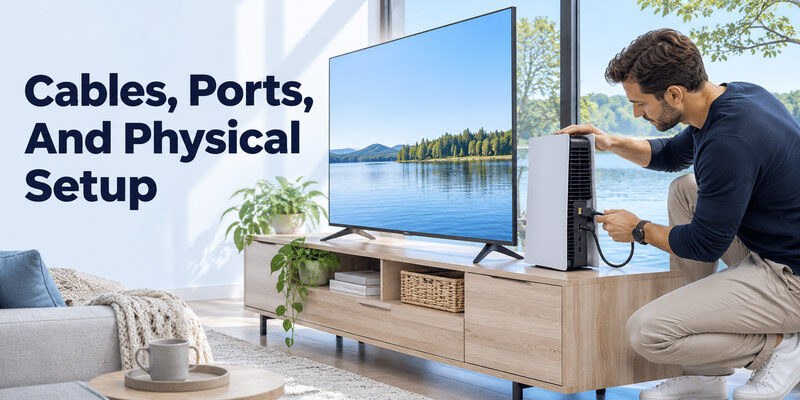
Keep the console ventilated and the HDMI plug free from tension. A certified cable at the appropriate length is more useful than a long unverified run behind furniture. HDMI Licensing Administrator identifies Ultra High Speed as the 48 Gbps category for 4K/120 configurations. The HDMI version printed on a product listing does not replace checking the exact cable certification and TV port capability.
Test the highest mode before concealing a cable
A cable that works at 1080p may fail at 4K/120. If running it through a wall, test a long session in the exact resolution, refresh, and HDR mode first. Active or optical HDMI cables can be directional. Label the ends and follow the maker’s power requirements. A short direct cable remains a useful troubleshooting baseline.
Know when hardware service is appropriate
A visibly damaged HDMI socket, loose plug, or repeatable failure across two known-good displays and cables may require PlayStation support. Do not open the console or TV cabinet. Record the model, system version, power-light state, and whether safe video recovery displays an image. A full console reset can erase data and is not a first step for a cable or port issue. If you use a separate AV receiver, a compatible home theater system remote app may help you select its input and check audio controls.
Remote and Household Use
A TV remote selects the HDMI input; a PS5 controller navigates the console. If the TV handset is missing, a compatible may open inputs on a supported, powered, reachable set. It cannot pair the DualSense or change the PS5’s HDMI hardware. Keep the TV’s physical input control available during first setup.
Label the gaming input
Rename it PS5 if the TV supports input names. Note which port accepts 4K/120 and which handles eARC. This prevents another user from moving the console to a lower-bandwidth port and losing a feature. After a TV update, recheck the enhanced-input setting and the PS5’s detected video capabilities.
Keep a known-good mode
Write down the stable resolution, refresh rate, HDR, VRR, and audio format. If a new game or receiver causes a blackout, you can return to a proven baseline. Test one feature at a time. A reliable 4K/60 route is better than an unstable 4K/120 claim that repeatedly interrupts play.
Read more: How to Mirror iPhone to TV: AirPlay and HDMI Steps
PS5 to TV FAQ
Does PS5 need an HDMI 2.1 TV?
No for basic play. A compatible HDMI TV can display supported lower modes. 4K/120 and certain advanced features need a TV port and full connection path that support them.
Should the PS5 connect to the TV or soundbar?
Start directly at the TV. Return audio to a compatible soundbar through TV ARC/eARC when needed. Route PS5 video through a bar only if it supports the exact video features you want.
Why does 4K work but 120 Hz not appear?
Check the TV’s specific port, enhanced input mode, firmware, cable, intermediary, and a game that offers a 120 Hz mode. Resolution and refresh rate are separate capabilities.
Can the included PS5 cable handle 4K/120?
PlayStation recommends the included cable for that setup and a suitable Ultra High Speed replacement when needed. The TV input and any receiver must also support the mode.
Why is there no sound through my soundbar?
Test TV speakers and a built-in TV app. If PS5 sound reaches TV speakers, diagnose the TV-to-bar ARC/eARC or optical route and the PS5 output format separately.
PS5 Display Setups That Change the Steps
A 4K/60 television
The PS5 can still deliver excellent play on a 60 Hz 4K screen. Connect directly, choose the right HDMI input, and check Video Output Information. Use the TV’s Game Mode for lower latency and calibrate HDR if the TV handles it well. How to connect ps5 to tv does not require a 120 Hz display; that mode is optional and only supported games use it. If the television’s HDR is dim or washed out, compare accurate SDR and HDR settings rather than assuming the console is defective. A new cable cannot make a 60 Hz panel refresh at 120 Hz.
A 4K/120 and VRR television
Use the included PS5 HDMI cable or a certified Ultra High Speed alternative, as PlayStation advises for high-bandwidth troubleshooting. Choose a port with documented 4K/120 and VRR support, enable the TV’s enhanced input mode, and inspect the PS5’s Video Output Information. Game Mode/ALLM may activate automatically. Not every game runs at 120 frames per second even when the TV accepts 120 Hz. In how to connect ps5 to tv for this setup, check the game settings too. A display overlay can show signal refresh but not always actual rendered frame rate.
A soundbar or receiver in the system
Connect PS5 directly to a capable TV input and the bar to eARC if the bar cannot pass all desired video modes. If a receiver sits between PS5 and TV, verify its exact 4K/120, VRR, HDR, and HDCP support. First prove the direct connection, then insert it. If picture works but sound vanishes, try a compatible PCM audio setting and check the TV’s passthrough. How to connect ps5 to tv with a soundbar is a two-path problem: video from console to screen and audio from screen to bar. Keep those diagnoses separate.
A blank screen after changing output
Return to a known working port and direct cable. Try another TV input or display to determine whether the console produces a picture. PlayStation’s model-specific safe-mode video-output procedure can reset an incompatible mode, but follow the official guide exactly and avoid unrelated destructive reset options. Note whether the blank screen appeared only after enabling 120 Hz or HDR. That timing narrows the cause. How to connect ps5 to tv again after a failed mode change starts by restoring basic 1080p/60 output, then raising settings one at a time.
Final Thoughts
To learn how to connect ps5 to tv, start with direct HDMI and a working basic image, then verify 4K, HDR, 120 Hz, and VRR against the exact TV port and game. Source basis: PlayStation PS5 setup, 4K/120, HDR, and audio-output support; HDMI Licensing Administrator cable guidance.
