
Easy to Use Remote for Elderly: A Task-Based Buying Guide
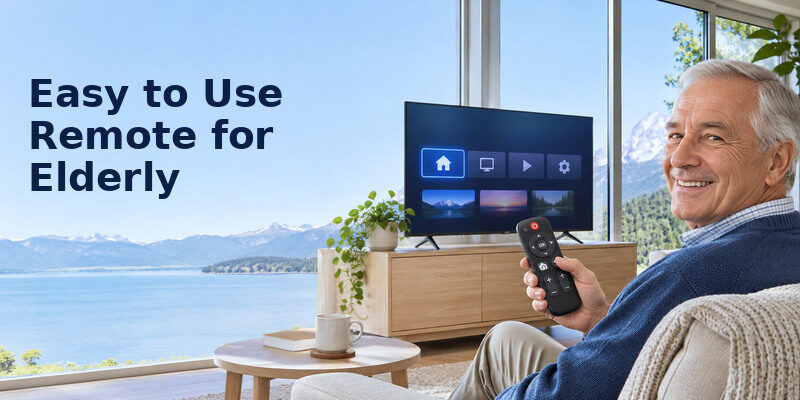
Short answer: The easiest remote is one the viewer can hold, read and use for their usual TV task, with a working Home or input-recovery route.
An easy to use remote for elderly people is not defined by age or button count alone. A six-key remote can make cable channels straightforward but cannot navigate many streaming apps. A more complete large-button remote may be better when the TV and box both need control. This guide uses a hands-on task test, protocol checks and setup steps to find the right fit. Include the viewer in the choice and verify the exact device combination.
Decide Which Actions the Remote Must Perform
Write down the daily routine before browsing products. Does the person watch live channels through a cable box, start one streaming service, switch between TV and DVD player, or adjust a soundbar? Each adds a different control requirement. An easy to use remote for elderly viewers should cover the routine with as few confusing states as possible, but not omit a button needed for recovery.
Live channels only
Power, volume, channel up/down and mute may be sufficient if the TV always opens on the cable/antenna source. Flipper’s official site describes a six-function design and TV/cable-box integration. Verify the exact box and TV codes, and keep a separate route to Input if the television starts on the wrong source. A minimalist remote can be excellent here because unneeded app and settings buttons are absent.
Streaming apps
Home, Back, directional keys and OK are usually required. Search may involve a voice button or on-screen keyboard. A generic IR big-button remote might control TV power while the streaming stick expects Bluetooth/RF pairing. The easy to use remote for elderly person who watches Netflix must actually navigate the app, not merely change TV volume. Test the platform’s official replacement before considering a universal option.
Two devices and external audio
A cable box handles channels, TV handles input, and soundbar handles volume unless HDMI-CEC or programmed IR combines them. Identify which device receives each command. A learning remote such as One For All’s URC6821 advertises two-device control and large keys, but compatibility must be checked for the exact models. Test power sequencing and mute. The remote should never leave the viewer with a visible picture but uncontrollable audio.
Read more: Senior Friendly Technology: Choose Tools That Fit Real Routines
Compare Remote Types Without Assuming One Winner
| Type | Strength | Weakness | Best test |
| Official TV/streamer remote | Full platform pairing and app controls | May have small keys or many shortcuts | Daily app and recovery |
| Six-function big-button | Very clear for live channels | Little app navigation | TV plus cable-box channel routine |
| Learning universal remote | Combine devices and map keys | Setup and protocol limits | All required buttons |
| Phone remote app | Adjustable screen, backup | No tactile keys; network dependency | Pairing and standby |
| Voice speaker | Hands-free supported requests | Account, internet, privacy, standby | Real command list |
A product can use IR for TV power and Bluetooth for app navigation. These two paths are not interchangeable. Check the model’s official remote compatibility page and current app/platform version. “Universal” may mean a broad code database, not support for proprietary voice search. An easy to use remote for elderly viewers has to work after a software update and a normal overnight standby, not just at initial pairing. For a closer comparison of reduced-button and larger-key options, explore simple TV remotes for everyday viewing and check the functions each model supports.
The official remote may already be best
If the person has used the same layout for years, a fresh identical replacement with working buttons can be easier than learning a new device. Clean and re-pair the current remote before buying. Consider a high-contrast sticker guide on a separate card rather than covering actual keys with tape. A familiar Home and volume position can outweigh a theoretical improvement in button size. An easy to use remote for elderly viewers should not make a mode switch the most frequent task.
A phone app can complement, not always replace
A compatible may help a caregiver navigate a supported TV after network setup and pairing. The viewer may prefer physical tactile buttons. A phone app needs the device reachable and may not complete first-time Wi-Fi or factory-reset screens. Test it while the original remote is available, then keep a physical fallback.
Read more: Best TV for Elderly Parents: A Practical 2026 Gift Guide
Physical Details That Affect Comfort

Button diameter is only one factor. Check spacing, contrast, lettering that has not faded, tactile separation, weight, grip and whether the remote rests steadily on a table. A large remote can still be hard to use if its keys are flat and indistinguishable. Let the intended viewer hold it in the normal chair under evening lighting.
Readability and contrast
Labels should be legible at arm’s length. Compare white-on-dark and dark-on-light keys with the person’s own vision and room light. Backlighting can help but may require charging or batteries more often. A remote-control app can use phone text-size settings, but touch buttons lack tactile feedback. An easy to use remote for elderly hands and eyes is the one that performs well in both conditions they actually use. For an Amazon streaming setup, check universal remote compatibility with Fire TV before relying on a replacement for app navigation.
Grip and button force
A remote should not twist or slip while a person presses a side key. Try one-handed volume and Home. Buttons that require a very firm press can be difficult for some hands; overly sensitive keys cause accidental double taps. Test batteries and range from the main chair. Do not infer hand strength from age; ask the person which action feels comfortable.
Distinguish the important keys
Power, Home, Back, volume and Input should be visually or tactually distinct if they are part of the routine. A row of branded streaming shortcuts can create accidental launches, but may be useful if one is the favorite app. The easy to use remote for elderly viewers is a deliberate compromise between minimalism and necessary recovery. If a remote has no Input key, ensure the TV resumes the desired source and another safe input route exists.
Set Up and Test the Remote in Five Passes
Pass 1 – Document the current setup
Write down the TV, cable box, soundbar and streamer model numbers. Record which input displays the usual content and which original remote controls volume. Test the existing system before programming. If a button fails on the original remote, it may prevent an IR learning remote from copying that command. Replace batteries and check for an obstruction over the TV’s IR sensor.
Pass 2 – Program the TV
Follow the new remote’s exact code-entry, auto-search or pairing guide. Test power, volume, mute and Input, not only one function. A code can partially match. A Bluetooth/RF platform remote may need an on-screen pairing sequence and cannot be set up by entering a generic TV IR code. Keep the original remote near until every daily task works. Testing an easy to use remote for elderly people at night can reveal contrast and grip problems missed in a store.
To assess ways to combine the controls, compare universal remotes for multiple devices and test the TV, cable box, and soundbar functions separately.
Pass 3 – Add the box or soundbar
Program the cable-box channel controls or soundbar volume as needed. If HDMI-CEC makes a soundbar respond to TV volume, confirm it survives standby. An optical audio path may not share CEC control. Some remotes have a mode key that changes what the arrows affect; this can confuse a viewer. If possible, configure a single everyday mode and explain when the other is necessary.
Pass 4 – Run an unprompted daily task
Ask the person to turn on, find the usual content, adjust sound, and turn off. Watch without taking over. If they hesitate at a label, consider a different layout or a short card. Repeat another day. An easy to use remote for elderly use is demonstrated by independent completion, not by a caregiver’s impression after programming it.
Pass 5 – Rehearse recovery
Open the wrong input, mute the TV and switch away from an app one at a time. Ask the viewer to return to the usual picture and sound. If the remote cannot recover, keep the original in a known location or choose another model. A return policy matters because a remote can be compatible on paper but awkward in a real room. Label the daily input with a familiar word where the TV allows.
Read more: How to Teach Seniors to Use Smart TV: A Calm, Repeatable Lesson
Cognitive Simplicity and Dignity

A person with memory challenges may benefit from a predictable sequence and fewer choices, but there is no single remote for every diagnosis. Involve the person and caregivers and seek professional guidance for medical or safety concerns. Keep the TV starting on the same source and avoid unnecessary app reordering. A printed two- or three-step routine can help without taking control away. Avoid purchasing a remote marketed for dementia without checking the actual viewing routine.
Use the same words everywhere
If the printed guide says Cable, name the TV input Cable, not HDMI 3, when possible. If the remote says Home, use that term in teaching. Inconsistent labels create avoidable confusion. An easy to use remote for elderly households works best with a simplified TV setup and stable app row. Update the guide after a software change only if the daily path changes.
Know when to keep two remotes
One remote is not always easier if it has a hidden mode that silently changes its function. A clearly labeled TV remote for power/volume and cable remote for channels might be familiar and reliable. Test both approaches with the viewer. The goal is predictable action, not the fewest devices in a photograph. Store rarely used remotes out of the daily path but not so far that recovery becomes difficult. For an occasional phone backup, compare free TV remote apps and check whether the chosen app supports the television’s model and everyday controls.
Test It in the Viewing Seat
Power and volume first
An easy to use remote for elderly viewers should control the functions used many times a day. Test power, volume, mute and one favorite source at the normal distance and angle. If a soundbar handles audio, confirm the same remote adjusts it. A product page may say “universal” yet require code entry or leave an input button unsupported. Keep the original remote for setup and recovery until the replacement has passed a full week of use. A return period is valuable when an easy to use remote for elderly users needs learning codes or Bluetooth pairing.
Check grip and visibility
Ask the intended user to pick up the remote, find the volume keys without looking closely and press them without accidental navigation. Key spacing, contrast, weight and tactile differences matter more than an arbitrary button count. An easy to use remote for elderly people with arthritis may need a light press and stable grip, while someone with low vision may value raised shapes. Test in the room’s evening light, not only under store lighting.
One device or two?
A TV plus cable box can require two different sets of commands. If a remote’s mode button switches silently, errors may look like device failure. Program and label modes, or choose a learning model that puts the essential controls in one stable layout. An easy to use remote for elderly viewers should recover from the wrong input with a known button. Write the input name on a short card instead of expecting memory of HDMI numbers.
Phone control as a backup
A phone app can offer large on-screen targets and a way to find control when a physical remote is lost. But it can require Wi-Fi, a charged phone, unlocking and pairing; it may not work while the TV is offline. An easy to use remote for elderly users who already use a smartphone might be a hybrid: physical keys for daily viewing, app for occasional settings. Test both paths before relying on either.
Reassess after use
Over seven days, note which buttons are missed, which labels are unreadable and whether pairing drops. Change only one factor at a time. A remote that needs frequent caregiver repair is not easy in practice even if it looks simple. An easy to use remote for elderly viewers must suit the actual TV, source devices and habits. A return policy matters when compatibility is uncertain.
Read more: Easy Smart TV for Seniors: What to Buy and How to Set It Up
A Compatibility Card Before Purchase
Write down the TV brand and model, whether a cable box or soundbar handles sound, and the functions the viewer uses every day. Ask whether the candidate remote supports each function and how it is programmed. An easy to use remote for elderly people can fail the household if it lacks Input or app navigation. Keep the old remote available until the new one passes a week of testing.
During that week, check a cold start, a normal program, captions, mute and recovery from the wrong input. Observe without coaching and record any repeated error. An easy to use remote for elderly viewers should reduce the steps that require help. If a universal model is technically compatible but the mode switch remains confusing, try a different layout or a coordinated one-remote setup rather than asking the user to memorize more modes.
Compare the choices only after listing the TV, cable-box and soundbar functions needed.
If the viewer alternates between a cable channel and one streaming service, ask them to do both paths from power off. Time is less important than confidence and error recovery. An easy to use remote for elderly viewers may need Home, Input and navigation as well as large Volume buttons. A six-key model that cannot open the streaming app is too limited for this routine, while a complex voice remote may be comfortable if the person already uses its microphone. Test at night, when small labels are harder to read, and check whether the soundbar receives volume commands. Keep the original remote labeled for setup. An easy to use remote for elderly users should make the recurring path predictable, even if an occasional helper still changes advanced settings.
Read more: How to Control TV With Voice Without Remote: Phone & Smart Speaker Guide
Easy Remote FAQ
Is a six-button remote enough for a smart TV?
Only for a very simple live-channel routine. Streaming apps usually need navigation, Home, Back and selection. Keep the original remote or choose a compatible full-navigation alternative.
Can a universal remote control a cable box and TV?
Often, if it supports both exact models and protocols. Test channels on the box and power/volume on the TV. Some streaming devices need Bluetooth/RF pairing that an IR remote lacks.
Is a phone app easier than a physical remote?
It depends on the user. A phone can enlarge controls but lacks tactile buttons and relies on network pairing. Let the person try both and keep a physical recovery option.
What makes a remote accessible?
Readable labels, contrast, spacing, tactile feedback, comfortable grip, manageable button force and a clear recovery route. The person’s actual task and preferences matter more than a generic age label.
Should I buy a voice remote?
Only if it supports the exact TV/streamer, language and commands the viewer wants. A voice button can help search, but ordinary controls are still important for settings and outages.
Final Thoughts
An easy to use remote for elderly viewers should be chosen by task, device compatibility and the person’s own test. A six-function design fits straightforward live channels; streaming needs Home and navigation. Program one device at a time, test from the usual chair and practice wrong-input recovery before replacing the original remote.
