
Easy Smart TV for Seniors: What to Buy and How to Set It Up
Short answer: A Roku Select Series TV with a simplified home screen and voice remote is a sensible starting point; compare its exact size with a Samsung or LG model if their accessibility tools fit better.
An easy smart tv for seniors is the one a particular viewer can use independently. Large readable menus, clear dialogue, a predictable remote, and a direct path to familiar channels often matter more than a long app list. This guide offers a named starting point, a comparison of platforms, a seven-step setup, and tests to do with the person who will actually use the TV. Features and prices vary by model and region; verify the current SKU before buying.
Easy Smart TV for Seniors: A Shortlist by Need
| Viewer need | Start with | Why | Check in person |
| Simple app home screen | Roku Select Series 4K, size to suit room | Roku describes its interface as simple; voice remote included on current US listing | App tiles, live TV, shortcut buttons, text size |
| Strong visual/audio accessibility | Exact Samsung smart TV with needed features | Samsung documents Voice Guide, High Contrast, enlarged font and captions | Menu path, app-specific caption behavior |
| Familiar LG controls | Exact webOS model | LG documents Audio Guidance and accessibility shortcut | Magic Remote pointer comfort, menu layout |
| Existing good TV | Keep TV, add a familiar streamer | Avoid replacing a functioning panel | Input switching and two-remote burden |
Roku’s current US Select Series page lists 43- to 85-inch options, QLED variants at some sizes, a voice remote and Bluetooth Headphone Mode. Those are published specifications, not a hands-on verdict. A 55-inch or 65-inch screen may help readability from a distant sofa, but a larger screen is not automatically easier if the room is small or the remote menus remain dense. The best easy smart tv for seniors shortlist begins with the person’s viewing distance, dexterity, hearing, vision, and preferred channels. To check other platforms alongside Roku, compare smart TVs for streaming by their apps, interface, and picture quality.
Why Roku is a practical baseline
The Roku platform emphasizes a straightforward grid of channels and a familiar remote. Its Select Series can be a reasonably priced all-in-one option when the household’s apps are available in the region. Confirm the exact included remote and the model’s physical buttons; product bundles and versions can change. An easy smart tv for seniors should allow the viewer to return to Home, open two favorite apps, and reach live TV without someone coaching each step. Test those actions repeatedly, not only once in a showroom.
When another platform is better
Samsung’s official accessibility help describes captions, High Contrast, and larger fonts, but says features vary by model and software. LG’s official support explains an Audio Guidance shortcut by holding Mute on supported remotes, with menu variations by webOS version. If those tools solve the viewer’s specific barrier, a named Samsung or LG model can be easier than Roku. A caregiver should compare an easy smart tv for seniors using actual tasks and accessibility settings, not a universal ranking of brands.
Read more: How to Control TV With Voice Without Remote: Phone & Smart Speaker Guide
Start With the Person, Not the TV Specifications
Ask which content they watch daily: live news, cable channels, a single streaming service, sports, or video calls through a separate device. Note whether they can read subtitles, recognize remote icons, hear dialogue at a comfortable volume, and remember how to change inputs. A short demonstration in their home or store is more reliable than assuming age implies a particular impairment. Do not enable accessibility modes they do not want.
Vision and viewing distance
Measure the distance from the main chair to the screen. A larger diagonal can make faces and subtitles easier to see, but an overly high wall mount can strain the neck. Check the television’s actual text and caption size from that chair. Samsung’s High Contrast and enlarged-font features may help menus; streaming apps can have their own caption style. An easy smart tv for seniors should make the information the viewer needs legible without requiring them to lean forward or search for glasses every time. For a wider comparison of TV brands and their software, review the exact models and test the accessibility features that matter to the viewer.
Hearing and dialogue
Test a dialogue-heavy program at the usual volume, then turn captions on and off. A soundbar with dialogue enhancement or a supported private-listening mode may help, but add it only if the person finds it useful. Roku’s current Select Series listing mentions Bluetooth Headphone Mode; verify the exact model and pairing workflow. An easy smart tv for seniors with poor built-in sound could still work well with an uncomplicated audio setup, but two remotes and an extra power state can introduce friction. Test the whole system after standby.
Hand strength and remote habits
A slim remote with tiny flat buttons may be difficult for some hands, while a large remote with too many keys can be confusing. Ask the viewer to locate Home, volume, captions, and the input/source button without verbal prompts. High-contrast labels and tactile separation matter. The right easy smart tv for seniors may need a compatible large-button replacement remote or an app with a carefully simplified layout. Confirm that the replacement can operate the exact TV and any cable box before relying on it.
Read more: Best Voice Control TV App: Choose by Platform, Not Stars
Set Up an Easy Smart TV for Seniors in Seven Steps
Step 1 – Place it at a comfortable height
Put the screen near seated eye level, check glare from windows, and keep cables out of walking paths. Leave ventilation space according to the manual. Use a stable stand or properly rated mount. Before any account setup, make sure the person can see the screen comfortably from their main chair. A 55-inch set in a bright room can be harder to use than a smaller one positioned away from a direct reflection. An easy smart tv for seniors should still offer a clear way to reach live television if that is the person’s favorite source.
Step 2 – Connect only the needed sources
Plug in the cable box, antenna, or streaming device the viewer actually uses. Label HDMI inputs with familiar names if the TV allows it. Avoid leaving empty apps and unused devices in the daily path. If a soundbar is connected by ARC/eARC, test power and volume together. An easy smart tv for seniors benefits from fewer places where sound and picture can get out of sync or switch to the wrong source.
Step 3 – Finish network and account setup
Use the person’s own account or a household arrangement they understand, with a secure recovery method. Connect to stable Wi-Fi or Ethernet. Confirm the essential services are available in the region and signed in. Do not save passwords in an untrusted remote app. Write down, in a private place, which family member can help with subscription billing and account recovery; the TV’s home screen should not become a password puzzle. If this size fits the room, compare 55-inch TVs by viewing conditions, picture quality, and the exact model’s controls.
Step 4 – Put favorite channels first
Move the two or three daily apps to prominent positions where the platform permits, and remove or hide irrelevant items without disabling services the viewer wants. If live TV is the default, check whether the set can start on that input. An easy smart tv for seniors should have a reproducible route: turn on, choose one familiar tile, watch, return Home. A laminated three-step card beside the TV can help more than teaching ten features in one sitting.
Step 5 – Set captions and audio consciously
Try captions, text size, audio description, and dialogue modes while watching familiar content. Samsung notes that captions on the TV menu may not apply inside some streaming apps, which have their own settings. Avoid turning on menu narration when the viewer only wanted program captions; LG distinguishes Audio Guidance from audio description. Test with the actual apps and cable box. Leave the final setting in the state the viewer prefers and record how to toggle it.
Step 6 – Simplify the remote routine
Mark or explain only a few buttons: power, Home, arrows/OK, Back, volume, and perhaps input. Covering buttons with tape can leave residue or block a microphone, so use a printed guide or a compatible purpose-built remote instead. A phone app may help a caregiver, but it needs network setup and should not be the only recovery method. The viewer should be able to regain the home screen after an accidental button press.
Step 7 – Rehearse three common recoveries
Ask the viewer to turn the TV on, start their favorite channel, and return Home. Then deliberately open the wrong input and show how to return. Finally, mute the TV and restore sound. Repeat the next day without prompting. An easy smart tv for seniors is not truly easy if a minor wrong button requires a service call. Keep the original remote and manual accessible for network changes or a factory reset.
Read more: OLED vs QLED Comparison: Which TV Fits Your Room and Use?
Compare the Interface and Remote in a Store or Return Window
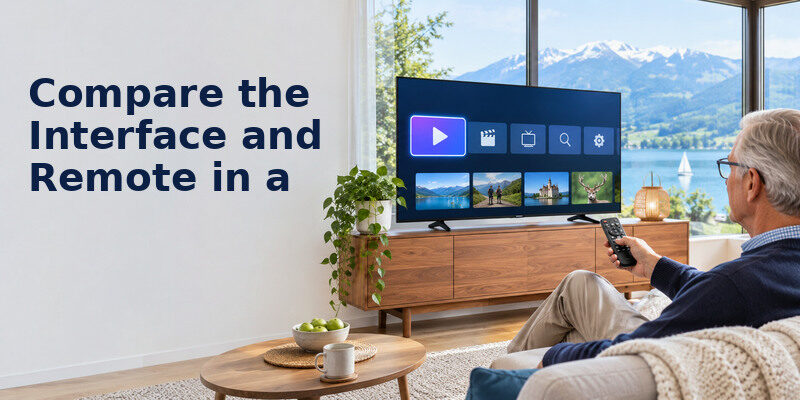
A store demo is useful only if it simulates normal use. Switch from live TV to an app, open subtitles, adjust volume, and return Home. Check whether recommendations crowd out favorite apps, whether the remote gives clear feedback, and whether a mistaken press can be undone with Back. Use a normal picture mode, not only a vivid demo. The exact software version and local app catalog may differ from the display unit.
A five-minute user test
Give the viewer the remote with no coaching. Ask them to find a familiar program, pause or change channel, raise volume, and return Home. Observe where they hesitate; do not assume a mistake reflects inability to learn. If the pointer is difficult, try directional buttons. If small text is the issue, test enlargement. The easy smart tv for seniors choice should follow these observed tasks. A clear return policy gives time to repeat the test in the real room. To explore private listening, compare Roku headphone listening options and check whether the chosen TV, remote, or phone setup supports them.
Check offline and error states
What happens if Wi-Fi drops, an app logs out, or the cable box switches inputs? Show the viewer one safe action, such as returning Home and choosing the known source, before asking them to troubleshoot settings. A printed card can list a helper’s contact and the TV input name without exposing passwords. An easy smart tv for seniors should fail in a way the household can recover from, even if the interface itself is pleasant on a good day.
Accessibility Features That Can Help
| Barrier | Feature to test | Important limit |
| Small menu text | Enlarged font or text size | May not change third-party apps |
| Low-contrast menus | High Contrast mode | Model and version dependent |
| Hard-to-hear speech | Captions, dialogue mode, soundbar | Apps and boxes have separate settings |
| Hard-to-see menus | Screen reader/Audio Guidance | Can narrate menus, not every program |
| Remote dexterity | Large-button remote or voice search | Pairing and platform support vary |
Amazon’s Fire TV support documents VoiceView, a screen reader, and closed captions on compatible devices; its page notes device and language variation and that VoiceView does not support the Fire TV Remote App. Google TV and Roku have their own accessibility controls. Verify the exact model and preferred language. An easy smart tv for seniors should expose the feature that addresses the viewer’s need without making other tasks harder.
Captions are often app-specific
Turn captions on while playing the actual service the viewer uses. A TV-wide switch may not apply inside a streamer or third-party app, as Samsung’s support explains. A cable box may also have its own menu. Save a simple instruction for the relevant app rather than a generic path that fails during a favorite show. Check subtitle contrast against bright and dark scenes from the normal seat. The trial of an easy smart tv for seniors should include the supplied remote, not only a salesperson navigating the menu. If a simpler physical controller is preferred, learn how to connect a universal remote to a smart TV and test the buttons the viewer uses every day.
Voice search is optional
A voice button can avoid typing a title, but it may require internet, a supported language, and a press-and-hold gesture. Test recognition with the viewer’s natural voice and familiar program names. A speaker that is always listening should be an explicit household choice. The easy smart tv for seniors setup should remain fully usable with buttons if speech recognition fails or privacy preferences change.
Ownership, Support, and Cost
Compare the total installed price, not only the screen’s promotional price. Delivery, mounting, a cable box, soundbar, large-button remote, and replacement batteries can matter. Check the written warranty and who will handle support calls. A television used daily should have a clear route for software updates and app sign-in recovery. No brand guarantees a fixed lifespan; choose an exact model with local service and a reasonable return period.
Keep one page of instructions
Write “Power → Home → [favorite app]” and “Wrong screen → Home” in large print, using the remote’s actual button symbols. Add how to toggle captions and the name of the cable-box input. Keep subscription passwords off this card. A practical easy smart tv for seniors purchase includes this small setup effort; a premium panel alone cannot teach the interface. Revisit the guide when software updates rearrange tiles.
Phone control as a caregiver fallback
A compatible may help a caregiver navigate a supported TV after network pairing when the physical remote is misplaced. It does not guarantee first-time setup, power from a disconnected state, or accessibility features on every model. Test the phone route while the original remote is available. A person may prefer the physical remote for daily use; do not impose a phone workflow simply because it is convenient for the helper.
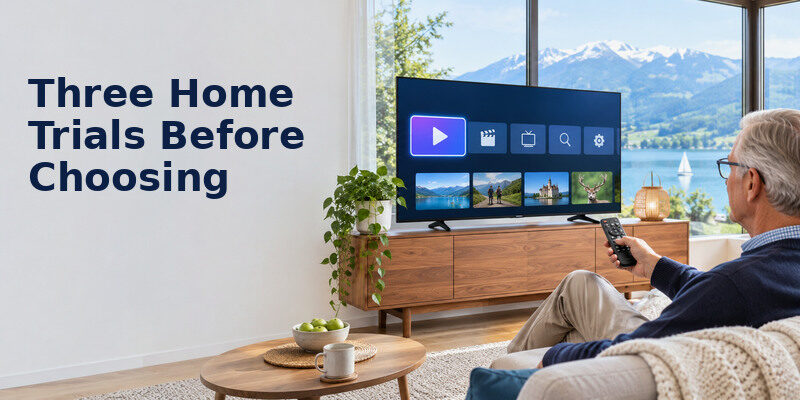
Three Home Trials Before Choosing
A viewer who watches live news
The best shortlist may be a set with a familiar channel guide and a remote that reaches live TV in one press. During a store demo, start from the home screen, open the actual news source, change channels, adjust volume, then return. An easy smart tv for seniors should not require remembering which of three similar-looking tiles leads to the program. If the household uses a cable box, include that box in the demonstration; the smart-TV interface alone is not the whole experience.
A viewer who mostly streams one service
Pin that service where the viewer expects it, then test whether its own app uses readable labels and captions. A simple home screen cannot fix an app with tiny controls, and a favorite shortcut may change after an update. Ask the viewer to launch a show from a cold start and recover after pressing Back too many times. An easy smart tv for seniors is a complete path from power button to the program, including any account sign-in and subscription.
A viewer who needs hearing or visual support
Test captions in the actual services, not only in the TV’s built-in menu. Try spoken menus, high contrast, large text and a separate listening option where supported. Keep the viewer’s preferred balance of captions and volume. An easy smart tv for seniors is more convincing after the person has used these settings on a real program. Document the path to restore them after an update; availability changes across brand, model and region.
A return-window checklist
Before discarding packaging, use the TV at home in daylight and at night. Have the intended viewer turn it on, find a favorite program, change volume, enable captions and recover from a wrong screen without coaching. Note the number of remotes required and whether the family can provide remote support. If those tasks remain frustrating after a short setup, a different remote or streaming platform may solve more than a higher-end panel. An easy smart tv for seniors should pass this real household trial.
For a separate look at cross-brand controls after choosing the TV, compare against the included handset.
Read more: How to Control TV With Google Assistant: Setup and Commands
Easy Smart TV for Seniors FAQ
Is Roku TV easier than Google TV for an older adult?
It depends on the viewer’s habits and the exact models. Roku’s simple channel layout can be a good baseline, while Google TV may fit someone who already uses its search and casting. Ask the person to try the daily tasks on both.
Should I buy the largest screen possible?
No. Choose a size that makes content legible at the actual distance while fitting the room and comfortable sightline. Bigger screens can expose glare and poor source quality. Test captions from the usual chair.
Can a large-button remote work with a smart TV?
Often for basic power, volume, and input if the remote supports the TV’s IR codes. App navigation and voice features may require the original Bluetooth/RF remote. Verify exact compatibility before replacing it.
Can I hide confusing apps and recommendations?
Many platforms allow some reordering or removal, but control varies by software. Put favorite apps first and test after an update. Avoid deleting an app the viewer needs or hiding an input they use.
What if the TV talks aloud unexpectedly?
It may be a menu screen reader such as Audio Guidance/Voice Guide or a program’s audio description track. Check which source is narrating before changing settings. LG and Samsung document model-specific accessibility menus.
Final Thoughts
An easy smart tv for seniors is a tested combination of screen, remote, sound, interface, and support. Start with a current Roku Select Series as a simple baseline, then compare exact Samsung or LG models where their accessibility tools fit better. Set up favorite channels, rehearse common recoveries, and let the viewer decide which controls feel easiest.
