
How to Control TV With Voice Without Remote: Phone & Smart Speaker Guide
Short answer: Use a previously linked smart speaker or a compatible phone app’s voice feature to control a TV without its remote; an unconfigured TV may need physical buttons or a replacement remote first.
The decisive question is whether the TV is already on the network and linked to Google Home, Alexa, Apple Home, or its manufacturer’s app. If so, voice can often start playback or adjust volume, though power and input commands vary. If the set is on a first-time setup or Wi-Fi screen, voice control may not be available yet. This guide starts with the quickest route for each platform and gives recovery paths when there is no original remote.
How to Control TV With Voice Without Remote: Pick a Route
| TV/device situation | First route | What you need |
| Google TV already online | Google TV or Google Home phone app | Same network and pairing code/account |
| Fire TV already online | Fire TV phone app or linked Echo | Same Wi-Fi; Echo account link |
| Apple TV or AirPlay TV in Home | Siri on iPhone/iPad/HomePod | Same Home, room assignment |
| Samsung TV registered in SmartThings | SmartThings phone remote | Samsung account and network |
| TV not on network or reset | Physical TV buttons/compatible remote | Initial setup method from maker |
A TV that is fully unplugged cannot receive a voice request. A TV in deep standby may not listen on the network unless a supported wake setting is enabled. Test while it is already on before treating a failed power-on command as proof that the entire route is broken. A phone app’s navigation capability does not always mean it has integrated voice control. For a detailed walkthrough of phone, remote, and speaker options, learn how to control a TV with Google Assistant on supported devices.
Check the TV’s current state
Look for a standby light and try its physical power button. If an HDMI streamer is attached, see whether it has its own power adapter and is on the selected input. A phone app discovers a reachable device, not an unpowered screen. Check whether the Wi-Fi password changed since the TV was last used; a disconnected TV cannot be reached through the old network.
Decide what “without remote” means
If the physical remote is lost but the TV was configured yesterday, a phone or linked speaker is promising. If the remote never paired, the TV was factory reset, or you moved to a new router, initial pairing may require on-screen confirmation. Some TV buttons can navigate Wi-Fi setup; others offer only power and input. Consult the exact model’s manual rather than assuming all televisions have the same recovery controls.
Read more: Best Voice Control TV App: Choose by Platform, Not Stars
Google TV: Phone Assistant and Google Home
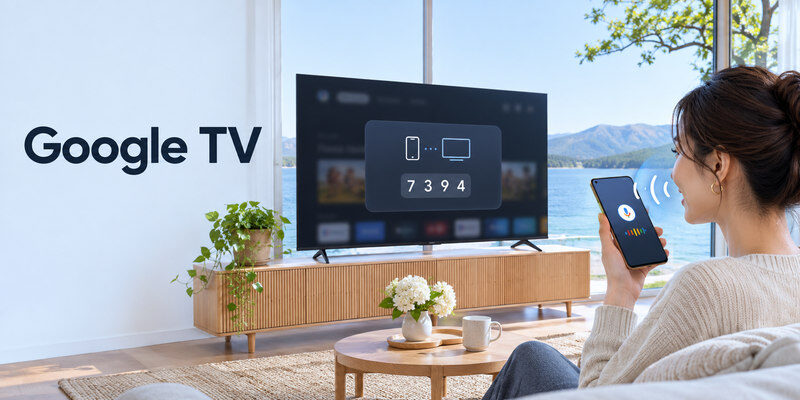
Google’s official support says a Google TV or Android TV can be controlled from the Google TV app after selecting the nearby device and entering a code shown on the TV. Its mobile help lists activating Google Assistant, volume, text entry, playback, and power on supported routes. Google Home can also offer a virtual remote for compatible Google streaming devices. Use the current app and follow the phone OS’s local-network prompts. Android users can follow the steps to set up the Google TV remote app on Android and troubleshoot device discovery or pairing.
Pair a phone to the screen
Turn on the TV or Google TV streamer, join the phone to the same network, open Google TV, select the device, enter the displayed code, and tap Pair. If you cannot display or confirm the code without a remote, use physical TV buttons or a previously linked control. Once navigation works, test the app’s Assistant activation separately. A Google Assistant command from a Nest speaker needs the TV or streamer linked in the correct Google Home household.
Search versus power
Voice search on a Google TV streamer addresses its apps. TV power or volume may require HDMI-CEC/IR equipment-control setup, and standby behavior depends on the television. A phone may show the streamer while the underlying TV sits on a different input. If “open YouTube” works but “turn on the TV” fails, check the power path, not the phone microphone.
Read more: Alexa Compatible Smart TV: Built-In and Works-With Choices
Fire TV: Alexa App Route and Linked Echo
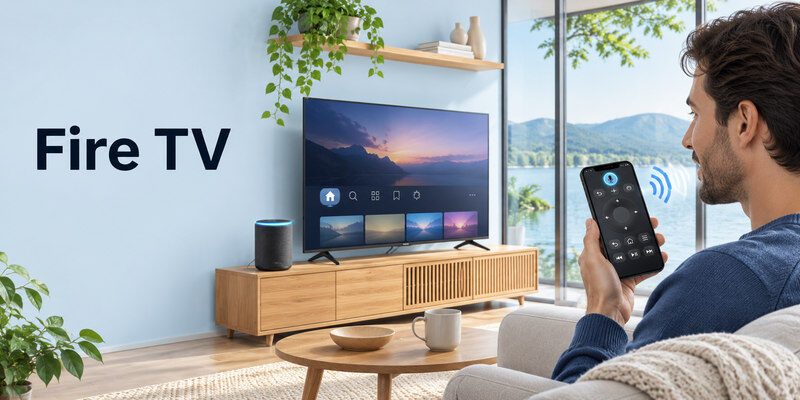
Amazon’s Fire TV guidance says the mobile Fire TV app can control an online Fire TV from the same Wi-Fi after device selection and on-screen prompt. Its Alexa FAQ says Alexa is available through the mobile app or compatible voice remote on supported devices. If an Echo was already linked to Fire TV, ask it to open an app or pause playback. Link an Echo through Alexa > More > Settings > TV & Video > Fire TV when both devices share the same Amazon registration.
Fire TV app first
Power the TV/streamer, connect the phone to its Wi-Fi, open the Fire TV app, select the device, and follow the prompt. Use on-screen navigation to confirm the connection. Then locate the app’s voice action and test a simple Fire TV search. If the device is absent, verify the streamer has power and is not isolated on a guest network. A Fire TV Stick drawing power only from a TV USB port may shut down when the television is off. For more examples and setup limits, see our guide to Siri TV control for Apple TV and AirPlay.
Echo power limits
Amazon says some Fire TV smart TVs do not respond while powered off or in standby; eligible Omni models offer an Alexa Anytime option. An external Fire TV Stick may rely on HDMI-CEC or IR for TV power. Test requests with the screen awake. A linked Echo cannot automatically solve a TV’s disconnected Wi-Fi or a missing first-time pairing confirmation.
Apple TV and AirPlay TV: Siri Without a Siri Remote
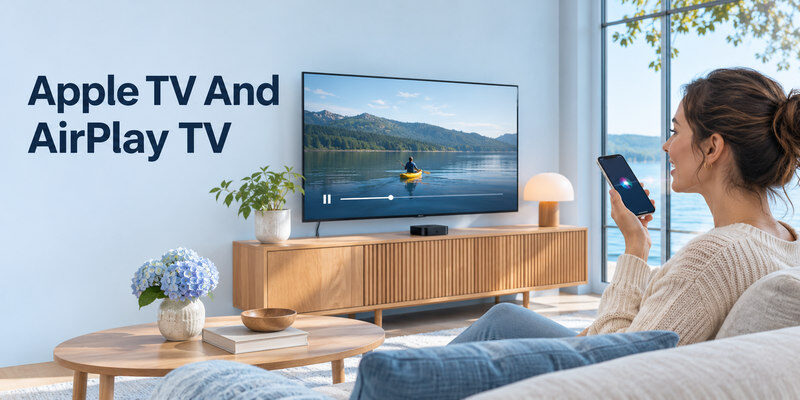
Apple’s official guide says Siri on iPhone, iPad, or HomePod can play and control video on Apple TV or an AirPlay-compatible smart TV added to the Home app and assigned a room. Apple TV’s Control Center remote can navigate Apple TV HD/4K and eligible AirPlay TVs, with a code prompt if needed. If the TV is not already in Home, you may need to display its HomeKit/AirPlay QR code through physical controls first.
Use a room-specific Siri request
Try “Play this on the living room TV” from a compatible iPhone, or “Pause the living room Apple TV.” Use the exact room/device name to avoid selecting another screen. A Siri command can control supported video without giving access to every native TV setting. Apple notes command and service variation by language, country, and subscription.
Control Center as a fallback
Open Control Center, select the Apple TV Remote control, choose the Apple TV or eligible TV, and enter the displayed passcode if asked. Apple says the phone and device should be on the same Wi-Fi. On an AirPlay-compatible TV, add it to Home first. Volume control through Control Center has limitations depending on Apple TV’s audio setup, so keep a TV button or other route available.
Read more: Best Smart TV for Streaming in 2026: Platform and Picture Guide
Other Smart TVs and a Universal App
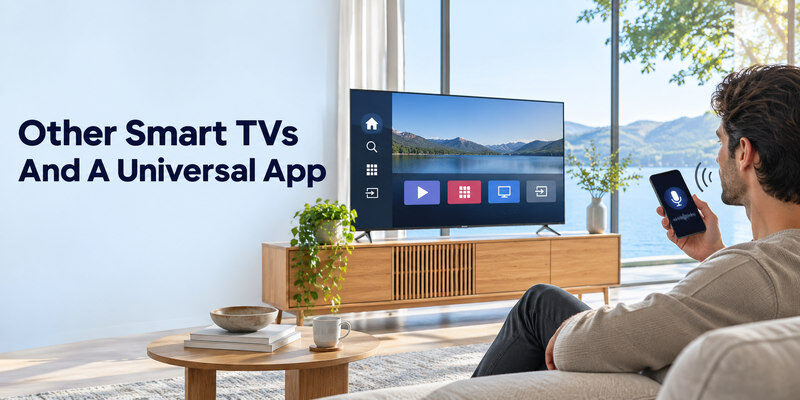
Samsung’s SmartThings support says a supported TV must be registered to the app with a Samsung account and internet connection. Its phone remote can navigate, change volume, launch apps, and switch inputs, but controls vary by model. Whether a voice action is offered is a separate question. LG and other brands have their own remote apps and integrations. Read the exact model guide for microphone and network control.
Remote TV App as a fallback
A compatible may control a supported television after network pairing, helping when the physical remote is lost. Confirm that your exact TV is supported and whether the app exposes voice input for the action you want. It cannot add a Google, Alexa, or Siri feature to an unsupported platform. A phone app generally needs the TV already reachable.
IR phone or universal remote
Some phones or accessories have an IR emitter; many do not. An IR controller can send basic power/volume commands without Wi-Fi if it supports the TV’s code, but it may not provide microphone search. A compatible physical replacement remote is often the most reliable way to recover an unconfigured TV. Buy by exact model and pairing method rather than a vague universal label.
If the TV Is Offline, Reset, or on a New Wi-Fi Network
| Obstacle | Try first | If unavailable |
| New Wi-Fi password | Recreate old network temporarily or use physical menu | Compatible replacement remote |
| Factory reset | TV buttons for setup | Manufacturer-approved remote |
| Phone cannot discover TV | Same Wi-Fi, no guest isolation, TV on | Ethernet if supported and accessible |
| TV won’t wake | Physical power button and outlet | Troubleshoot power separately |
| HDMI streamer invisible | Power adapter and correct input | Streamer reset/pairing guide |
Do not change router security or expose a network merely to avoid buying a remote. If recreating an old SSID/password temporarily is within your control, it may let a previously configured TV reconnect; then update its network settings. This only helps if the device retained those credentials and supports remote control in its current state. Follow your router and TV documentation.
Physical buttons on the TV
Locate power, input, or a small joystick at the side or underside. Some TVs allow menu navigation and Wi-Fi setup with it; others do not. Use the exact model manual. If you can switch to an HDMI streamer already paired to a phone, that may restore content playback while you obtain the proper TV remote. Do not press an unknown reset combination that erases configuration.
Verify the solution survives standby
After phone or speaker control works while on, turn the TV off normally and try waking it. Network standby may be optional; a smart plug that cuts power is not equivalent to standby. Confirm volume, input, and playback separately. If the phone cannot wake the TV, keep a physical power option. A voice-only workflow is useful only if it works from the state in which you actually leave the TV.
An Apple TV already in Home may respond to Siri while you follow recovery steps for full navigation.
Read more: How to Control TV With Google Assistant: Setup and Commands
Voice Without Remote FAQ
Can I turn on my TV with my voice if I lost the remote?
Sometimes, if the TV and speaker were already linked and the model supports network or voice standby. Test the exact model. An unplugged or disconnected TV cannot respond.
Can a phone use Google Assistant as a TV remote?
On supported Google TV/Android TV routes, Google’s mobile app lists Assistant activation after pairing. A phone Assistant command may also act through linked Google Home devices. Features vary by device and region.
Do I need the same Wi-Fi for a phone remote?
Usually, yes, for local network discovery. Google’s, Amazon’s, and Apple’s official phone-remote setup instructions require an appropriate shared network or account route. Guest isolation can block discovery.
Can I pair a phone after a factory reset without a remote?
It depends on the TV’s physical buttons and setup workflow. A code or confirmation shown on the screen may be impossible to accept without a physical control. Consult the maker’s manual or use a compatible replacement remote.
Is hands-free voice the same as a phone remote app?
No. A speaker or TV microphone may hear wake words, while a phone remote often requires opening an app and pressing a voice button. Check the exact feature and standby support.
Recovery Walkthroughs for a Missing Remote
TV already linked to a speaker
Start with the TV on and ask a simple playback command using its exact room name. If that works, test volume, input, power-off, and wake separately. How to control tv with voice without remote is easiest when Home/Alexa linking was completed before the remote disappeared. A linked Echo may control Fire TV; a Nest speaker may address a supported Google TV; Siri on iPhone or HomePod can target an Apple TV or AirPlay set in Home. Each has account, language, and standby limits. Save the working phrases for other household members.
Phone app was never paired
Use the TV’s physical power/input button to reach the correct screen, then open the platform’s official phone remote on the same network. Google TV and Apple TV may display a code that the phone must enter. Fire TV’s mobile app also needs the device online and selectable. If you cannot see or approve the pairing prompt, a compatible replacement remote may be necessary. How to control tv with voice without remote cannot skip a platform’s security confirmation simply because the phone has the same Wi-Fi password. Avoid resetting the TV while you still have a working app route.
Router password changed yesterday
A previously paired app may fail because the TV is still trying to join the old Wi-Fi. If the owner controls the router, temporarily recreating the old SSID/password can sometimes reconnect a TV that retained those credentials, giving time to update its network settings. This is model-dependent and should not weaken network security. How to control tv with voice without remote after a network change may ultimately require TV buttons or a replacement remote. A smart speaker on the new network cannot reach a TV stuck offline. Ethernet may provide a temporary route if the TV supports and can use it.
Apple TV box on the wrong HDMI input
Siri may command an online Apple TV while the physical screen displays another source. Use the television’s input button to select the Apple TV HDMI port. Then use Control Center Remote or Siri to navigate the box. HDMI-CEC may allow the box to switch the TV input on supported equipment, but it must be enabled and is not guaranteed. How to control tv with voice without remote here is partly a TV input problem, not an Apple account problem. Keep a note of the HDMI port and avoid changing several CEC settings at once.
Fire TV Stick loses power in standby
If the stick uses the TV’s USB power, it may disappear from the Fire TV phone app and ignore a linked Echo whenever the television turns off. Use the proper power adapter where the maker requires it and check TV HDMI-CEC/IR control. Ask Alexa while the screen is awake first to prove the link. How to control tv with voice without remote from standby depends on the streamer staying online and the physical TV accepting a wake signal. A smart plug that cuts all power defeats that path. Do not infer account failure from a device that is actually unpowered.
A completely reset television
A reset TV may not have Wi-Fi, account, Home membership, or app pairing. Its physical buttons may allow limited menu navigation; consult the exact manual. A model-compatible replacement remote is often the safest route to finish setup and re-enable voice. How to control tv with voice without remote is constrained by this state: a phone app cannot discover a TV that is not online, and a speaker cannot authenticate an unregistered device. Once setup is restored, pair the phone and smart speaker in advance for the next lost-remote event.
Final Thoughts
For how to control tv with voice without remote, start with the ecosystem that was already configured: Google Home/Google TV, Fire TV/Alexa, or Apple Home/Siri. Pair a phone app if the TV is reachable and test voice separately from navigation. If the set is offline or reset, use its physical buttons or an exact-model replacement remote to complete setup first.
