
How to Control TV With Google Assistant: Setup and Commands
Short answer: How to Control TV With Google Assistant? On a compatible Google TV, press and hold the Assistant button on its voice remote, then speak a command; for phone or smart-speaker control, link the TV in Google Home where supported.
Google’s official Google TV help describes Assistant as available on Google TV, with setup during first use or later, but language, device, and regional support vary. A TV with a Google TV streaming device attached may offer voice search through that device without granting every TV power or input command. This guide starts with the remote route, then covers Google Home, supported commands, and failure checks.
How to Control TV With Google Assistant in Six Steps
Step 1 – Confirm the TV or streamer supports it
Look for Google TV or a supported Android TV implementation and a microphone-equipped compatible remote. A Chromecast with Google TV or Google TV Streamer controls its own interface through a voice remote. A television from another platform may only support limited Google Home commands through its manufacturer’s integration. Check the exact model’s support page and region rather than assuming the Google logo on the box proves hands-free control.
Step 2 – Complete network and account setup
Connect the TV or Google TV device to Wi-Fi or Ethernet and sign in to the required Google account. Google’s setup page lists a Google Account, connection, and Google TV device as prerequisites. If a streamer is attached to an ordinary television, select its HDMI input first. Check the remote is paired. Google’s general setup guidance says Back + Home can pair certain Google TV remotes; third-party devices may use their own instructions.
If you are using a compatible streaming device, learn how to set up Chromecast with Google TV before enabling voice control.
Step 3 – Enable Assistant
During initial setup, accept the Assistant prompts if available. Later, use the device’s Settings menu to find account, Assistant, or privacy controls; wording varies by model and update. Review microphone and voice-data choices. Google says Assistant can be enabled during setup or later on Google TV, and lists supported languages in its help page. A language not offered on the device may explain absent or limited features.
Step 4 – Press the voice button and speak
Hold the Assistant button, speak into the remote’s microphone, and release as directed on screen. Google’s streaming-device instructions say you need not say “Hey Google” when using that button. Try “Open YouTube,” “Play music,” or “Search for nature documentaries.” Specific service access depends on app integration, your account, subscriptions, and country. Keep the remote close enough for clear speech and do not cover its microphone.
Step 5 – Link supported devices in Google Home
For compatible TVs and streamers, add or link the device in the Google Home app with the relevant accounts and household. Assign a short, unique room/device name so “turn on the living room TV” resolves to one device. The app’s discovery steps vary by manufacturer; follow the on-screen integration and official support guidance. A phone Assistant command may control a linked service, while some commands still require the TV to be awake or HDMI-CEC enabled.
Step 6 – Test search, playback, and power separately
A successful content search does not prove power, volume, or input switching works. Try one command in each category and note what actually happens. An attached streamer may search its own apps but cannot always control TV inputs or volume without configured HDMI-CEC or IR functions. Use the TV’s physical remote to confirm power and audio before diagnosing voice control.
Read more: Best Smart TV for Streaming in 2026: Platform and Picture Guide
Useful Google Assistant TV Commands
| Goal | Example command | Dependency |
| Find content | “Search for nature films” | Searchable apps and region |
| Launch an app | “Open YouTube” | Installed supported app |
| Playback | “Pause” or “Resume” | Active app integration |
| Volume | “Turn up the volume” | Device/CEC/IR route |
| Home device | “Dim the living room lights” | Linked smart-home device |
| Power | “Turn off the living room TV” | Supported linked TV and standby settings |
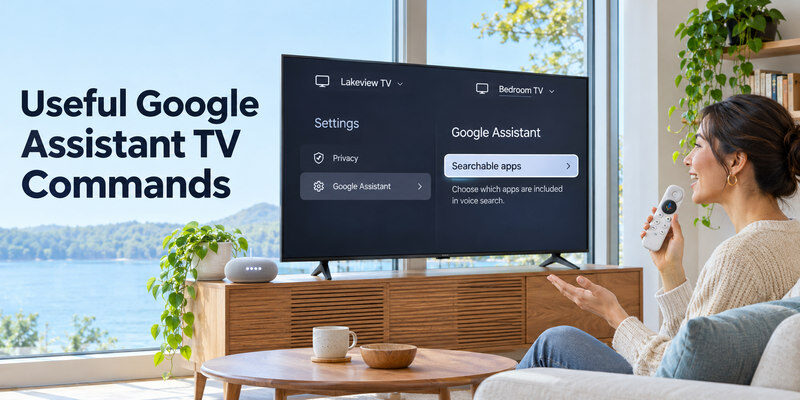
Google’s official Google TV remote page also describes Settings > Privacy > Google Assistant > Searchable apps for choosing apps included in voice search on supported devices. If voice finds titles in one app but not another, check that list and app permissions. Commands may change with software updates and the rollout of newer assistant experiences; use the on-screen help for your device.
Remote voice versus hands-free wake words
A microphone button is not the same as always-listening hands-free control. Many remotes require a press; certain TVs and speakers support wake words under specific settings. Do not promise hands-free operation from an Assistant badge alone. A Google Nest speaker may send supported commands to a linked TV, but standby behavior, volume, and input controls depend on the device chain. For Google’s compatible streaming devices, follow our guide to pair a Google TV voice remote and confirm that navigation works before testing voice commands.
Give each TV a distinct name
If two TVs are named “TV,” a speaker may select the wrong one or ask for clarification. Assign Living Room TV and Bedroom TV in the Home app, and set the default TV for the speaker if available. Test from the room where commands will be spoken. Account mismatches between the TV, Home household, and service are common causes of missing devices.
Read more: How to Connect PS5 to TV: HDMI Setup, 4K, HDR, and 120 Hz
Google Home, Casting, and HDMI-CEC
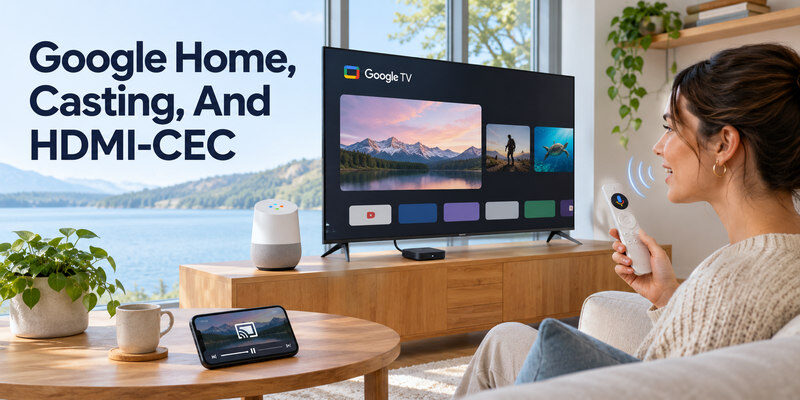
Google Assistant voice search on a remote and Google Home control are related but separate features. Casting can start content from a compatible phone app; voice commands through a speaker need an appropriate linked device. HDMI-CEC may let an external Google TV streamer wake the television or adjust volume, but TV and receiver CEC settings must be enabled and behavior varies. If the voice remote can navigate apps but cannot turn on the TV, inspect its power-control configuration and the TV’s standby settings.
A TV with built-in Google TV
The voice button usually addresses the TV’s own Google TV interface. Search may span selected installed apps. Power and input commands can have model restrictions, and the microphone may be disabled by a privacy switch or setting. Use the exact manufacturer’s manual for the menu path. Firmware updates sometimes rename settings without changing the core button workflow.
An HDMI Google TV streamer
The voice remote addresses the streamer’s interface. It can control a compatible television’s power/volume through configured CEC or IR, but that setup is distinct from app search. Select the right HDMI input and test direct TV control. A receiver or soundbar between devices may change which unit responds. If the TV is fully unplugged, no voice command can power it. For supported Google streaming devices, you can also use Google Home as a TV remote to navigate from your phone after setup.
Why Google Assistant TV Commands Fail
| Symptom | Likely area | First check |
| Button does nothing | Remote pairing, batteries, microphone | Navigate normally, re-pair per manual |
| Hears but misunderstands | Language/noise/network | Set language, speak clearly, test connection |
| Search works, power fails | CEC/IR or standby support | TV power settings and remote configuration |
| App not found | Searchable apps/region | Install app, check searchable apps |
| Speaker cannot see TV | Account/Home linking | Same household and distinct device name |
Start with a known command such as “Open YouTube” while the TV is already on. If that works, isolate the failed category rather than factory resetting everything. Restart the TV and update its software if official guidance recommends it. Keep a physical control method so you can recover if Wi-Fi or voice recognition is unavailable.
Check microphone privacy and language
Some remotes have a microphone button, while some TVs also have a physical mic switch. Confirm the switch is on if you want voice, and verify the chosen Assistant language is supported in your region. Google’s Google TV help lists languages but availability can vary by model. A muted microphone cannot be fixed by changing HDMI cables.
Check accounts and service authorization
Google Home may be signed into a different account than the TV. A streaming app may require its own login or voice-search permission. Re-link the specific service if its content cannot be found, while avoiding a full TV reset until simpler checks fail. If a smart speaker can control lights but not the TV, the issue is likely TV linking or device naming rather than the entire network.
Read more: Best TV Brand 2026: Choose by Picture, Budget, Gaming, and Software
Privacy, Limitations, and Remote Fallback
Review voice activity, personalized results, and searchable-app settings in your account and TV. A voice remote sends a command to a service when you press its button; exact data practices depend on platform and settings. Children or guests may get different results based on profiles. Voice commands can be unavailable during internet outages, while standard buttons may still work.
When phone control helps
If the original voice remote is misplaced, a compatible phone control route may navigate a supported TV on the same required network. The is a contextual fallback for supported models after initial setup. It does not add Google Assistant compatibility to an unsupported television or guarantee hands-free commands. Confirm pairing and power-state limitations before relying on it alone.
When to keep a physical remote
First-time setup, network changes, privacy choices, factory reset, and input recovery can require the manufacturer’s remote or TV buttons. A voice-only household still benefits from a reachable physical control. If the TV is disconnected from power, neither a phone nor speaker can bring it online.
For a missing Google TV remote, a compatible route can restore navigation after the TV is on the network. If you are building a wider smart-home setup, check our guide to devices compatible with Google Home and verify the supported features for each model.
Read more: Cheap Smart TV Review: What You Gain and Give Up in 2026
Google Assistant TV FAQ
Do I have to say “Hey Google” into the remote?
No, on the official Google TV voice remote you press and hold the Assistant button and speak, according to Google’s support page. Hands-free devices can use a wake phrase if supported and enabled.
Can Google Assistant change TV inputs?
Sometimes. It depends on the TV’s built-in integration or a streamer’s HDMI-CEC/IR setup. Test a named input on your exact model and consult its manual if search works but input switching does not.
Does Google Assistant work without internet?
Many voice recognition and service requests need connectivity. Ordinary remote buttons and HDMI inputs may still work locally. Check your particular device’s offline behavior instead of assuming all commands are local.
Can I use Google Assistant on a non-Google TV?
Some other TVs offer Google Home integrations or can use an attached Google TV streamer. Available commands differ. A streamer can search its own apps without necessarily controlling every TV function.
Why does voice search miss a streaming app?
The app may be unavailable, uninstalled, excluded from searchable apps, or not integrated in your region. Check Google’s searchable-app setting, the app login, and service availability.
Google Assistant Control in Real Device Setups
Google TV built into the television
On a built-in Google TV, begin with the remote’s Assistant button while the home screen is visible. Hold it, say “Open YouTube,” and watch for transcription or a result. Google’s help says Assistant can be enabled during initial setup or later, and lists supported languages. If you are learning how to control tv with google assistant on this route, a working app launch confirms the microphone, pairing, account, and network sufficiently for that request. Then test volume, input, and standby separately. The manufacturer’s own TV integration may place limits on those commands even though search works.
Google TV Streamer attached by HDMI
The streamer’s voice remote addresses its own Google TV interface. It may adjust the underlying TV’s power and volume only after equipment-control setup through HDMI-CEC or IR. Check the television’s CEC setting and whether the streamer stays powered when the TV sleeps. If how to control tv with google assistant appears to work for streaming search but not HDMI switching, the problem may be a missing TV-control route rather than a failed microphone. Connect directly to an HDMI input first, then add a receiver or switch after basic commands work. Label the input for other household members.
A phone with the Google TV app
Google’s mobile help describes selecting a nearby Google TV/Android TV, entering a code shown on the screen, and pairing. It lists Assistant activation among supported functions on eligible devices. The phone and TV must be on a reachable network; guest Wi-Fi isolation can block discovery. How to control tv with google assistant by phone still depends on the model and app version. Test on-screen navigation before the voice action. A phone cannot automatically complete first-time TV setup if you cannot display or accept the pairing prompt. Keep a physical remote for Wi-Fi changes and reset recovery.
A Nest speaker in a multi-TV home
Link supported devices in the correct Google Home household, assign room names, and set a default TV for the speaker if appropriate. Say the full target name in the first tests: “Play on Living Room TV” rather than “play on TV.” If the speaker controls lights but not the screen, inspect TV linking and account membership. If it controls one screen but not the other, compare names and network status. How to control tv with google assistant from across the room is a separate setup from pressing a voice remote button. Hands-free availability does not follow automatically from a Google TV logo.
App search that appears incomplete
A successful “Open YouTube” with a failed title search in another service is usually not a microphone failure. Check installation, sign-in, subscription, region, and the platform’s searchable-app setting. Google documents Privacy > Google Assistant > Searchable apps on supported Google TV streamers. Try a simple title that the service actually carries in your country. For how to control tv with google assistant reliably, distinguish a device command from a content-provider integration. A language mismatch or child profile can also affect results; compare with the primary profile only when appropriate and permitted.
A TV that refuses voice power-on
Test search while awake, then issue a power-off and power-on request. A TV may disable network standby, or an external streamer may lose power when fed from the television’s USB socket. Check CEC/IR configuration and the maker’s standby menu. A fully unplugged TV will never respond. If how to control tv with google assistant only fails from standby, retain the working setup and fix the wake path specifically. Do not reset the whole Google account because one power command is unsupported. Record the exact model and firmware when contacting support.
A household that values privacy
Press-to-talk on a remote differs from always-listening hands-free control. Review microphone switch, voice activity, personalized results, and app search permissions. Turn on only the modes the household wants. A Google TV device may use voice for streaming queries while a separate Nest speaker controls lights. How to control tv with google assistant also includes knowing how to turn voice off temporarily and continue with ordinary buttons. Test a basic remote navigation path so children or guests are not stranded during an internet outage.
Final Thoughts
For how to control tv with google assistant, start with a compatible Google TV voice remote: connect the device, enable Assistant, hold the voice button, and ask a simple command. Link Google Home separately for supported phone or speaker control. Test power, input, playback, and search one at a time, because each can have different dependencies.
