
How to Set Up Chromecast and Chromecast with Google TV in 7 Steps
Short answer: Connect Chromecast to HDMI and its supplied power adapter, select that TV input, and complete the prompts with Google Home or the included voice remote. The precise path depends on whether you own a casting-only Chromecast or Chromecast with Google TV. A casting-only model needs a phone to choose and cast content; a Google TV model also has an on-screen interface and remote. This guide starts with model identification so you do not look for a remote-pairing screen on hardware that never shipped with one.
Identify the Chromecast you are setting up
The first decision in how to set up Chromecast is the model in your hand. Chromecast with Google TV (HD or 4K) has a voice remote and a TV-based Google TV interface. Older Chromecast and Chromecast Ultra devices focus on casting from a phone, tablet, or supported app. Google’s support pages distinguish these flows. Google TV Streamer is a newer separate product; it does not turn an older Chromecast into the same hardware. If you want to know how to set up Chromecast on a second TV, check that device’s generation too. Check the device and box name before following a menu path.
| Device | Main setup route | Normal control |
|---|---|---|
| Chromecast with Google TV (HD/4K) | TV prompts plus Google Home or remote | Included voice remote and compatible phone |
| Chromecast (3rd generation or older) | Google Home on a phone | Cast button in supported apps |
| Chromecast Ultra | Google Home on a phone | Cast button in supported apps |
| Google TV Streamer | Its own Google setup instructions | Included voice remote |
Look for the remote and Google TV interface
If a remote came in the box, the seven-step guide below is the relevant route for Chromecast with Google TV. The remote’s initial pairing may be automatic, but a connection problem has its own recovery path. If there is no remote and the TV shows only a setup code or ambient screen, use the older casting-only route later in this article. This classification changes how to set up Chromecast because the casting-only model has no full TV menu to navigate.
For an overview of the physical controller and its functions, see the Chromecast with Google TV remote guide before starting setup.
Gather a phone, network, and account
Have the Google Home app on a compatible phone, the Wi-Fi name and password, and the Google account you intend to use. The phone should be on the household network you want the streaming device to join. A TV with a free HDMI input and the power adapter supplied for your model are also essential. Google’s Chromecast quick-start instructions say to use its provided AC adapter for older Chromecast devices; do not improvise a weak power source. Preparing these items makes how to set up Chromecast less likely to stall at network discovery.
How to Set Up Chromecast with Google TV in Seven Steps
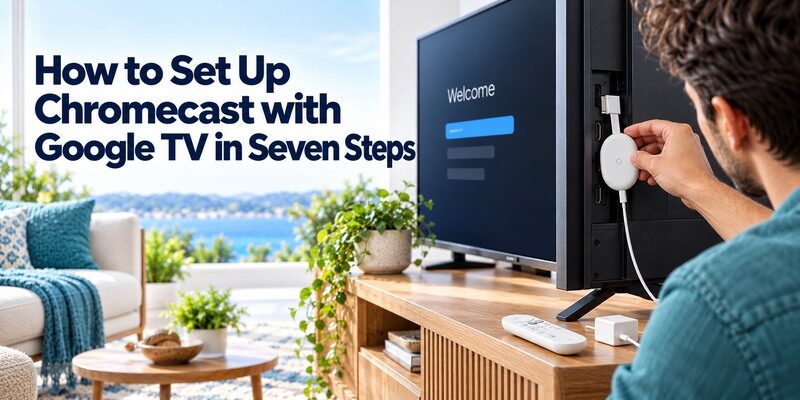
For a remote-equipped model, how to set up Chromecast follows the TV prompts, with Google Home offered for parts of the process. Google’s Chromecast with Google TV help covers the HD and 4K variants and notes that the voice remote can complete setup when the phone route stalls. Follow the screen on your own software version if a label differs. A practical answer to how to set up Chromecast with Google TV begins at HDMI and ends with a playback test, so work through these steps in order.
Step 1: Connect HDMI and supplied power
Plug the Chromecast into the television’s HDMI port and connect its power cable to the supplied adapter and an outlet. Use the included extender only if your model supplies one and the TV’s port is hard to reach. Write down whether you used HDMI 1, HDMI 2, or another labeled input. The streaming device needs both an HDMI signal path and stable power. A TV USB socket may not supply what your model requires.
Step 2: Select the matching TV input
Turn on the TV and choose the exact HDMI input with its own remote. Wait for the Google TV welcome screen. If the screen is blank, recheck the input and power before changing the router. A missing picture at this stage cannot be fixed inside the Google Home app because the TV has not displayed the device yet. This is one of the most useful chromecast installation steps to verify immediately.
Step 3: Pair the voice remote if prompted
Insert the batteries and follow the on-screen remote prompt. Many units pair during first boot. If buttons do not respond, consult the device’s remote-pairing prompt and Google’s model-specific help rather than assuming a casting-only Chromecast needs a remote. Test direction and Select before continuing. A TV remote that changes inputs or volume is a separate controller; it does not prove the Chromecast voice remote has paired.
If the included controller does not pair automatically, follow the model-specific steps to pair a Google TV remote and test navigation before continuing.
Step 4: Choose language and setup method
Select your language and follow the TV’s offer to set up using a phone or continue with the remote. With the phone route, open Google Home, choose the device setup flow, and confirm that the device on your phone matches the one on the television. With the remote route, enter the details shown on the TV. If the app cannot find the device, keep the on-screen code visible and move to the discovery checks below.
Step 5: Connect Chromecast to Wi-Fi
Choose your home network and enter its current password when prompted. The phone may pass network details through Google Home, or the TV route may ask you to type them. For anyone searching how to connect chromecast to wifi, the key check is that the phone and device can reach the intended network and that guest-network isolation is not blocking discovery. Confirm the network name before trying again after a password error.
Step 6: Sign in and configure the TV
Use the Google account requested by the setup flow and choose the services and preferences you actually use. The device may ask you to test remote control of TV power, input, or volume. Those functions depend on the TV and equipment configuration, so a failed volume test does not mean Google TV navigation failed. Let available updates finish before disconnecting power. The exact wording can change with software releases.
Step 7: Verify the home screen and casting
Move through the Google TV home screen, open a supported app, and play a short clip. Then try the Cast icon from an app on the same network. This final test makes how to set up Chromecast measurable: you should see both a responsive interface and actual playback. App subscriptions remain separate from the Google account used for device setup. If only one app fails, troubleshoot that service before resetting the Chromecast.
Read more: How to Set Up Fire TV Stick
Set up an older casting-only Chromecast
An older model changes how to set up Chromecast because the phone is its primary controller. Google’s quick-start guide gives four broad actions: plug the Chromecast into the TV, install Google Home, set up the device, and cast content. Do not expect the Google TV home screen or a bundled voice remote. For someone asking how to set up Chromecast without a remote, this is the normal design of those older models. Keep the phone close during discovery and follow the code or confirmation on both screens.
Connect and discover in Google Home
Plug the HDMI connector into the TV, use the supplied power adapter, and switch the TV to that input. Open Google Home on a compatible phone and start device setup. Check that the device name or code on the phone matches the television. If the app sees a different device in a multi-TV household, cancel that choice and select the correct one. A prior owner’s device may need a factory reset before new setup; use Google’s instructions for the exact generation.
Cast a supported title to confirm setup
Open an app with a Cast button, select the Chromecast, and play a short title. The phone initiates playback, while the TV receives the stream. A generic screen-mirroring control is not the same as casting from a compatible app. If the Cast target is absent, check that the phone and Chromecast are on a network where devices can discover one another. The chromecast first time setup is complete when this test works, even without an on-screen app grid. If a previously configured Chromecast with Google TV loses its connection and the physical remote is unavailable, review how to connect Google TV to Wi-Fi without a remote for supported recovery options.
Fix Google Home discovery during setup
If Google Home cannot see the device, how to set up Chromecast becomes a local-network problem before it becomes an account problem. Google recommends checking the phone’s Wi-Fi, the Chromecast’s setup network, and whether access-point isolation prevents devices from communicating. The discovery part of how to set up Chromecast needs the phone and device to find one another locally. Do not reset the device as the first response. Work from visibility to network credentials, then restart only if the simpler checks fail.
| What you see | First check | Next action |
|---|---|---|
| Device absent in Google Home | Phone Wi-Fi and local-network permission | Move closer and reopen device setup |
| Code differs from the TV | Another Chromecast may be nearby | Cancel and select the matching screen |
| Device appears but cannot join | Network name and current password | Check guest isolation, then retry |
Confirm the phone and device can see each other
Bring the phone near the TV and check that Wi-Fi and any required local-network or Bluetooth permissions are enabled for Google Home. On a guest network, the router may isolate clients even though both devices have internet. If a setup SSID is shown, Google’s support page describes connecting to that Chromecast network manually and reopening Google Home. Follow the currently displayed app instructions for your phone platform.
Restart without losing your progress
If discovery still fails, restart the phone app and Chromecast, then check the router. A long-standing setup network may represent a partially completed installation rather than a damaged device. Try the on-screen remote route for Chromecast with Google TV if Google Home cannot finish, as Google explicitly supports that fallback. A casting-only model still needs a compatible phone for its initial Google Home flow.
Read more: Hotel TV Remote App: Guest Access and Practical Alternatives
Choose the correct Wi-Fi for reliable casting
Knowing how to set up Chromecast also means understanding why a phone cannot cast to a device that appears online. A phone on mobile data, a separate guest network, or an isolated VLAN may not discover it. Google’s help notes that access-point isolation can interfere with setup. If you are learning how to set up Chromecast in a home with several Wi-Fi names, compare the networks on phone and device first; then test the Cast icon in a supported app.
If the network name is missing
Refresh the Wi-Fi list in the setup flow and move the streaming device and router closer if possible. Check whether another phone sees the same network. A hidden SSID needs manual entry in Google Home where supported. Before changing security settings, confirm the router is broadcasting and the password is current. Your device generation and router band support can affect which 5 GHz network appears. The Chromecast remote app guide explains which models support Google TV navigation and which rely on casting controls in compatible apps.
If casting works only intermittently
Test from another supported app to separate a service failure from network discovery. Reboot the router if other devices are unstable. Keep the Chromecast powered by its recommended adapter, since a weak supply can look like a Wi-Fi failure after the device restarts. If you use an Ethernet accessory, confirm compatibility with that model; Chromecast and Chromecast with Google TV do not have built-in Ethernet ports on the device itself.
Pair and configure the Google TV voice remote
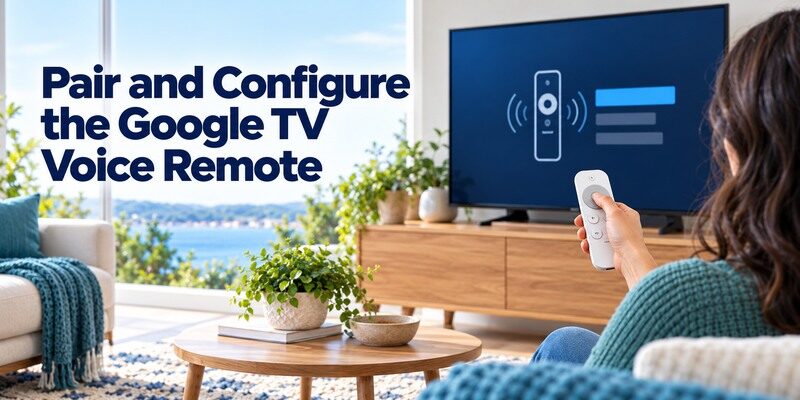
For remote-equipped hardware, how to set up Chromecast includes separate control paths: navigation within Google TV and control of the television’s power or volume. The remote can navigate the streaming interface even when equipment-control setup fails. Google’s support treats remote pairing and button customization as distinct tasks. A guide on how to set up Chromecast should test the directional pad first, then TV functions, so a volume issue does not send you back through account setup.
If the controller still does not respond, try these Google TV remote troubleshooting steps before restarting the entire Chromecast setup.
When navigation buttons do not respond
Check the batteries and the TV’s input, then follow the pairing prompt or Google’s recovery instructions for that remote generation. Keep the remote near the streaming device during pairing. Do not confuse the phone’s Google Home virtual remote with the small hardware remote. Once navigation is restored, return to the exact screen where setup stopped rather than resetting Wi-Fi and account settings unnecessarily.
When power or volume does not work
Identify whether audio comes from the TV, soundbar, or receiver. Repeat only the equipment-control test for that device. HDMI-CEC and infrared arrangements vary by television and accessory; success for Google TV navigation does not guarantee the volume command reaches a separate soundbar. Keep the television’s original remote available until the final power and volume test passes.
Check picture, sound, and app playback
After the network and account screens, how to set up Chromecast is not finished until the desired content plays correctly. A 4K label on the streaming device alone cannot guarantee a 4K stream: the TV, HDMI path, content, and service plan all matter. Google’s specifications and display-setting help distinguish Chromecast with Google TV HD and 4K models. If you revisit how to set up Chromecast because video is blank, check the TV input before forcing advanced settings.
Verify a normal title before 4K or HDR
Play a short, ordinary clip, then try a known higher-resolution title if your TV supports it. If the menu is visible but only one title fails, check that app and subscription. If every title flickers, inspect the HDMI connection and TV input settings. Some receivers and soundbars add another HDMI link that must support the chosen format. Use the model’s supported format list rather than treating every Chromecast generation as identical.
Diagnose audio at the right device
Check the TV’s audio output and soundbar input if video plays silently. Test another app and a different title before changing advanced audio formats. If an AV receiver is in the path, check its input and output. A phone’s volume slider for a cast session and the TV’s speaker volume may be separate controls; verify which device is actually changing. This distinction saves time when the picture is otherwise working.
Read more: Xbox PS5 TV Remote Control: What Each Console Can Do
Use a phone when the remote is unavailable
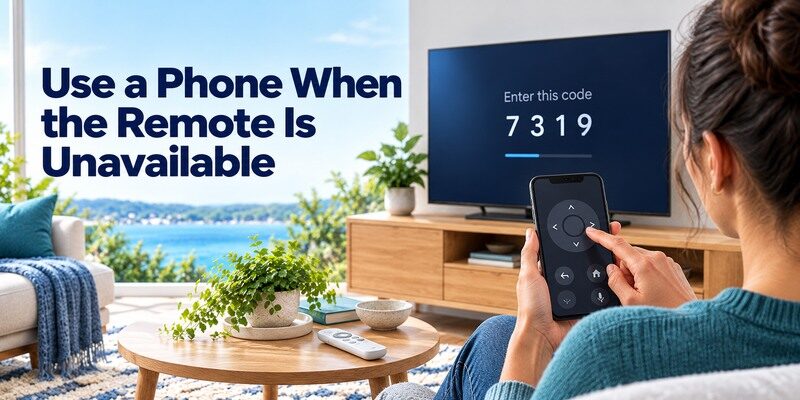
Once the device is on the network, a compatible phone can help with how to set up Chromecast control after initial installation. Google documents virtual remotes through Google Home and Google TV for Chromecast with Google TV, with a pairing code on the television when required. Older casting-only devices use the Cast button in supported apps instead of a Google TV navigation pad. A phone remote cannot rescue a device it cannot discover on Wi-Fi.
Pair Google’s virtual remote
Power on the TV and streaming device, open Google Home or the supported Google TV app, select the correct device, and enter the on-screen code if requested. Test navigation and Back first. The guide covers the separate hardware and phone-control choices in more detail. Check the app’s current device support before installing a third-party remote.
Keep a fallback when the network changes
If the Wi-Fi name or password changes, the phone may lose the device until it reconnects. Keep the physical remote for Chromecast with Google TV and the TV’s input control accessible. For households with multiple supported televisions, the can be a phone-based fallback where the particular device is compatible; Google Home or Google TV remains the direct official route for Google hardware. Confirm support for the model before relying on any universal app.
Final Thoughts
How to set up Chromecast starts by identifying whether the device has Google TV and a remote. Connect HDMI and the supplied power, select the correct input, use Google Home or the remote-assisted setup, join Wi-Fi, sign in where prompted, and test a real stream. For a casting-only Chromecast, use Google Home and a Cast-enabled app instead of searching for a Google TV menu. If setup stalls, match the next check to the failed screen: picture, discovery, password, remote, or playback. Model and software differences can change the visible prompts, so the instructions for the device in your hand take precedence.
