
Hotel TV Remote App: Guest Access and Practical Alternatives
Short answer: Use a hotel-approved TV remote or guest control feature; a generic phone app may be blocked by the hotel network or TV configuration.
A hotel tv remote app is only useful when the property exposes a permitted guest-control path. Hospitality TVs can restrict inputs, volume, casting, and app pairing; guest Wi-Fi may isolate devices from one another. First test the room remote and TV power, then look for the property’s instructions or ask the front desk. Do not try service-menu codes or bypass a managed setting to make a consumer app connect.
1. Can a Hotel TV Use a Phone Remote?: Hotel Tv Remote App
The answer depends on the property’s equipment and policy, not simply the brand printed on the television. The first hotel tv remote app check is the hardware and access method available on the exact display or phone.
Before trying a smart TV remote app, confirm with the property that mobile control is permitted and that your phone can reach your room’s television.
| Room setup | Phone control | First step |
| Property casting system | Hotel-provided method | Follow on-screen instructions |
| Consumer smart TV in guest mode | May be restricted | Ask property policy |
| Basic TV with room remote | Usually physical control | Request replacement if faulty |
Guest-enabled service
Some hotels provide an official in-room casting or remote-control feature through their app or a QR code. Read the instructions supplied in the room and confirm the page or app belongs to the property. Use the guest pairing flow and disconnect at checkout.
Read more: Soundbar Remote App: Brand Options and Setup
Ordinary consumer app
A Roku, Fire TV, or generic TV app may need the phone and television on the same local network. Hotel guest networks often prevent devices from seeing one another, and the TV may be centrally managed. Do not assume a search result for the TV brand will bypass those constraints.
A hotel tv remote app works only when the property has enabled that guest-control route. Read the room instructions, TV welcome screen, or official property app before searching generic listings. A commercial television can carry a familiar consumer brand but run managed hospitality software. Even if the phone and TV appear on the same Wi-Fi name, network isolation may prevent pairing for privacy between rooms.
Start by identifying what the property provides: a standard guest remote, an official casting screen, an HDMI input made available to guests, or a QR code for a property app. Hotels configure televisions differently even when the bezel shows the same brand. A phone connected to guest Wi-Fi may not see the TV because the property isolates rooms for privacy. This is a normal network design choice, not a reason to bypass the TV’s controls. Use the instructions displayed in the room or ask the front desk for an approved option.
2. Recognize Hotel Mode Limits
Commercial television systems can impose input and volume policies. LG’s hospitality setup documentation, for example, describes installer remotes and managed configuration. For hotel tv remote app, distinguish a network app from an infrared transmitter or a property-managed control system.
Locked input or settings
If Input or Settings is unavailable, the TV may be configured by the property. A generic remote app is unlikely to change a locked policy. Ask staff whether HDMI input, casting, or a replacement room remote is available for guests. If the property confirms that your room’s Roku TV allows mobile control, a free Roku remote control app may be an option when the phone and television can communicate on the approved network.
Volume and power
A volume cap or wake schedule may be intentional. Test the supplied remote with fresh batteries if permitted, and check the TV’s standby indicator. Do not use hidden service procedures from a different model to change managed settings.
Hotel mode changes what a hotel tv remote app is allowed to do. Input locks, volume ceilings, and scheduled power settings may be intentional. LG’s commercial documentation describes installer-level configuration separate from guest controls. A consumer app should not be expected to override those policies. Ask staff whether HDMI or casting is offered rather than entering undocumented service codes.
A concise report to staff is more useful than “the TV is broken”: state whether the standby light is on, whether the physical panel responds, and which keys fail. That directs them to batteries, a replacement remote, or a room-system issue.
Some room sets are managed through a central hospitality platform. A setting may lock volume, restrict input switching, reset channels, or show a custom welcome screen after power-on. An ordinary consumer app may have no permission to alter those settings. If the supplied remote fails, note the room number and the specific action that does not respond. Staff can often replace the controller or enable a permitted input without changing your personal phone configuration or disrupting the next guest’s setup.
3. Try the Property’s Guest Setup
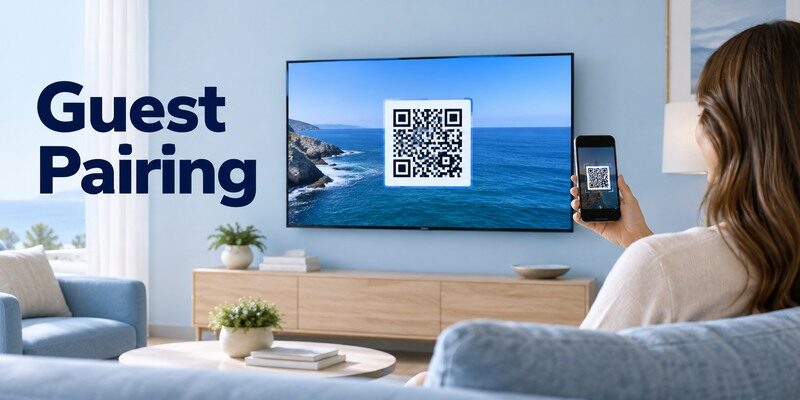
When the hotel offers phone control, follow its QR code or written steps rather than installing an unverified “hotel TV” app. Follow a hotel tv remote app setup route only when its required hardware, connection, and permission actually exist. If the property permits an infrared phone remote, first check whether your phone has an IR blaster; installing an app alone cannot add the required transmitter.
Verify the instruction source
A QR code on a room card or TV screen should lead to a property-approved page. Check the domain and avoid entering booking or payment data into an unrelated app. If uncertain, ask the front desk to confirm the method.
Pair and disconnect
Connect only to your own room TV, follow the screen code or room confirmation, and test basic navigation. Sign out or disconnect before checkout. Shared public networks make it especially important not to pair with another room’s device.
If the property advertises a hotel tv remote app, verify its QR code against the hotel’s own instructions. A one-time code or room identifier helps prevent pairing with a neighboring TV. Use only your room and disconnect at checkout. If the link asks for unexpected payment or unrelated account credentials, confirm it with the front desk before proceeding.
Read more: Nvidia Shield TV Remote App: Setup and Troubleshooting
4. When a Phone Cannot Discover the TV
Guest Wi-Fi isolation is a common technical reason, but a TV can also be offline, unsupported, or deliberately disabled for mobile control. Test hotel tv remote app on the specific phone and television, since a product-family name cannot confirm compatibility.
Same Wi-Fi is not enough
Two devices can share an SSID but still be separated by client isolation or different network segments. Do not alter the hotel router or ask another guest for credentials. Follow the approved casting or pairing system if provided.
TV and app compatibility
A commercial TV may run a customized interface that does not expose the consumer brand’s remote API. If the property offers no mobile feature, use the room remote or request assistance rather than cycling through unrelated phone apps.
An empty device list in a hotel tv remote app can be normal on a guest network that blocks device-to-device traffic. Do not try to change router settings or probe other room devices. The hotel may have a separate casting service that brokers connections safely; follow that flow if offered. Otherwise, the supplied remote is the correct method.
If the hotel permits your own Fire TV Stick and provides a usable connection, the Fire TV Stick remote app guide explains how phone control depends on the device’s network connection.
5. Fix a Room Remote That Is Not Working
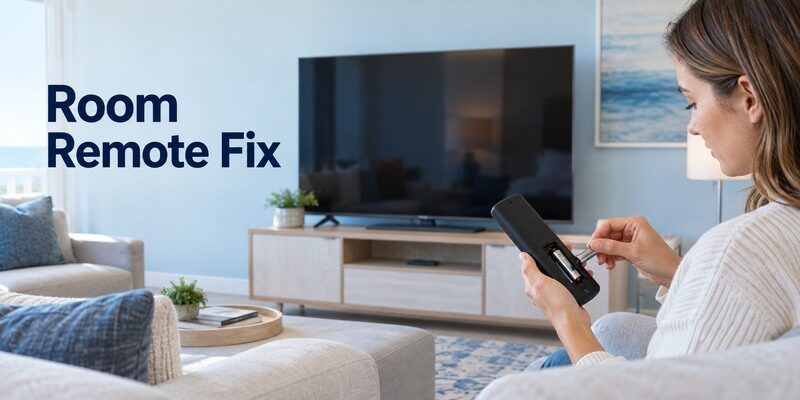
Start with simple checks and report the outcome. Hotel staff can replace a remote or resolve room-specific configuration. A hotel tv remote app result is useful only if the intended TV responds to the particular button being tested.
| Symptom | Guest check | Ask staff when |
| No response | Batteries, panel power, sensor | Remote replacement needed |
| Input locked | Follow room instructions | HDMI permission unclear |
| Volume capped | Check provided range | Setting blocks your use |
Batteries and sensor
Check that the supplied remote has batteries and a clear line of sight to the TV sensor. Use the TV’s visible power control if available. Do not open or modify property hardware. If the TV itself has no standby response, report that separately.
Call the front desk
Explain whether power, volume, input, or all buttons fail and give the room number through the property’s normal support channel. Staff may provide a replacement or reset the room system. This is usually faster than installing a generic app on an isolated network.
When a hotel tv remote app is sought because the room controller failed, test one reversible observation: does the TV respond to a visible panel power button? Note whether all remote keys fail or only volume and input. The front desk can replace batteries, supply another controller, or diagnose a managed room system. A guest should not have to disassemble hotel hardware.
If a QR-based guest feature is provided, verify that it names your room or displays a one-time pairing code. Do not pair with a TV that appears to belong to another room on a shared network.
Read more: Chromecast Remote App: Google TV Setup and Limits
6. HDMI, Casting, and Personal Devices
A personal streaming stick can be convenient only when the property permits it and exposes an appropriate input and network method. When hotel tv remote app fails, identify whether the device is offline, lacks IR, or restricts outside control.
Check permission and input
Ask whether guest HDMI or casting is enabled. A locked Input key can be intentional. Do not unplug managed equipment or use service menus to reach another port. Use the property’s documented guest casting workflow where available. If the property permits a personal Chromecast, review the Chromecast remote app guide to distinguish casting playback from full Google TV navigation.
Network and account privacy
Sign out of streaming accounts before leaving, remove your device from paired lists, and avoid saving passwords on a shared TV. A property casting system may offer a checkout cleanup step; verify it rather than assuming the TV resets instantly.
A personal streaming stick does not make a hotel tv remote app universally viable. The hotel may disable guest HDMI, and the network may require a supported casting system. Ask permission and use the documented input. Before leaving, sign out of any streaming account and remove paired devices; unplugging a stick is not the same as clearing a saved login on the television.
For a personal streaming device, check whether the property explicitly permits HDMI use and whether the port is physically accessible. The guest network may require a browser sign-in that a streaming stick cannot complete. Follow the hotel’s casting or authentication instructions, avoid changing service menus, and sign out of personal accounts before checkout. If your device is on a different network from the TV, direct phone discovery may fail while a property-provided casting method still works. Test the approved workflow with the content you actually plan to watch.
7. Office and Conference Room TVs
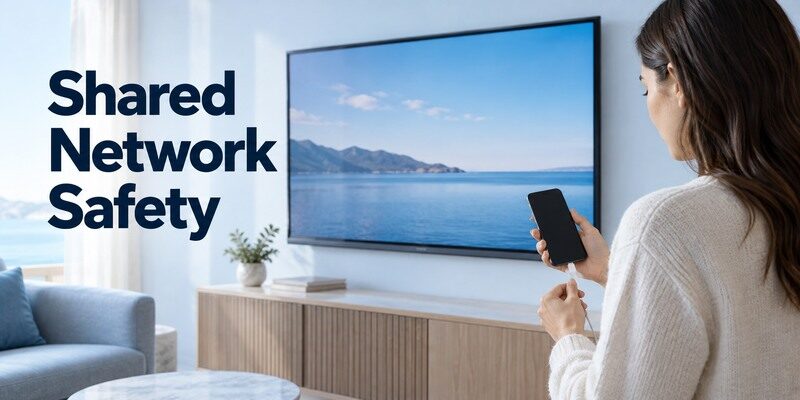
The workbook also covers office and public TV use, where authorized control may be managed by IT rather than a hotel front desk. Record the hotel tv remote app failure without changing service settings or erasing a working television configuration.
Conference room panel
Use the room’s approved control tablet, wall panel, or AV instructions. A consumer remote app may fail because the screen is on a separate managed VLAN. Contact the meeting-room support team with the room and device name. Where the organization explicitly permits phone control, a universal remote TV app may help with a supported display, but it does not replace the room’s approved AV controls or access policy.
Public display
Avoid pairing a personal phone to a public screen without permission. Commercial displays may be scheduled or centrally controlled. If volume or input needs adjustment, use the venue’s designated controls or staff.
In an office, a hotel tv remote app search may lead to the wrong solution for a managed conference display. Find the room’s AV guide or support number. A wall panel or meeting controller may already provide the approved input and volume functions. A corporate VLAN can block personal phone discovery even when the screen itself works normally.
8. App Safety on Shared Networks
Treat unfamiliar QR codes and app listings carefully. A TV remote does not require access to unrelated personal data or payment credentials. Compare hotel tv remote app alternatives by model support, cost, and a dependable physical recovery method.
Store and developer
Install only an app named by the property or a verified TV platform. Check the publisher and current permissions. Free apps may include subscriptions that are irrelevant for a one-night stay; a replacement room remote is usually provided through staff.
Pairing hygiene
Select the correct room TV and do not attempt to control nearby devices. Disconnect the phone and remove casting sessions when done. If a connection behaves unexpectedly, stop and ask staff rather than probing other room names.
A hotel tv remote app from a third party should be evaluated cautiously on a shared network. Verify developer, pricing, and local-network permissions, and avoid scanning or selecting another room’s device. A property-approved guest feature usually provides clearer pairing and checkout cleanup. If no such option exists, the front desk can provide the authorized control path.
Before checkout, disconnect your phone and sign out of streaming services. A phone remote connection and a streaming account session are separate things; removing one does not necessarily remove the other.
Source: Follow the hotel’s in-room control and casting instructions; commercial configurations vary. illustrates that guest features differ from ordinary consumer settings.
If the television itself is a supported smart model, is another option to assess after the official device method. Check the current listing and in-app purchase terms, then test navigation, power, and volume on your actual setup. It cannot add IR hardware or restore an offline device.
Read more: Fire TV Stick Remote App: Setup, Pairing, and Fixes
9. When Remote TV App Is Appropriate
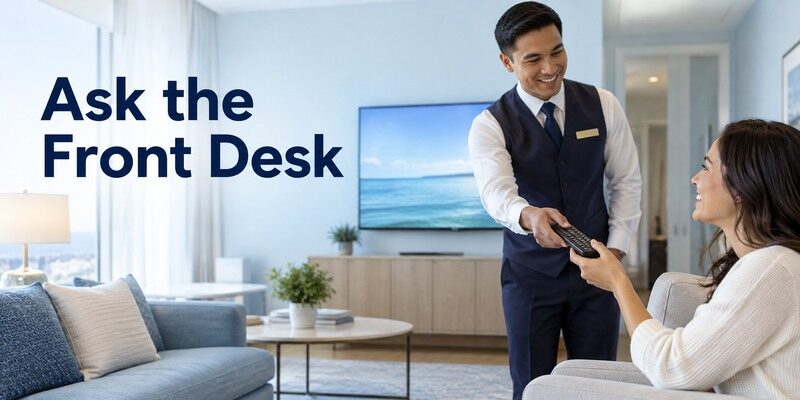
A universal phone remote can work on a supported smart TV only when the property permits local discovery and control. For hotel tv remote app, read current permissions and access rules before relying on a third-party app.
Supported private setup
In a private rental or permitted office setup, the may control a compatible television on the same reachable network. Confirm authorization and test basic functions. It cannot defeat client isolation or commercial hotel mode.
Property-managed alternative
In a conventional hotel room, the supplied remote, front desk, or guest app is the intended path. Ask for a replacement when buttons fail. Keep the focus on restoring viewing, not circumventing the room system or altering settings for the next guest.
The may suit a permitted private rental or office with a supported TV on a reachable local network. A conventional hotel tv remote app setup is constrained by the property’s policy and network architecture. Test only your own room’s device and stop if the TV is managed. Staff assistance is the fastest route when a lock or broken remote blocks viewing.
10. Frequently Asked Questions
These answers resolve the remaining practical questions about hotel tv remote app.
Will any TV remote app work in a hotel?
No. The TV may be managed and the guest network may block local discovery. Use the property’s approved app or supplied remote.
Can I unlock a hotel TV input with my phone?
A generic app should not be expected to bypass a managed input policy. Ask staff whether guest HDMI or casting is available.
What if the room remote has dead batteries?
Tell the front desk or property support and request a replacement or batteries. Note whether all buttons or only a few fail.
Is it safe to cast from my phone?
Use the property’s approved pairing flow, confirm the correct room TV, then disconnect and sign out of accounts before checkout.
11. Final Thoughts
A hotel tv remote app works only within the property’s permitted system and network. Follow guest instructions, use the supplied remote, and contact staff when a managed setting or faulty controller blocks normal viewing.
