
Samsung TV Remote Technology and How It Works
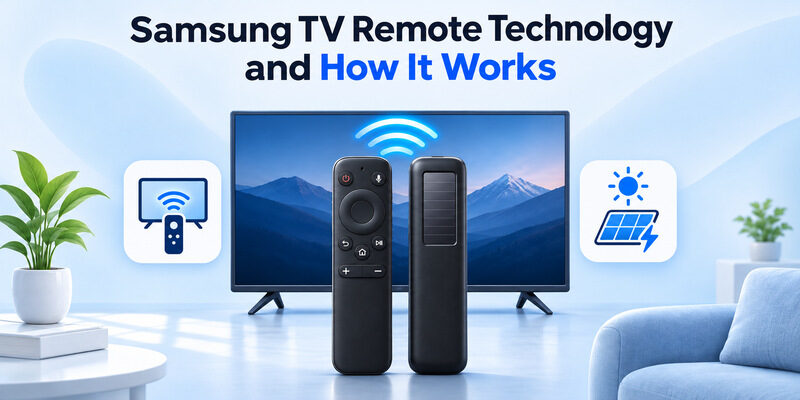
Short answer: Standard Samsung remotes use infrared, while compatible Samsung Smart Remotes can use infrared and paired Bluetooth.
Samsung TV remote technology depends on the exact television and remote. A standard button remote generally needs a clear path to the TV. A compatible Smart Remote uses a paired connection for supported functions, and SolarCell describes the charging design on models with a light panel. SmartThings adds a phone-control option for compatible televisions.
Start by matching the model numbers. Then try a directional button with the TV’s own home screen open. If the television responds and a separate HDMI device does not, look at the external device’s controls before pairing the TV remote again. Use the checks below for the remote you actually own.
Samsung TV Remote Technology by Remote Type
| Remote or control | How to identify it | What to check first |
|---|---|---|
| Standard infrared remote | Often a full button layout and removable batteries | Model compatibility and receiver line of sight |
| Samsung Smart Remote | Often a slim layout and a documented pairing process | The exact remote and TV model, then pairing |
| SolarCell Smart Remote | Charging panel on the back of supported models | Light or USB-C charging and Smart Remote pairing |
| SmartThings phone remote | A compatible TV added to the phone app | Initial network setup and access to the correct television |
Samsung’s UK One Remote guide describes infrared and Bluetooth on compatible Smart Remote setups, while standard remotes use infrared. For the practical Samsung TV remote technology test, open the TV’s own home screen and move the selection. If you see the TV react, you have a working baseline before checking a microphone, a streaming player, or a soundbar.
The physical appearance is a clue. A slim housing does not establish compatibility or battery type. A similar-looking remote could be a third-party infrared replacement or a model with a USB-C port and no solar panel. Check the back of the remote, any battery markings, and the television model. The exact combination matters more than the product photo.
When comparing Samsung TV remote technology in a listing, look for a model identifier and the list of supported TVs. If a remote looks like yours but uses a different charging method, check its documented features before assuming that it can pair with the same television. For a closer look at the different layouts, charging methods and controls, consult our Samsung remote control manual and match the instructions to your remote model.
Read more: Should Smart TV Be on IoT Network?
Read the Model Before You Pair
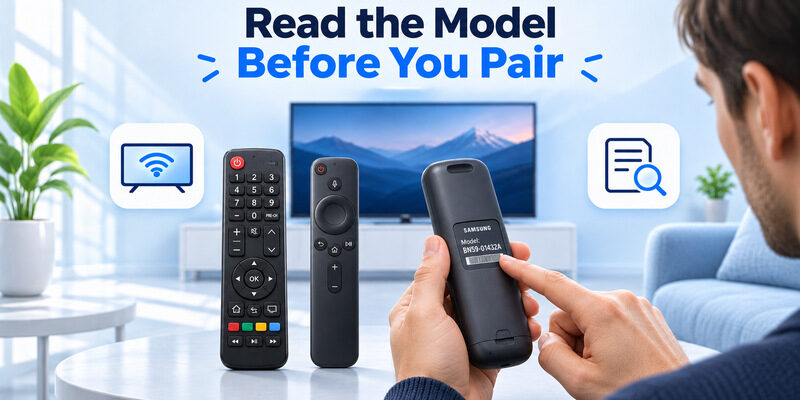
Find the TV model and remote part number
If you can navigate the TV, check the product information in its support settings. You can also use the model label on the TV or original packaging. For the remote, look at the back, inside a removable battery cover if it has one, or in the manufacturer’s listing. Match the TV and remote part numbers together.
When comparing Samsung TV remote technology across model years, check the regional documentation. Samsung notes that remote layouts and functions can vary by model and country. A television may support basic buttons on one remote and need a compatible Smart Remote for voice or another advanced feature.
Look up the feature you need before buying. For example, check whether your regular routine depends on opening the TV’s voice search, changing an HDMI source, or using just power and volume. The first two can put different requirements on a replacement. Make a short list of the commands to verify against the part number.
Identify where you expect the command to land
If the TV is on an HDMI input, switch to the Samsung home screen for the first direction test. This lets you see whether the remote is operating the television itself. With a second television nearby, leave its screen off until you have verified the intended pairing.
If the remote operates the other display, check which model it was paired to and follow the guidance for switching it back. Then go back to the HDMI source to check whether the same button also controls the external device.
Samsung TV remote technology can behave differently on the Samsung menu and the connected player’s menu. A functioning remote can reach the TV while the player still needs its own control setup. Recording which screen moves helps avoid repeating a pairing procedure that already worked. If you own a Samsung 4K TV, check Samsung 4K remote compatibility before choosing a replacement based on its appearance alone.
Charge SolarCell or Replace Batteries
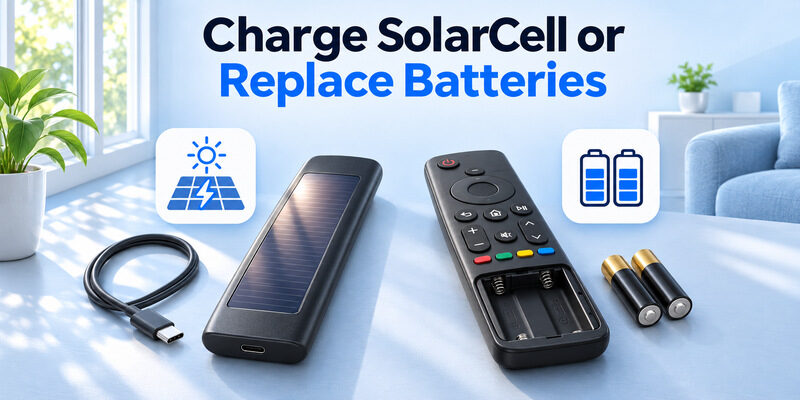
Charge a compatible SolarCell remote
Samsung’s SolarCell charging guide describes a panel on the back that can use light, and a USB-C charging option on supported models. Place a remote with a solar panel panel-side up in available light. For a remote with a USB-C port and no solar panel, Samsung’s guide says to use the USB-C cable. Check the model before trying to open the casing.
Charging design is one part of Samsung TV remote technology. A SolarCell remote can still need pairing after you address power. When the TV’s settings display a remote battery level, check it from a working control. Then compare the same button before and after charging. If the television displays a charging or battery indicator, record what it shows before you start.
Check it again after a charge instead of using the same failed pairing attempt as your only battery test. These are separate checks for power and communication. If you moved a SolarCell remote from a dark drawer to a well-lit room, check it again before deciding that the TV has a pairing problem. When using USB-C, check that the cable is correctly connected and that any charge indicator behaves as described for the model.
Replace removable batteries on a standard remote
For a remote with a battery compartment, use the battery type and orientation printed inside. Close the cover and test it directly in front of the TV. If the remote uses infrared, a soundbar or cabinet can block the receiver. When you test Samsung remote technology on a standard model, start with the original line of sight and one simple command.
A remote that responds after a battery change may still fail from a particular angle. Test from your usual seat. If it works in front of the receiver and fails from one side, check what is blocking the path before changing the remote again.
Read more: Can a TV Remote App Work on Different WiFi Networks?
Test Power and Navigation Separately
Use the TV menu to test more than power
Pressing power can show whether the television turns on, but it does not exercise all Samsung TV remote technology in a paired model. Check a direction and the select button with the Samsung menu visible. If those respond, note whether the problem is limited to volume, voice, or an HDMI device.
If only power works on a supported Smart Remote, check the remote’s charge and pairing status. Test near the screen. The behavior can vary by model, so treat the working power button as a clue and check the manufacturer’s instructions for the rest of the controls.
When testing Samsung TV remote technology, a small status light or power response alone does not identify the path used by every button. Repeat the navigation test after pairing and confirm that the TV menu itself responds. For additional power and compatibility checks, review our Samsung SolarCell remote charging and battery checks and follow the instructions for your exact controller.
Check basic sound control before changing pairing
If navigation works and volume fails, find which device is producing sound. Try the TV volume and the soundbar or receiver separately. Check the selected sound output and whether the external equipment accepts the intended control path. A volume icon on the TV does not always tell you whether the connected audio device changed. Listen for a small change at a comfortable volume and check the soundbar or receiver display when one is available.
| Result | Next check |
|---|---|
| Standard remote works only from the front | IR path and fresh batteries |
| Smart Remote power works but menus fail | Charge, model compatibility, and pairing |
| Samsung menus move and HDMI device ignores commands | External-device setup and Anynet+ support |
| Physical remote works but phone cannot find the TV | SmartThings setup, TV network, and phone connection |
Read more: TV Remote App Not Working After Changing Router? How to Fix It
Pair the Samsung Smart Remote
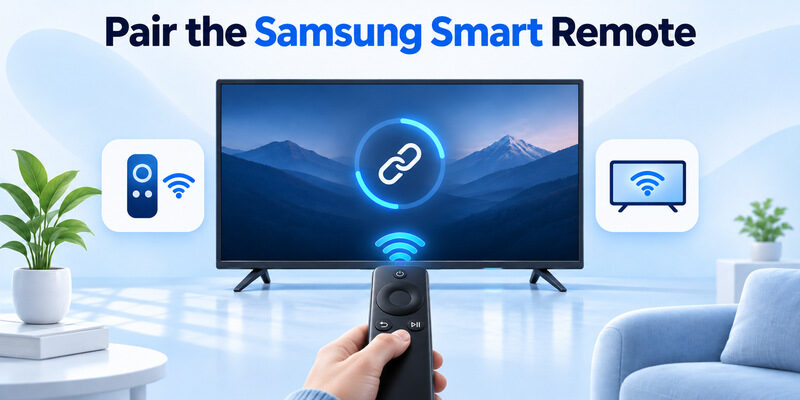
Use the documented buttons for the matching model
Samsung Support directs owners of compatible Smart Remotes to point the remote at the TV and hold Return and Play/Pause together for about three seconds or longer, depending on the guidance for the model. Look for a pairing prompt or confirmation on screen. A standard infrared remote follows a different setup, so check the remote type first.
Pairing is part of Samsung TV remote technology on the supported smart models. If you share a compatible Smart Remote between televisions, Samsung says it connects to one device at a time.
Put the other remote down, point toward the intended TV, and test its own menu immediately after pairing. This verifies which television responds. With Samsung TV remote technology on a model that can re-pair to another display, repeat this check when you bring the remote back to its original room. Have another way to navigate the television ready if you need to view a pairing message or change its settings.
For ongoing care, follow these remote control battery and maintenance tips for checking battery fit, protecting the buttons and storing a spare remote.
Check power and display before repeating
If there is no prompt, make sure the television is awake and the remote has power. Move closer and check the model’s instructions. If another controller works, open a simple TV menu before the test. That gives you an on-screen result to look for even if the TV is normally on a different input.
When Samsung TV remote technology seems to reconnect and fail repeatedly, try a navigation command close to the TV before moving back to the couch. Record which location works. If nothing responds, including the TV’s physical control, check the TV’s own power state first. If the TV is already displaying content, use the physical button or a compatible phone remote to verify whether it accepts another control. That keeps a frozen TV or an inactive input from looking like a remote that needs pairing.
Check External Devices With Anynet+
Identify which device the Samsung remote is controlling
Samsung Support explains that compatible televisions can use Anynet+ for HDMI-CEC and may also offer a separate Universal Remote setup for external equipment. When Samsung TV remote technology reaches the television itself and an external device fails to follow, check the active HDMI input and the external device’s control options.
On supported TVs, Samsung’s documentation points to External Device Manager for Anynet+. The menu name and path can differ on older models. Check the exact model’s manual before changing options. Select the device on the correct HDMI input and test one command that the equipment supports. If a connected player changes input when it powers on, check whether the action happens with its own remote as well. That can help distinguish equipment behavior from a failed navigation command on the Samsung remote.
Separate audio and source changes
A receiver or soundbar can have different controls from a streaming player or game console. If the TV responds and the source does not switch, verify the external device has finished setup and accepts the intended CEC command. If the soundbar volume fails, check the active audio output and the manufacturer’s supported control method. Keep the Samsung menu test as your baseline.
Read more: Alexa Compatible Smart TV: Built-In and Works-With Choices
Control the TV With SmartThings
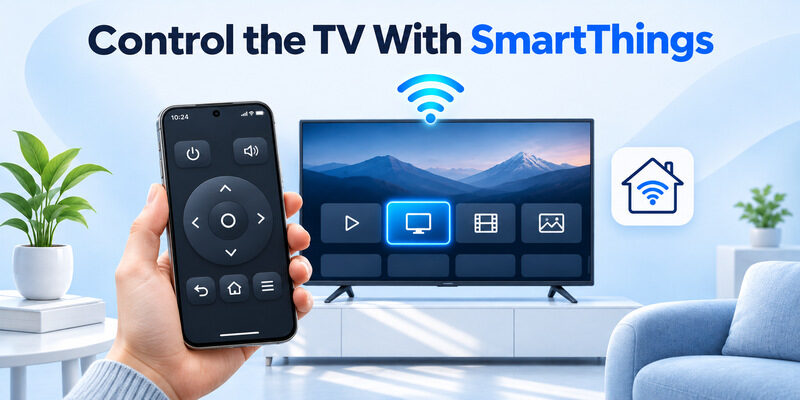
Add a compatible Samsung TV to the app
Samsung’s SmartThings guide says to start with the television and phone on the same Wi-Fi and signed in to the same Samsung account for initial setup. Open SmartThings, add the TV, and follow the prompts shown on the phone and television. Verify one direction on the TV screen after the remote opens. If two televisions appear with similar names, use the prompt on the intended one to confirm the match.
Phone-based Samsung TV remote technology uses a different connection from the physical Smart Remote. If the app works and the handheld remote does not, check the handheld remote’s power and pairing. If only the app fails, start with the TV’s network and the phone’s access. If you changed routers recently, check both devices’ active Wi-Fi names before removing the TV from the app. Samsung TV remote technology through a local app needs a reachable television for initial setup. It can fail while a working physical remote continues to control the TV normally.
Use a compatible iPhone remote as a backup
If the television is reachable and the physical remote is missing, can serve as an iPhone backup for compatible smart TVs. Use the device list and confirm that a navigation command reaches the intended TV. Keep a working physical control available if you need to change the TV’s network and the phone app cannot reach it.
Choose a Compatible Samsung Remote
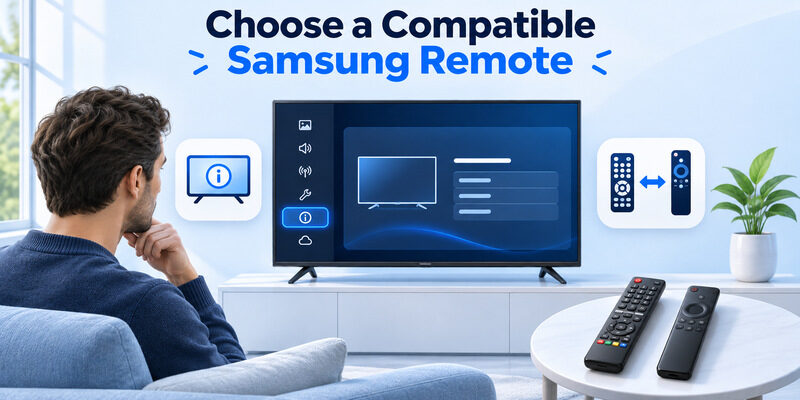
Match the model and the features you want
For a replacement, verify the part number, supported models, and the commands you need. A standard infrared remote may be sufficient for basic power, input, and volume on a compatible TV. If you want Samsung TV remote technology with voice, paired navigation, or SolarCell charging, check that the replacement actually supports those features on your model.
Ask the seller for the remote model if a listing only mentions a television brand or shows a photo. Compare it with Samsung’s documentation. If the television is already controlled by a paired Smart Remote, check whether the replacement will need to be paired and whether you have another way to open settings.
Test the replacement against the original job
Start with Samsung TV navigation. Then test TV volume, voice if needed, and control of each HDMI device independently. A replacement can meet your everyday needs even if one optional feature is unavailable. Confirm the features that matter before you discard the original remote or change unrelated TV settings. Keep the working remote model recorded in a convenient place if you have several televisions. The next Samsung TV remote technology check is easier when you can identify the exact paired remote and TV without opening menus.
Read more: How to Control TV With Google Assistant: Setup and Commands
Frequently Asked Questions
Do all Samsung remotes need to pair?
No. A compatible standard infrared remote can send supported commands directly when aimed at the television. A compatible Smart Remote can need pairing for its wireless features. Check the part number and the television model before following pairing instructions.
Does SolarCell mean the remote uses a different signal?
SolarCell describes the charging design. Samsung TV remote technology on a SolarCell model can still use the Smart Remote’s supported control methods. Check charging and pairing separately if the remote is unresponsive, and use the guidance for its exact model.
Can I use one Smart Remote with two televisions?
Samsung says a compatible Smart Remote can be manually synced with another supported television but works with one device at a time. If you regularly switch between TVs, verify the new pairing and test the target’s home screen each time.
Why do Samsung menus work but the streaming player ignores the remote?
The remote already reaches the TV. Check the HDMI source, support for Anynet+ or another documented control method, and the external device’s own setup. Test a command on the correct HDMI input after confirming that the player is powered on.
Final Thoughts
Samsung TV remote technology is easiest to troubleshoot when you match the exact remote to the television and test the TV first. Check a clear IR path for a standard remote, pairing and charge for a Smart Remote, and network setup for a phone app. Handle HDMI equipment as a separate control path.
