
Free Kogan TV Remote App – Download & Setup Guide
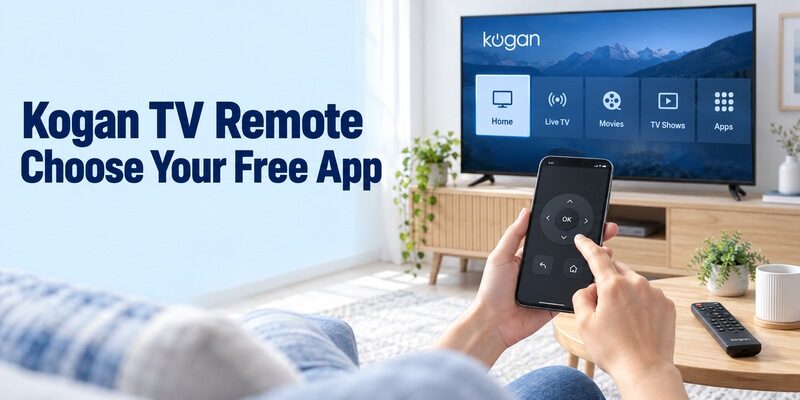
You can use a free Kogan TV remote app on certain compatible Smart TV models, but the correct app depends on your television’s operating system.
Kogan Google TV and Android TV models may support Google TV remote controls, while supported webOS models may work with LG ThinQ. This guide helps you identify your TV platform, choose a suitable free app, and connect your phone step by step.
Decide What a Free Kogan TV Remote App Must Do
Define the Minimum Useful Controls
A free installation is useful only if the available buttons complete your everyday tasks. Write down what you need before comparing app screenshots. A household that watches live channels may prioritise channel changes and volume, while someone searching streaming services may value navigation and a phone keyboard more.
Try the whole sequence you normally use, including getting back to the correct source. If an app launches a film but cannot return you to television viewing, it may be a convenient supplement rather than a complete replacement. That is a practical limitation to record, not a reason to assume the initial connection failed.
Keep Remote Access Separate from Entertainment Charges
A free kogan tv remote app does not remove the cost of streaming subscriptions, movie rentals, or other content. Conversely, a streaming-service offer shown on the television does not establish that you need a subscription to use the phone’s direction buttons. Check which service is requesting payment.
For independent remote apps, inspect the current listing and purchase screens. Some offer ads or optional upgrades, while others restrict particular functions. Test essential controls before accepting an introductory trial. Removing an app later is not the same as cancelling a subscription through the store that manages it.
Match the Television’s Platform to the App
Use the full model number and the television’s own home screen together. Kogan’s troubleshooting guide recommends searching its Help Centre by model, rather than by the longer serial number unique to your unit. Include the suffix when identifying a manual or compatible accessory.
| What the television actually runs | App route to check first | Evidence to confirm |
|---|---|---|
| Google TV remote or compatible Android TV | Google’s Google TV app | Platform information and Kogan’s model guidance |
| Kogan webOS with documented ThinQ support | LG ThinQ | Exact model’s mobile-connection instructions |
| Older smart interface | Model-specific companion route | A supported app, not merely internet access |
| Traditional IR-controlled television | Compatible IR app or physical remote | Phone transmitter and matching command profile |
| External streaming box on HDMI | The box’s supported remote app | Identity of the box as a separate device |
For a free kogan tv remote app comparison, do not treat a streaming player’s home page as proof of the television’s built-in software. A Google TV device plugged into an older set can produce the same familiar interface while leaving the screen’s own menus under a different controller.
If the model is difficult to read, check your order details or the documentation supplied with the TV. Avoid selecting a manual solely because the product photograph looks similar. Kogan sells multiple generations, and small differences in model codes can identify different software or remote requirements.
Read more: Google TV Remote App Android: How to Control Google TV From Your Phone
Pair Google TV with a Compatible Kogan Television
Prepare the Phone and Television
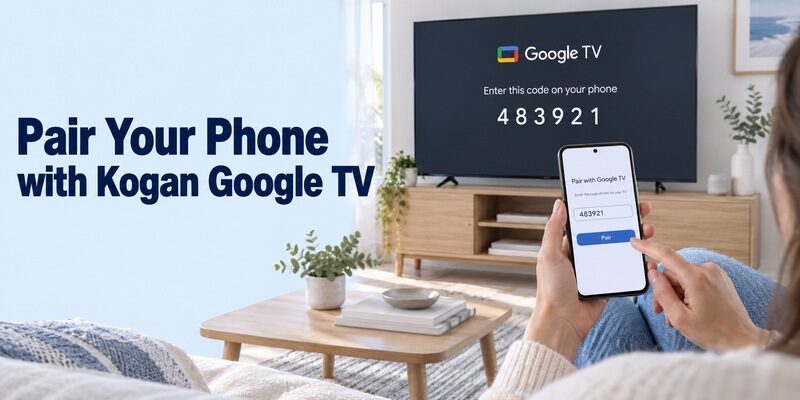
Kogan’s official remote-control page recommends Google TV for its Google TV and Android TV sets. Use the Google-published phone application and connect the phone and television to the same suitable home network. Turn the television on and leave its screen visible during the first connection.
This free kogan tv remote app route uses the network, so your phone does not need an IR blaster. It still needs a reachable, supported television. If the TV has never joined the network, use the original remote, available physical controls, or another documented input method to complete that setup first.
Enter the Code from the Selected Screen
Google’s current instructions use TVs nearby, followed by device selection, the code displayed on the television, and Pair. Choose the intended Kogan and enter the code that it actually shows. If a prompt expires, repeat the connection rather than substituting a code from an unrelated remote guide.
After pairing, press one direction and then Back. Confirm that the correct screen responds before testing text entry or other extras. A free kogan tv remote app is easier to evaluate when you establish one reliable function at a time. Keep a familiar menu open so that a mistaken tap is easy to reverse.
For a shared room, watch which television changes when you send that first command. Similar device names can make it easy to choose a bedroom set instead of the living-room Kogan. Rename the device through its supported settings if needed, then select it again. The benefit of a free kogan tv remote app is reduced effort during normal viewing, so clear naming is worth arranging while everyone can see which screen is responding.
Read more: How to Pair Google TV Remote and Reconnect It
Use ThinQ Where Kogan’s webOS Manual Supports It
Follow the Model’s Mobile-Connection Instructions
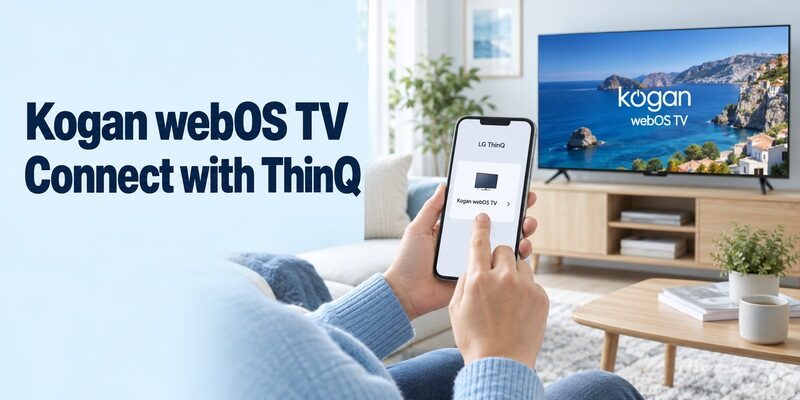
Some Kogan webOS manuals explicitly document LG ThinQ phone control. For example, the KALD24D97SNA guide describes installing ThinQ, connecting the TV and smart device to the same network, and following the application’s connection instructions. It also notes that availability and functions can vary by region and operating system.
For a free kogan tv remote app on another webOS model, look for equivalent support in that model’s own guide. Do not infer every function from the webOS name or an LG television demonstration. A documented connection route is stronger evidence than a shared home-screen design.
Check the Controls Offered for Your Device
The Kogan guide describes simple remote operation and an expanded remote view, while warning that some controls can be limited in external-input mode. LG’s App Store listing identifies ThinQ as a free application. Confirm the current listing from LG Electronics and complete the prompts shown for your supported television.
Try navigation, sound, and returning from your normal input. Keep the physical controller available while learning the layout. The free kogan tv remote app you choose should be judged on your actual model and source, including any functions that do not appear in its mobile interface.
Do Not Confuse SmarterHome with a Universal TV Remote
Check Which Product the Application Supports
Kogan SmarterHome controls compatible smart devices; its brand name does not prove that it controls every Kogan television. The publisher’s store description uses compatibility language. Check whether your television, a separate accessory, or another household device is the product intended to connect through that app.
A search for a free kogan tv remote app may also return smart-home accessories associated with a television. Controlling a motorised mount or another accessory is different from navigating the TV’s menus. Read the product name carefully before following a reset or pairing procedure intended for different equipment.
Keep Account Linking and TV Navigation Distinct
An account linked to a voice assistant can expose supported commands without providing the same on-screen remote interface as a platform app. Test the exact action you need. Do not assume that a television appearing in a household device list guarantees a full set of navigation buttons.
If your Kogan model already works with Google TV or documented ThinQ control, establish that basic route first. Add other integrations only when they solve a specific need. This keeps the setup understandable and makes it easier to identify which application is responsible if a command later stops working.
Read more: Apple TV Remote App Free: Use the iPhone Control You Already Have
Evaluate Independent Network and Infrared Apps
Read the Connection Mode and Publisher Identity
An independent app’s Kogan-themed title is not an official endorsement. The Google Play listing Remote for Kogan TV by Raag international discloses ads and says it is independent of Kogan and Google. It describes network control for compatible Android televisions and IR control requiring a built-in phone blaster.
For this kind of free kogan tv remote app, choose the mode that matches your hardware. A network discovery failure is not automatically solved by switching to IR. The second route needs an actual transmitter and a suitable command profile; a phone’s Bluetooth support does not provide those requirements.
Test Several Commands Before Keeping a Profile
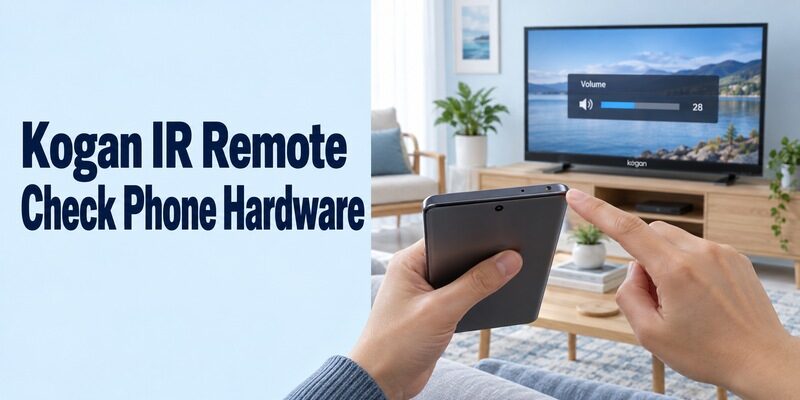
Check the phone manufacturer’s specifications for IR support. Many Android phones lack it, and an ordinary iPhone does not include a TV-control IR blaster. If your phone does have the required hardware, aim its emitter toward the television and test a modest volume change before exploring other buttons.
A free kogan tv remote app profile that changes volume may still lack input or menu commands. Test the controls needed to recover your usual viewing source. Record the working profile and any missing functions, so you can repeat the result without searching through the entire code list again.
Do not confuse a phone profile with a code printed for a separate universal handset. Each physical remote can use its own programming system. Entering its code into an unrelated app is not a standard pairing method. When evaluating a free kogan tv remote app, follow the app’s documented profile process and keep the original remote’s configuration intact. That gives you a reliable comparison if a button performs the wrong action or only some commands work.
Judge the App During a Normal Viewing Session
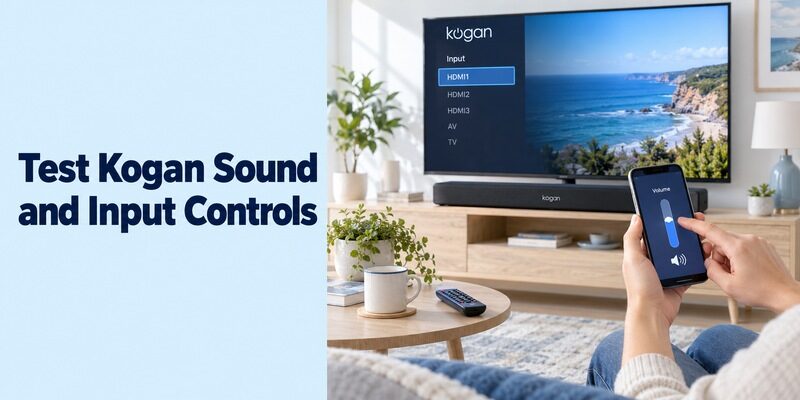
Try Channels, Streaming, and Text Entry Separately
A successful pairing is the beginning of the test, not proof that every function is supported. Open your usual source and perform a small set of familiar actions. For live television, check channel movement and the programme guide where available. For streaming, test selection, Back, and returning Home.
Try the keyboard in a harmless search field before using it for credentials. A particular application may handle text fields differently from the home screen. If typing fails in one place, keep working navigation available and compare another ordinary search field before deciding that the phone connection is broken.
Preserve DVD and External-Input Access
On a TV/DVD combination, check disc playback and the route back to television separately. A phone interface designed for the smart platform may not expose every disc command. Keep the original controller for a function that remains outside the supported mobile route, even if streaming navigation works well.
Your free kogan tv remote app should also fit the connected audio arrangement. Confirm whether sound comes from the TV or a soundbar before evaluating volume. An external device may need its own supported control path. A working direction pad does not establish that the phone controls every component in the room.
Read more: Logik TV Remote App Free: Connect the Right App to Your Television
Diagnose Connection Failures by Their First Symptom
Identify the stage that fails before changing several settings. The following checks help organise a free kogan tv remote app troubleshooting session without treating every symptom as the same problem.
| Symptom | First useful distinction | Next check |
|---|---|---|
| Television never appears | Discovery versus unsupported platform | Model support, TV power, local network access |
| TV appears but will not pair | Discovery succeeded | Intended device, current prompt, entered code |
| Navigation works but sound does not | Individual function or different device | Audio output and supported volume route |
| IR buttons have no effect | Hardware or profile issue | Actual emitter, aim, alternative matching profile |
| Connection fails after a break | Standby or reconnection issue | TV network status and model-specific guidance |
Check the network names on both devices rather than relying on a Wi-Fi symbol. Guest networks and isolated access points can prevent local communication even when both devices have internet access. Review relevant phone permissions and a VPN’s local-network behaviour, then repeat the same short test after each change.
If another phone already works, compare its app publisher, selected device, and connection with yours. That can narrow the fault without disturbing the television’s saved setup. Write down the exact message or failed button when contacting support; “cannot pair after entering the code” is more useful than “the app is bad.”
Keep the support request brief but reproducible: identify the TV model, phone operating system, application publisher, and last successful action. Mention whether the original controller works and whether the problem began after changing networks or entering standby. Those observations help separate a television issue from a phone-specific one. Your free kogan tv remote app notes should describe what happened on the screen, rather than guessing that the TV needs new firmware before its model has been checked.
Recheck Standby Before Relying on the Phone Alone
Separate Turning Off from Waking Up
Successful power-off does not guarantee successful power-on from every standby state. A network controller depends on the television remaining reachable through its supported wake arrangement. Test after an ordinary standby period, and keep a way to turn on the set if the phone cannot reach it.
Kogan has published a specific standby Wi-Fi troubleshooting article for KALED32QH7000SKA and KALED40QF7000SKA models. That is a reason to consult model-specific guidance, not to apply those older firmware or menu instructions to every Kogan television. Match the complete model before changing power or update settings.
Keep a Recovery Method for Network Changes
Before replacing the router, confirm that you can still open the television’s network settings with a physical controller or another supported method. A free kogan tv remote app on the new network cannot automatically repair an offline television that remembers the old credentials.
Avoid factory-resetting a functioning TV simply to compare phone remotes. A reset can remove the connection and return the set to setup screens that need physical input. An ordinary restart is a different action. Preserve a working route while investigating the precise problem that prevents the phone from reconnecting.
Frequently Asked Questions
Is Google TV the Right App for Every Kogan TV?
Use it for a compatible Google TV or Android TV model. A free kogan tv remote app for a documented webOS model may instead be ThinQ. Older smart interfaces need their own compatibility checks. Identify the built-in platform rather than choosing from the television brand alone.
Can an iPhone Control an Older Infrared-Only Set?
An ordinary iPhone cannot send traditional TV-control infrared through an app alone. It needs a supported network target or a separately compatible hardware solution. Installing more IR remote apps does not add the missing transmitter. A verified physical replacement can be the simpler option for an older set.
Does ThinQ Support Every Function on a Kogan webOS TV?
Check the exact model’s documentation and the controls actually available. Kogan’s mobile-connection guidance qualifies functions by region, operating system, and input context. Test the commands you need rather than transferring every capability shown for an LG television to a Kogan model with the same platform name.
What Should I Save After the App Works?
Record the app publisher, television model, selected device name, and any essential limitations. Keep a compatible physical remote accessible. For further setup topics, provides related guides; compare each guide’s platform requirements with your own television before following its menu steps.
Final Thoughts
A free kogan tv remote app works best when the platform, publisher, and connection method are confirmed before installation. Start with Google TV on compatible Google-based sets or ThinQ where Kogan’s own webOS guide documents support. Treat independent IR apps as hardware-dependent alternatives. Then test the full viewing routine, including sound, inputs, and reconnection after standby. Keep a physical backup for recovery and record the successful setup so that another household member can use it without repeating your research.
