
Hisense 4K TV Remote: Models, Setup, and Replacements
Quick Answer: The right Hisense 4K TV remote depends on your TV’s model and operating system, not its screen size or 4K resolution. Hisense Roku TV, Google TV, Android TV, Fire TV, and VIDAA models may use different remotes. A compatible infrared remote usually works without pairing, while a wireless voice remote may require setup. Check your TV model and remote part number before buying or connecting a replacement.
Whether your original remote is lost, broken, or not responding, you have several options: reconnect it, use a compatible replacement, program a universal remote, or control your TV with a supported phone app.
This guide helps you identify your Hisense remote, connect it correctly, and fix common problems.
Which Remote Works With a Hisense 4K TV?
Not every Hisense 4K television uses the same remote.
The correct controller depends on the TV’s operating system, model series, and remote hardware.
Hisense 4K TV Remote Compatibility by Platform
| Hisense TV Platform | Common Remote Type | Pairing Requirement |
|---|---|---|
| Hisense Roku TV | Roku Simple Remote or compatible Roku Voice Remote | IR models need no pairing; voice models require pairing |
| Hisense Google TV | Hisense Google TV remote, sometimes with voice control | Wireless functions may require pairing |
| Hisense Android TV | Compatible Hisense Android TV remote | Depends on IR or Bluetooth features |
| Hisense Fire TV | Compatible Fire TV remote | Wireless voice remotes generally require pairing |
| Hisense VIDAA TV | Model-specific Hisense remote | Depends on remote generation |
| Older Hisense 4K TV | Standard infrared remote | Usually no pairing |
Important: A Hisense Roku TV remote is not automatically compatible with a Hisense Google TV or VIDAA television.
How to Identify Your Hisense 4K TV Model
Before buying a remote:
- Find the model number on the TV’s rear label.
- Check Settings → About, System, or Support, if accessible.
- Identify the operating system shown on the TV’s home screen.
- Inspect the original remote for a model or part number.
- Compare the replacement remote’s compatibility list with your TV model.
A television’s screen size alone is not enough to confirm remote compatibility.
For example, two 55-inch Hisense 4K TVs may use completely different remotes if one runs Roku TV and the other runs Google TV.
Does a 43-Inch Hisense TV Use the Same Remote as a 55-Inch Model?
Not necessarily.
A 43-inch and a 55-inch Hisense TV can use the same remote when their models share compatible control hardware and software.
However, screen size does not guarantee compatibility.
Always compare the exact TV model and remote part number.
How to Identify an Infrared or Voice Remote
A traditional infrared remote often:
- Works when pointed toward the TV
- Uses replaceable batteries
- Does not require wireless pairing
- Provides basic TV controls
A wireless voice remote may include:
- A microphone or voice-search button
- Bluetooth or another wireless connection
- Pairing instructions
- Smart TV shortcuts
Some voice remotes also use infrared for certain functions, so the presence of a microphone does not mean every button communicates wirelessly.
For detailed button descriptions, read our Hisense remote control manual guide.
How to Pair a Hisense 4K TV Remote
The correct pairing procedure depends on the television platform and remote type.
Before starting, insert fresh batteries or charge the remote if it has a rechargeable battery.
Method 1: Connect a Standard Hisense IR Remote
Most compatible infrared remotes do not need pairing.
To use one:
- Turn on the Hisense television.
- Insert the correct batteries into the remote.
- Check the positive and negative battery markings.
- Point the remote toward the TV’s infrared receiver.
- Press Power, Volume, or Menu.
- Confirm that the television responds.
If the remote does not work, check compatibility, battery contacts, and the TV’s infrared sensor.
Do not attempt Bluetooth pairing with an infrared-only remote.
Method 2: Pair a Hisense Roku TV Voice Remote
Hisense Roku TVs may use either a simple infrared remote or a wireless Roku voice remote.
For a compatible Roku voice remote with a pairing button:
- Turn on the Hisense Roku TV.
- Keep the remote close to the television.
- Locate the pairing button on the remote.
- Press and hold the button for approximately 5 seconds.
- Wait for the status light to flash.
- Follow any pairing instructions on the TV.
For a compatible Roku voice remote without a dedicated pairing button:
- Turn on the television.
- Press and hold Back + Home together.
- Keep holding for approximately 5 seconds.
- Wait for the status light to flash.
- Complete pairing on the TV.
If you have another working remote or can use the Roku mobile app, you can also navigate to:
Settings → Remotes & devices → Add devices → Remote
Follow the on-screen instructions to add the replacement.
Note: These are Roku voice remote procedures. A Roku Simple Remote uses infrared and normally does not require pairing.
For more Roku-specific setup instructions, see our Roku remote connection guide.
Method 3: Connect a Hisense Google TV Remote
Many Hisense Google TV models support wireless voice remotes.
The correct pairing-button combination depends on the remote model.
If you have a working way to navigate the TV:
- Open Settings.
- Select Remotes & Accessories.
- Choose Pair remote or accessory.
- Put the compatible Hisense remote into pairing mode according to its instructions.
- Wait for the remote to appear.
- Select it and confirm pairing.
- Test navigation and voice functions.
Some Google TV remotes use Back + Home to enter pairing mode, but this is not universal for all Hisense models.
Follow the remote’s manual when its instructions differ.
Method 4: Connect a Hisense Android TV Remote
For Hisense Android TV, first identify whether the remote is infrared-only or supports Bluetooth.
If it is infrared-only, insert batteries and test it directly.
If it is a compatible Bluetooth remote:
- Turn on the TV.
- Open the remote or accessory settings.
- Select the option to add or pair a remote.
- Activate pairing mode on the remote using its model-specific instructions.
- Select the detected remote.
- Confirm the connection.
- Test its controls.
Menu names may differ across Android TV software versions.
Method 5: Pair a Hisense Fire TV Remote
For compatible Hisense Fire TV models:
- Turn on the TV.
- Insert fresh batteries into the compatible Fire TV remote.
- Wait for automatic pairing if the TV is in initial setup.
- If the remote does not connect, hold Home for approximately 10 seconds on supported models.
- Follow the on-screen pairing instructions.
If you already have another working control method, the Fire TV settings may allow you to add a new remote.
The replacement must be compatible with your exact Fire TV model.
Method 6: Pair a Hisense VIDAA Remote
Hisense VIDAA televisions use different remote generations.
Some rely primarily on infrared, while others support Bluetooth voice functions.
To connect a VIDAA remote:
- Identify the TV model and remote part number.
- Install fresh batteries.
- Test basic infrared controls.
- Open the TV’s remote or Bluetooth settings if available.
- Follow the pairing procedure specified in your model’s manual.
- Confirm that navigation and voice features work.
Do not assume a Roku or Google TV pairing shortcut will work on a VIDAA remote.
For a more detailed pairing walkthrough, read our guide to pairing a Hisense remote to a TV.
Adjusting Hisense 4K Settings Without Losing Remote Function
Hisense 4k settings for picture mode, HDR, and sound are all accessed through the same remote and menu system regardless of which 4K model you own, so a replacement or universal remote will still reach every setting as long as it has working Menu, OK, and directional buttons.
If a specific settings shortcut button (like a dedicated Picture Mode key) doesn’t exist on a replacement remote, the same setting is still reachable through Settings > Picture in the on-screen menu.
 Read More Guides: Hisense TV Code for Universal Remote: Verified Codes and Programming Steps
Buying a Replacement Hisense 4K TV Remote
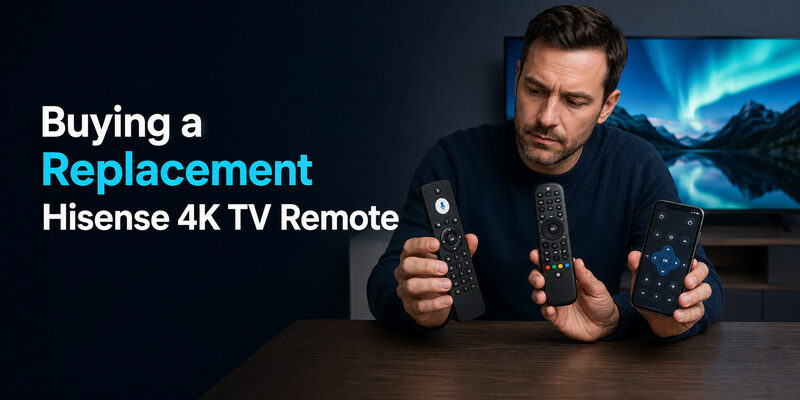
When a Hisense 4K remote is lost or stops working, three replacement paths cover most situations.
| Option | Covers | Best For |
| Genuine platform-matched remote | Full functionality including voice and app shortcuts | Restoring exact original behavior |
| Universal remote (coded or auto-search) | Power, volume, input, channel | A fast, low-cost stopgap |
| Remote TV App | Power, volume, navigation over Wi-Fi | Immediate free control while you decide |
Can a Remote TV App Cover a Hisense 4K TV
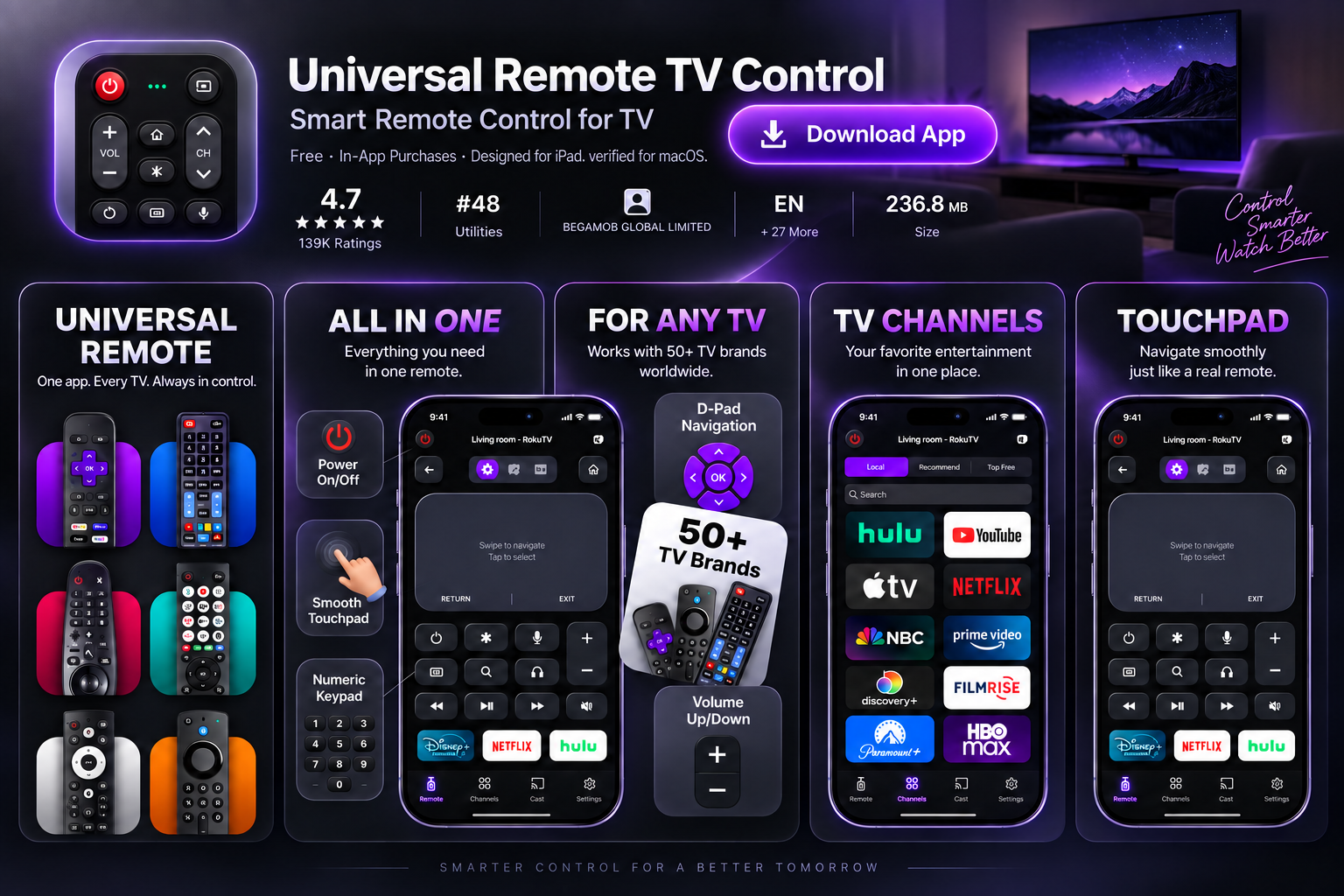
The Remote TV App works with Hisense 4K TVs the same way it works with other Hisense models — it turns a phone into a working remote over the same home Wi-Fi network, handling power, volume, and navigation without extra hardware.
It’s especially useful right after buying a hisense 4k tv remote replacement online, since it keeps the TV usable during the wait. as a free option before spending on a physical replacement.
Read More Guides: How to Open Hisense TV Remote Safely for Batteries, Cleaning, or Repair
FAQs About Hisense 4K TV Remotes
Can I use my phone as a Hisense 4K TV remote?
Yes. The Remote TV App controls power, volume, and navigation over Wi-Fi and works as a genuine stopgap while you source a physical replacement.
Is there a free Hisense 4K TV remote app?
Yes — both the Remote TV App and Hisense’s own official remote app are free to install and control the TV over the same Wi-Fi network.
Can I use a universal remote with a Hisense 4K TV?
Yes, for power, volume, input, and channel control. Voice search and streaming-app shortcuts require a genuine or platform-matched remote.
 Browse How-To Guides: Hisense Remote Control Manual: Buttons, Pairing, Apps, and Troubleshooting
Final Thoughts
A hisense 4k tv remote is not one single product — it changes based on the smart platform your TV runs and the specific remote generation it shipped with, so identifying your exact model is the first step before buying a replacement or troubleshooting a pairing issue.
Once you know the platform and model, pairing, resetting, and replacing the remote all follow predictable steps, and the Remote TV App remains a free way to keep the TV usable at any point along the way.
Download LG TV Remote