
Insignia 8 Device Universal Remote: Setup Instructions, Codes & Compatibility
By the Remote TV App Team
Last updated: September 2026
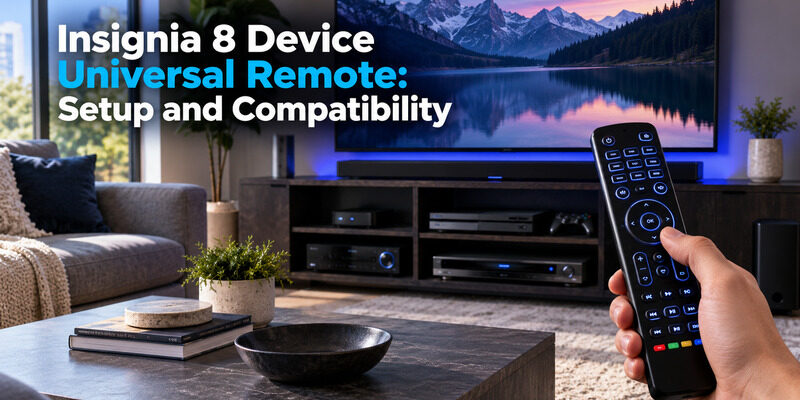
Want one remote for your TV, soundbar, streaming box and more? The Insignia 8 device universal remote (model NS-RMT8D21) controls up to eight devices from as far as 30 feet, and most buyers get basic control working in about 10 minutes. This guide covers the exact setup steps, the Insignia universal remote codes that work, and whether it will control your TV.
Quick answer
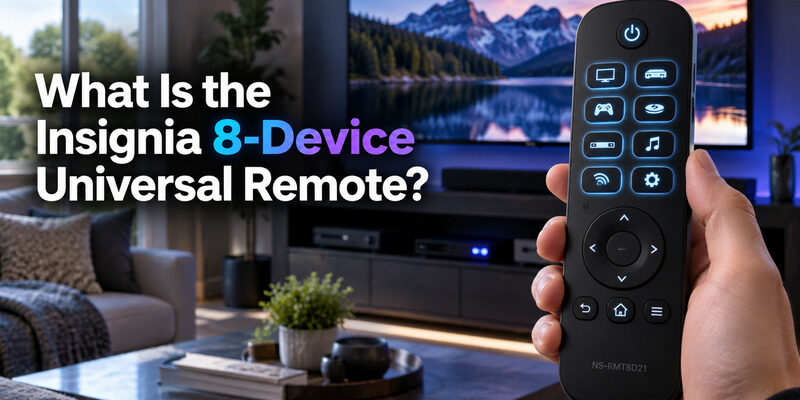
What is the Insignia 8 device universal remote? The NS-RMT8D21, a backlit infrared remote sold at Best Buy ($29.99 at time of writing) that controls a TV, streaming device, Blu-ray/DVD player, soundbar/audio receiver, cable or satellite box and one auxiliary device.
Insignia universal remote instructions (fastest way): Press the device button (e.g., TV) → hold SETUP until the LED blinks twice → press and hold your brand’s number (Insignia = 2, LG = 1, Samsung = 5) until the device turns off → release.
Insignia universal remote codes: If your brand isn’t in the quick table, hold SETUP, enter a 4-digit code (Insignia TV: 2049, LG: 1840, Samsung: 2051), then press Power to test.
Will a universal remote work on an Insignia TV? Yes. Insignia is built into the remote’s brand list.
What Is the Insignia 8 Device Backlit Universal Remote (NS-RMT8D21)?
The Insignia 8 device backlit universal remote is Best Buy’s house-brand universal remote. It sends infrared signals up to 30 feet, has fully backlit keys for dark rooms, and uses two AA batteries (not included).
Which devices can the Insignia 8 device universal remote control?
Each device button on the Insignia 8 device universal remote is programmed on its own, so changing one slot never affects the others. Out of the box, each slot is pre-set to a popular device, so try it before programming anything.
| Button | Controls | Pre-set out of the box |
|---|---|---|
| TV | Your TV | Samsung TV |
| STB | Cable / satellite box | Comcast Xfinity |
| STREAM | Streaming device | Roku box |
| BLU | Blu-ray player | Samsung Blu-ray |
| DISC | DVD player | Sony DVD |
| AUDIO | Audio receiver | Yamaha receiver |
| SOUND | Soundbar / Hi-Fi | Samsung soundbar |
| AUX | A second device (e.g., another TV) | Roku TV |
The Insignia 8 device universal remote also has audio lock (volume always controls your soundbar), a learning mode, three app shortcut buttons (A, B, C), and red/green/yellow/blue buttons you can program with favorite channels.
Insignia 8 device vs 3 device universal remote: which one do you need?
If you only use a TV, a streaming device and a soundbar, the smaller Insignia 3 device universal remote (NS-RMT3D21) may be enough. If you also have a cable box, a disc player or extra gear, the Insignia 8 device universal remote saves you from keeping a second remote.
| Insignia 8-device | Insignia 3-device | |
|---|---|---|
| Model | NS-RMT8D21 | NS-RMT3D21 |
| Devices controlled | Up to 8 | Up to 3 |
| Backlit keys | Yes | Not listed by Best Buy |
| Learning from an old remote | Yes | Yes |
| Best for | Full entertainment center | TV + one or two add-ons |
Want to try a phone instead of a remote? The Universal TV Remote app controls Insignia TVs with no codes at all.
💡 Discover Helpful Guides: Insignia TV Remote App: Free Options and How to Set Up
How Do I Program the Insignia 8 Device Universal Remote?
The Insignia 8 device universal remote has three setup methods. Start with Method 1 and move down only if it fails.
Insignia universal remote instructions: which setup method should I use?
| Method | Use it when | Effort |
|---|---|---|
| 1. SimpleSet | Your brand is in the quick table (most TVs, soundbars, streamers) | Easiest |
| 2. Device code | Your brand isn’t listed, or SimpleSet missed some buttons | Medium |
| 3. Learning | Nothing else works, or you need one extra button | Most flexible |
Method 1: SimpleSet (no code needed)
- Turn on the device and point the Insignia 8 device universal remote at it. (For a streaming box, start a video first.)
- Press the device button, such as TV.
- Press and hold SETUP until the LED blinks twice.
- Press and hold the number for your brand (see the table in the codes section). The remote sends a power signal every 3 seconds.
- Release the number the moment the device turns off. The LED blinks twice, and you’re done.
If some buttons don’t work, repeat from step 2. The remote moves on to the next code in memory.
Method 2: Enter a 4-digit device code
- Turn on your device and press its button on the Insignia 8 device universal remote.
- Hold SETUP until the LED blinks twice.
- Enter the first four-digit code for your brand. The LED blinks twice.
- Press Power. If the device turns off, you’re set. If not, repeat with the next code.
Method 3: Teach the remote with learning mode
The Insignia 8 device universal remote can copy any button from a working remote. Keep both remotes about 2 inches apart, head to head.
- Press the device button you want to teach (e.g., TV).
- Hold SETUP until the LED blinks twice, then enter 975.
- Press the button on the Insignia remote you want to teach. The LED blinks rapidly.
- Press the matching button on the original remote. The LED blinks twice when it’s learned.
- Repeat for each button, then hold SETUP until the LED blinks twice to save.
If the LED shows one long blink, the button wasn’t learned, so try again. Holding the original button down instead of tapping it can help.
How do I lock the volume to my TV or soundbar?
Press and hold SETUP until the LED blinks twice, enter 993, then press the device button (e.g., TV). Now VOL +, VOL – and MUTE always control that device on your Insignia 8 device universal remote, even when you’re in Roku or Blu-ray mode. Repeat the steps to unlock.
📘 Find the Right Guide: Insignia TV Remote Replacement: Options and Buying Guide
What Are the Insignia Universal Remote Codes for the 8-Device Remote?
The Insignia 8 device universal remote uses two kinds of codes: a single-digit brand number (SimpleSet) and four-digit device codes. Try SimpleSet first.
SimpleSet brand numbers for TVs
| Press and hold | TV brand |
|---|---|
| 1 | LG |
| 2 | Insignia |
| 3 | Philips, Magnavox |
| 4 | Roku, Element |
| 5 | Samsung, Panasonic |
| 6 | Sharp, Hisense |
| 7 | Sony, Sanyo |
| 8 | TCL, RCA |
| 9 | Toshiba, Westinghouse |
| 0 | VIZIO |
Soundbars, set-top boxes and Blu-ray players have their own number tables in the user guide. The same number can mean a different brand there, so check the table for the device you’re programming.
Insignia universal remote codes: 4-digit TV codes to try
Enter the codes in order. The first one that turns your TV off is the right one.
| TV brand | Codes to try |
|---|---|
| Insignia | 2049, 1780, 4487 (Roku-based Insignia TV), 3227 |
| LG | 1840, 1860, 2731 |
| Samsung | 2051, 1632, 5386 |
| Sony | 0810, 4448, 4189 |
| TCL | 4398, 2434, 3183 |
| Roku | 4398, 4740 |
| VIZIO | 1758, 3758, 4905 |
| Hisense | 3519, 4740, 4618 |
| Panasonic | 1480, 1291 |
| Toshiba | 2724, 3945, 5213 |
For streaming devices, common codes include Roku 3061, Apple 2615, NVIDIA 4918 and Xbox 4000. Your remote’s included Device Codes booklet has the complete list for the Insignia 8 device universal remote.
Insignia 3 device universal remote codes: are they the same?
The Insignia 3 device universal remote codes come from its own booklet, so don’t copy the 8-device list onto it. The 3-device model uses the same three methods (SimpleSet, device code, learning), but always confirm digits and codes in the guide that shipped with your remote.
Will a Universal Remote Work on an Insignia TV (and LG, Samsung, Sony)?
Yes. The Insignia 8 device universal remote includes Insignia in its SimpleSet table (digit 2) and its code list (2049 first), so pairing with an Insignia TV takes the same few steps as any other brand. Roku-based Insignia TVs use code 4487.
Does the Insignia 8 device universal remote work with LG, Samsung and other brands?
Yes. Buyers report using it with Samsung, Sony, LG, VIZIO and Roku setups, plus soundbars and Blu-ray players. For an LG TV, hold 1 in SimpleSet or enter 1840. For Samsung, hold 5 or enter 2051. Power, volume, input, channel and menu control all work through infrared, so the Insignia 8 device universal remote replaces your original remote for everyday use.
Control your Insignia TV from your phone with the Universal TV Remote app – free download
Why Is My Insignia 8 Device Universal Remote Not Working? Fixes and Limits
Quick fixes for the Insignia 8 device universal remote
- LED doesn’t light up: replace the two AA batteries.
- LED lights but the device ignores it: check you’re in the right mode (TV, STB, STREAM, AUDIO, AUX or BLU) and that the slot is programmed.
- Weak response: stand a few feet away and aim directly at the device’s IR sensor. It’s an infrared remote, so obstructions and strong light can interfere.
- Some buttons work, others don’t: re-run SimpleSet from step 2 (it tries the next code), or use Method 2 with a different code.
- One device stopped working: reprogram only that device button instead of resetting everything.
- Still stuck: use learning mode to copy the missing buttons from your original remote.
If your Insignia remote itself is acting up, see our guide on Insignia TV remote not working.
What do real buyers say about the Insignia 8 device backlit universal remote?
The Insignia 8 device backlit universal remote has about 295 Best Buy reviews, and 80% of reviewers would recommend it. Buyers praise easy setup, the backlight and wide device support. The most common complaints are:
- No voice control. It can’t replace a voice remote.
- Small print on the keys. Hard to read with weaker eyesight.
- Weak IR range in practice. You need to aim at the device.
- Some functions can’t be learned. Fast-forward and reverse didn’t take for one reviewer.
- App shortcut buttons are fiddly to program.
Before buying, check that these limits won’t bother you. If you want voice control or no setup at all, a phone remote may suit you better.
Lost or broken remote? Skip the wait. Begamob Remote turns your phone into a TV remote for Insignia and 1,000+ other brands. Try Begamob Remote →
FAQ: People Also Ask About the Insignia 8 Device Universal Remote
How do I program my Insignia universal remote?
Press the device button, hold SETUP until the LED blinks twice, then press and hold your brand’s number until the device turns off. This SimpleSet method is the quickest way to program the Insignia 8 device universal remote. For brands not in the table, use a four-digit code or learning mode.
Do universal remotes work on Insignia?
Yes. Insignia TVs respond to standard infrared codes, so most universal remotes can control them, including the Insignia 8 device universal remote, which lists Insignia as brand digit 2.
What are the codes for the Insignia universal remote?
For an Insignia TV, try 2049, 1780, 4487 (Roku-based) and 3227, in that order. The complete Insignia universal remote codes for every device type are in the booklet that came with your Insignia 8 device universal remote.
I lost my Insignia TV remote. What can I do to replace it?
You have three quick options: buy a universal remote like the Insignia 8 device universal remote and program it with SimpleSet (digit 2 for Insignia), order a model-matched replacement remote for your TV, or use a phone remote app to control the TV right away. Use your TV’s physical buttons to power it on while you set things up. See what to do when you lose your Insignia TV remote and our replacement guide.
Does the Insignia 8 device universal remote need codes entered manually?
Not usually. SimpleSet only needs one number key for most major brands. Four-digit codes are the backup for brands missing from the quick table. See our Insignia TV remote codes guide.
What is the model number of the Insignia 8-device universal remote?
NS-RMT8D21. The smaller 3-device version is NS-RMT3D21.
Download TV Remote App