
Luxor TV Remote App Free: Choose Wi-Fi Control or a Compatible IR Remote
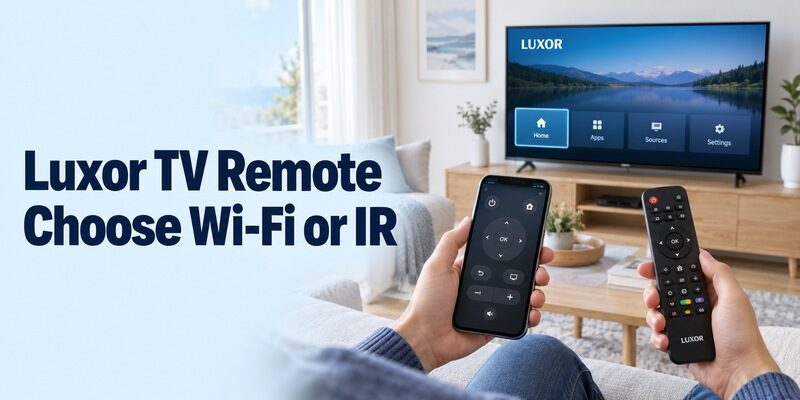
Short answer: Check TV Smart Centre by Vestel for a supported Luxor smart TV; an infrared app is an alternative only when your phone has a real IR transmitter and a matching TV profile. A luxor tv remote app free search can mix these two very different types of controller. One finds a compatible television on the network, while the other sends infrared commands toward its receiver. Neither approach works merely because the app displays a familiar remote layout. This guide helps you choose the correct route, assess free-access claims, connect a supported model, and keep a practical backup for functions that your phone cannot perform.
Luxor TV Remote App Free: Compare Wi-Fi and Infrared
Choose the communication method before comparing optional features. Vestel’s TV Smart Centre listing includes Luxor among supported brands, with compatibility depending on the television model. An independent IR application has a separate hardware requirement on the phone. These routes should not be treated as interchangeable fixes for the same connection problem.
| Route | What must already exist | First practical test | Common misunderstanding |
|---|---|---|---|
| TV Smart Centre over the network | Supported Luxor and reachable local connection | Select the correct TV and send a navigation command | Any TV with streaming apps must support it |
| Infrared phone app | Actual phone IR emitter and matching command profile | Aim at the TV and test several buttons | A download adds infrared hardware |
| Remote for an attached player | Compatible streaming box and its app | Confirm that the player receives the command | Player navigation proves full television control |
| Physical replacement | Verified compatibility with the complete TV model | Check essential keys and special functions | Similar appearance proves a complete match |
For a luxor tv remote app free choice, read the model label and identify the television’s own interface. Keep a connected receiver or streaming device separate in your notes. A phone controlling that accessory may still leave the television’s input selection, picture settings, or tuner under another controller.
Check the Phone Before Trying an Infrared App
Confirm a Real IR Blaster in the Specifications
An infrared controller requires transmitter hardware, not simply an Android phone. Some handsets include an IR blaster, while many do not. If you are comparing phone-based control methods more broadly, see this Android TV remote app guide for the common setup routes and limitations. An ordinary iPhone does not provide a built-in traditional TV-control IR emitter. Bluetooth, a camera, and a proximity sensor do not substitute for that transmitter.
If you are considering a luxor tv remote app free IR option, inspect the phone manufacturer’s specifications first. This can settle the hardware question before you install anything. An app that opens successfully but produces no television response has not demonstrated that the phone can send the required signal.
Test the Profile Beyond the Power Button
With supported hardware, point the emitter toward the television’s receiver and choose the appropriate Luxor profile. Start with a modest volume adjustment. Then test direction, selection, Back or Exit, and input control where available. Save the profile only when the essential commands behave as expected.
A luxor tv remote app free profile may be a partial match even if power works. Record any missing buttons rather than assuming that every unsuccessful action is a hardware fault. If the app offers several profiles, repeat the same small set of tests for each one so that the comparison is consistent.
Keep the original remote’s configuration intact while testing. Codes printed for a separate universal handset belong to that handset’s programming system, and they are not necessarily values that an unrelated phone app accepts. Follow the app’s own profile instructions instead of mixing procedures from different controllers.
Evaluate Free Listings Without Relying on Their Titles
Read the Publisher and Compatibility Description
A Luxor-themed store title does not establish an official manufacturer application. The Google Play listing Remote for luxor tv by Ratna development identifies itself as an unofficial IR-based product requiring a built-in phone blaster. Treat its model claims as requirements to verify on your equipment.
The same listing displays a Contains ads label while its description also claims an ad-free experience. That inconsistency means you should not rely on an unqualified ad-free promise. Check the current listing and actual access terms before deciding whether this luxor tv remote app free result fits your preferences.
Before installing several alternatives, compare free TV remote apps for Android by their actual connection method and the controls available without an upgrade.
Decide Whether the Unpaid Controls Are Sufficient
An alternative app may offer a trial or an upgrade even when installation costs nothing. Check which functions remain available without accepting an offer. A remote that allows navigation but locks an essential button may not meet your needs, regardless of how many decorative controls appear in its screenshots. If you need a broader starting point before choosing an app, this guide explains how to download a TV remote app for Android and test it responsibly on your own television.
Keep your luxor tv remote app free comparison focused on the viewing task. Payment cannot supply missing phone hardware or add a network-control service that the television lacks. If a paid option is offered, establish compatibility and the exact benefit before considering the purchase, and read any recurring terms carefully.
Compare alternatives with the same television, source, and short sequence of actions. Otherwise, one app may appear better simply because you tested easier tasks or a different connected device. For example, check whether both can open the input list and return to the usual channel, rather than comparing one app’s home-screen animation with another’s sound control. A consistent test makes the decision easier even when the applications organise their buttons differently.
Connect TV Smart Centre on a Supported Luxor
Prepare the Television and the Local Connection
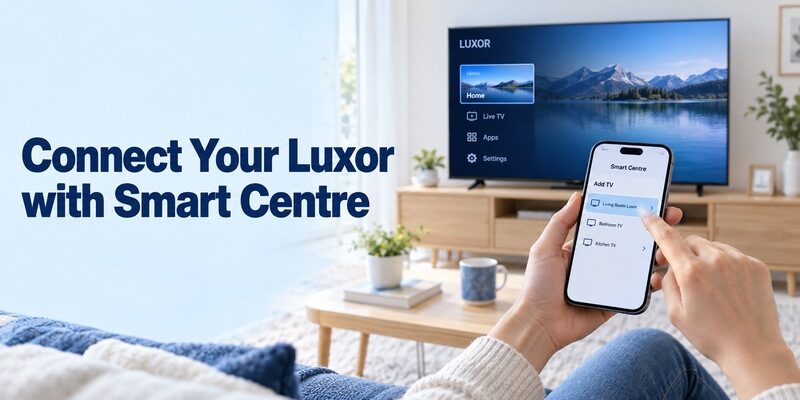
Use Vestel’s current TV Smart Centre application for a model confirmed to support its route. The publisher instructs users to connect the television to the internet, enable Virtual Remote, and connect the phone to the same Wi-Fi network. Locate the remote setting using the exact model’s own menu instructions.
Before your luxor tv remote app free attempt, turn the TV on and leave its screen visible. Compare the network names on the phone and television. Mobile data or an isolated guest connection may leave the phone online without making the set reachable for local control.
Add the TV and Confirm a Repeatable Response
Open Add TV and choose the intended television. Complete any connection prompts that actually appear, then open its remote controls. Do not enter a guessed PIN or a code copied from a physical handset’s programming guide unless the supported app itself specifically requires that procedure.
After a luxor tv remote app free connection, press one arrow and watch the selected television. Then try selection and Back on a familiar menu. A repeatable response is stronger evidence than a device card appearing in the application, especially when several televisions have similar names.
Vestel’s UK App Store listing identifies TV Smart Centre as free, while its Google Play listing discloses ads. Check the current phone requirements rather than relying on the minimum operating-system version printed in an old TV manual. The television’s original guide and today’s mobile app can describe different software generations.
Interpret Older Luxor Smart Center Instructions Carefully
Use the Manual to Establish the Supported Route
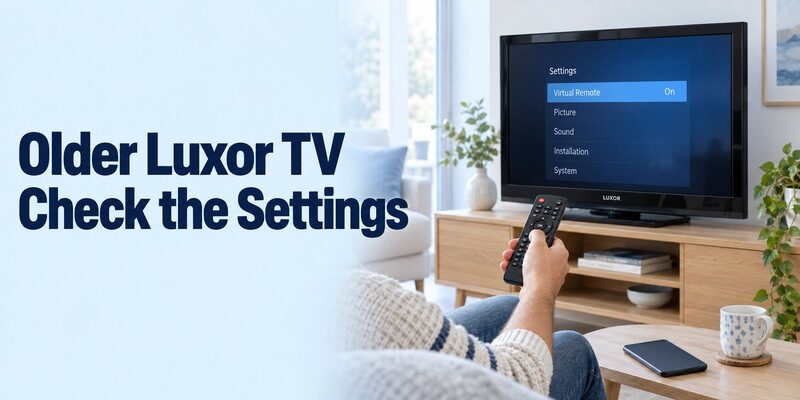
Older product documentation can confirm a control feature without describing today’s exact phone interface. The Luxor LED50DBi product sheet advertises mobile volume and channel control through its smart companion features. The LED55FSBi operating instructions also document Smart Center remote use, with functions depending on the TV.
For a luxor tv remote app free setup on another model, find equivalent documentation instead of copying these examples blindly. A menu called Smart Center in an older guide and an app called TV Smart Centre today still need a model and publisher compatibility check. Similar wording alone does not establish every feature.
Keep Sharing, Remote Control, and HDMI Functions Distinct
The LED55FSBi instructions list Virtual Remote separately from Audio Video Sharing and CEC. Media sharing concerns supported content transfers, while HDMI control concerns compatible connected equipment. Follow the instructions for the function you need rather than enabling every setting that sounds related to connectivity.
If your luxor tv remote app free goal is basic navigation, establish that first. A photograph failing to share does not prove that the direction pad is disconnected. Likewise, a streaming player turning on the screen through a supported HDMI arrangement does not establish that the TV accepts every command from any phone app.
Test the Whole Viewing Routine Before Relying on It
Start with the Source You Normally Watch
Test live television, streaming, and attached devices in their own context. A channel button can address the television’s tuner while the current picture comes from a separate receiver. Identify which device owns the programme guide before deciding that the phone is sending the wrong command.
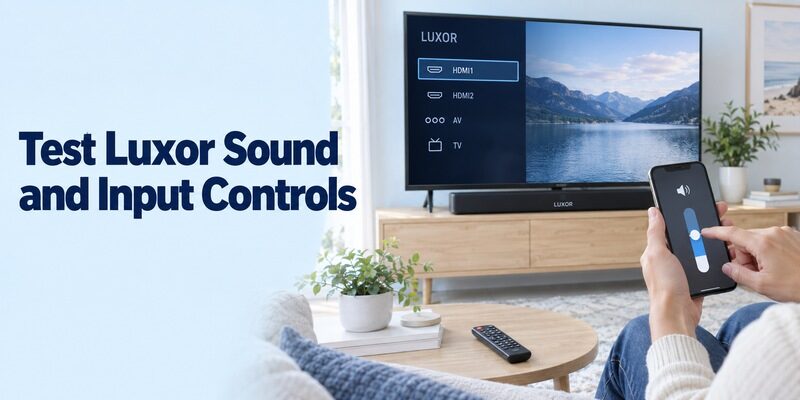
For a luxor tv remote app free trial, open the usual source, change one item, adjust sound slightly, and return to the starting screen. Keep the physical controller nearby while testing input recovery. This practical sequence exposes missing controls that a simple power-on demonstration would not reveal.
If the set has a built-in disc player, test its required playback and menu functions separately. A television profile may not include every disc command. Preserve a controller that can return you to normal viewing rather than treating partially working phone navigation as a complete replacement for the combination unit.
Check Text Entry and Optional Features Separately
Try the phone keyboard in an ordinary search field with a harmless word. Confirm that text appears where expected before entering credentials. If one application rejects text input, compare another supported field while keeping working direction controls available. Text-field behaviour and device discovery are different issues.
A luxor tv remote app free interface may also show sharing, guide, reminder, or recording functions. Verify each against the model’s documented capabilities. Do not assume that a phone adds recording support to a set that lacks it, or that every streaming service permits the same mobile-viewing functions.
Recover Access When Wi-Fi or the Remote Is Missing
Restore the Television’s Connection First
A network app cannot normally configure a television that it cannot reach. If the set remembers an old router, use a working controller or the model’s supported physical controls to reconnect it. Installing the app on a phone already connected to the new router does not update the television automatically.
For a luxor tv remote app free recovery attempt, first record what still works: power, input selection, settings access, and any saved network. Do not erase a useful configuration simply because the first discovery attempt fails. A compatible borrowed remote may be enough to complete the one missing setup step. When a borrowed controller is not available, review universal TV remote setup options before buying a replacement or changing the television’s saved settings.
Keep a Physical Route for Standby
Test the phone after the television enters its ordinary standby state. Successful power-off does not guarantee that a network app can wake the set. The television’s supported wake behaviour and connection state matter, so keep a physical button or verified controller available if mobile wake is unavailable. A compatible backup can be especially useful at this stage, so check how to connect a universal remote to a smart TV before relying on the phone as the only controller.
This limitation does not make a luxor tv remote app free route useless. It may still handle the entire viewing session once the TV is on. Record the boundary clearly for other household members, particularly if they expect the phone to replace the original remote from the moment they enter the room.
Troubleshoot the First Failed Action
Choose the next check from what you can observe. Use this table to organise a luxor tv remote app free investigation. The suggested areas are diagnostic starting points, not guaranteed causes for every television.
| What happens | Useful next check | What to keep unchanged initially |
|---|---|---|
| TV never appears in the app | Supported model, power, network, Virtual Remote | Existing TV account and network configuration |
| One phone works but another fails | Publisher, permissions, VPN, local connection | Known working television settings |
| IR buttons do nothing | Actual transmitter, aim, correct profile | TV network settings, which do not create IR hardware |
| Power works but other buttons fail | Partial profile or unsupported functions | Working physical remote setup |
| Navigation works but volume does not | Audio output and controlled device | Successful pairing |
| Control disappears after standby | TV wake support and network state | A physical method of turning it on |
Change one condition and repeat a short test. Reopen the app after changing relevant phone access so that a stale list does not confuse the result. An ordinary restart is different from a factory reset; the latter can remove saved connections and create new setup requirements.
If you contact support, include the full Luxor model, phone type, application publisher, and the last successful action. Mention whether the original controller still works and whether the issue began after a network change. Specific observations are more useful than guessing that the television needs a firmware replacement.
Make the Working Setup Easy to Repeat
Save Device Identity and Useful Limitations
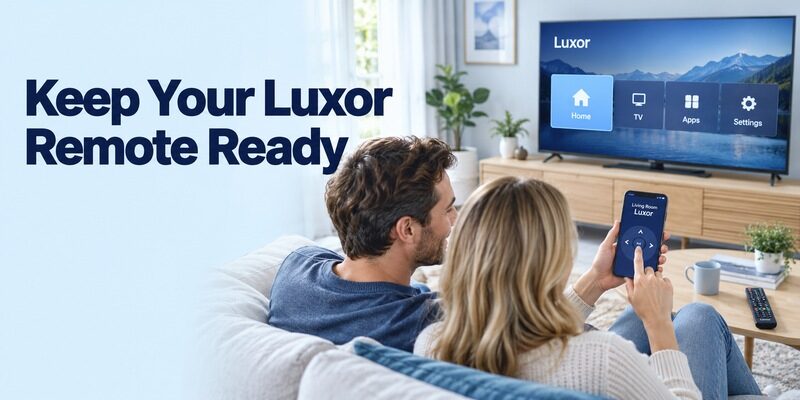
Record the television name, app publisher, and essential controls that passed your test. For an IR route, note the successful profile. For a network route, note the model’s required setting and any standby limitation. Keep passwords out of this basic configuration note.
Once your luxor tv remote app free arrangement works, remove unused alternatives if they are no longer needed. Check any active trial separately before deleting its app. A clear choice is easier for another viewer than several nearly identical remote icons with no indication of which one controls the room.
Ask another person to start from the closed application and select the television without your help. If they choose the wrong room, improve the supported device name or the note. If they cannot return from an input, show the backup controller for that step. This small handover test helps turn a technically successful luxor tv remote app free connection into something the whole household can use comfortably, including when the original installer is away.
Recheck the Route After Equipment Changes
A replacement phone may not include the old handset’s IR hardware, even if its apps and data transfer successfully. A new router can also change local discovery conditions. Restore the television’s connection first, then compare the new phone’s permissions and app identity with the recorded working setup.
For related setup explanations, provides additional television-control guides. Match each guide to the equipment you actually own. A useful alternative should solve a specific missing task while preserving the controls you already know work. For a wider comparison of no-cost alternatives, explore free universal TV remote app options, then match the guide to the equipment you actually own.
Frequently Asked Questions
Is There One Free App for Every Luxor TV?
No single brand-wide choice is established by the TV name alone. Check TV Smart Centre for supported smart models, or an IR route with confirmed phone hardware and command compatibility. A different built-in platform or attached player needs its own supported application.
Can I Use an IR App on an iPhone Without Accessories?
An ordinary iPhone does not include a traditional TV-control IR transmitter. A software download alone cannot change that. Use a supported network route where available, or a separately verified hardware solution. For an older set, a compatible physical remote may be the most direct option.
Why Does the App Control Power but Not Inputs?
A matching power command can be only a partial profile match. Test the other layouts supported by the IR application, or check whether the network app exposes input control for your model. Keep a working physical controller for any essential function that remains unavailable.
Does Free Remote Control Include Paid Channels?
No. Remote control operates supported equipment; it does not grant entertainment subscriptions or movie purchases. Treat a content offer separately from an app upgrade. The relevant question is whether the unpaid remote functions cover the viewing tasks you need on your own television.
Final Thoughts
The right luxor tv remote app free choice depends on the television’s supported connection and the phone’s actual hardware. Use TV Smart Centre where the model supports it, and treat IR apps as a separate route requiring a real emitter and a tested profile. Verify everyday sound, channels, inputs, and reconnection before relying on the phone. Keep a physical backup and a short record of the working configuration so that a convenient setup remains easy to restore.
