
Philips Smart TV Remote App for iPhone: Download and Setup Guide
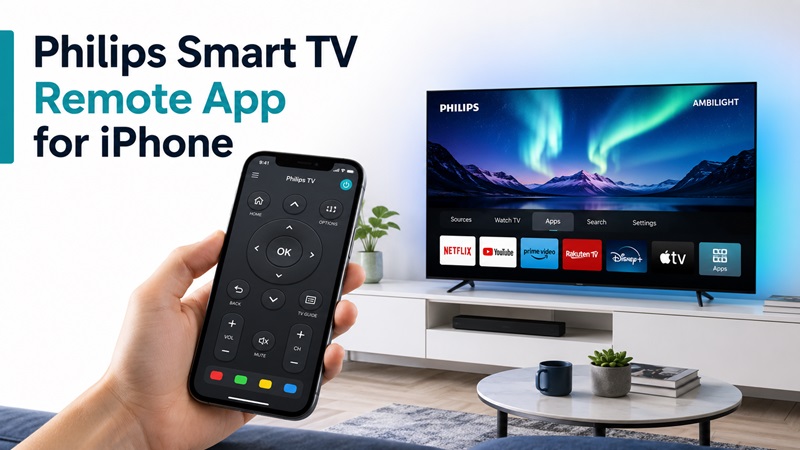
Quick Answer: You can control many compatible Philips Smart TVs using an iPhone. Start by downloading the free Philips Smart TV app from the App Store, published by TP Vision Europe B.V. Connect your iPhone and Philips TV to the same home network, open the app, select your television, and complete any pairing or authorization prompts.
According to the app’s listing, it is fully compatible with Philips Smart TVs released from 2019 onward and offers some compatibility with older models. However, support depends on your exact TV model and software.
If the official Philips TV remote app for iPhone does not support your television, you may need a compatible platform-specific app or third-party universal remote.
This guide explains how to download a Philips TV remote app for iOS, connect your iPhone, check compatibility, and fix common problems.
Best Philips TV Remote Apps for iPhone
The best Philips Smart TV remote app for iPhone depends on the television’s operating system and model.
Philips televisions are sold with different smart TV platforms, including Google TV, Android TV, Roku TV, Titan OS, and older Philips Smart TV systems.
A remote app that works with one Philips TV may not work with another.
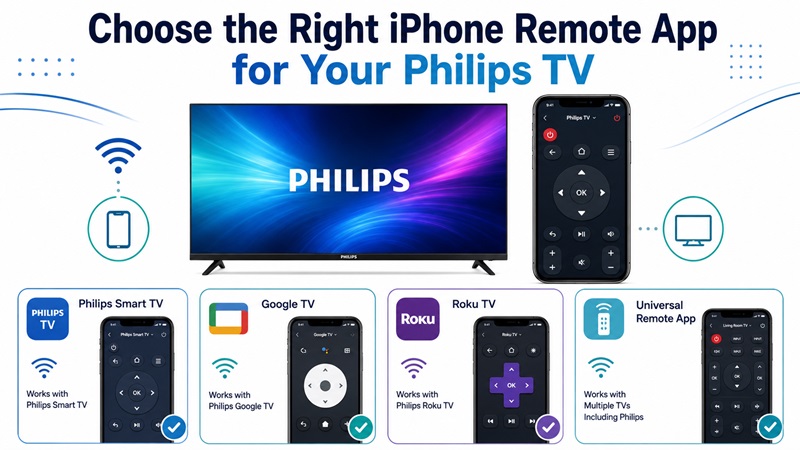
Compare Philips Remote Apps for iOS
| Philips TV Type | App to Check | Important Note |
|---|---|---|
| Compatible Philips Smart TV (2019+) | Philips Smart TV by TP Vision | Official app; model compatibility applies |
| Older Philips Smart TV | Philips Smart TV or model-specific solution | Partial or unavailable support |
| Philips Google TV / Android TV | Compatible Philips or platform remote app | Check iOS support for the exact model |
| Philips Roku TV | Roku mobile app | For supported Roku TV models |
| Philips Titan OS TV | Compatible Philips or third-party app | Verify support before installation |
| Multiple TV brands | Universal TV remote app | Compatibility and pricing vary |
Important: The television’s operating system matters as much as its brand. Do not install an app solely because it includes “Philips” in the title.
1. Official Philips Smart TV App for iPhone
The Philips Smart TV app is available on Apple’s App Store and is published by TP Vision Europe B.V.
Its advertised features include:
- Changing channels
- Adjusting TV volume
- Controlling supported Ambilight functions
- Opening and switching between TV apps
- Managing media playback
- Entering text with the iPhone keyboard
The app listing states that it is fully compatible with Philips Smart TVs released from 2019 onward and may provide some support for older models.
Not every advertised feature is available on every television.
2. Roku App for Philips Roku TV
If your Philips television uses Roku TV, the official Roku mobile app may be a better option.
On compatible Roku TVs, it can provide:
- On-screen navigation
- Playback controls
- Text entry
- Access to supported Roku features
- Additional remote functions depending on the device
Download the official Roku app from the App Store and connect it to your Philips Roku TV through your home network.
See our free Roku remote control app guide for additional setup information.
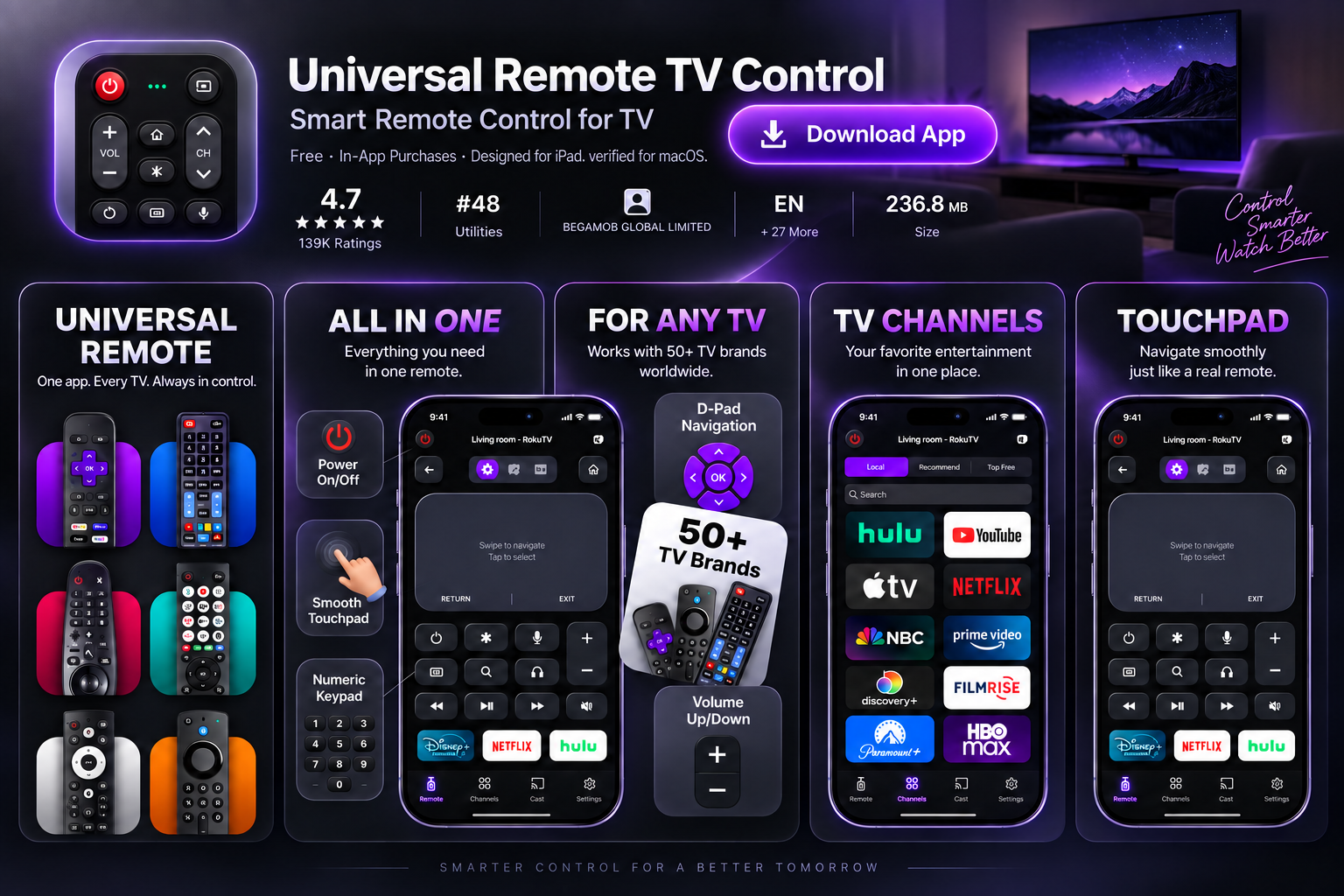
3. Universal Remote Apps for Philips TVs
A third-party universal remote application may be useful if:
- You own several television brands.
- Your Philips TV is not supported by the official app.
- You prefer one interface for multiple devices.
- You need an alternative to a lost physical remote.
Before downloading, check whether the app explicitly supports your Philips TV’s operating system and model.
Some apps are free to install but require payment for advanced features.
For more options, read our universal remote TV app guide.
📘 Find the Right Guide
How to Connect Firestick to New WiFi Without a Remote
How to Download Philips TV Remote App on iPhone
Installing a Philips TV remote app on iOS is straightforward.
Step 1: Open the App Store
Unlock your iPhone and open the App Store.
Step 2: Search for Philips Smart TV
Search for “Philips Smart TV” and identify the application published by TP Vision Europe B.V.
Step 3: Check Compatibility
Before installing, review:
- Supported iOS version
- App developer
- Philips TV compatibility
- Available features
- Recent updates
- User reviews
Check your TV’s model number and operating system if you are unsure whether the app will work.
Step 4: Download and Install
Tap Get to install the app.
The official Philips Smart TV app is listed as free.
Step 5: Allow Necessary Permissions
When prompted, allow the app to access devices on your local network.
This permission is important because many iPhone TV remote apps use Wi-Fi to discover televisions.
You can review it under:
Settings > Privacy & Security > Local Network
Menu names may vary slightly by iOS version.
Step 6: Open the App
Launch the Philips Smart TV app and follow its instructions.
Keep your television powered on during the initial connection.
How to Connect Philips Smart TV Remote App to iPhone
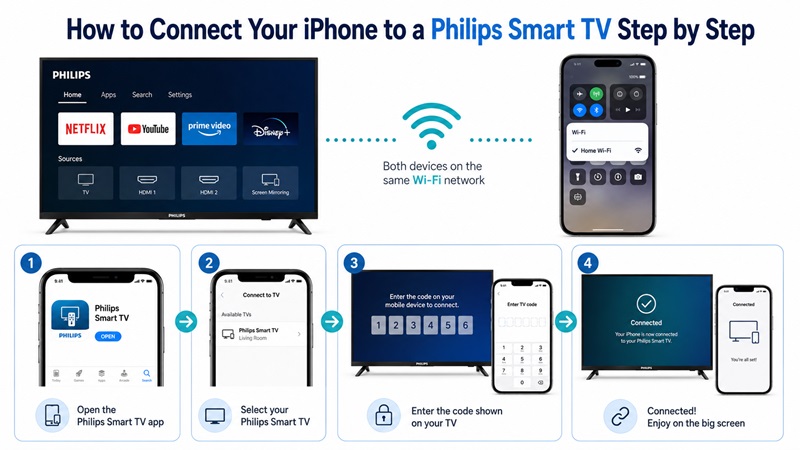
Once the app is installed, you can connect your iPhone to a compatible Philips Smart TV.
Step 1: Turn On Your Philips TV
Use the physical remote or the television’s built-in Power button.
For initial setup, the TV generally needs to be on and connected to your network.
Step 2: Connect Both Devices to the Same Wi-Fi
Check that your iPhone and Philips TV are connected to the same accessible home network.
Avoid guest networks that block communication between devices.
Step 3: Open the Philips TV Remote App
Launch the app on your iPhone.
Allow it to discover nearby compatible televisions.
Step 4: Select Your Philips TV
Choose your television from the device list.
If multiple Philips TVs are available, select the correct model or device name.
Step 5: Complete Pairing
Some supported Philips TVs may request confirmation or display a pairing code.
Follow the instructions shown by the app and television.
Do not assume every Philips model uses the same pairing process.
Step 6: Test the Controls
After connecting, test:
- Home or Menu
- Directional navigation
- OK or Select
- Volume Up and Down
- Mute
- Channel controls
- Playback
- Power, where supported
If navigation works but a particular feature does not, the limitation may be related to the TV model rather than the network connection.
How to Connect a Philips Roku TV to iPhone
For a Philips Roku TV:
- Install the official Roku mobile app.
- Connect the iPhone and Roku TV to the same network.
- Open the Roku app.
- Select the Roku TV.
- Open the remote interface.
- Test navigation and playback.
This method applies to Philips TVs that run Roku TV, not all Philips Smart TVs.
How to Connect a Philips Google TV to iPhone
For a Philips Google TV or Android TV, check which remote applications currently support the specific television and iOS version.
Google TV remote instructions for Android should not automatically be treated as iPhone instructions.
You may be able to use a compatible Philips-specific or third-party network remote, but the app must support your television’s control protocol.
If an app cannot discover your Philips Google TV, verify compatibility before repeatedly attempting pairing.
💡 Discover Helpful Guides: How to Reset a VIZIO Smart TV Without a Remote
Philips TV Remote App iOS Features
A compatible Philips TV remote app can make everyday television control more convenient.
Control Volume and Channels
Use your iPhone to change channels, adjust volume, and mute the television.
Availability depends on the app and TV model.
Navigate Philips Smart TV Menus
Compatible apps can provide directional buttons, selection controls, and shortcuts to TV menus.
This is particularly useful when your original remote is missing.
Type Using Your iPhone Keyboard
Entering text with an iPhone keyboard can be easier than selecting letters using a physical remote.
On supported TVs, this may help with searches and other text fields.
Control Philips Ambilight
The official Philips Smart TV app advertises Ambilight control for supported televisions.
This feature requires a compatible Philips Ambilight TV.
A television without Ambilight hardware cannot gain the feature through an app.
Control Media Playback
Depending on the model, you may be able to pause, resume, or navigate supported media playback.
Manage More Than One TV
Some remote apps let you switch between multiple compatible televisions.
This can be helpful if you have Philips TVs in different rooms.
For general iPhone remote options, see our free TV remote app for iPhone guide.
Philips TV Remote App for iPhone Not Working? Troubleshooting
If your Philips TV remote app on iOS cannot find or control the television, start with the following checks.
1. Philips TV Not Showing in the App
Possible causes include:
- Different Wi-Fi networks
- TV not connected to the network
- Local Network permission disabled
- Unsupported TV model
- Guest network or router isolation
- Outdated television firmware
Fix:
- Turn on the TV.
- Check the TV’s network connection.
- Connect the iPhone to the same network.
- Enable Local Network permission for the app.
- Close and reopen the application.
- Try device discovery again.
💡 Discover Helpful Guides: Roku Remote App Not Connecting to Your TV? How to Fix It
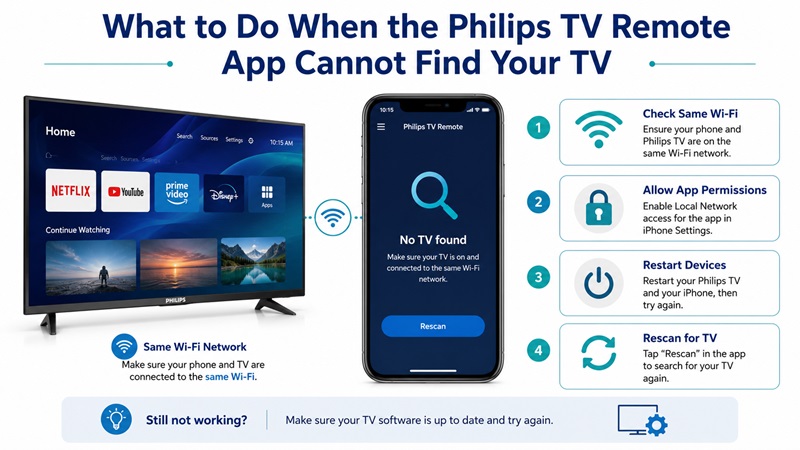
2. Philips TV Remote App Cannot Connect
If the TV appears but pairing fails:
- Restart the remote app.
- Restart the Philips television.
- Check for pending authorization prompts.
- Retry pairing.
- Update the app and TV software if available.
A pairing failure does not necessarily mean your iPhone is incompatible.
3. Local Network Permission Is Disabled
On iPhone:
- Open Settings.
- Go to Privacy & Security.
- Select Local Network.
- Find the remote application.
- Enable access.
- Reopen the app.
Without this permission, an app may be unable to discover compatible televisions.
4. Philips Remote App Connects but Buttons Do Not Work
Test basic navigation first.
If Home and directional buttons work but another function does not, check whether the app supports that feature on your TV model.
Restart the television and try again.
5. Volume or Power Does Not Work
Volume and power behavior may depend on the television’s network standby settings and remote-control capabilities.
Some TVs cannot be powered on from a mobile app after entering deep standby.
Check your model’s manual for network standby or mobile power-on support.
6. Philips TV Remote App Keeps Disconnecting
Check Wi-Fi stability and move closer to your router if necessary.
Restart the app and television.
Also check whether your network uses client isolation or separate guest access.
7. App Works on One Philips TV but Not Another
Philips televisions use different operating systems and remote-control technologies.
Confirm the unsupported TV’s model and platform.
A remote app that works with a Philips Android TV may not support a Philips Roku TV or Titan OS model in the same way.
8. Philips TV Remote App Not Working After iOS Update
Try these steps:
- Check the App Store for an update.
- Restart your iPhone.
- Recheck Local Network permission.
- Restart the television.
- Reconnect the app.
- Reinstall the app if necessary.
Reinstalling may remove saved device settings.
9. The Original Philips Remote Is Lost
If your Philips TV is already connected to Wi-Fi, a compatible phone remote may work as a replacement.
If the television is offline or requires initial setup, you may need physical TV buttons or another supported controller before a Wi-Fi app can connect.
For additional options, see our Philips TV remote app download guide.
Can You Use Philips TV Remote App on iPhone Without Wi-Fi?
Most iPhone remote apps for Philips Smart TVs use network connectivity.
An iPhone does not have a built-in traditional infrared transmitter, so installing an app alone will not let it send IR commands directly to an older television.
Can It Work Without Internet?
Sometimes.
If the iPhone and Philips TV remain connected to the same functioning local network, some remote functions may work without an active internet connection.
However, cloud-dependent features may require internet access.
Can It Work Without a Local Network?
Generally not for a Wi-Fi-based remote app.
You may need a compatible external control accessory or a physical remote.
Can an iPhone Control an Older Non-Smart Philips TV?
Usually not through a standard Wi-Fi remote app.
Older infrared-only TVs generally require an IR transmitter, compatible hub, or physical remote.
FAQs About Philips TV Remote App for iPhone
Is there a Philips Smart TV remote app for iPhone?
Yes. The Philips Smart TV app published by TP Vision Europe B.V. is available on the App Store for compatible Philips Smart TVs.
Is the Philips TV remote app for iOS free?
The official Philips Smart TV app is listed as free on the App Store. Third-party remote apps may use free, freemium, or paid pricing.
How do I download Philips TV remote app on iPhone?
Open the App Store, search for Philips Smart TV, verify the developer, and install the application.
How do I connect my iPhone to Philips Smart TV?
Connect your iPhone and compatible Philips TV to the same network, open the remote app, select your TV, and complete any required pairing.
Does Philips TV Remote App work with all Philips TVs?
No. Compatibility depends on the television’s model, operating system, firmware, and supported control features.
Does the Philips TV remote app support Ambilight?
The official app advertises Ambilight control for supported Philips Ambilight televisions.
Can I control Philips Roku TV with iPhone?
Yes, on compatible Philips Roku TVs using the official Roku mobile app.
Can I use my iPhone as a remote for Philips Google TV?
Potentially, with an application that explicitly supports your Philips Google TV model and iOS. Check compatibility before installing.
Why can’t my Philips TV remote app find my TV?
Common causes include different Wi-Fi networks, disabled Local Network permission, an unsupported TV model, or network isolation.
Can I use Philips TV remote app without Wi-Fi?
Most iPhone-based Philips Smart TV remote apps require a compatible network connection. An iPhone does not have a built-in IR blaster.
Can I use the app if I lost my Philips remote?
Yes, if the TV is compatible, powered on, and accessible through the supported connection method.
Why does the remote app work except for Power?
Some televisions limit network wake-up functions while in deep standby. Check the TV’s supported power-on and standby settings.
What should I do if the official Philips app does not support my TV?
Identify your TV platform and try a compatible official platform app or reputable third-party universal remote application.
Final Thoughts
A Philips Smart TV remote app for iPhone can be a convenient alternative to a physical remote, especially for compatible Philips Smart TVs connected to your home network.
Start with the official Philips Smart TV app, verify your model, and complete the Wi-Fi pairing process.
If your Philips television runs Roku TV, Google TV, Android TV, or another platform, check whether a platform-specific or universal remote app offers better compatibility.
The key is choosing an application that supports your exact Philips TV model rather than assuming every Philips remote app works with every television.
