
Polaroid TV Remote App Free: Find the Right App for Your Television
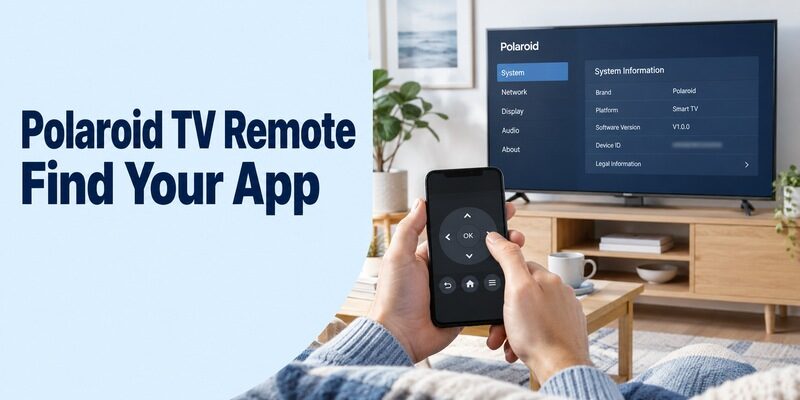
Short answer: Choose Roku, Google TV, or TV Smart Centre according to your Polaroid television’s supported platform. A polaroid tv remote app free search has several possible answers because the brand name alone does not identify the software inside the set.
Polaroid’s own support site routes television questions by region, while Roku and Vestel separately document compatible Polaroid products. Older televisions can require a different infrared-based solution. This guide starts with the model and platform check, explains the relevant connection routes, and helps you avoid unrelated downloads. You will also learn how to distinguish television controls from an attached streaming box, assess free-use terms, and diagnose a missing device without unnecessarily erasing the TV’s working setup.
Polaroid TV Remote App Free: Match the Platform First
Use the television’s actual system information as your starting point. Read the model label and identify the Home interface before installing a brand-named remote. If a streaming box is connected, return to the television’s own menu first.
- Roku TV: Use Roku’s official mobile app for the supported Roku television.
- Supported Smart Centre model: Check TV Smart Centre by Vestel and its prerequisites.
- Google TV or Android TV: Use Google’s documented phone-remote route when the target supports it.
- Older infrared television: Confirm real IR transmission hardware and a matching command profile.
- Unclear platform: Find regional model support before choosing another download.
The right polaroid tv remote app free route can differ between two sets with similar screen sizes. Roku’s Polaroid model page establishes its Roku TV family, while TV Smart Centre’s store listing includes Polaroid with a model-dependent qualification. Those statements should not be combined into a promise that either app controls every Polaroid set.
Read more: Hisense Roku TV Remote App: Setup and Free Options
Connect TV Smart Centre Where the Model Supports It
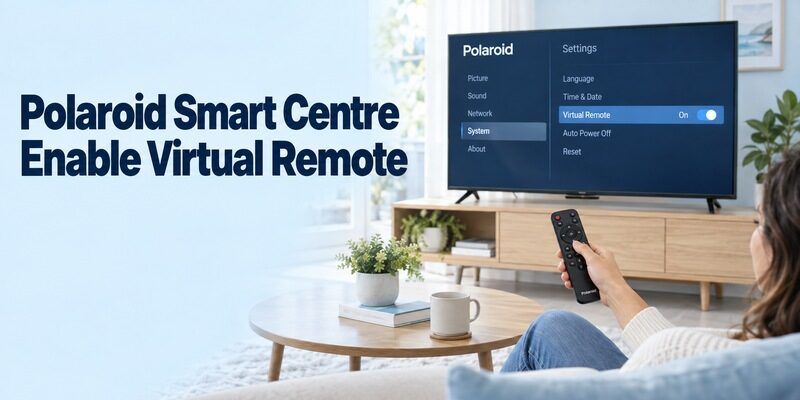
Follow the Vestel app’s documented prerequisites. TV Smart Centre lists Polaroid among supported brands but says support varies by model. Confirm the television’s own instructions before using this route.
Prepare Virtual Remote and the network
The current store description calls for the TV to be connected to the internet, Virtual Remote enabled in its settings, and the phone on the same Wi-Fi network. Use the exact model’s menu guide to locate that setting; do not expect it on an unrelated Roku interface.
For a polaroid tv remote app free setup through Smart Centre, retain the physical controller while preparing the TV. If you cannot access its network or remote settings, restore that access first. Installing the phone app does not automatically configure an offline television.
Add the TV and test basic control
Open Add TV in the supported app and follow its current instructions. Select the intended screen, then test a simple direction and selection. Check the television’s visible response before trying keyboard, guide, or media functions.
A polaroid tv remote app free connection is not established merely because a programme guide loads on the phone. Open the remote surface and verify navigation. Recording, content sharing, and other advertised extras depend on television support and should be tested separately.
Read more: Free Bush TV Remote App: Set Up Smart Centre on a Supported TV
Use Roku’s Mobile App for a Polaroid Roku TV
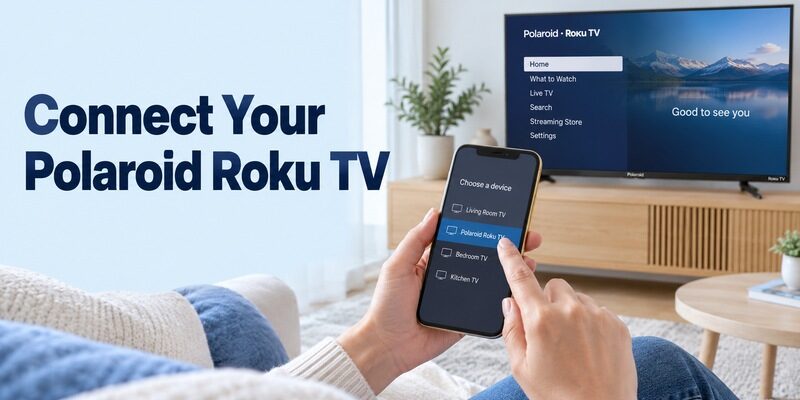
A Polaroid Roku TV follows Roku’s platform route. Roku’s own Polaroid product page identifies Roku OS built into this family. Start with the Roku-published phone application instead of assuming the TV needs a separate Polaroid-specific edition.
Select the television in the mobile app
Install Roku’s official app for the supported phone, follow its account prompts, and connect through the required shared home network. Choose the television in the device selector and open Remote. Keep the TV awake during the first test.
For polaroid tv remote app free navigation, move one Home-screen highlight and select an ordinary tile. If another room responds, change the selected device. Reinstalling the same app will not correct an intentionally selected but wrong television.
Verify platform features individually
Roku describes its mobile remote as free and documents additional features such as headphone listening on supported equipment. These features have their own device and content requirements. Their presence should not be inferred from the television’s brand name alone.
Your polaroid tv remote app free test should include the controls you use each day. Check Home, Back, volume where supported, and returning to the usual input. Keep another controller for equipment-specific tasks outside the mobile interface.
Check Infrared Hardware for an Older Polaroid Set
An infrared app needs an actual transmitter. An ordinary smartphone cannot send the required IR commands merely because an app displays a familiar remote layout.
Read the phone’s hardware specifications
Confirm whether the exact Android phone includes an IR blaster, or whether a specifically supported accessory supplies one. A camera, flashlight, Bluetooth radio, and charging port are not interchangeable with an infrared transmitter.
The Google Play listing Remote for Polaroid TV by Guten Morgen explicitly requires an IR-emitter phone and says it is unofficial. That is a useful disclosure when evaluating a polaroid tv remote app free result, not proof that this app supports every old model.
Test a matching command profile
If suitable hardware and an appropriate profile are available, aim the transmitter toward the television’s receiver and test a reversible command. Verify several buttons rather than accepting a profile merely because Power happens to work.
For a polaroid tv remote app free IR setup, check menu movement, selection, volume, and input recovery. A partly matching profile can leave essential functions unavailable. If the phone lacks suitable hardware, a compatible physical remote is often the practical way to regain control.
Pair Google TV with a Supported Polaroid Android TV
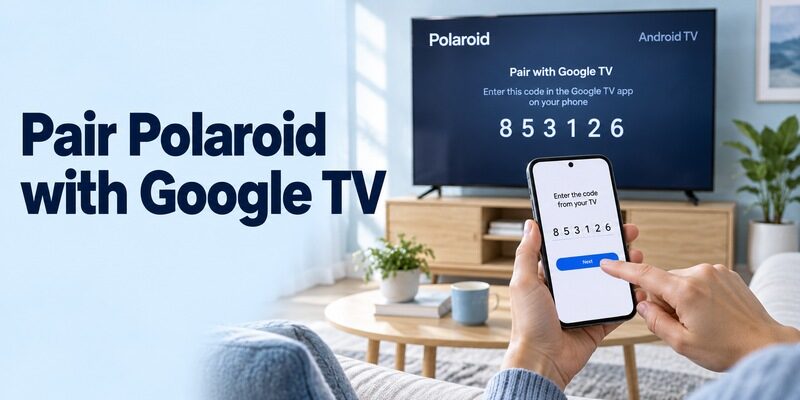
Use this route only when the target runs the supported Google platform. A Polaroid television with a Google-related streaming app is not automatically an Android TV or Google TV device.
Connect to the correct screen or streamer
Google’s current help covers opening Google TV, choosing TVs nearby, selecting a device, entering the code displayed on the television, and tapping Pair. It provides instructions for Android and iPhone/iPad. Follow the current prompts on your supported equipment.
A polaroid tv remote app free connection to an attached Google streamer controls that streamer’s interface. It does not automatically turn the Polaroid television itself into Google TV. Select the appropriate input and read the code from the intended target.
Confirm navigation before text entry
Move a menu highlight, open an ordinary item, and return Home. Then try a short search through the phone keyboard where supported. A saved device name or a successful casting session alone does not establish full navigation control.
If your polaroid tv remote app free search led to old Android TV Remote Control instructions, compare them with Google’s current guidance. Do not install an archived package just to reproduce an outdated screenshot when a supported current route exists.
Check Phone Access and Installation Requirements
The phone and television each have their own compatibility requirements. A supported TV model does not guarantee that the current app release can install on every old phone.
iPhone and iPad checks
Use the verified Apple store listing and read its current system requirements. Follow local-network prompts where the chosen app needs device access. If permission was denied earlier, inspect that application’s settings before repeating discovery.
For polaroid tv remote app free use on iPhone, distinguish a network remote from an IR-only application. An ordinary iPhone cannot acquire a missing infrared transmitter through a download. Choose a supported network route or suitable hardware-backed alternative.
Android checks
Verify the publisher on Google Play and follow the app’s current setup requirements. If the phone has no IR blaster, do not select an infrared-only method simply because its title includes Polaroid. Network and infrared apps solve different connection problems.
Keep the polaroid tv remote app free choice tied to a particular television and phone combination. If another household phone works, compare its selected app, network, and device before changing the television. That can isolate a phone-specific issue while preserving the working setup.
Compare Free Controls with Optional Paid Features
Read what remains available without payment. A free installation, an advertising-supported remote, a limited trial, and an optional premium upgrade are different arrangements.
| What you see | What to verify | Why it matters |
|---|---|---|
| Free store listing | Publisher and essential included controls | Installation price alone does not describe every function |
| Trial screen | Renewal terms and whether you need the offer | Starting a trial may create a later charge |
| Advertisements | Actual app buttons versus ad destinations | An advert can resemble an installation or purchase step |
| Premium feature | Whether it solves a supported control need | Payment cannot create missing hardware or compatibility |
| Film or service purchase | Whether you entered entertainment content | Content charges are separate from remote access |
TV Smart Centre’s Apple listing is marked free, and its Android listing discloses advertisements. Roku describes free mobile remote functions. Check the current terms of the particular product you install rather than transferring one app’s pricing to every polaroid tv remote app free search result.
Keep the verified official or platform-supported route available while comparing another interface. If navigation already works, assess whether an alternative improves a task you actually use. Do not pay simply because the television has not appeared in a device list.
Avoid Treating Other-Brand Downloads as Polaroid Proof
A related search phrase does not establish shared remote compatibility. This matters in households with several television brands or a separate provider’s box attached to the Polaroid screen.
Separate the brand and the control target
An ee tv remote app free search or a jio tv remote app free search concerns a different named product or service. Before installing such an app for a Polaroid setup, identify whether you need to operate the television itself or equipment connected to it. Do not assume the television’s display of that service makes its controls interchangeable.
Likewise, an egl tv remote app free or pioneer tv remote app free result is not evidence of Polaroid support. Compare the specific model and supported control method. A shared word such as “smart” or a similar-looking directional pad is not a technical compatibility statement.
Recheck hardware and model claims
A free veon tv remote app guide and an orient tv remote app free download listing also require their own device checks. Their instructions may be useful for those named products without applying to your Polaroid. Use the source that documents the equipment actually receiving the command.
The phrase crown led tv 32 inch remote download free includes a size, but screen size does not identify a shared IR profile. A vitron smart tv 43 remote control app free download search has the same limitation. Keep those model investigations separate from your polaroid tv remote app free decision instead of trying unrelated brand profiles at random.
Tell the Television Apart from an Attached Box
Select the component that handles the task. The Polaroid television supplies its own display and input controls, while a connected player or receiver can have a separate Home screen, channel list, and remote.
If the phone moves streaming tiles but cannot open the television’s input menu, it may be controlling the attached player correctly. That is a different result from a failed television connection. Watch which interface changes before replacing the app or repeating pairing.
For a polaroid tv remote app free household setup, record the successful tasks by device: television inputs, player navigation, and soundbar controls where relevant. Keep the appropriate physical controller for any remaining gap. A single phone interface is convenient only when it actually supports those targets.
Diagnose a Missing TV or an Unresponsive Button
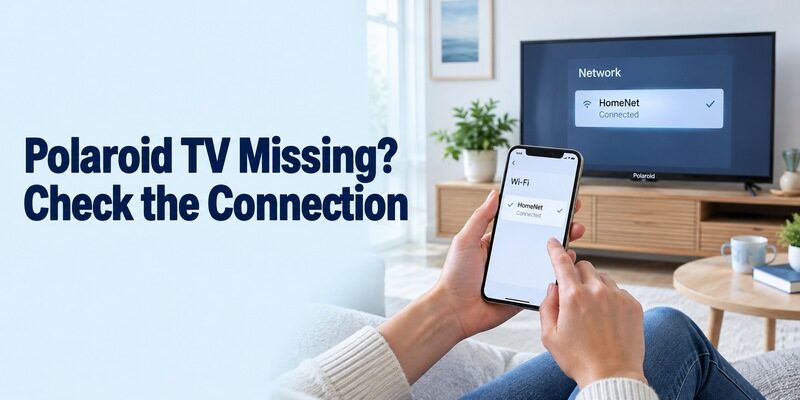
Use the first failed stage to choose the next check. An incompatible platform, isolated network, wrong target, and unsupported button need different responses.
| Symptom | Likely area to inspect | Useful next action |
|---|---|---|
| No TV listed | Platform, power, and network | Wake TV and compare the required connection |
| Smart Centre cannot add TV | Documented prerequisites | Check Virtual Remote and TV internet access |
| IR app never produces a response | Transmitter and profile | Confirm real IR hardware and line of sight |
| Another room responds | Device selection | Choose the correct television |
| Only one button fails | Feature or command mapping | Test that task with the appropriate physical remote |
Restore the required connection
Restore the documented prerequisites before reinstalling software. A polaroid tv remote app free troubleshooting attempt after a router change should begin with the television’s stored network connection. The phone’s new Wi-Fi connection does not automatically update the TV.
Preserve a usable recovery route
Keep the original configuration intact while you investigate. Avoid a factory reset when the physical controller is unavailable and you have no confirmed way through initial setup. Record the exact failure and change one relevant condition at a time.
If navigation worked earlier, note what changed immediately before it stopped: the router, phone permissions, selected input, or app version. Retest the simplest known command after addressing that change. Avoid interpreting an unrelated streaming-service outage as proof that the local remote connection has failed.
When several televisions appear with similar names, select one while watching the intended screen. Cancel if another room shows the authorization prompt. Once connected, use a harmless Home-screen movement as confirmation. A successful pairing message on the phone is less informative than seeing the correct television respond to the requested action.
Find the Correct Regional Support and Manual
Polaroid’s own television support page routes users by region. Use the route appropriate to where the set was sold, and provide the full model rather than only the screen size or purchase year.
Match the manual to the television
A manual from another region can describe different software even when the product appearance is similar. Match the complete identifier before following menu paths or ordering a replacement controller. Do not substitute a remote-control part number for the television model without making the distinction clear.
Describe the failed step clearly
For a persistent polaroid tv remote app free connection issue, record the app’s exact name, phone system, TV platform, and first failed step. Include whether a physical remote or another phone still works. That evidence is more useful than a list of unrelated apps already tried.
Keep a photograph of the model label for your own reference and a copy of the correct manual. You usually do not need to share a television serial number publicly to explain an app-compatibility question. Give support only the details needed for the specific request and preserve the current working remote method while waiting for model-specific guidance.
Keep a Compatible Phone Alternative and a Physical Fallback
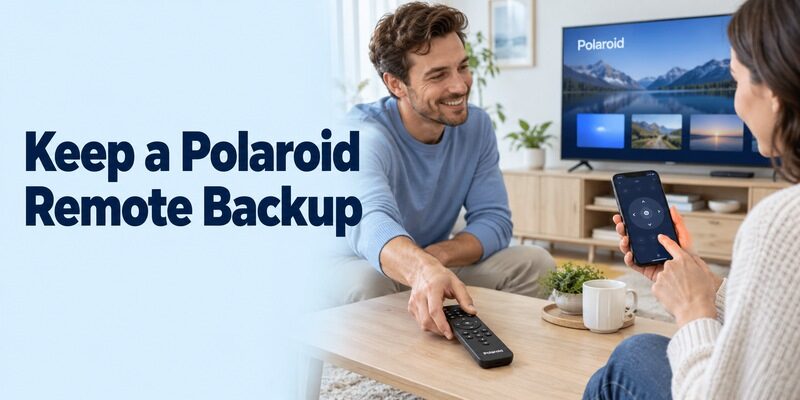
Preserve the method that already works while evaluating another. Review when another supported phone interface would help, and confirm compatibility with your exact Polaroid model and phone.
On a compatible connection, it can keep navigation convenient when the physical remote is misplaced. It does not bypass television authorization, restore missing Wi-Fi credentials automatically, or create infrared hardware. Test the normal viewing routine before depending on it.
Keep a compatible physical controller accessible for setup and network changes. Show another household member how to select the correct TV in the app and return to the usual input. A polaroid tv remote app free arrangement should remain usable when the main phone is charging or an app starts on an unfamiliar screen.
Final Thoughts
The right polaroid tv remote app free choice follows the television’s platform, model, and supported connection. Start with Roku, Google TV, or TV Smart Centre where applicable, and confirm real hardware before considering infrared control.
Verify a visible response, check free-use terms separately, and retain a working fallback. Regional model evidence is more dependable than a familiar brand name on an unrelated download.
