
TV Keeps Disconnecting From WiFi: Find the Drop Point
If your TV keeps disconnecting from WiFi, restart your TV and router, move the router closer, forget and reconnect to your wireless network, and check for software updates. If the connection still drops, switch between 2.4 GHz and 5 GHz WiFi, reset your TV’s network settings, or test a wired Ethernet connection.
These simple steps can resolve many common Smart TV connectivity problems without requiring new equipment.
Try these quick fixes first:
- Restart your Smart TV and WiFi router.
- Check the wireless signal strength.
- Forget your WiFi network and reconnect.
- Move your router away from interference.
- Switch to another supported WiFi band.
- Update your TV’s software.
- Reset the TV’s network settings.
A tv keeps disconnecting from wifi problem can interrupt Netflix, YouTube, screen mirroring, and smartphone remote-control functions. However, the cause is not always the television itself.
This guide explains how to identify the problem, restore your Smart TV’s internet connection, and prevent repeated disconnections on Samsung, LG, Roku, Sony, and Google TV devices.
1. Why Does Your TV Keep Disconnecting From WiFi?
When your tv keeps disconnecting from wifi, the problem generally involves wireless signal quality, router performance, network configuration, or television software.
Your television may connect successfully for several minutes before suddenly losing access to streaming services.
Understanding the possible causes makes troubleshooting significantly easier.
Weak WiFi signal
One of the most common reasons for intermittent connectivity is a weak wireless signal.
If your TV is positioned far from the router, the signal must travel through walls, furniture, and other obstacles.
Concrete walls, metal surfaces, and enclosed cabinets can reduce wireless performance.
A weak signal may be sufficient for the TV to detect your network but insufficient to maintain a reliable connection.
According to Samsung Support, a television displaying only one or two WiFi signal bars may struggle to maintain a stable connection.
Solution: Move the router closer to your television or reduce the number of obstacles between the devices.
Router congestion and interference
If multiple devices use the same wireless network, your router must manage several connections simultaneously.
Smartphones, laptops, gaming consoles, cameras, and other connected devices may compete for wireless capacity.
Streaming interruptions become more likely when the network is heavily loaded or experiencing interference.
If your smart tv wifi keeps dropping, check whether the issue becomes worse when other household members are gaming or downloading large files.
Incorrect network configuration
Your TV may have difficulty maintaining its assigned IP address or communicating reliably with the router.
Potential causes include incorrect DNS settings, outdated network configuration, DHCP problems, or incompatible wireless security settings.
These issues can make a television appear connected while internet services remain unavailable.
Outdated television software
Smart TVs rely on operating systems and network drivers to manage wireless connectivity.
Software bugs can occasionally interfere with network connections, particularly after router changes or system updates.
Manufacturers periodically release updates to address compatibility and performance issues.
Router or TV hardware problems
A malfunctioning router, unstable power supply, or defective internal WiFi module can cause repeated disconnections.
However, hardware failure should not be your first assumption.
Before replacing any equipment, complete the connection tests described below.
Download TV Remote App2. How to Identify the Cause of TV WiFi Disconnections
Before changing advanced settings, determine whether the problem originates from your TV, router, or internet service provider.
This is especially important when your tv keeps disconnecting from wifi despite appearing to have a strong wireless signal.
Check whether other devices are affected
Connect your smartphone or laptop to the same wireless network.
Then compare the results:
| Connection symptom | Possible explanation |
|---|---|
| TV disconnects, phone works normally | TV settings, signal reception, or compatibility |
| TV and phone both disconnect | Router or wireless network problem |
| TV stays connected but apps cannot load | Internet service, DNS, or application problem |
| TV works with another WiFi network | Home router configuration may be responsible |
| TV works through Ethernet | Wireless signal or WiFi configuration is the likely issue |
Important: A working smartphone does not completely rule out a signal problem because different devices have different antenna capabilities and locations.
Run a built-in network test
Many Smart TVs provide diagnostic information inside their network settings.
These tools can identify whether the TV is connected to the router and whether internet access is available.
For example, Samsung televisions commonly provide a Network Status option.
Roku devices provide a Check Connection function that evaluates wireless connectivity and internet access.
If the diagnostic tool reports a weak signal, address signal strength before changing DNS settings.
Test another network
A useful way to investigate why a tv loses wifi connection randomly is to connect it temporarily to a smartphone hotspot.
Follow these steps:
- Enable the hotspot on your smartphone.
- Choose a WiFi band supported by the TV.
- Connect the television to the hotspot.
- Open a streaming application.
- Observe whether the connection remains stable.
If the television works consistently with the hotspot, the home router or its wireless configuration becomes a stronger suspect.
Be aware that video streaming through a cellular hotspot may consume substantial mobile data.
3. 12 Easy Fixes for TV Keeps Disconnecting From WiFi
The following solutions are arranged from the least disruptive to more advanced troubleshooting methods.
Try each solution and check the connection before moving to the next.
Fix 1: Restart your Smart TV
Restarting the television clears temporary processes that may interfere with network communication.
- Turn off the TV.
- Disconnect its power cable.
- Wait approximately 60 seconds.
- Reconnect the power.
- Turn on the television.
- Reconnect to WiFi and test a streaming app.
A full power cycle can resolve temporary software and network problems that remain after an ordinary standby restart.
Avoid disconnecting power while a firmware update is installing.
Fix 2: Restart your router and modem
If your tv keeps disconnecting from wifi, restarting the network equipment is one of the simplest troubleshooting methods.
Unplug your modem and router, then wait approximately 30 seconds.
Reconnect the modem first and allow it to establish its internet connection.
Next, reconnect the router and wait until the wireless network becomes available.
Finally, reconnect the TV.
Both LG and Roku recommend restarting network equipment as part of their official connectivity troubleshooting procedures.
Fix 3: Forget and reconnect to WiFi
Saved network configurations can sometimes become outdated after router changes.
To refresh the connection:
- Open your television’s Network Settings.
- Select the current WiFi network.
- Choose Forget, Remove, or Disconnect, if available.
- Search for available networks.
- Select your home WiFi.
- Enter the password again.
Menu options vary by manufacturer.
Check the password carefully because wireless passwords are case-sensitive.
Fix 4: Improve WiFi signal strength
Moving your router can make a significant difference.
Place it in an elevated, open location rather than behind furniture or inside a cabinet.
Avoid positioning it directly beside large metal objects or appliances that create wireless interference.
If moving the router is impossible, consider relocating the television’s wireless access point through an appropriate mesh-network setup.
A stronger signal is often more useful than simply purchasing a faster internet plan.
Fix 5: Switch between 2.4 GHz and 5 GHz
Most modern dual-band routers support both 2.4 GHz and 5 GHz WiFi.
The best option depends on distance, interference, and device compatibility.
If the tv wifi connection unstable problem occurs while using 5 GHz, try 2.4 GHz.
If the TV is close to the router but performance is inconsistent, testing 5 GHz may help.
Not every television supports every wireless band or channel.
Fix 6: Reduce network congestion
Pause large downloads, cloud backups, and unnecessary background streaming on other devices.
Then test your TV again.
If the connection improves, the issue may involve network congestion or limited internet bandwidth.
This is particularly relevant in households where multiple televisions and gaming consoles are active simultaneously.
Fix 7: Update TV firmware
Open your television’s Software Update menu.
Check whether the manufacturer offers a newer firmware version.
Install available updates according to the manufacturer’s instructions.
If your TV cannot maintain an internet connection long enough to update, some manufacturers support updating through a USB drive.
Use only firmware intended for your exact TV model.
Fix 8: Reset network settings
When a tv keeps disconnecting from wifi problem continues despite a strong signal, resetting network settings can remove incorrect connection configurations.
For supported Samsung TVs, the pathway is commonly:
Settings → All Settings → Connection → Network → Reset Network
Other Smart TVs may use different menus.
After the reset, select your wireless network and enter the password again.
This procedure is less disruptive than a full factory reset.
Fix 9: Test another DNS configuration
DNS translates domain names into network addresses.
An incorrect DNS configuration can make applications fail even when the television remains connected to the router.
First, use the automatic DNS setting.
If the television has internet connectivity problems, test another reliable DNS service only when appropriate.
For example, Google Public DNS uses the IPv4 addresses 8.8.8.8 and 8.8.4.4.
DNS changes do not repair a weak WiFi signal or a physical wireless disconnection.
Restore automatic DNS if the change does not improve the connection.
Fix 10: Disable problematic quick-start settings
Some televisions maintain background activity while entering standby mode.
On selected LG televisions, Quick Start+ changes how the television behaves when powered off.
If connectivity fails specifically after waking the TV, temporarily disabling Quick Start+ and performing a full restart may help isolate the issue.
The option’s location depends on the webOS version.
Do not assume this setting causes every WiFi problem.
Fix 11: Test Ethernet
A wired connection is an effective way to separate WiFi problems from general internet problems.
Connect an Ethernet cable between your TV and router, provided your television supports wired networking.
If streaming works reliably over Ethernet but continues failing through WiFi, focus on the wireless connection.
Ethernet avoids wireless interference and is often a practical option for stationary TVs.
Fix 12: Factory reset as a last resort
If your tv keeps disconnecting from wifi after all previous troubleshooting, a factory reset may be worth considering.
However, factory resets can remove installed applications, accounts, network credentials, and personal settings.
Record your important information before proceeding.
If the problem persists after a reset, contact the TV manufacturer or your internet provider for further diagnosis.
4. Choose the Best WiFi Band and Router Placement
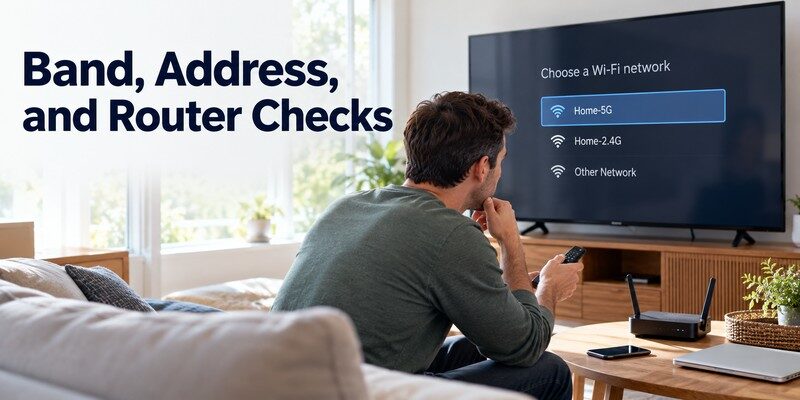
Wireless band selection can influence connection stability, particularly in larger homes.
If your tv keeps disconnecting from wifi, choosing the appropriate band can be more effective than repeatedly restarting your television.
2.4 GHz vs. 5 GHz WiFi
| Feature | 2.4 GHz | 5 GHz |
|---|---|---|
| Typical range | Longer | Shorter |
| Obstacle penetration | Generally better | Generally weaker |
| Potential throughput | Lower | Higher |
| Interference | Often more crowded | Often less crowded |
| Best use | TVs farther from routers | TVs relatively close to routers |
Choose 2.4 GHz when signal reach matters most. Choose 5 GHz when your TV is nearby and supports it.
Actual performance depends on your router, home layout, wireless channels, and neighboring networks.
Position the router correctly
For better wireless performance:
- Position the router in an open area.
- Avoid placing it directly on the floor.
- Keep it away from large metal surfaces.
- Reduce walls and furniture between it and the television.
- Avoid enclosing streaming sticks behind equipment when possible.
Roku’s September 2026 support guidance specifically recommends improving router placement and moving streaming devices away from physical obstructions.
Understand streaming speed requirements
A weak WiFi signal and insufficient internet speed are related but different problems.
According to Netflix’s official internet speed recommendations:
| Streaming quality | Recommended stable speed |
|---|---|
| HD 720p | 3 Mbps or higher |
| Full HD 1080p | 5 Mbps or higher |
| Ultra HD 4K | 15 Mbps or higher |
These are Netflix’s recommended connection speeds, not minimum WiFi signal-strength measurements.
A TV may report an internet speed above 15 Mbps while still experiencing wireless disconnections.
Stable connectivity matters as much as raw download speed.
If your tv keeps disconnecting from wifi during 4K streaming, examine both signal reliability and available bandwidth.
5. Advanced Router Settings to Prevent WiFi Disconnections
If simple troubleshooting does not work, router settings may explain recurring connection failures.
These adjustments are particularly useful when the television works on a hotspot but struggles with the home network.
Check wireless channels
WiFi routers transmit data through specific wireless channels.
When nearby routers operate on overlapping channels, interference may reduce connection quality.
For 2.4 GHz networks, channels 1, 6, and 11 are commonly used non-overlapping choices in regions where all three are available with 20 MHz channel width.
For 5 GHz networks, the available channels depend on regional regulations and device support.
Roku notes that certain streaming devices may not support some Dynamic Frequency Selection channels.
Do not select a wireless channel without checking regional requirements and router compatibility.
Review automatic band steering
Some routers combine 2.4 GHz and 5 GHz networks under one WiFi name.
This feature is often called band steering or Smart Connect.
While convenient, automatic band selection can occasionally cause compatibility problems with particular devices.
If your tv keeps disconnecting from wifi during band transitions, temporarily separate the two network names and connect the TV to one band.
Test the connection over several viewing sessions before deciding whether to keep this configuration.
Check router security settings
Modern routers may offer WPA2, WPA3, or mixed security modes.
Older televisions may not support newer security configurations.
If problems began after changing router security settings, verify your television’s supported authentication methods.
Avoid weakening network security unnecessarily.
Use a compatible, secure configuration rather than disabling password protection.
Review DHCP and IP address assignment
Most home networks use DHCP to assign local IP addresses automatically.
Normally, your TV should obtain an address without manual configuration.
However, conflicting addresses or router configuration problems can disrupt connectivity.
If the television repeatedly loses its network configuration, restart the router and verify that DHCP is enabled.
Advanced users can investigate whether an IP reservation is appropriate.
Avoid assigning static addresses without understanding the router’s address range.
Update router firmware
Router firmware controls wireless connections, device management, and security functions.
Check the router manufacturer’s administration interface for available updates.
Follow the official update procedure carefully.
If network instability affects every connected device, router firmware or hardware may deserve attention before further television troubleshooting.
6. Fix WiFi Disconnections on Samsung, LG, Roku, and Google TV
Different television brands provide different network menus.
If your tv keeps disconnecting from wifi, follow the instructions corresponding to your device.
Samsung TV keeps disconnecting from WiFi
Samsung televisions include network status tools that can help identify connection problems.
Try the following:
- Open Settings.
- Select All Settings.
- Navigate to Connection.
- Open Network.
- Select Network Status.
- Review the connection result.
If the test identifies a network problem, reset the connection and reconnect to your router.
Samsung’s March 2026 wireless troubleshooting guidance also recommends checking router power and resetting network settings when necessary.
For compatible televisions, our samsung tv remote app guide explains alternative ways to control your television through a smartphone.
LG TV keeps disconnecting from WiFi
LG televisions commonly provide WiFi configuration under General or Network settings.
For many models using webOS 6.0 or later:
Settings → All Settings → General → Network → Internet Connection → Wi-Fi Connection
The exact menu varies with the model year.
If your tv keeps disconnecting from wifi, test another network and restart the router before performing a factory reset.
LG’s October 2026 support guidance recommends testing a smartphone hotspot to help distinguish television problems from router or internet-service problems.
If the WiFi menu is unavailable or consistently shows no networks, professional diagnosis may be necessary.
Roku TV keeps disconnecting from WiFi
Roku televisions and streaming devices provide several useful connection tests.
Navigate to:
Settings → Network → About
Review the wireless signal strength.
Then select Check Connection.
Roku categorizes wireless signal strength using descriptions such as Poor, Fair, Good, and Excellent.
A Poor or Fair signal suggests that router placement or wireless interference should be investigated.
If necessary, perform a network connection reset through the supported system settings.
Google TV and Android TV WiFi problems
Google TV and Android TV devices commonly provide network settings under Network & Internet.
Start by checking the active wireless network.
Then:
- Disconnect and reconnect to WiFi.
- Restart the TV or streaming device.
- Check software updates.
- Test another wireless band.
- Compare the results using a hotspot.
If tv keeps disconnecting from wifi problems also prevent your smartphone remote from finding the television, investigate the underlying network before attempting repeated remote pairing.
Our Google TV remote troubleshooting guide provides additional instructions for compatible remote-control devices.
Vizio and Fire TV connectivity issues
Vizio televisions can experience network discovery problems that also affect mobile remote applications.
If the television streams normally but a phone cannot discover it, check whether both devices belong to the same local network.
For additional troubleshooting, see our Vizio SmartCast app connection guide.
On Fire TV devices, inspect wireless signal quality, restart the streaming device, and reconnect to the router.
If the Fire TV Stick uses inadequate USB power, switching to its recommended power adapter may improve overall device reliability.
7. Can a TV Remote App Help With WiFi Connection Problems?
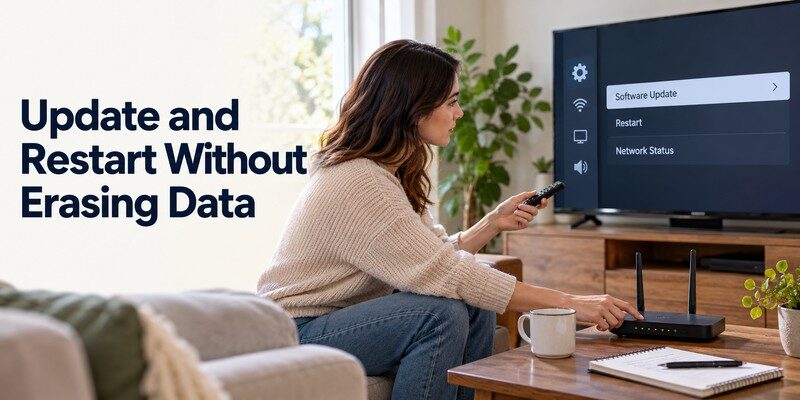
A smartphone remote can be useful when your physical remote is missing or damaged.
However, if your tv keeps disconnecting from wifi, network-based smartphone control may become unavailable whenever the TV loses its local network connection.
Use a smartphone to control your Smart TV
The Remote TV app provides remote-control options for compatible television models.
With a supported TV, you can use a smartphone to navigate menus, adjust volume, and access available controls.
The universal remote tv control app for iPhone and iPad supports a variety of Smart TV brands.
It is developed by BEGAMOB GLOBAL LIMITED.
To begin:
- Download and install the app.
- Connect your iPhone and TV to the same local network.
- Open the app and search for compatible televisions.
- Select your device.
- Complete any required pairing or permission steps.
- Test the supported remote functions.
Important: The television must be accessible on the local network for WiFi-based control to work. A smartphone remote cannot directly repair a disconnected TV’s wireless module.
What if the remote app cannot find your TV?
If the app cannot discover the television, verify that both devices are connected to the same accessible local network.
Also check whether your router enables guest-network isolation or blocks communication between wireless clients.
On an iPhone, verify that the app has Local Network permission when required.
If the television is offline, reconnect it using the physical remote or built-in TV controls first.
Once connectivity is restored, you can Download universal remote tv control and use its supported functions for everyday operation.
8. Frequently Asked Questions About TV WiFi Disconnections
Why does my TV connect to WiFi and then disconnect?
Weak signal strength, router interference, software issues, and network configuration problems are common possibilities.
If your tv keeps disconnecting from wifi shortly after connecting, restart the router, test another wireless band, and check the TV’s signal strength.
How do I fix my Smart TV WiFi permanently?
There is no universal permanent fix because connection failures have different causes.
Start by improving signal strength, updating software, and testing a wired connection.
If these steps resolve the issue, maintain the successful configuration.
Why does my TV disconnect from WiFi every night?
Scheduled router restarts, overnight ISP maintenance, standby behavior, or automatic network changes may explain disconnections at predictable times.
Check your router logs and power-management settings.
If the issue happens only after waking the television, investigate standby and quick-start behavior.
Why is my TV connected to WiFi but not the internet?
A wireless connection only confirms that the television can communicate with the router.
It does not guarantee that the router has internet access.
Check whether other devices can access online services.
If all devices are affected, contact your internet provider after restarting the modem and router.
Is 2.4 GHz or 5 GHz better for Smart TVs?
For TVs far from the router, 2.4 GHz may provide a more reliable signal.
For televisions near the router, 5 GHz may offer better throughput and less interference.
Test both bands when available.
Can a WiFi extender stop TV disconnections?
A properly placed extender may improve coverage in areas with weak wireless signals.
However, extenders can introduce additional network complexity and may reduce throughput.
A wired connection or well-positioned mesh access point may provide more consistent results.
How can I fix TV WiFi problems without resetting everything?
If you want to fix tv wifi disconnecting problems without erasing your TV’s settings, start with a power cycle, network test, and reconnection.
Only use a full factory reset after less disruptive troubleshooting has failed.
When should I contact a technician?
Contact the manufacturer if your TV cannot detect any wireless networks, fails on multiple known-working networks, or continues disconnecting after network and firmware troubleshooting.
An internal WiFi module problem may require professional service.
Final Thoughts
When your tv keeps disconnecting from wifi, the solution is often simpler than replacing your television.
Restart the TV and router, verify signal strength, reconnect to your wireless network, and test another WiFi band.
If the problem continues, update the software, examine router settings, and use Ethernet or a smartphone hotspot to identify the source.
These tests help distinguish weak wireless coverage from configuration problems, internet outages, and possible hardware defects.
Once your TV maintains a stable connection, you can enjoy uninterrupted streaming and use compatible smartphone remote-control features more reliably.
