
TV Remote App Not Working With VPN? How to Fix It
TV Remote App, VPN Troubleshooting, Remote App Not Connecting, Local Network Access, Split Tunneling, Smart TV, iPhone Remote, Android TV Remote, Wi-Fi Connection
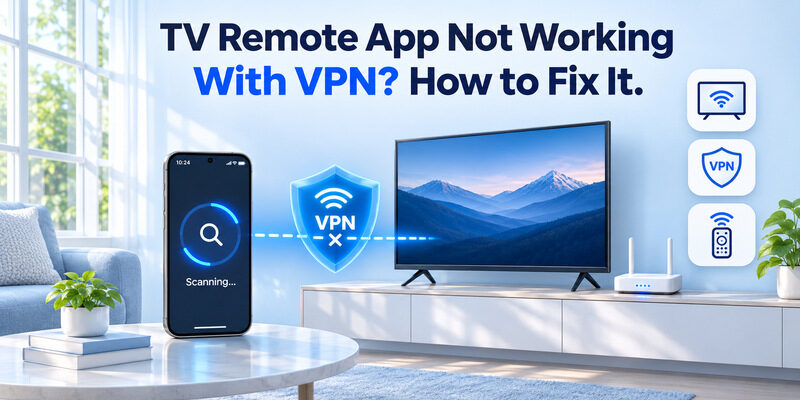
If your tv remote app not working with vpn problem started immediately after enabling a VPN, the VPN may be preventing your smartphone from discovering or communicating with your smart television.
Quick answer: Temporarily disconnect the VPN, connect your phone and TV to the same trusted local network, and reopen the remote application. If the remote starts working, configure your VPN to allow local network access or use split tunneling when supported.
Follow these steps:
- Disconnect your VPN temporarily to confirm whether it causes the problem.
- Connect your smartphone and TV to the same reachable home network.
- Enable Local Network Access in your VPN settings if available.
- Use Split Tunneling to exclude the remote application when supported.
- Check iPhone or Android permissions for device discovery.
- Restart the remote app and pair your television again if needed.
You may not need to stop using your VPN permanently. Many VPN services provide settings that allow communication with trusted devices while maintaining protection for internet traffic.
However, these features differ between applications and operating systems.
This guide explains tv remote app not working with vpn issues, why local device discovery fails, and how to restore remote functionality on compatible Samsung, LG, Roku, Google TV, and other smart televisions.
1. Why Is Your TV Remote App Not Working With VPN?
Understanding tv remote app not working with vpn begins with how network-based remote applications operate.
Most smartphone TV remotes send commands through a local network instead of transmitting traditional infrared signals.
Your smartphone must be able to discover the television, establish a compatible connection, and send control commands.
A VPN can change how this traffic moves through your device.
How VPN connections affect TV remote apps
A Virtual Private Network creates an encrypted connection between your device and a VPN endpoint.
Depending on the VPN configuration, some or all network traffic may travel through the encrypted tunnel.
For normal internet browsing, this may work without noticeable problems.
However, a remote application often needs to communicate directly with a television on your home network.
For example:
- Smartphone local IP: 192.168.1.20
- Smart TV local IP: 192.168.1.35
- VPN tunnel IP: 10.8.0.5
These are illustrative addresses.
If the VPN blocks local network access or routes traffic incorrectly, the smartphone may become unable to reach the TV.
The television can remain online even when the remote application cannot connect.
VPNs can interfere with local device discovery
Smart TV remote applications may use local discovery technologies such as multicast DNS (mDNS), SSDP, or manufacturer-specific protocols.
These mechanisms allow compatible devices to locate one another.
A VPN can interfere with discovery by restricting multicast traffic, blocking local connections, or applying routing rules that direct traffic away from the home network.
This does not happen with every VPN.
Some providers specifically support communication with local printers, TVs, and other household devices.
Common signs of VPN interference
If tv remote app not working with vpn, you may notice:
- The television disappears from the app.
- Device scanning never finishes.
- Pairing fails unexpectedly.
- The app connects only after disconnecting the VPN.
- Remote buttons stop responding.
- The connection works inconsistently.
The most useful diagnostic test is to compare remote functionality with the VPN connected and disconnected.
If the remote works only when the VPN is off, investigate the VPN’s local network settings before resetting your television.
2. TV Remote App Not Working With VPN: 10 Easy Fixes
These troubleshooting methods address the most common causes of tv remote app not working with vpn.
Start with the simplest tests before changing advanced network settings.
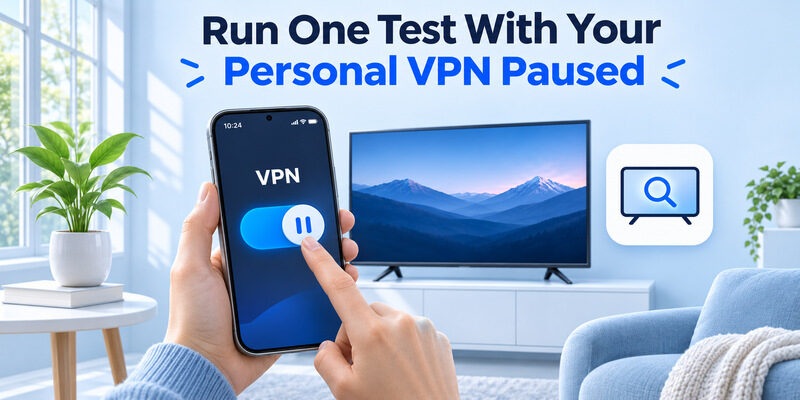
Fix 1: Temporarily disconnect your VPN
Open your VPN application and disconnect from its server.
Keep your smartphone connected to your trusted home Wi-Fi.
Next:
- Close the television remote application.
- Reopen it.
- Search for available televisions.
- Select your TV.
- Test the navigation and volume buttons.
If the remote starts working, your VPN configuration is a likely contributor.
This test identifies the problem; it does not mean you must leave your VPN disabled permanently.
Reconnect the VPN after testing and try the options below.
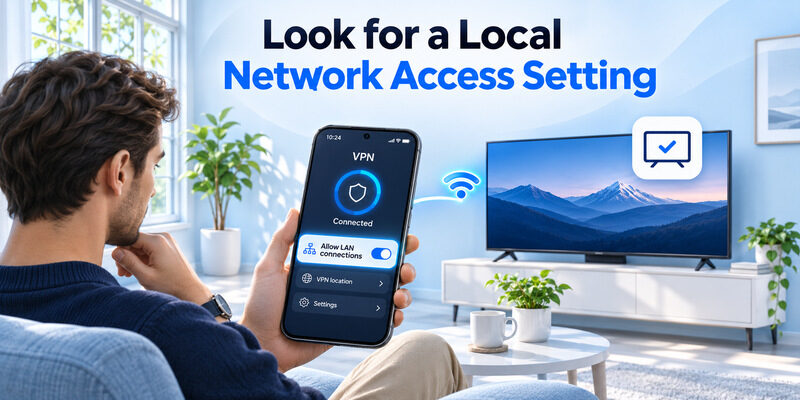
Fix 2: Enable local network access
Some VPN applications provide a feature that permits communication with devices on your local network.
Look for options such as:
- Allow LAN Access
- Local Network Discovery
- Allow Local Network Devices
- Bypass VPN for Local Networks
- LAN Visibility
For example, NordVPN documents a Local Network Discovery option in its Android application.
ExpressVPN also documents settings that can allow access to local network devices while connected to its VPN.
Feature availability varies by platform and version.
Enable access only on a trusted home network, because local communication permissions can expose additional devices to your phone.
Fix 3: Configure split tunneling
Split tunneling allows selected applications or traffic to bypass a VPN connection.
If supported, you may be able to exclude your TV remote application.
Basic steps:
- Open your VPN application.
- Find Settings.
- Select Split Tunneling.
- Choose the option for apps that bypass the VPN.
- Add your compatible remote application.
- Save the setting.
- Reconnect the VPN and test the television.
Important: Split tunneling is not available in every VPN application or operating system.
Some VPNs support app-based exclusions only on selected platforms.
Do not assume that Android instructions also apply to iPhone.
Fix 4: Check your Wi-Fi network
A VPN is not necessarily the only issue.
Your smartphone and television must still have a compatible local network connection.
Open your phone’s Wi-Fi settings and check the network name.
Then examine the television’s network settings.
If the phone uses Guest Wi-Fi while the television uses the main network, router isolation may block remote communication.
Move both devices to the same trusted network before repeating the VPN test.
Fix 5: Disable conflicting network filters temporarily
Some devices have multiple networking tools running simultaneously.
Examples include:
- VPN applications
- Network firewall applications
- Security filters
- Private DNS configurations
- Device-management software
These tools may have different effects on local traffic.
Temporarily disable one optional filter at a time on your trusted network and test the remote.
Restore your previous configuration afterward.
If you use a work-managed VPN or security policy, contact your administrator instead of bypassing required protection.
Fix 6: Restart the remote application
A remote app may retain outdated device discovery results.
Close it completely and reopen it.
Wait for the device list to refresh.
If your TV appears, select it and test the controls.
You can also restart the smartphone to refresh its network connections.
Fix 7: Restart the TV and router
If tv remote app not working with vpn persists, restart the television and home router.
For the router:
- Disconnect power.
- Wait approximately 30 seconds.
- Reconnect power.
- Wait for Wi-Fi to become available.
Restart the television separately.
Reconnect both devices and test the app again.
Do not factory reset your router unless specifically necessary.
Fix 8: Update the VPN application
Older VPN versions can contain compatibility problems or lack newer local access features.
Check your device’s official app store for updates.
Also update the television remote application.
If available, review the VPN provider’s documentation for local network access settings.
Fix 9: Remove and reconnect the television
If your TV appears in the remote app but refuses to connect:
- Open the app’s device settings.
- Remove the saved TV when supported.
- Search for compatible devices.
- Select the television.
- Enter the pairing code or approve the connection request.
- Test the remote buttons.
Pairing procedures vary by manufacturer and app.
Fix 10: Test another compatible remote app
If the connection still fails, test another remote application that supports your television.
A Remote TV app may offer a convenient interface for controlling compatible smart TVs.
However, switching applications will not automatically bypass VPN restrictions.
You must still permit the necessary network communication.
Download TV Remote App3. How to Keep Your VPN On While Using a TV Remote App
Many people want to maintain VPN protection while controlling their television.
Fortunately, tv remote app not working with vpn does not always require choosing between privacy and convenience.
The right configuration depends on your VPN software and network.
Option 1: Allow trusted LAN traffic
If your VPN supports LAN access, this is often the simplest option.
It permits communication with local devices while the VPN continues protecting traffic that is routed through its tunnel.
For example, your phone may communicate with a television at 192.168.1.35 while using the VPN for supported internet connections.
Local traffic permitted outside the tunnel is not protected by the VPN tunnel itself.
For home networks you control, that trade-off may be acceptable.
For public Wi-Fi, enabling unrestricted local access may introduce unnecessary risk.
Option 2: Exclude the remote app from the VPN
If the VPN supports split tunneling, exclude the television remote application.
This can be useful when you want most applications to continue using the VPN.
However, successful exclusion depends on how the remote app discovers devices.
Some implementations may still restrict multicast discovery or use system components that are not covered by the exclusion.
If split tunneling does not work, try the VPN’s dedicated LAN access feature.
Option 3: Use a dedicated VPN device
Some households install VPN software on a router, streaming box, or another device rather than directly on every smartphone.
This can allow the phone to remain on a trusted network without a phone-level VPN.
However, a router-based VPN does not automatically guarantee local discovery.
You must ensure that firewall rules, device isolation, and routing allow appropriate communication.
Which VPN option should you choose?
| VPN configuration | Local TV access | Recommended action |
|---|---|---|
| VPN disconnected | Usually available | Use for diagnosis |
| VPN with LAN access enabled | Often available | Preferred option when supported |
| VPN with split tunneling | Depends on implementation | Exclude remote app |
| VPN blocking all LAN traffic | Usually unavailable | Change permitted access settings |
| Router VPN with isolated devices | Depends on network rules | Check firewall and routing |
Recommendation: For tv remote app not working with vpn, try the VPN’s local network access feature first, then split tunneling if available.
4. Fix TV Remote App Not Working With VPN on iPhone and Android
VPN configurations and network permissions behave differently between mobile operating systems.
A troubleshooting method that works on Android might not be available on iPhone.
TV remote app not working on iPhone
If you experience tv remote app not working iphone problems while connected to a VPN, begin with Apple’s Local Network privacy setting.
According to Apple Support, iOS 14 and later require applications to request permission before browsing the local network in applicable circumstances.
To review this permission:
- Open Settings.
- Select Privacy & Security.
- Tap Local Network.
- Find the television remote app.
- Enable permission if the app requires it.
- Close and reopen the remote.
Next, disconnect your VPN temporarily.
Check whether your television appears.
If it does, review the VPN app’s available local network controls.
Do not assume your iPhone VPN offers split tunneling. The feature may be unavailable or implemented differently from Android.
TV remote app not working on Android
Android provides different application and VPN configuration options.
To troubleshoot:
- Open Settings.
- Select Apps.
- Find your TV remote application.
- Review relevant permissions.
- Open your VPN app.
- Check Local Network Discovery or Split Tunneling.
- Test the remote again.
Depending on the Android version and application, permissions may involve Nearby Devices or other device-discovery features.
Some VPN providers also support per-app exclusions on Android.
Does switching to mobile data help?
Usually not for ordinary local-network remote applications.
If you disconnect your phone from Wi-Fi and use only mobile data, it may no longer be able to reach your television.
Most network-based TV remotes require the devices to communicate over a local network.
A cloud-connected remote service may behave differently, but its capabilities depend on the manufacturer.
For a reliable test, keep your phone on home Wi-Fi and change only the VPN connection.
5. Troubleshoot VPN Remote Problems on Samsung, LG, and Roku TVs
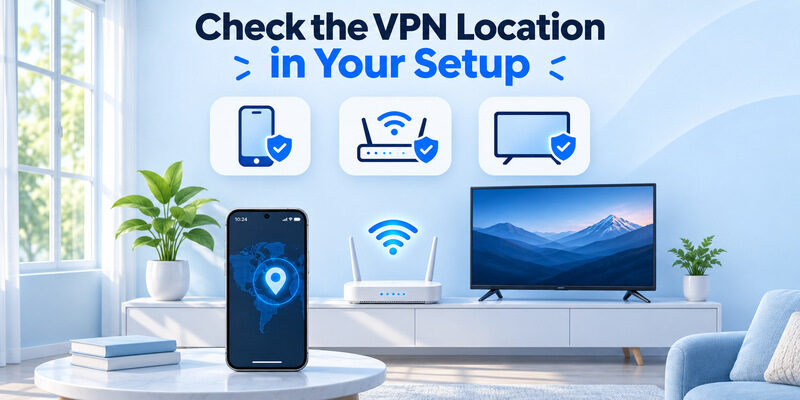
The tv remote app not working with vpn issue can affect multiple television platforms.
Each manufacturer uses its own discovery, pairing, and permission system.
Samsung TV remote app not connecting
Samsung SmartThings supports remote functions on compatible Samsung televisions.
If SmartThings cannot locate your TV while the VPN is active:
- Confirm your Samsung TV is online.
- Connect your smartphone to the same trusted network.
- Temporarily disconnect the VPN.
- Open SmartThings.
- Select or add the television.
- Approve the pairing request if prompted.
If the TV becomes available with the VPN disconnected, review LAN access settings before reconnecting the VPN.
For more instructions, read our samsung tv remote app guide.
LG TV remote app not working
If your lg tv remote app not working, LG ThinQ may be unable to discover or connect to the television.
Start by confirming that the TV is registered in ThinQ.
Connect your phone and television to the same reachable network.
Temporarily disable the VPN and test device discovery.
If ThinQ finds the television but pairing fails, check the LG account, registration settings, and any outdated device entries.
Read our detailed LG ThinQ app not finding TV troubleshooting guide.
Important: Some LG features may use Bluetooth for specific functions, but normal network-based app control should not be assumed to work without suitable connectivity.
Roku TV remote app not connecting
Roku explicitly addresses VPN interference in its mobile remote troubleshooting documentation.
Roku explains that some VPN applications route traffic through a virtual network, which can prevent the Roku device from appearing.
To troubleshoot:
- Open your Roku network settings.
- Verify the connected network.
- Connect your smartphone to the same home network.
- Disconnect the VPN temporarily.
- Open the Roku mobile application.
- Select your device.
- Test remote control.
On supported Roku devices, check the setting for Control by Mobile Apps if necessary.
Use an appropriately restricted access mode rather than enabling unrestricted remote access.
Google TV remote not connecting
Google TV and Android TV remote applications also depend on supported network discovery and pairing.
If your phone cannot discover the TV:
- Check the network connection.
- Disconnect your VPN temporarily.
- Reopen the remote application.
- Select the TV.
- Enter the pairing code if prompted.
- Test the connection.
For additional troubleshooting, see our Google TV remote not working guide.
Across all brands, the best diagnostic approach is to isolate the VPN connection from other possible causes.
6. Can You Use a TV Remote App Without Wi-Fi or VPN?
Some users experiencing tv remote app not working with vpn search for applications that do not require Wi-Fi.
However, Wi-Fi, internet access, and VPN connectivity are three different things.
Can a TV remote app work without internet?
Sometimes, yes.
A compatible television and smartphone may communicate over a local network even when that network temporarily lacks internet access.
However, some applications require online account verification, initial activation, or cloud services.
A local Wi-Fi connection can exist without an active internet connection.
Is there a TV remote app that doesn’t require Wi-Fi?
A tv remote app that doesn’t require wifi typically needs an alternative communication method.
One possibility is infrared control.
Some Android smartphones include an infrared transmitter that can send commands to compatible televisions.
However, most modern smartphones do not include this hardware.
Bluetooth-based control may be available on certain compatible devices, but it is not a universal replacement for Wi-Fi remote functionality.
Can you control a non-smart TV with an app?
Users searching for tv remote app not smart tv solutions should check whether their television accepts infrared signals.
A compatible Android phone with an IR blaster and suitable software may control some older televisions.
An ordinary Wi-Fi remote app cannot automatically control a non-smart TV lacking network connectivity.
Are free remote apps without Wi-Fi available?
A search for free tv remote app without wifi may return infrared remote applications for compatible Android devices.
However, the app must support both the phone’s infrared hardware and the television’s control codes.
Free installation does not guarantee compatibility.
Can LG remote apps work without Wi-Fi?
Searches for lg tv remote app without wifi free or lg tv remote app no wifi often refer to controlling LG televisions without a home internet connection.
Some LG remote functions may work over an existing local connection without internet access.
Other features require supported connectivity and compatible TV hardware.
If no local network is available, a compatible physical LG remote is usually the simplest solution.
What about iPhone remote apps without Wi-Fi?
An iPhone does not have a conventional built-in infrared blaster for controlling standard IR-only televisions.
Therefore, searching for remote tv app without wifi does not mean that an iPhone can control any television without network access.
Check the application’s actual connection requirements before installing it.
7. Advanced VPN and Home Network Troubleshooting
If tv remote app not working with vpn continues after basic troubleshooting, examine how your home network handles device communication.
These advanced checks are particularly useful in households with mesh routers, multiple subnets, or custom firewall rules.
Check local IP addresses
A typical home network assigns private IP addresses to connected devices.
For example:
- Phone: 192.168.0.12
- Television: 192.168.0.25
- Router: 192.168.0.1
If your phone and TV use different address ranges, they may be on separate subnets.
However, matching IP prefixes alone does not prove that the devices can communicate.
Firewall rules, subnet masks, and VPN routes also matter.
Check multicast discovery
Some television applications discover devices using mDNS or SSDP.
Multicast discovery may fail if the VPN blocks local traffic or the network separates devices.
Advanced users can check whether the VPN permits local multicast and whether the router allows appropriate communication.
Avoid opening broad firewall permissions unnecessarily.
Test with another smartphone
A second smartphone can help identify the source of the problem.
Connect both phones to the trusted home network.
Test the remote application on the second phone without a VPN.
Then compare the result with the original phone.
If only the VPN-connected phone fails, investigate its VPN settings.
If neither device can connect, the television or local network may be responsible.
Check your router’s guest network
Some guest networks prevent devices from communicating with other local devices.
Even if a VPN is disconnected, guest-network isolation can continue blocking remote discovery.
Move the TV and phone to your trusted primary network.
Do not disable guest security globally unless you understand the consequences.
Avoid factory resetting too early
A factory reset can erase television settings, accounts, applications, and device registrations.
For tv remote app not working with vpn, a factory reset is rarely an appropriate first troubleshooting step.
Test connectivity, permissions, and pairing before considering destructive changes.
Prevent future VPN-related problems
To reduce recurring failures:
- Keep your VPN application updated.
- Use LAN access settings on trusted networks when supported.
- Keep the television on a stable network.
- Maintain correct application permissions.
- Recheck remote discovery after VPN updates.
- Use only compatible and trusted remote applications.
A stable network configuration makes smartphone TV control more reliable.
8. Frequently Asked Questions About VPN and TV Remote Apps
Why does my TV remote app stop working when I turn on VPN?
Your VPN may restrict local network access or interfere with device discovery.
If tv remote app not working with vpn, disconnect the VPN briefly to test whether the television becomes visible.
Then use the VPN’s supported LAN access options to restore local communication.
Can I use a TV remote app while keeping my VPN enabled?
Yes, in some configurations.
A VPN that supports local network communication may allow the remote application to connect to your television while the VPN stays active.
Some providers also support split tunneling.
The exact solution depends on your phone, VPN provider, and TV.
Does split tunneling fix every remote app problem?
No.
Split tunneling can help when traffic routing is the cause.
However, other problems such as missing app permissions, router isolation, incompatible television models, or old pairing information may remain.
Does a free VPN app for TV cause remote problems?
A free vpn app for tv can potentially interfere with local networking, just as some paid VPN products can.
The deciding factor is its configuration and whether local communication is permitted.
Price alone does not determine compatibility.
Check its LAN access features before relying on it with a smart TV remote.
Why is F1 TV not working with VPN?
If you are searching for f1tv not working with vpn, this is a different problem from a smartphone remote failing to find a TV.
F1 TV is a streaming service with geographical content restrictions.
Its subscription terms restrict using tools to disguise location to circumvent access restrictions.
A streaming-access problem may involve account eligibility or territorial rights rather than local network discovery.
For remote-control issues, focus on VPN routing and communication with your TV.
Do my TV and phone need to use the same Wi-Fi frequency?
Not necessarily.
For many remote applications, a phone using 5 GHz and a TV using 2.4 GHz can communicate when both are on the same reachable network.
However, certain manufacturer-specific setup procedures may recommend the same band.
Network reachability is more important than matching Wi-Fi frequencies in general.
Will changing my VPN server fix the remote app?
Usually, switching servers is not the most useful first step.
Local device discovery problems are often caused by VPN routing or access restrictions rather than the geographical location of the VPN server.
Check LAN access and split tunneling first.
Can I use a universal remote app with a VPN?
Yes, if the application supports your television and the VPN permits the necessary local communication.
For compatible televisions, universal remote tv control provides an iPhone-based remote option.
However, a universal remote app does not automatically bypass VPN or router restrictions.
What should I do if my physical remote is broken?
First, restore your television’s network connection using supported controls.
If your TV is compatible, a smartphone remote may provide an alternative for navigation, volume, and other supported features.
You can Download universal remote tv control from the App Store.
The app is free to download, with in-app purchases. Compatibility and functions depend on the specific television.
Conclusion
If your tv remote app not working with vpn, the problem is often related to local network restrictions rather than a faulty television or remote application.
Start by temporarily disconnecting the VPN, confirming that your TV and phone can communicate, and checking local network permissions.
If the remote works without the VPN, enable LAN access or configure split tunneling when those features are supported.
Samsung, LG, Roku, Google TV, and other compatible smart televisions may use different pairing systems, but the underlying troubleshooting approach is similar.
The goal is to allow trusted local TV control while keeping appropriate VPN protection for your internet traffic.
With the correct network configuration, you can enjoy reliable smartphone remote functionality without repeatedly changing your TV settings.
Download TV Remote App