
VIZIO SmartCast App Won’t Connect to TV? How to Fix It
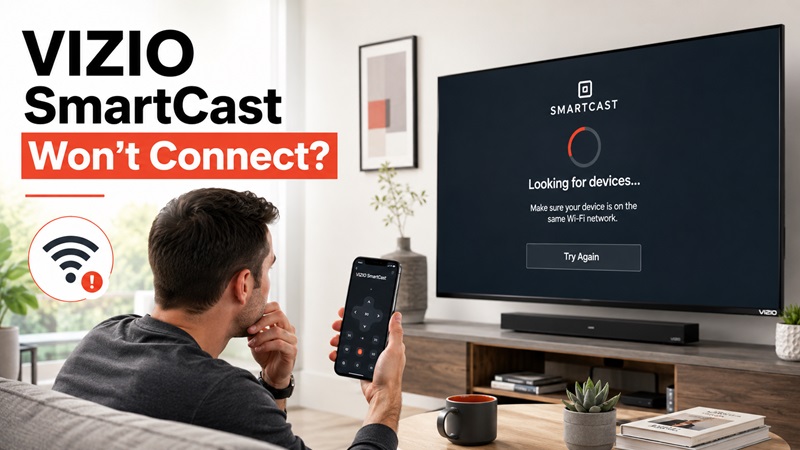
If your VIZIO SmartCast app won’t connect to TV, first check that your phone and television are on the same local network. Then restart the app, allow local-network access, and try pairing the television again. If the TV does not appear, confirm that it is powered on and connected to your router.
The app may now appear as VIZIO Mobile or under updated VIZIO branding, depending on the current app version and platform.
Quick fixes to try:
- Connect your phone and VIZIO TV to the same local network.
- Make sure the TV is powered on and online.
- Disable guest Wi-Fi or device isolation.
- Allow Local Network permission on iPhone.
- Close and reopen the VIZIO mobile app.
- Restart the TV and your phone.
- Temporarily disable your VPN.
- Update the app and TV software.
- Remove the saved TV and pair it again.
You usually do not need to factory reset your television to fix a mobile remote connection problem.
This guide explains how to identify the cause, restore the connection, and use alternative controls when the VIZIO app is unavailable.
💡 Discover Helpful Guides: Vizio TV Remote App Free: Official Setup and Wi-Fi Limits
VIZIO SmartCast App Won’t Connect? Start Here
Before changing your TV settings, identify exactly what happens when you open the VIZIO mobile app.
Different connection failures require different solutions.
Find Your Connection Problem
| Problem | Likely cause | What to try first |
|---|---|---|
| VIZIO TV does not appear in the app | Different networks or missing permission | Check Wi-Fi and Local Network access |
| TV appears but won’t pair | Pairing code or authorization issue | Start a new pairing attempt |
| App says connected but buttons don’t work | Temporary app or TV issue | Restart app and TV |
| App worked before but stopped | Network change or outdated pairing | Reconnect and pair again |
| VIZIO Home won’t load | TV internet or software issue | Test TV network connection |
| TV keeps disconnecting | Weak Wi-Fi or router problem | Check signal and restart router |
| TV is completely offline | No local network connection | Reconnect TV using physical controls |
The first question to answer is whether your television itself is connected to the network.
If the TV cannot access online content, troubleshoot its network connection before trying to fix the phone app.
If the TV streams normally but the app cannot find it, focus on local-network communication, permissions, and pairing.
Explore Related Articles: Why Does the Firestick Remote App Keep Disconnecting?
9 Ways to Fix VIZIO SmartCast App Not Connecting
Work through these fixes in order. Start with the least disruptive steps before removing devices or changing network settings.
Fix 1: Connect Your Phone and VIZIO TV to the Same Network
A network mismatch is one of the most common reasons the VIZIO SmartCast app cannot find a television.
On your VIZIO TV:
- Open the TV’s settings or menu.
- Find Network settings.
- Check the current Wi-Fi connection.
- Note the network name.
On your phone:
- Open Settings.
- Select Wi-Fi.
- Connect to the same home network as the TV.
- Reopen the VIZIO app.
- Search for your television.
If your TV is connected through Ethernet, your phone can often still control it over Wi-Fi, provided both devices are on the same local network and can communicate.
Important: Your phone and TV do not necessarily need to use the same Wi-Fi frequency band. A 2.4 GHz connection and a 5 GHz connection can communicate when the router places them on the same local network.
The real requirement is network reachability, not simply matching frequency bands.
💡 Discover Helpful Guides: Download Remote for Vizio TV: Complete Setup Guide
Fix 2: Disable Guest Wi-Fi and Router Isolation
Some routers prevent devices on guest networks from communicating with each other.
This can make your VIZIO TV invisible to the mobile app even when both devices have internet access.
Check whether your phone or television is connected to a network labeled Guest, Visitor, or Public.
If possible, move both devices to your main home network.
If you manage the router, look for settings such as:
- AP isolation
- Client isolation
- Wireless isolation
- Guest device isolation
These settings may block local device discovery.
Do not disable security features on an unfamiliar or shared network. Instead, use a trusted home network where your devices are allowed to communicate.
Fix 3: Allow Local Network Access on Your Phone
If the VIZIO SmartCast app is not finding your TV, missing permissions may be responsible.
On iPhone:
- Open Settings.
- Tap Privacy & Security.
- Select Local Network.
- Find the VIZIO application.
- Enable Local Network access if available.
- Close and reopen the app.
On Android:
- Open Settings.
- Select Apps.
- Find the VIZIO application.
- Open Permissions.
- Review the permissions requested for device discovery.
- Allow the relevant permissions.
- Restart the app.
Permission names differ between Android versions and applications. Grant only the permissions required for the feature you are using.
For more information, see our guide to iPhone TV remote permissions and setup.
Fix 4: Restart the VIZIO Mobile App and Your Phone
Temporary app errors can prevent device discovery or interrupt an existing connection.
First, close the VIZIO app completely.
On iPhone, open the app switcher and swipe the app away.
On Android, open the recent apps screen and close the app. If necessary, use Force Stop in the application’s settings.
Then:
- Restart your phone.
- Reconnect to your home Wi-Fi.
- Open the VIZIO app.
- Wait for the device list to refresh.
- Select your television again.
If the TV now appears, test basic navigation before changing other settings.
Fix 5: Power Cycle Your VIZIO TV
A power cycle can resolve temporary TV software or network problems.
To restart your VIZIO television:
- Turn off the TV.
- Unplug it from the power outlet.
- Wait approximately 30–60 seconds.
- Reconnect the power cable.
- Turn the TV back on.
- Wait for the home screen to load.
- Open the mobile app and try connecting again.
This process does not intentionally erase saved accounts, Wi-Fi settings, or installed apps.
If your TV offers a Soft Power Cycle or Restart option in its settings, you can use that instead.
Menu names vary by model and software version.
Fix 6: Restart Your Router and Check Wi-Fi Stability
If the app repeatedly disconnects, the problem may involve your router rather than the television.
Try restarting the router:
- Turn off the TV.
- Unplug the router’s power cable.
- Wait approximately 30 seconds.
- Reconnect the router.
- Wait for the home network to become available.
- Reconnect your TV and phone.
- Open the VIZIO app.
Do not press the router’s factory-reset button.
If the connection remains unstable, check the Wi-Fi signal near your television.
Move the router away from major obstructions or try a wired Ethernet connection if your TV supports it.
Fix 7: Temporarily Disable Your VPN
Some VPNs and network-filtering applications interfere with local device discovery.
If your VIZIO TV is connected to the network but does not appear in the app:
- Temporarily disconnect your phone’s VPN.
- Keep Wi-Fi enabled.
- Reopen the VIZIO application.
- Search for the television.
- Attempt pairing again.
If the app works without the VPN, review whether your VPN offers a local-network access or LAN discovery setting.
Re-enable your normal security settings after testing.
📖 Read More Guides: VIZIO TV Remote Not Working? Easy Fixes to Try
Fix 8: Update the App and VIZIO TV Software
Outdated software may cause compatibility or connection problems.
Update the mobile app:
- Open the App Store or Google Play.
- Search for the official VIZIO application.
- Install any available update.
- Restart the application.
Update the television:
- Open your VIZIO TV settings.
- Find System, Admin & Privacy, or the equivalent menu.
- Look for Check for Updates.
- Install available software updates.
- Allow the TV to restart.
The exact menu path varies by model.
After updating, confirm that the TV is still connected to your home network.
Fix 9: Remove the Saved TV and Pair It Again
If the VIZIO app previously worked but now refuses to connect, an outdated device registration may be responsible.
If your app provides an option to remove or forget a television:
- Open the VIZIO mobile app.
- Find the saved television.
- Remove or forget the device.
- Return to the device-selection screen.
- Search for available TVs.
- Select your VIZIO television.
- Complete the new pairing process.
If your app does not offer a remove-device option, follow its current instructions for adding or selecting a television.
Avoid factory resetting the TV merely to clear a mobile app connection.
Philips Smart TV Remote App for iPhone: Download and Setup Guide
How to Fix VIZIO SmartCast Home Not Available or Not Loading
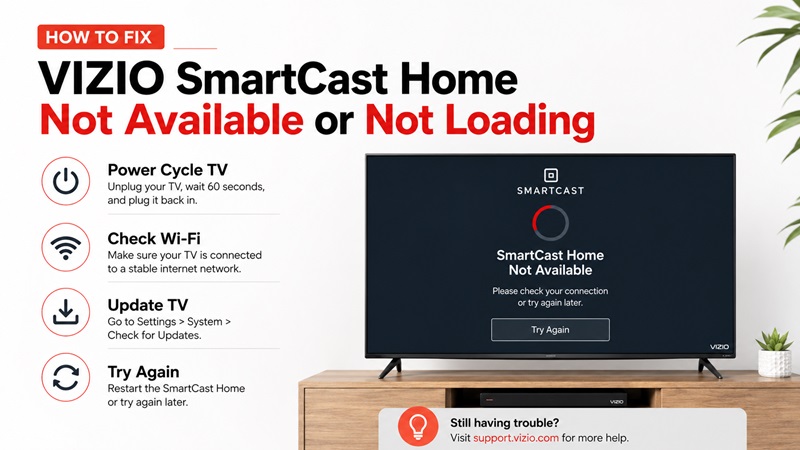
A vizio smartcast won’t load problem may prevent the mobile application from connecting normally because the television platform itself is not responding.
Perform a Soft Power Cycle
Some VIZIO TVs provide a software power-cycle option.
- Open the TV menu.
- Select System or Admin & Privacy.
- Select Soft Power Cycle when available.
- Wait for the TV to restart.
- Open VIZIO Home again.
When the menu is unavailable, use the unplugging method described earlier.
Check the TV Network
If you are researching how to fix vizio tv smartcast home not available, confirm that the TV can access the internet.
- Open Network settings.
- Check the network status.
- Re-enter the Wi-Fi password.
- Restart the router.
- Test another online application.
- Try a mobile hotspot temporarily.
If the television works on a hotspot but not on the home network, the router or internet connection is probably responsible.
Change the Menu Language Temporarily
On selected models, changing the system language may refresh the Home interface.
- Open the TV menu.
- Select System settings.
- Change the menu language.
- Return to VIZIO Home.
- Wait for it to load.
- Restore the original language.
This is a troubleshooting step rather than a permanent configuration.
Check Regional Availability
Some content and Home features can depend on the television’s supported region. Confirm that the TV location and account region are correct.
A vizio smart tv won’t load smartcast problem after moving the television to another country may be connected to regional availability rather than a failed remote app.
Factory Reset Only as a Last Resort
When smartcast won’t work on vizio tv after network checks, updates, and power cycling, a factory reset may be considered.
A factory reset can remove:
- Wi-Fi details
- Accounts
- Personalized settings
- Picture adjustments
- App preferences
- Device pairings
Prepare the information needed to set up the TV again before continuing.
What to Do When a VIZIO SmartCast TV Won’t Connect to Wi-Fi
The mobile application cannot control a television that has dropped off the network. Fix the TV connection first when smartcast won’t connect to wifi.
Reconnect the TV Step by Step
- Turn on the television.
- Press the Menu or Settings button.
- Select Network.
- Choose the correct Wi-Fi network.
- Enter the password carefully.
- Wait for confirmation.
- Return to the Home Screen.
- Test an online application.
- Open the mobile app again.
Check the Password
Wi-Fi passwords are case-sensitive. Check for:
- Uppercase and lowercase letters
- Number substitutions
- Extra spaces
- Incorrect network selection
- Recently changed router credentials
Forget the network and reconnect if that option is available.
Restart the TV and Router
If vizio smartcast won’t connect to wifi, restart both devices instead of repeatedly entering the same password.
Wait until the router has fully restarted before reconnecting the television.
Improve the Wireless Signal
A weak signal may cause the vizio smartcast tv won’t connect to wifi issue or repeated app disconnections.
Try:
- Moving the router closer
- Removing large obstacles
- Moving the router out of a cabinet
- Testing the 2.4 GHz network
- Disconnecting unused devices
- Using Ethernet when supported
The 2.4 GHz band is often slower but can provide better range through walls.
Test a Mobile Hotspot
Create a temporary hotspot and connect the TV to it.
If the television connects successfully, the home router or network settings may be the cause.
If the vizio smartcast tv will not connect to wifi or any hotspot, the television may have a software or hardware problem.
Try Ethernet
When the TV includes a LAN port:
- Connect an Ethernet cable from the router to the television.
- Open Network settings.
- Select the wired connection if necessary.
- Test VIZIO Home.
- Connect the phone to Wi-Fi on the same router.
- Open the mobile application.
A wired TV and wireless phone can still communicate when they share the same router.
How to Pair the VIZIO Mobile App With Your TV Again
Fresh pairing can resolve the vizio smartcast app won’t connect to tv problem after a router change, app reinstall, or television reset.
Follow these steps:
- Turn on the VIZIO television.
- Connect it to Wi-Fi.
- Connect the phone to the same network.
- Open the VIZIO mobile application.
- Select Get Started, Add Device, or Select a Device.
- Wait for the TV list.
- Choose the correct television.
- Wait for a pairing PIN to appear on the TV.
- Enter the PIN on the phone.
- Wait for connection confirmation.
- Open the remote interface.
- Test navigation, Volume, Home, and playback.
When the vizio smartcast app not finding tv:
- Refresh the device list.
- Restart the app.
- Check Local Network permission.
- Confirm the exact Wi-Fi name.
- Turn off VPN.
- Restart the television.
- Restart the router.
If the PIN is rejected, wait for a new code and begin pairing again.
A vizio smart tv won’t connect to smartcast after repeated fresh pairing may indicate that the TV is still offline or that local device communication is blocked by the router.
Use a Remote TV App When VIZIO SmartCast Still Won’t Connect
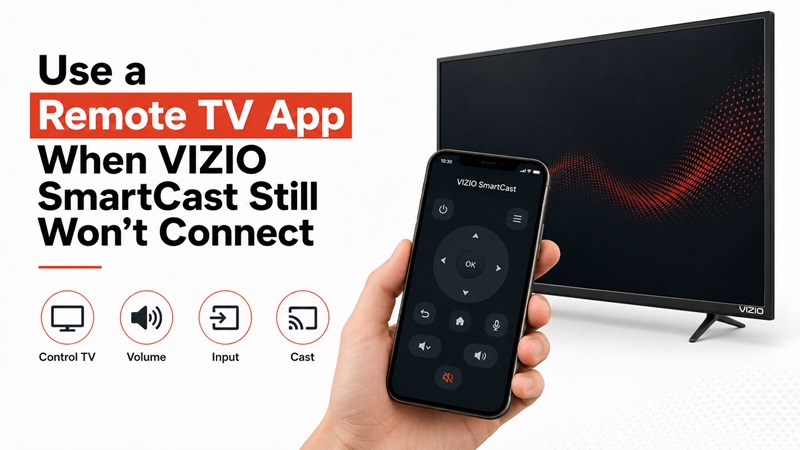
When the vizio smartcast app won’t connect to tv, use this troubleshooting order:
- Connect the phone and TV to the same Wi-Fi.
- Leave guest mode.
- Restart the mobile application.
- Restart the phone.
- Power cycle the television.
- Restart the router.
- Allow Local Network access.
- Disable VPN temporarily.
- Update the app and TV.
- Reinstall the application.
- Remove and pair the TV again.
A universal Remote TV App may provide an alternative interface when it supports your VIZIO model. Possible features include:
- Volume control
- Directional navigation
- Home and Back
- Playback controls
- Keyboard input
- Input selection
- Casting
However, a Wi-Fi-based application still requires the television to be online and reachable on the local network. It cannot repair a failed Wi-Fi component or bypass router isolation.
If vizio smartcast won’t connect because the TV is completely offline, use:
- The physical VIZIO remote
- Buttons on the television
- A compatible universal remote
- Ethernet
- Technical support when network hardware fails
Most cases of vizio smartcast app won’t connect to tv are caused by network mismatches, permissions, temporary software errors, or outdated pairing information. Restoring the shared network and pairing the TV again usually returns mobile remote control.
