
How to Control Google TV With Phone: Android & iPhone Guide
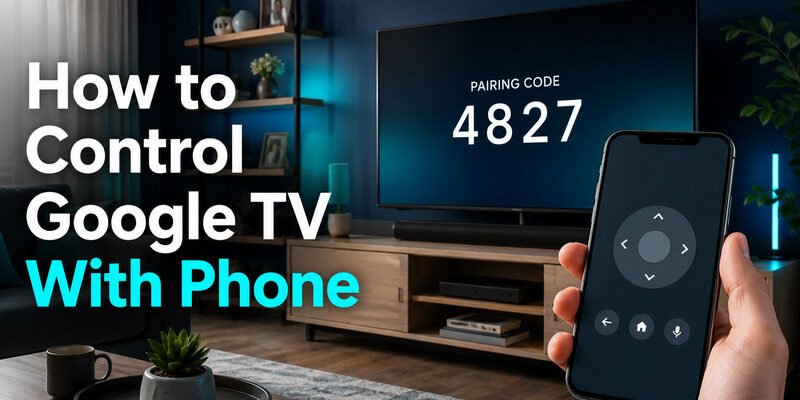
You can control Google TV with your phone using the Google TV app or Google Home: connect both devices to the same Wi-Fi, open the app, pick your TV, and enter the pairing code shown on screen. Once paired, your phone becomes a virtual remote for navigating, typing, playback, and volume, so a lost remote no longer leaves you stuck.
This guide covers how to control Google TV with phone on Android and iPhone, how to handle a lost remote, and what to do when your phone can’t find the TV.
Quick steps: how to control Google TV from phone
- Put your phone and Google TV on the same Wi-Fi network.
- Open the Google TV app and tap TVs nearby.
- Select your TV and enter the code that appears on the screen.
- Tap Pair. Your phone is now the remote.
Can I Control Google TV With My Phone?
Yes. If you’re asking “can I control Google TV with my phone,” Google’s help pages confirm it: the Google TV app and Google Home both offer a virtual remote for Google TV, Chromecast with Google TV, and Google TV Streamer. Learning how to control Google TV with phone only takes a few taps, but check these basics first:
- The TV is on and fully started.
- The phone and TV are on the same Wi-Fi network, not a separate guest network.
- You have the latest Google TV or Google Home app. Google lists iOS 14.0 or later for iPhone.
- You allowed the app’s permission prompts, such as local network access or Bluetooth.
Can You Control Google TV With Phone Without Wi-Fi?
Not in the standard setup. The phone finds the TV over your local network, so mobile data alone won’t work. If your TV lost its Wi-Fi, jump to the no-remote section below.
🛠️ Learn with Step-by-Step Guides: Apple TV Remote Icon: What It Means and How to Use It
How to Control Google TV With Phone Using the Google TV App
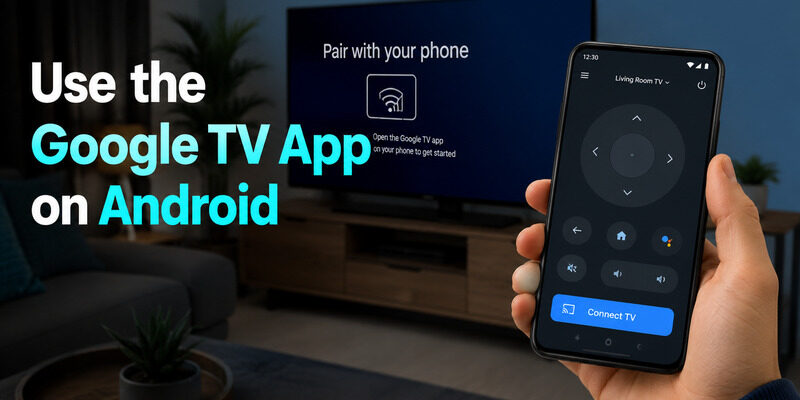
The Google TV app is the most direct way to learn how to control Google TV with phone, and the steps are almost identical on Android and iPhone.
On Android
- Connect your Android phone and Google TV to the same Wi-Fi. Turn on Bluetooth if the app asks.
- Open the Google TV app.
- Tap TVs nearby near the bottom right (some versions label it Connect TV).
- Select your Google TV from the list.
- Enter the code displayed on your TV and tap Pair.
Tip: Add the remote to Quick Settings to open it from any screen. Outside the US, the Android app may appear as Google Play Movies & TV.
On iPhone and iPad
- Connect your iPhone to the same Wi-Fi as your TV.
- Open the Google TV app.
- Tap TVs nearby, then select your Google TV.
- Enter the code shown on the TV and tap Pair.
If the TV never appears, open iPhone Settings, find the Google TV app, and switch on Local Network. VPNs, private relay, and guest networks can also block discovery, so pause them briefly and retry.
What Can You Do After Pairing?
- Navigate with the on-screen D-pad or swipes.
- Type passwords and searches with your phone keyboard.
- Play, pause, and rewind.
- Use volume, power, and Google Assistant when your TV setup supports them.
That’s the whole method. It works the same for Chromecast with Google TV and Google TV Streamer.
How to Control Google TV From Phone With Google Home
This is the second method for how to control Google TV with phone. Use it if you already manage your TV in Google Home, or if the Google TV app doesn’t show a remote. It is also how to control Google TV from phone when your TV is linked to your smart home.
- Turn on your TV and Google TV device, and connect your phone to the same Wi-Fi.
- Open Google Home.
- Tap your Google TV device.
- On Android, tap the remote control icon that appears. On iPhone, tap Open remote.
- First time only: enter the code on your TV and tap Pair.
| App | Best for | Limitation |
|---|---|---|
| Google TV app | Full virtual remote and keyboard | Needs a compatible Google TV or Android TV device |
| Google Home | TVs already in your smart home | Button layout varies by device |
| Remote TV App | One backup app for many TV brands | Works with supported TVs on the same network |
How to Control Google TV Without Remote (Lost or Broken Remote)
The good news: how to control Google TV without remote is easy when the TV is still on your home Wi-Fi. Using the steps for how to control Google TV with phone above, you pair with the on-screen code, so the physical remote isn’t required. If you’re wondering how to use Google TV without remote, the Google TV app or Google Home steps are all you need.
How to Use Google TV Without Remote When the TV Is Offline
If the TV forgot the Wi-Fi or you changed your router, the phone can’t discover it. Try one of these:
- Recreate the old Wi-Fi name and password on your router or a phone hotspot.
- Plug in Ethernet, if your device supports it.
- Connect a USB keyboard or mouse, if your TV supports it.
- Pair a replacement remote.
👉 Never get stuck without a remote again. Set up a backup now with Begamob’s Remote TV App. Pair it while your physical remote still works.
Why Can’t I Control Google TV With My Phone? (Quick Fixes)
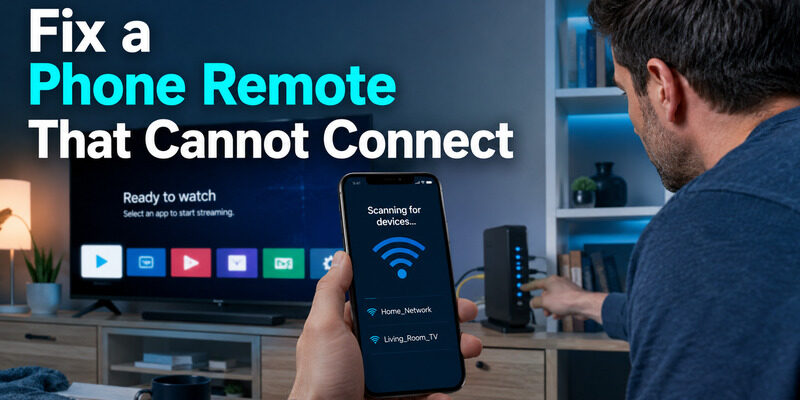
When how to control Google TV with phone stalls at “Scanning for devices,” the cause is almost always the network, not the TV. Can you control Google TV with phone if the app can’t find the TV? Usually yes, once you work through these checks:
| Symptom | Likely cause | Fix |
|---|---|---|
| TV missing from the list | Different or isolated network | Move both devices to the main Wi-Fi and pause any VPN |
| iPhone never finds the TV | Local Network permission off | Settings > Google TV > Local Network |
| Code appears but pairing fails | Stale session | Restart the TV and app, then request a new code |
| Navigation works, volume doesn’t | Volume route not set | On the TV: Settings > Remotes & Accessories > Set up remote buttons > Volume control > Auto (CEC) |
Still stuck? Unplug the TV for ten seconds, update or reinstall the app, and check Google’s virtual remote troubleshooting guide. Avoid a factory reset: it removes accounts and settings and makes control harder if you have no physical remote.
FAQs: How to Control Google TV With Phone
How can I control Google TV without a remote?
Connect your phone and TV to the same Wi-Fi, open the Google TV app or Google Home, select your TV, enter the pairing code, and tap Pair. That’s how to control Google TV without remote when the TV is online. If it’s offline, restore its Wi-Fi or use Ethernet or a USB keyboard.
Can I control my Google TV using an app?
Yes. The Google TV app and Google Home are the official options. Third-party apps such as Remote TV App also work with supported TVs on the same network.
How do I control my TV with my phone?
Connect both devices to the same Wi-Fi, open your TV brand’s official app or a universal remote app, select the TV, and pair with the on-screen code. For Google TV, use the Google TV app or Google Home.
How to connect Google TV with mobile phone?
Open the Google TV app, tap TVs nearby, select your TV, enter the code shown on screen, and tap Pair. To cast a show, select it and tap Watch on TV.
Bottom line: can I control Google TV with my phone? Yes. Now that you know how to control Google TV with phone, set it up before you need it, so you’ll know how to use Google TV without remote the next time yours goes missing.
Download LG TV Remote