Google Remote TV: How to Use, Pair & Fix Your Google TV Remote (or Use Your Phone)
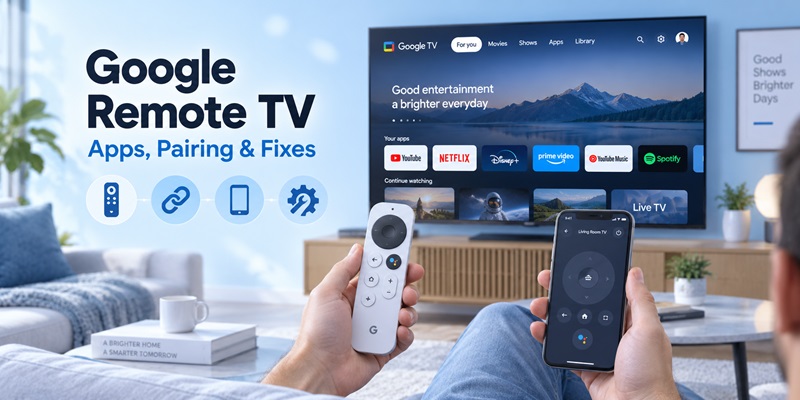
Google Remote TV lets you control a Google TV device with a physical voice remote, the Google TV mobile app, Google Home, or another compatible remote solution.
If the original remote is missing or stops responding, you normally do not need to stop using the television. A phone can work as a virtual controller, most Bluetooth remote problems can be solved by replacing the batteries and re-pairing the accessory, and compatible replacement remotes are available for both Google TV Streamer and Chromecast with Google TV.
Google says the platform now powers more than 300 million active Google TV and other Android TV OS devices, showing how widely the ecosystem has expanded across streaming devices and televisions from manufacturers such as TCL, Hisense and Sony.
This pillar guide explains the main Google Remote TV options, pairing, batteries, reset procedures, phone control, Wi-Fi problems, lost-remote tools and replacement choices. For more complex problems, you will also find links to dedicated troubleshooting guides.
How Do I Use My Google TV Remote? (Quick Answer)
Quick answer – Google remote tv in 3 steps
- Physical remote: Use the D-pad to move, Select to open, Home for the main screen, Back to go back. Hold the Assistant (mic) button to search by voice.
- Phone as remote: Connect your phone and TV to the same Wi-Fi, open the Google TV app → tap Connect TV → pick your TV → enter the code on screen → tap Pair.
- Remote not responding: Put in two fresh AAA batteries, then hold Back + Home to pair again. Still stuck? Use your phone while you troubleshoot.
Google remote tv works with Google TV Streamer, Chromecast with Google TV and TVs from brands like Sony, TCL and Hisense. The controls look similar, but the physical remote and the phone remote use different connections: the remote uses Bluetooth (and IR on some models), while the phone talks to your TV over Wi-Fi.
📲 No remote right now? Turn your phone into a Google remote tv in under a minute with the Begamob Universal Remote TV app. Download the free app →
What Do the Google TV Remote Buttons Do?
Google remote tv controllers are simple on purpose. Instead of dozens of number keys, you get a handful of Google TV remote buttons that cover navigation, voice and volume.
| Button | What it does |
|---|---|
| D-pad (ring) | Moves up, down, left, right across the Google TV screen |
| Select (center) | Opens the highlighted item; long press can show extra options |
| Home | Returns to the Google TV home screen |
| Back | Goes to the previous screen |
| Assistant / mic | Hold and speak to search or open apps |
| Power & Volume | Control a compatible TV, soundbar or receiver (IR or HDMI-CEC) |
| YouTube / Netflix | One-press app shortcuts (varies by model) |
If navigation works but volume doesn’t, your Google remote tv is paired correctly. Check Settings → Remotes & Accessories → Set up remote buttons. Need to turn on screen reading? Hold Back + Down for 3 seconds to start TalkBack during setup.
💡 Discover Helpful Guides: Google Remote TV App: Best Apps for TCL, Hisense, Sony, Philips, onn. and Xiaomi
Can I Use My Phone as a Google TV Remote?
Yes. Google officially supports using your phone as a Google remote tv through the Google TV app or the Google Home app. It’s the fastest backup when the physical remote is lost, out of power or being reset.
How do I set up the Google TV remote control app?
- Make sure your phone and TV are on the same Wi-Fi network and the TV is on.
- Open the Google TV app on your phone (outside the US it may appear as Google Play Movies & TV).
- Tap Connect TV (some versions show TVs nearby).
- Select your Google TV or Chromecast device.
- Enter the code shown on your TV and tap Pair.
Tip: On Android, add the remote to Quick Settings so your Google remote tv is one swipe away from any screen.
Requirements: Android phone with a recent Google TV app, or iPhone with iOS 14 or later.
Can I use Google Home as a Google TV remote control?
Yes. Open the Google Home app and tap your device. On Android this turns the virtual remote on or off; on iPhone tap Open remote.
What can a Google TV remote control app do?
With a phone-based Google remote tv you can swipe to navigate, play/pause/rewind, change volume, turn the TV on or off, use the Assistant and type with your phone keyboard, which is far faster for Wi-Fi passwords and logins.
How do I connect Google TV to Wi-Fi without a remote?
If your Google TV is still on your old network, join that network with your phone, pair the virtual remote and then open Network & Internet to add the new Wi-Fi. If the TV is fully offline, a phone remote can’t find it. In that case connect a spare or replacement Google remote tv controller, or use a wired connection if your device supports it.
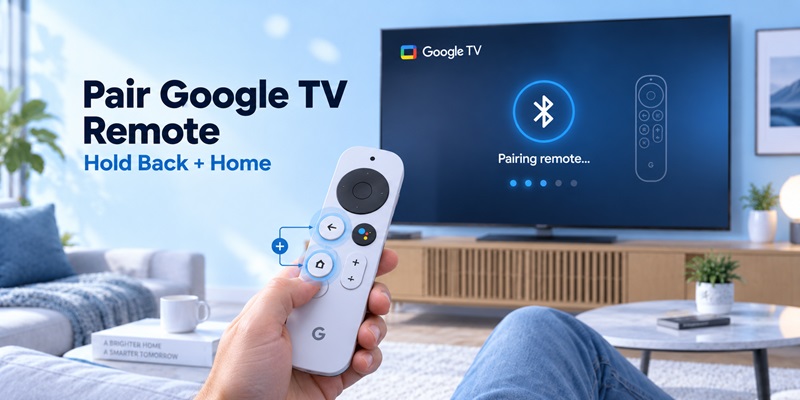
How to Pair Google TV Remote (Back + Home)
Most Google remote tv controllers pair automatically during setup. If yours doesn’t, here’s how to pair Google TV remote manually:
- Turn on your Google TV device and move the remote close to it.
- Install fresh batteries if you’re not sure about their charge.
- Press and hold Back + Home for a few seconds until a pairing message appears.
- Select your remote on the TV screen if asked.
Already controlling the TV with your phone? Go to Settings → Remotes & Accessories → Pair remote or accessory, put the remote in pairing mode and select it.
For some third-party TVs, follow the manufacturer’s on-screen instructions instead. Full walkthrough: How to pair and reconnect a Google TV remote.
Why Is My Google TV Remote Not Working?
When a Google TV remote is not working, go from the easiest fix to the hardest. Don’t factory-reset anything first.
Fast order: batteries → restart the Google TV device → re-pair → reset the remote → check for a remote update.
| Symptom | Likely cause | Fix |
|---|---|---|
| No LED, no response | Batteries | Replace both AAA batteries |
| LED lights but TV ignores buttons | Bluetooth link lost | Hold Back + Home to pair again |
| Navigation works, volume doesn’t | IR/CEC setup | Settings → Remotes & Accessories → Set up remote buttons |
| Remote keeps disconnecting | Bluetooth/software | Unplug the Google TV for 10 seconds, then re-pair |
| Phone can’t find TV | Network | Put both on the same Wi-Fi |
What is the right Google TV remote battery?
Your Google remote tv voice remote uses two fresh 1.5V AAA batteries. Replace both at once, check the + / – direction, and don’t mix old and new cells. Weak batteries often look like a Bluetooth failure. More detail: Google TV remote battery guide.
Google TV remote not working but the light is on?
If the LED lights up, the remote has power, so the problem is the wireless connection. Re-pair it with Back + Home. If that fails, reset the remote; the reset steps differ between the Chromecast Voice Remote and the Google TV Streamer Voice Remote, so follow the right one in our reset guide or see light-on fixes.
While you troubleshoot, keep your phone connected as a backup Google remote tv. Full checklist: Google TV remote not working.
Can You Replace a Google TV Remote?
Yes. If your Google remote tv is damaged, worn out or still failing after a reset, you can replace it. Replacement remotes (for example model G9N9N or GY3LE) typically cost about $10–$25 at retailers like Walmart or Amazon.
Pick the replacement that matches your device:
- Google TV Streamer or Chromecast with Google TV: the official Google voice remote keeps voice control and the familiar layout.
- TV with Google TV built in (Sony, TCL, Hisense…): buy the remote made for your exact TV model. A “Google TV compatible” remote may skip brand-specific buttons.
- Universal remote: fine for power, volume, input and navigation, but voice and shortcut buttons vary.
Lost it instead of broke it? On Google TV Streamer, the Find My Remote feature can make the remote ring. You can trigger it from the button on the back of the streamer, by voice, or from the Google TV/Google Home app. See the Google TV remote finder guide and our replacement buying guide.
🎯 Skip the wait and the extra cost. The Begamob Remote TV app works as a Google remote tv for Google TV and many other TV brands, with no codes to program and Wi-Fi auto-detect. Explore Begamob Remote TV →
Best Google TV Remote App and Replacement Options
The best Google TV remote app or replacement depends on what you actually need. If you simply lost your remote, a phone app may be the fastest solution. If you want physical buttons, voice control, or a single controller for an entire home theater, a hardware remote makes more sense.
Here are five strong options for different Google TV setups.
| Option | Best For | Approx. Price | Connection | Key Advantage |
| Universal Remote TV Control by Begamob | Best app replacement | Free download; Premium available | Wi-Fi | Controls multiple TV brands from one phone |
| G9N9N / Chromecast Voice Remote | Best Chromecast-style replacement | Around $19 | Bluetooth + IR | Familiar Google TV layout and voice control |
| NVIDIA Shield TV Remote | Best premium alternative | Around $30 | Bluetooth + IR | Backlit buttons and excellent physical design |
| SofaBaton U2 | Best universal remote | Around $80 | IR + Bluetooth | Controls up to 15 devices |
| onn. Voice Remote | Best budget hardware alternative | Around $13 | Bluetooth | Affordable voice remote for Google TV setups |
Best App Replacement: Universal Remote TV Control by Begamob
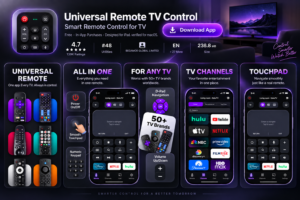
For users who do not necessarily want to buy another physical controller, Universal Remote TV Control by Begamob is one of the most convenient alternatives.
Instead of pairing another piece of hardware, the app turns your smartphone into a Remote TV app for compatible smart TVs and streaming platforms.
The setup is simple:
- Connect your smartphone and television to the same Wi-Fi network.
- Open Universal Remote TV Control.
- Let the app detect compatible TVs on your network.
- Select the television and start controlling it.
For supported devices, there is no need to search for traditional universal remote codes, and network discovery makes setup much faster than programming an old-style infrared remote.
The app supports major platforms and brands including:
- Roku
- TCL
- Sony
- LG Smart TV
- Samsung
- Android TV
- Hisense
- Fire TV
- Philips
- Vizio
The Google Play listing also includes Chromecast among its supported platforms, while Begamob’s own Remote TV site highlights Wi-Fi auto-detection and support for a broad range of television brands.
This makes it particularly useful for households with several different TVs. Rather than keeping a Samsung app, Roku app, LG app, and separate Google Remote TV controller, you can use one phone as a centralized remote.
- Best for: Users who have lost their Google TV remote, want a phone-based backup, or need to control several TV brands.
- Price: Free to install with in-app purchases. Premium pricing varies by platform and region.
- Main advantage: No extra physical remote is required.
Best Chromecast-Style Replacement: G9N9N / Chromecast Voice Remote
If you want something that feels almost exactly like the original Chromecast with Google TV remote, a G9N9N-style Chromecast Voice Remote is one of the most straightforward choices.
Its layout includes the familiar:
- Circular directional pad
- Back button
- Home button
- Google Assistant control
- YouTube shortcut
- Netflix shortcut
- Power
- Input
- Volume controls
The design closely follows the original Chromecast Voice Remote experience, making it easier to switch from a lost or damaged controller without learning an entirely new button layout.
Bluetooth handles communication with Chromecast or Google TV hardware, while supported TV functions such as power, input and volume can also be configured.
Voice-enabled versions include a microphone for Google Assistant commands, allowing you to search for shows and navigate content without typing.
One important detail is that G9N9N is also widely used in listings for replacement remotes, so buyers should verify whether they are purchasing genuine Google hardware or a compatible third-party replacement.
Best for: Chromecast with Google TV owners who want the closest experience to their original remote.
Typical price: Around $19, although pricing varies significantly by seller.
Main advantage: Familiar Google TV controls with Bluetooth voice navigation.
Best Premium Alternative: NVIDIA Shield TV Remote
The NVIDIA Shield TV Remote is an interesting premium alternative for people who care more about physical remote design than matching the stock Google controller exactly.
NVIDIA’s remote includes several features that basic Google TV remotes lack:
- Motion-activated backlit buttons
- Bluetooth control
- IR control for compatible televisions
- Voice control
- Customizable button
- Lost-remote functionality
The backlighting is particularly useful in a dark room. Pick up the controller and the keys illuminate automatically, so you do not have to memorize every button position during a movie.
Its triangular body is also very different from a conventional flat remote and is designed to sit comfortably in the hand.
Because NVIDIA Shield runs Android TV, the controller belongs to the same broader Android TV ecosystem. However, users considering it purely for another Google TV device should confirm compatibility with their specific hardware before buying, because not every advanced function is guaranteed outside NVIDIA Shield.
Best for: Users who want premium physical controls, backlit keys, voice commands and a more distinctive remote design.
Typical price: Around $30, depending on availability.
Main advantage: Excellent physical controls and motion-activated backlighting.
Best Universal Option: SofaBaton U2
For a complicated entertainment setup, the SofaBaton U2 is much more powerful than a normal Google Remote TV replacement.
Instead of controlling only one streaming box, it can manage up to 15 devices, according to testing by TechGearLab.
That means one controller can potentially replace remotes for your:
- Television
- Streaming box
- Blu-ray player
- Soundbar
- AV receiver
- Other IR or supported Bluetooth devices
The U2 includes a built-in display and scrolling interface that makes it easier to switch between configured devices.
It also supports programmable buttons and macros. For example, one command can be configured to turn on several entertainment devices and switch to the correct input.
TechGearLab rated the SofaBaton U2 its Best Overall Universal Remote in its 2026 guide and listed it at approximately $80.
The main downside is setup. You need SofaBaton’s companion app to configure devices and advanced commands, making it more complicated than simply pairing a Google Voice Remote.
Best for: Home theaters with multiple devices and users who want one remote to control almost everything.
Price: Around $80.
Main advantage: Up to 15 devices plus programmable buttons and macros.
Best Budget Alternative: onn. Voice Remote
For users who still want a physical Google TV remote but do not want to spend much, the onn. Voice Remote is a strong budget option.
Walmart currently lists the onn. Voice Remote at about $12.84, putting it very close to the $13 budget range.
Its features include:
- Voice control
- Google Assistant support
- Bluetooth connectivity
- Customizable app shortcut
- Two AAA batteries
- Compatibility with onn. streaming devices and many Google TV setups
The design is straightforward, with the navigation and streaming shortcut buttons most users expect from a modern Google TV controller.
It does not offer the advanced multi-device programming of the SofaBaton U2 or the premium backlighting of NVIDIA’s remote, but that is not really its purpose.
At roughly $13, it is intended to provide basic Google TV navigation and voice control at a low replacement cost.
Compatibility can still vary by Google TV hardware, so check your device model before purchasing.
Best for: Users who want an inexpensive physical replacement with voice support.
Price: About $13.
Main advantage: Low price without giving up voice control.
Which Option Is Best?
For most users searching for a sony tv remote app ios, the best first choice is an app-based solution rather than immediately buying another physical remote.
Choose Universal Remote TV Control by Begamob if:
- You want to use your iPhone as the remote.
- You own TVs from multiple brands.
- You want one interface for several televisions.
- You do not want another physical remote to keep track of.
Choose G9N9N / Chromecast Voice Remote if:
- You mainly use Chromecast with Google TV.
- You want a familiar Google remote layout.
- Physical buttons matter to you.
Choose Nvidia Shield TV Remote if:
- You own Nvidia Shield hardware.
- You want premium tactile controls and backlighting.
Choose SofaBaton U2 if:
- You have a complex home-theater system.
- You need one physical controller for many devices.
Choose Onn Voice Remote if:
- You want a low-cost physical remote.
- Your Google TV or streaming hardware is compatible.
For a typical iPhone user, Universal Remote TV Control by Begamob is the most flexible app-based choice, while the other options are better suited to users who specifically want a physical controller.
One important caveat: physical remotes designed for Chromecast, Nvidia Shield, or Onn streaming hardware are not guaranteed to reproduce every function of a Sony BRAVIA remote. Always verify compatibility with your exact TV or streaming device before purchasing.
Frequently Asked Questions About Google Remote TV
How do I use my Google TV remote?
Point it at your TV or streamer and use the D-pad to move, Select to open, Home and Back to navigate, and hold the mic button for voice search. If the Google remote tv doesn’t respond, replace the batteries and pair it again with Back + Home.
Can I use my phone as a Google TV remote?
Yes. Open the Google TV or Google Home app on the same Wi-Fi as your TV, choose your device and pair with the code on screen. Your phone then works as a full Google remote tv, including the keyboard.
How do I pair my Google TV remote again?
Hold Back + Home for a few seconds near the TV. If you can use your phone remote, go to Settings → Remotes & Accessories → Pair remote or accessory and select the remote. Fresh batteries and a quick restart help if pairing fails.
Can you replace a Google TV remote?
Yes. You can buy an official Google remote, a remote made for your TV model, a universal remote, or simply use your phone as a Google remote tv until the new one arrives.
What batteries does a Google TV remote use?
Two fresh 1.5V AAA batteries. Replace both together.
Can I use Google TV without the physical remote?
Yes, as long as your phone and TV share the same Wi-Fi network. If the TV is offline, you’ll need another remote to reconnect it first.
Final Thoughts
Google Remote TV is no longer limited to the plastic controller that came in the box. Google’s current ecosystem gives you several ways to control the screen: a Voice Remote, the Google TV app, Google Home and compatible replacement or universal controllers.
For most problems, remember this order:
Check the batteries → reboot the Google TV device → re-pair the remote → reset it only if necessary.
If the physical controller is missing, use the phone remote whenever the television is still reachable on the same Wi-Fi network. Google officially supports virtual control on both Android and iOS, making a smartphone one of the best Google Remote TV backups to set up before you actually need it.
If you use Google TV Streamer hardware, newer features make the physical remote more useful as well. Google’s current controller includes Bluetooth, IR, a customizable button and Find My Remote, while Google says the finder can make the remote ring for 30 seconds when activated.
The best strategy is therefore not to depend on one control method. Keep the physical Google Remote TV for normal viewing and configure a phone-based controller as your backup. That combination covers everyday navigation, lost remotes, battery failures, text entry and most pairing or troubleshooting situations without unnecessary hardware replacement.