
Google TV Remote Finder: How to Find a Lost Google TV Remote
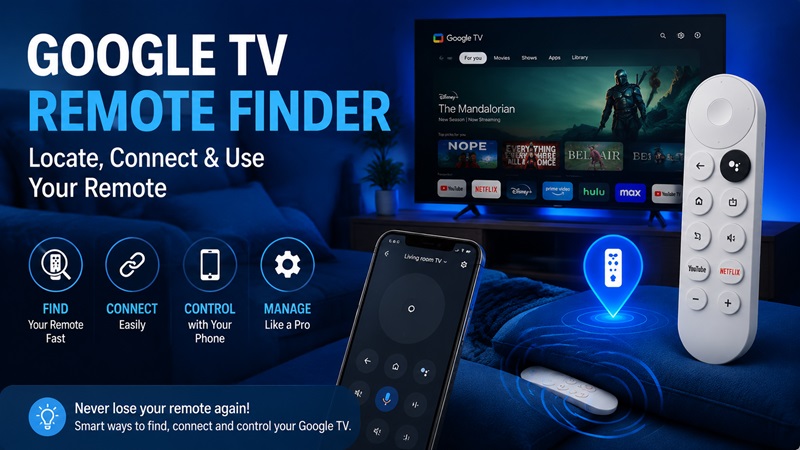
Quick Answer: If you have a compatible Google TV Streamer Voice Remote, you can use Google’s Find My Remote feature to make it play a sound for approximately 30 seconds. On a Google TV Streamer (4K), briefly press the button on the back of the streaming device. You can also use the Google Home app or a supported Google voice assistant.
Find your Google TV remote in four ways:
- Google TV Streamer button: Briefly press the button on the back of the device.
- Google Home app: Open your Google TV device and select Find my remote.
- Voice assistant: Say, “Hey Google, find my remote” on a supported assistant-enabled device.
- Google TV Settings: Use another remote or your phone to open Settings → Remotes & Accessories → Find my remote → Play sound.
Your remote must support the feature and be paired with a compatible Google streaming device.
If you use an older Chromecast Voice Remote without a built-in speaker, it cannot play a finding sound.
1. Does Your Google TV Remote Support Find My Remote?
Before using a Google TV remote finder, identify your streaming device and physical remote.
Google TV is an operating system used by many televisions and streaming devices. Not every Google TV remote includes the hardware required to ring when lost.
Google TV Remote Finder Compatibility
| Device and Remote | Find My Remote Support | Important Details |
|---|---|---|
| Google TV Streamer (4K) with Google TV Streamer Voice Remote | Yes | Supports physical finder button and other methods |
| Chromecast with Google TV with compatible Google TV Streamer Voice Remote | Yes, on supported configurations | Use Google Home or a supported voice assistant |
| Chromecast with Google TV with original Chromecast Voice Remote | No audible finder | Original remote lacks the required speaker |
| Sony, TCL, Hisense, or other Google TV televisions | Model-dependent | Do not assume Google Streamer finder support |
| Android TV with a standard IR remote | Generally no | Standard IR remote may not include a speaker |
Important: A television running Google TV does not automatically support Google’s Find My Remote feature.
The feature depends on the remote hardware, the streaming device, and pairing compatibility.
What Is the Google TV Streamer Voice Remote?
The Google TV Streamer Voice Remote is Google’s remote designed for the Google TV Streamer (4K) and compatible Chromecast with Google TV devices.
It includes:
- Directional navigation
- Home and Back buttons
- Volume and Mute
- Voice assistant button
- Customizable shortcut button
- A built-in speaker for Find My Remote
The speaker allows the remote to produce an audible chime when the finder feature is activated.
Does Chromecast With Google TV Have Remote Finder?
It depends on which remote you use.
The original Chromecast with Google TV Voice Remote does not include the speaker needed to ring.
However, Google documents Find My Remote support when a compatible Google TV Streamer Voice Remote is paired with Chromecast with Google TV.
For that configuration, Google directs users to use a supported voice assistant or Google Home rather than the physical finder button found on Google TV Streamer hardware.
Does Google TV Remote Finder Work With Any Bluetooth Remote?
No.
Bluetooth connectivity alone is not enough.
The remote must include the necessary hardware and support the device’s finder feature.
A third-party Bluetooth remote or a television manufacturer’s original controller may not respond to Google’s Find My Remote commands.
2. Lost Google TV Remote? What Are the Best Ways to Find It?
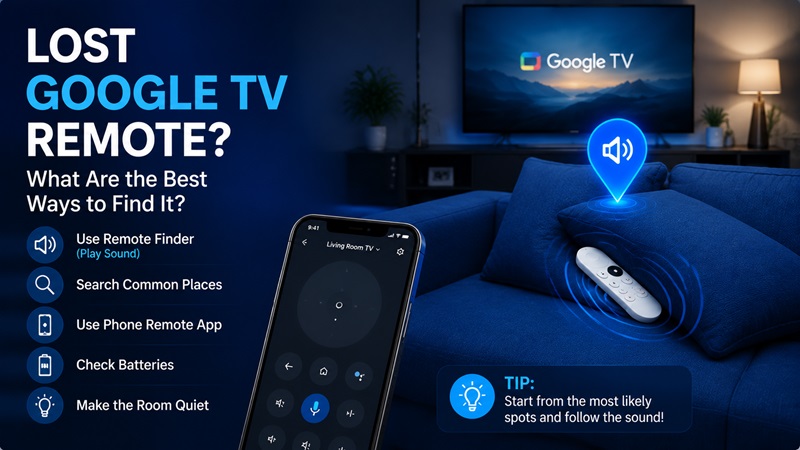
A lost google tv remote can quickly become frustrating, especially when you want to watch content but cannot control your TV. Before buying a replacement, there are several ways to find it.
The fastest method depends on whether your remote supports google tv remote finder. If it does, start with the built-in feature. If not, follow a systematic search process.
Use Google TV Remote Finder First
If your device supports remote finding, activate the feature before searching manually.
Keep the room quiet and listen carefully. Remote alert sounds can sometimes be soft, especially when the remote is covered by pillows, clothes, or furniture.
The best places to check include:
- Between sofa cushions.
- Under the couch.
- Behind the TV stand.
- Near charging cables.
- Inside blankets.
- On coffee tables.
- In bedrooms.
- Inside bags or drawers.
Many users searching find google tv remote discover that the remote was not actually far away but simply hidden in a common location.
Search Based on Your Last Usage
Instead of checking the entire house, think about the last time you used the remote.
Ask yourself:
- Were you watching TV in another room?
- Did someone move the remote after using it?
- Was it placed near food, drinks, or a laptop?
- Could children or pets have moved it?
This approach is often faster than random searching.
Check the Remote Battery
A weak battery can make finding features unreliable. If your remote normally responds but suddenly cannot be detected, replace the batteries before assuming the remote is missing.
Battery issues can also explain why users experience situations where the remote appears lost even though it is nearby.
Use Your Phone as a Temporary Remote
If you cannot immediately locate your physical remote, you can often control your Google TV using your smartphone.
A phone-based solution allows you to:
- Navigate menus.
- Open streaming apps.
- Adjust playback.
- Control volume.
- Search using your phone keyboard.
Many people ask