
How to Connect Headphones to TV: Bluetooth, Wired, and Private Listening
Short answer: How to Connect Headphones to TV? Connect headphones through the TV’s Bluetooth audio-output menu or its labeled headphone jack, then select that output in Sound settings.
Choose the route your exact TV and headphones support. An optical transmitter can help when the TV has digital audio out but no Bluetooth audio or analog jack. The steps below test one listener first, then address silence, delay, and whether the TV speakers can play at the same time.
Find the TV’s Actual Audio Output
| TV output | Headphone route | Important check |
| Bluetooth audio | Pair wireless headphones in Sound Out | TV must transmit audio, not just pair a remote |
| 3.5 mm headphone jack | Plug in wired headphones | Some TVs mute speakers automatically |
| Optical digital out | Compatible powered headphone transmitter | Requires transmitter and matching audio format |
| HDMI ARC/eARC | Compatible receiver or soundbar with headphone output | TV and device must support the route |
| RCA analog audio out | Powered transmitter or headphone amplifier | Do not mistake input jacks for outputs |
Read the word OUT on the TV. A headphone plug cannot draw audio from a TV’s AV input. Many new models omit a 3.5 mm jack, and a Bluetooth radio used for a voice remote does not necessarily support Bluetooth headphones. LG’s TV connection guidance notes that only select models have a wired headphone output and that Sound Out options vary by webOS generation.
Decide whether you need one or two listeners
A single wireless listener needs a compatible TV Bluetooth output. If someone else needs the TV speakers at the same time, check for a model-specific dual-output or accessibility feature before buying headphones. Some sets allow TV Speaker plus Wired Headphones; others switch off the internal speakers when a plug is inserted. Two Bluetooth headsets at once require explicit TV support or suitable external hardware, and their timing can differ.
Check comfort before format claims
For speech, a stable connection and low delay matter more than a codec logo. A headphone’s claimed battery life is not the TV’s capability, and a large over-ear set may be uncomfortable for long viewing. Wired headphones avoid pairing and charging but limit seating distance. A transmitter adds its own controls and power supply. Choose the smallest workable chain and test a normal dialogue scene.
Read more: How to Connect Laptop to TV HDMI: Picture, Sound, and Display Modes
Pair Bluetooth Headphones With a Compatible TV
Step 1 – Confirm Bluetooth audio transmission
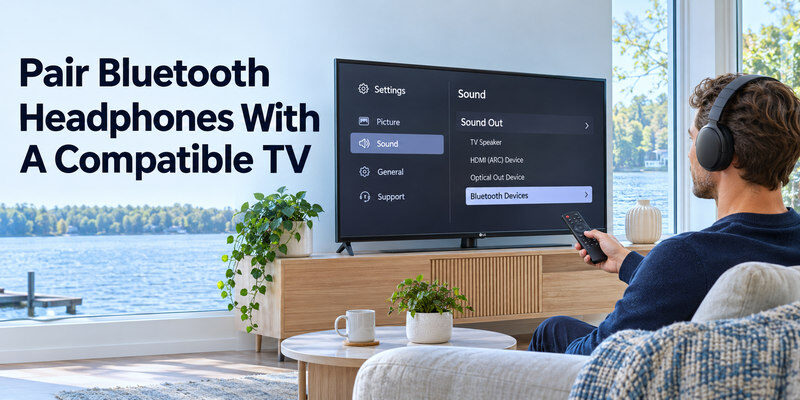
Look up the exact television model’s audio-output specification and menu. A list of Bluetooth remotes or game controllers is insufficient. On LG TVs, current support documentation places audio devices under Sound Out → Bluetooth Devices, with paths varying by year. Other brands may call it Bluetooth Speaker List or Wireless Speaker. If that output category is absent, use a supported wired or external-transmitter route instead. If you are also comparing televisions for a family member, learn how to choose a TV for elderly parents and test the audio and accessibility options together.
Step 2 – Put the headphones in pairing mode
Charge them, disconnect a phone that automatically reclaims the connection, and enter the headphone maker’s pairing mode. A blinking light or spoken prompt often indicates discovery, but the pattern varies. Merely switching the headphones on can reconnect them to a prior phone without making them visible to the TV. Keep them near the set during the initial test.
Step 3 – Select the headphones on the TV
Open TV Settings → Sound → Sound Out and the Bluetooth audio-device list. Choose the exact headphone name. If several similar names appear, turn the intended pair off and on to see which entry disappears. Approve any pairing request. A “paired” notice does not always mean the TV changed its active output; select the headphones as Sound Out if required.
Step 4 – Test and repeat
Play a TV-native app at low volume. Confirm that sound reaches the headphones, adjust their own volume if available, and observe whether TV speakers remain active. Turn both devices off and on once to see whether they reconnect. If the TV falls back to speakers, note the menu path for switching. Test an HDMI console separately; its audio format may travel a different path through the TV.
Read more: How to Connect PS5 to TV: HDMI Setup, 4K, HDR, and 120 Hz
Connect Wired Headphones
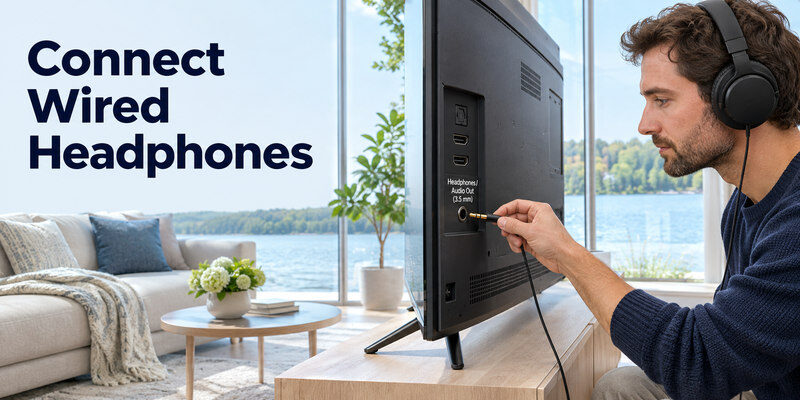
Plug headphones into a labeled 3.5 mm Headphones or Audio Out jack. Do not force the plug into an optical output or a similarly sized service connector. Select Wired Headphones in Sound Out if the television does not switch automatically. Start at low volume. LG says select models can output through both TV speakers and wired headphones, but that combination is not universal.
Use an extension cable safely
If the sofa is far away, use a suitable extension rather than stretching a short cord across a walkway. A long analog run can pick up noise and creates a trip hazard; route it along the wall. Check whether the TV jack is a headphone-level output with volume control or a fixed line output requiring a headphone amplifier. Never connect passive headphones directly to an optical jack through a simple plug converter; digital audio needs electronics to decode it. For a supported Roku setup, compare Roku headphone listening routes, including compatible remote and phone-app options.
Diagnose one silent ear
Test the headphones on another device, then try another pair on the TV. Inspect the plug for incomplete insertion and check any balance or mono-audio setting. If both pairs have the same one-sided fault only on the TV, its jack or settings may be involved. A plug that crackles when moved suggests a connector issue; avoid forcing it further and consult the maker.
Use an Optical or Analog Transmitter
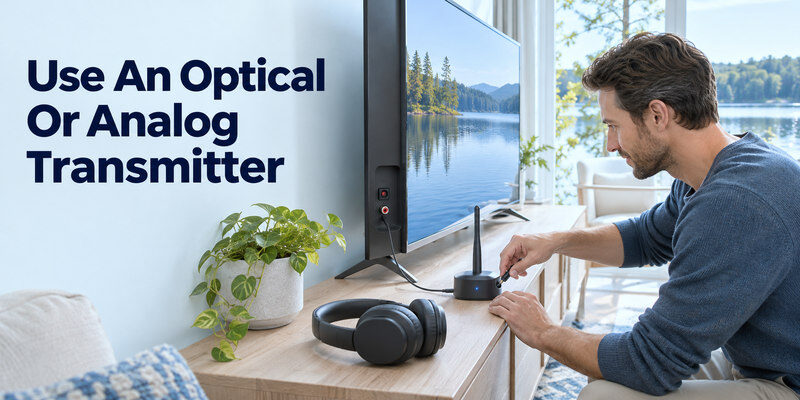
A TV without Bluetooth audio may still have optical digital audio out. A powered Bluetooth transmitter or dedicated wireless headphone base can take that output and send it to headphones. Match the transmitter’s input to the TV’s output and check the supported digital format. A device with optical *input* on the TV is not useful here. Analog RCA output or a headphone jack can serve other compatible transmitters.
Set a compatible digital format
When an optical transmitter is silent, select optical output on the TV and try PCM as a baseline if the transmitter requires it. After sound works, use only formats the device supports. A built-in TV app and an HDMI source may send different audio formats. Do not buy a second transmitter until the current one’s input selection, power, and TV format have been checked.
Verify the scope of listening
A transmitter connected to the TV’s audio output may play sound from TV apps and HDMI devices, depending on the TV’s passthrough behavior. A transmitter connected to one streaming box plays only that box’s audio. Test the sources the household actually uses. Check whether muting the TV also mutes the output and whether a physical volume control remains available when using fixed optical output.
Read more: How to Connect Xbox to TV: HDMI, 4K, 120 Hz, and Sound
Compare Private Listening Routes
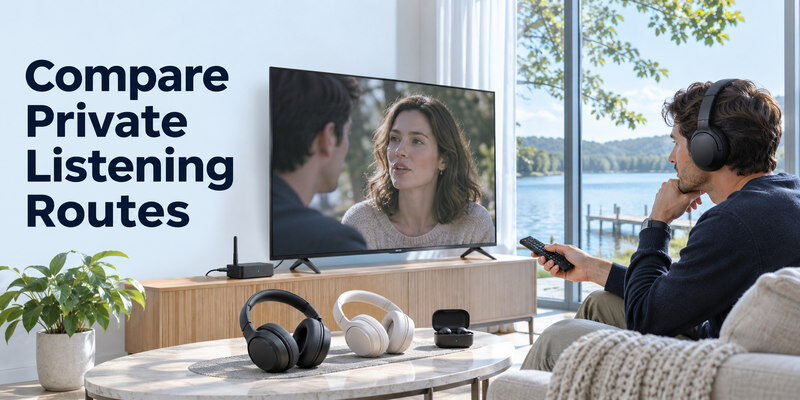
| Need | First route to test | Potential drawback |
| No cable and one listener | TV Bluetooth audio | Delay and reconnection vary |
| Zero pairing and TV has jack | Wired headphone output | Cable length and speaker muting |
| TV lacks Bluetooth but has optical out | Powered transmitter/base | Added device and format settings |
| Two listeners, one uses TV speakers | Documented dual-output mode | Model-specific and possible echo |
| Hearing assistance | TV accessibility output or dedicated system | Verify volume independence and compatibility |
The “best headphones for TV” search often skips the television’s outputs. First find the working route, then compare fit, charging, isolation, and controls among compatible headphones. A premium wireless model cannot receive audio from an unsupported TV without an appropriate transmitter. For a household member with hearing needs, independent volume can matter more than surround-sound marketing. If you use a supported Roku device, the Roku phone remote and Headphone Mode may offer another private-listening route for compatible content.
Check lip sync in a real scene
Watch a close-up speaking scene. If lips and speech diverge, test a TV AV Sync setting in small steps. Some controls can delay audio further but cannot make a late wireless signal arrive sooner. Compare wired headphones on the same TV if possible. Game Mode and video-processing settings change picture timing, so document the original settings before adjusting them.
Keep volume safe when switching outputs
The TV may remember a higher volume for one output than another. Lower the level before switching from headphones to TV speakers, especially at night. If the headphones have their own volume control, set both controls conservatively. A fixed optical output may ignore the TV remote’s volume buttons and require adjustment at the transmitter or headphone base.
Read more: Best TV Brand 2026: Choose by Picture, Budget, Gaming, and Software
Fix Bluetooth Headphones Not Connecting
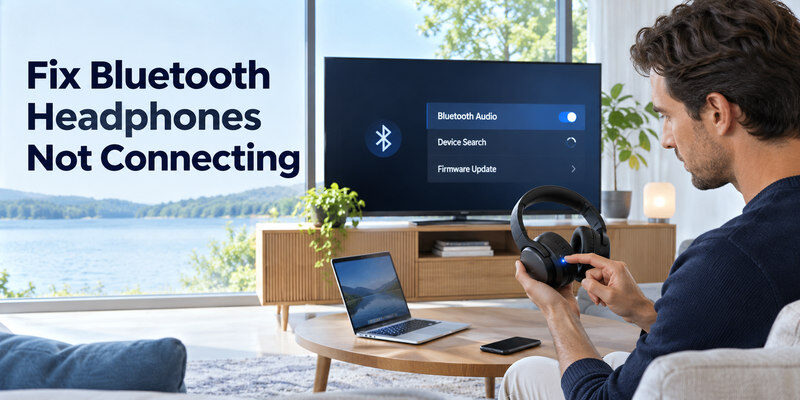
| Symptom | Check first | Next test |
| TV never lists headphones | Pairing mode and TV audio support | Test headphones with phone; verify TV model |
| Paired but silent | Active Sound Out and both volumes | TV-native app at low level |
| Drops after a few minutes | Competing phone connection and range | Move closer; test another device |
| TV apps work, console silent | Console format and TV passthrough | PCM/Auto baseline on source |
| Noticeable speech delay | AV Sync and wired comparison | Choose lower-delay route if needed |
If the TV cannot discover the headphones, disconnect them from a phone and put them back into discoverable mode. Test the same headphones with another device. If they work there, verify TV Bluetooth audio capability and official firmware updates. Do not factory-reset the whole television for one accessory before removing and re-pairing its saved entry.
Keep outputs separate
A soundbar selected as Sound Out can keep headphones silent even though they are paired. Choose one output explicitly. Some TVs support dual audio, but it may require a separate menu and can cause echo between paths. If the TV itself has no sound from any output, diagnose its audio system before blaming the headphones.
Know when hardware help is warranted
A wired jack that crackles with two tested headsets, or an optical output that remains silent with compatible equipment and settings, may need manufacturer support. Give the model, firmware, outputs tested, and the result with a built-in app. Do not open the TV cabinet. A transmitter can bypass a missing TV Bluetooth feature, but it cannot repair a failed TV audio output.
Read more: Best Budget Smart TV: Choose a Good Picture Without Paying for Extras
Remote Control and Household Access
Keep the TV handset available to return Sound Out to TV speakers. If it is missing, a compatible may open sound settings on a supported, powered TV already reachable on the network. It cannot create Bluetooth audio support or decode optical sound. Note the menu sequence so another household member can restore ordinary TV listening.
Document a repeatable route
Write down the output choice, headphone name, whether it reconnects after restart, and the volume control that actually works. If the same headphones serve a phone, remember that the phone may connect first. A short test after a TV update is useful when sound-output menus change.
Keep a fallback
Wired headphones or TV speakers can be a fallback if wireless pairing fails. Test the fallback while the Bluetooth route still works so you know the correct menu path. For a shared household, avoid leaving a silent external output selected after private listening; otherwise the next viewer may assume the TV is broken.
Some users want private listening rather than direct Bluetooth pairing; the route is a model-specific alternative worth checking.
Headphones to TV FAQ
Can I use Bluetooth headphones with any smart TV?
No. The TV must support Bluetooth audio output, not merely Bluetooth input for a remote. Check its exact model specification and Sound Out menu. An external transmitter may work if the TV has a compatible audio output.
Can TV speakers and headphones play together?
Only on models with a documented dual-output feature or suitable external hardware. Some TVs mute their speakers when a headphone jack is used. Check for independent volume and echo before relying on a dual route.
Why do my headphones connect but have no sound?
Choose them as the active TV sound output, then check the TV and headphone volumes. Test a built-in app before an HDMI source. A paired device can remain inactive when another output is selected.
Do I need a Bluetooth transmitter for an older TV?
Only if the TV cannot transmit Bluetooth audio and has an audio output a transmitter can accept. Match optical or analog ports and verify power and format support. An HDMI input alone does not provide audio out.
Will headphones work for every console and streaming box?
They may if audio passes through the TV to its chosen output, but test each source. One HDMI device can use a format the TV cannot pass to Bluetooth or optical. Start with a compatible baseline format and compare a TV-native app.
Headphone Setup Examples for Different Viewers
One person wants private late-night sound
For how to connect headphones to tv in a quiet household, first check whether the TV has a 3.5 mm headphone jack. A wired pair gives predictable latency but the cable must reach the seat safely. If the model supports Bluetooth audio output, pair compatible headphones and test lip sync. Some TV platforms instead offer private listening through a phone app. Choose the method that covers the source you use: a headset paired to an HDMI streamer may hear its apps but not the television’s antenna channels. Set a modest starting volume to protect hearing.
Two viewers need different volume
A television may allow simultaneous internal speakers and headphones, but many mute speakers when headphones connect. Check the exact model’s dual-audio or accessibility setting. If independent levels are essential, a dedicated TV listening system or audio splitter designed for the output can help. Do not assume a simple headphone Y cable provides independent amplification. When how to connect headphones to tv is really an accessibility question, test volume separation, dialogue clarity, and latency with both listeners present. A soundbar and headphones may require a different audio-output configuration.
A console headset versus TV headphones
A headset connected to a game controller follows the console’s audio system and may include chat; TV Bluetooth headphones follow the television’s sound output and may not carry the console microphone. Decide whether you need party chat or all-TV audio. A TV headphone jack can be simple for single-player games, but a long cable can be a trip hazard. The answer to how to connect headphones to tv for gaming may therefore be the console’s own wireless headset route, not the TV’s Bluetooth menu. Confirm the console’s audio output setting after pairing.
An optical TV with no headphone jack
Optical output is digital; passive wired headphones cannot plug directly into it. Use a compatible DAC/headphone amplifier or a Bluetooth transmitter with optical input, then set the TV to PCM if the adapter expects stereo. Give the adapter power and check its volume control. A transmitter is not the same as a receiver. How to connect headphones to tv through optical involves more hardware but can rescue an older set without a jack. Compare the combined cost with a purpose-built TV listening device and ensure the box supports your preferred headphones.
The TV has audio but the headphones are silent
Test internal speakers first, then select the correct headphone or Bluetooth output. Charge the headset, disconnect a phone that may have captured it, and re-pair near the TV. For a wired set, test the headphones on another device and inspect the jack without forcing it. If only one streaming app is silent, check that app’s audio format. A soundbar with ARC may be taking the TV output, so switch deliberately rather than leaving multiple destinations active. Write down the known-good path for the next viewer.
Final Thoughts
To learn how to connect headphones to tv, match the TV’s real audio output to the headphone route, then test a built-in app and your important HDMI sources. Bluetooth is convenient; a wired jack or powered transmitter can be a better fit for a TV without Bluetooth audio. Source basis: LG TV headphone/Bluetooth connection guidance and official TV audio-output documentation.
