
How to Set Up Voice Control on TV: A Platform Guide
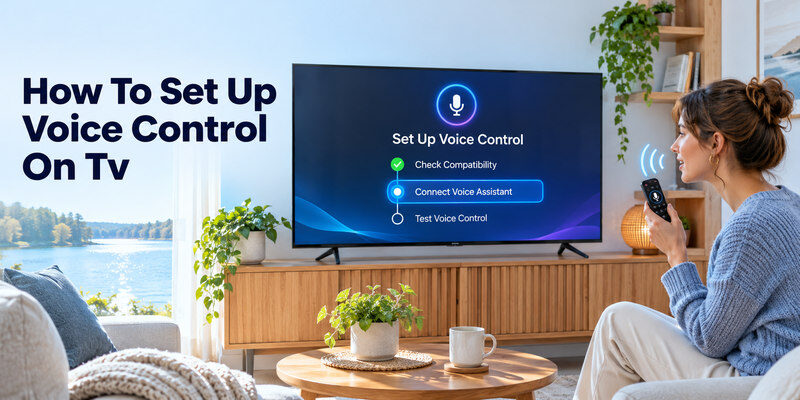
Short answer: How to Set Up Voice Control on TV? Connect your compatible TV to the internet, sign in, enable its voice assistant, and test the microphone button; link a smart speaker separately if you want hands-free commands.
The exact menu depends on whether the TV runs Google TV, Fire TV, Apple TV through an HDMI box, or a manufacturer’s platform. A microphone button, built-in hands-free microphone, and phone assistant are not equivalent. This guide walks through the common setup sequence, then shows the platform-specific branch and checks for power, volume, and app search.
How to Set Up Voice Control on TV in Six Steps
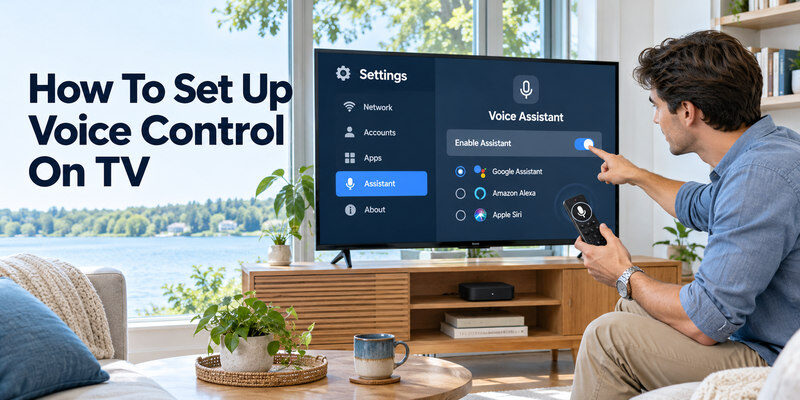
Step 1 – Identify the TV platform and microphone
Open Settings > About or check the rear model label. Look for a remote microphone button, a TV microphone switch, or an attached Google TV/Fire TV/Apple TV device. Check the manufacturer’s exact-model guide for supported languages, regions, and voice capabilities. A voice remote for an HDMI streamer may control that streamer’s apps, not every native TV menu.
Step 2 – Connect and update the device
Connect the TV or streamer to a stable Wi-Fi or Ethernet network. Finish its initial setup, sign in to the platform account, and install official firmware updates. Voice recognition and app search often depend on network services. Test ordinary remote navigation first; if the remote is not paired, a microphone command will not fix it. Keep power connected to any external streamer.
Step 3 – Enable the assistant
Follow the on-screen voice or privacy setup prompts. On Google TV, Google says Assistant can be enabled during setup or later. Fire TV uses Alexa on compatible voice remotes or eligible hands-free devices. Apple TV has Siri through its paired Siri Remote, and Apple Home can link supported TVs for commands from iPhone, iPad, or HomePod. Other platforms may expose an Alexa or Google integration via a separate maker account.
Step 4 – Review microphone and language
Select a supported language and decide whether personalized results or voice activity are acceptable for your household. A TV with a physical microphone switch may need it enabled for hands-free wake words. Press-to-talk remotes use a button and may have separate privacy settings. Do not assume a microphone icon means the set is always listening. If the on-screen language lacks your voice option, check official regional support.
If you need a compatible controller, learn how to choose a voice remote for your smart TV by checking the exact platform, model, and supported commands.
Step 5 – Test one simple request
Hold the voice button and say a basic supported command such as “Open YouTube” or “Search for documentaries.” Google’s official Google TV remote instructions specify press and hold, without saying “Hey Google” first. An Alexa remote may have its own button behavior. If the TV recognizes speech but cannot open an app, check app installation, account, region, and searchable-app settings.
Step 6 – Link hands-free control if desired
To control a compatible TV through a Google/Nest, Echo, or HomePod device, link the TV in the matching Home/Alexa ecosystem and assign a unique room name. Amazon’s Fire TV instructions use Alexa > More > Settings > TV & Video > Fire TV and require matching Amazon account registrations. Apple instructs owners to add Apple TV or an AirPlay-compatible TV to Home and assign a room. Then test power and volume separately from content search.
Read more: Voice Remote for Smart TV: Pick the Right Control Method
Platform-Specific Setup Paths
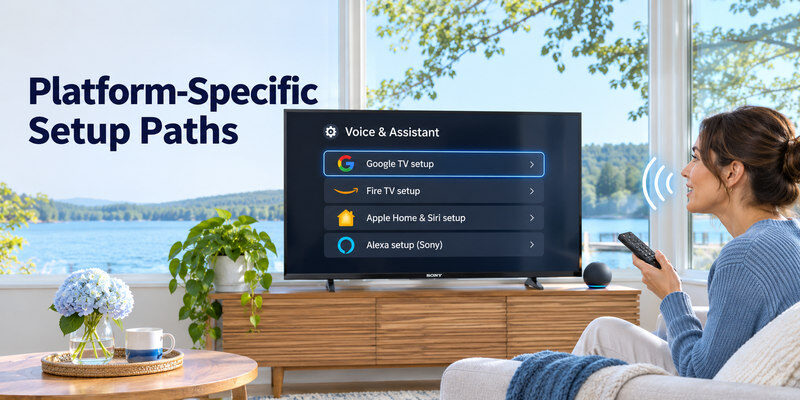
| Platform | First voice route | Extra hands-free step | Common caveat |
| Google TV | Hold Assistant button | Link supported TV/streamer in Google Home | Searchable apps and language vary |
| Fire TV | Alexa Voice Remote | Link Echo in Alexa TV & Video | TV standby/CEC varies |
| Apple TV | Siri Remote | Add Apple TV to Home room | TV power may need CEC/IR |
| AirPlay-compatible TV | Siri on Apple device | Add TV in Home via QR/code | Menu control limited by model |
| Other smart TV | Maker voice remote | Official Alexa/Google skill if offered | Exact model/region required |
These are starting points, not a guarantee of every command. A Sony TV’s Alexa setup, for example, can require a TV Control with Smart Speakers app and the matching Sony Alexa skill, while an older model may use another skill. Use its official manual rather than a generic guide that asks you to pair every brand identically.
Google TV settings
Google’s support describes Assistant on Google TV and a Privacy > Google Assistant > Searchable apps setting on supported devices. Pair the remote first; some Google TV remotes use Back + Home, while third-party manufacturers may specify a different combination. Search from the TV home screen and confirm the chosen language. A Google TV streamer attached to an ordinary TV is a separate device. For a compatible Google streaming device, follow our guide to pair a Google TV remote before testing its microphone button.
Fire TV settings
Register the Fire TV and test its Alexa Voice Remote. For Echo control, link the two registered devices from the Alexa app. Amazon notes that some Fire TV smart televisions do not respond while powered off or in standby; eligible Omni models can have Alexa Anytime. An external Fire TV Stick may rely on HDMI-CEC or IR setup for the TV’s physical power and volume.
Apple Home and Siri
Apple’s support directs Apple TV owners to Settings > AirPlay and HomeKit > Room. For an AirPlay-compatible smart TV, power it on, open Home > Add Accessory on iPhone/iPad, scan the TV’s code, and assign a room. Siri commands can play supported video and control playback, but features vary by language, country, and app. The Siri Remote itself pairs with Apple TV, not every AirPlay television.
Read more: Siri TV Control: Apple TV, AirPlay TVs, and Voice Commands
Test Voice Functions One by One
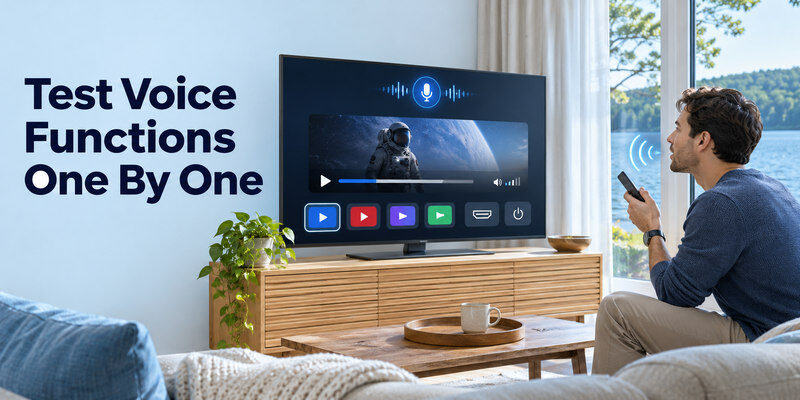
Search, app launch, playback, volume, input, and power are different integrations. A voice command may find a movie on a streamer while the underlying TV cannot switch HDMI or wake from standby. Test a simple request in each category and record the result. If volume fails with a soundbar, try TV speakers and inspect audio control/HDMI-CEC before blaming the microphone.
Search and playback
Install and sign into the desired app. Some subscriptions or regions do not expose titles to assistant search. Google TV can let users select searchable apps; third-party apps may integrate differently. Begin with a common app, then test the niche service. If the microphone hears words but a title cannot be found, network and app integration are likelier than remote pairing.
Power and input
Power-on often needs a network-standby, HDMI-CEC, or IR route. A fully unplugged TV cannot listen or receive a command. A streaming stick powered by the TV’s USB socket may also turn off when the TV does. Input selection varies by brand and model. Test while the TV is awake before attempting standby; consult the maker’s exact-menu guidance. For a detailed walkthrough, learn how to control a TV with Google Assistant, including voice-remote setup, Google Home linking, and command checks.
Accessibility and multi-user homes
Voice can help with search and navigation, but subtitles, audio description, and screen reader controls need separate setup. Give multiple TVs unique names such as “Living Room TV.” Some personalized voice results depend on the signed-in profile. Review permissions for children or guests and keep physical controls available if recognition is inaccurate.
Read more: Alexa TV Control Setup: Link Fire TV or a Compatible Smart TV
Fix Voice Control That Does Not Respond
| Symptom | First check | Next check |
| No microphone response | Battery, pairing, hardware mic switch | Assistant enabled and language |
| Speech recognized, app missing | App installed and signed in | Searchable apps/region |
| Speaker cannot find TV | Account/Home link | Device name/network |
| Playback works, power fails | Standby setting | CEC/IR equipment control |
| Intermittent recognition | Noise and microphone | Wi-Fi/service status |
Do not factory reset first. Verify normal remote buttons and the TV’s internet, then test one simple phrase. Restart TV/streamer after a software update if the maker advises it. If the original remote is missing, physical TV buttons or a supported phone controller may allow network setup, but the available path depends on the model.
When a phone app is useful
A compatible may provide navigation for supported TVs once the phone and TV meet their network and pairing requirements. It does not add a native voice assistant to a model that lacks one. Check whether the app itself exposes voice search before treating it as a microphone replacement. Keep a physical remote for first-time pairing and reset recovery.
When to seek support
If the microphone fails after correct pairing, supported language, account, network, and update checks, consult the maker’s remote diagnostic or warranty instructions. State the full model and firmware version. If only a specific streaming app fails, contact its support rather than replacing the TV. A broken microphone and an unsupported command require different fixes.
If setup is blocked by a misplaced remote, a can help on supported devices that are already reachable on the network. For a separate audio device, check the available soundbar remote control options and confirm which device handles volume in your setup.
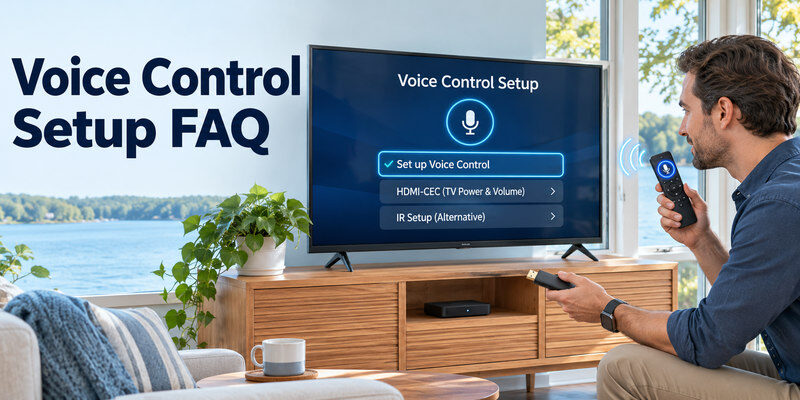
Voice Control Setup FAQ
Can I add voice control to an older TV?
Often, an HDMI streaming device with a voice remote can add voice search for its own apps. TV power and volume may require HDMI-CEC or IR setup. The older TV’s native menus do not automatically become voice-enabled.
Does voice control need Wi-Fi?
Most assistant searches and linked speaker commands need network access. Basic remote buttons can still work offline. Exact behavior varies by platform and command.
Is a microphone button hands-free?
No. Many remotes require press-to-talk. Hands-free wake words require a supported TV or speaker with an enabled microphone and the appropriate account/setup.
Why can voice search find a film but not turn on the TV?
Search and standby power use separate routes. Check TV standby wake support, network, HDMI-CEC, IR configuration, and whether an external streamer remains powered.
Can I use voice control without the original remote?
Sometimes after a TV is already configured and linked to a speaker or phone. Initial setup, Wi-Fi changes, and recovery screens may still require the original remote or physical TV buttons.
Read more: Best Smart TV for Streaming in 2026: Platform and Picture Guide
Voice Setup Examples for Five TV Platforms
Built-in Google TV
For how to set up voice control on tv with Google TV, connect the TV, sign in, enable Assistant, and hold the remote’s Assistant button to speak. Google’s help lists languages and says the feature can be enabled after first setup. Try a common installed app before testing a paid service. A separate Google Home link is needed for some phone or speaker commands. If a Nest speaker cannot find the TV but the remote mic works, investigate Home account, name, and network rather than replacing the remote.
Fire TV and a linked Echo
A Fire TV’s Alexa Voice Remote gives press-to-talk control. For hands-free commands, Amazon’s instructions link an Echo through Alexa’s TV & Video > Fire TV path with matching Amazon registrations. How to set up voice control on tv on this route includes testing power while the screen is on and again after standby. Amazon notes some Fire TV smart TVs do not respond while off; eligible Omni models have a separate Alexa Anytime option. A Fire TV Stick attached to another TV may need CEC/IR for TV volume and power.
Apple TV or AirPlay smart TV
An Apple TV box has a Siri Remote and can be assigned a Home room in Settings > AirPlay and HomeKit. An AirPlay-compatible TV can be added to Apple’s Home via a displayed code/QR for Siri commands from iPhone, iPad, or HomePod. How to set up voice control on tv differs between these routes: an AirPlay TV’s playback integration does not turn its manufacturer remote into a Siri Remote. Test a supported video request, then power/volume separately. Apple says language, region, apps, and subscriptions affect commands.
A brand-specific Alexa or Google skill
Some non-Fire TVs use a manufacturer app and account link. Sony’s official Alexa skill documentation, for example, specifies TV Control with Smart Speakers for eligible models, while some older TVs use a different basic skill. Check the exact model before installing anything. How to set up voice control on tv through a maker skill often requires completing steps on both TV and phone. A generic “works with” badge may cover power and volume but not app search or input switching. Test the command list supplied by the maker.
A TV without native voice support
An HDMI streamer can add voice search for its own apps, provided the TV has a suitable input and the box has power and network. A separate smart speaker may add hands-free requests after linking. This does not change the TV’s native menu or magically enable a microphone in its old remote. When how to set up voice control on tv means retrofitting an older set, compare the cost of a streamer with buying a new TV only after assessing the current panel. A good screen may serve for years with updated external software.
Keep Voice Control Reliable After Setup
Test a normal off/on cycle
Ask a command while the screen is on, power it off normally, wait, and try wake again. This reveals standby support, CEC/IR settings, and whether an external streamer loses USB power. A successful first demonstration of how to set up voice control on tv is incomplete if the next day’s power-on fails. Record which device must stay powered and which input the TV should remember. An unplugged screen cannot receive voice commands, regardless of the assistant.
Document the exact working commands
Write three phrases household members can use, such as opening one installed app, pausing playback, and adjusting volume. If one fails, note whether speech was transcribed. A recognized phrase with a wrong result points to app integration or naming; silence points to mic/pairing. How to set up voice control on tv should end with repeatable commands, not a vague “it works” conclusion. The official support page for the model is the best reference when an update changes settings names.
Plan for network and account changes
A new router password, changed platform account, or factory reset may break speaker and phone control. Keep the physical remote accessible and know where the TV’s power/input button is. Reconnect the TV before re-linking the assistant. A phone app may require a code displayed on the screen, which can be hard to accept without physical navigation. How to set up voice control on tv is easier to maintain when account ownership and recovery steps are clear to the household.
Final Thoughts
For how to set up voice control on tv, first identify the platform, connect it, enable its assistant and microphone, then test a simple voice-button command. Link a smart speaker as a separate step for supported hands-free use. Verify power, input, and app commands individually because their requirements differ.
