
Alexa TV Control Setup: Link Fire TV or a Compatible Smart TV
Short answer: For alexa tv control setup, open the Alexa app, go to More > Settings > TV & Video > Fire TV, and link your Alexa device to the Fire TV on the same Amazon account.
Amazon’s official instructions use this path for a compatible Echo and Fire TV. A third-party Alexa-enabled television can require a separate maker skill and account link; its commands may differ. The TV and Alexa device must be set up first. Follow the route that matches your hardware rather than searching for a universal pairing code.
Alexa TV Control Setup for Fire TV in Six Steps
Step 1 – Finish Fire TV setup
Connect the Fire TV Stick or Fire TV smart television to power, network, and the correct HDMI input if external. Register it to your Amazon account and update software. Verify the included remote can open the Home screen. Amazon’s Fire TV Smart TV guide says registration enables Alexa, app access, and updates. An Echo cannot link a Fire TV that has not finished initial setup.
Step 2 – Use the same Amazon account
Amazon says a compatible Alexa-enabled device and Fire TV must be registered to the same account to link correctly. Check the account shown in the Alexa app and Fire TV settings. A family household can have profiles, but a profile is not a substitute for the device registration match. If discovery fails, this is the first issue to resolve. If you are starting with a new streaming device, follow our guide to set up your Fire TV Stick and confirm that its remote and network connection work before linking Alexa.
Step 3 – Update the Alexa app
Use the current Alexa app on your phone and ensure the Echo is online. Amazon recommends the latest version before linking. Allow the app’s required device-discovery permissions according to your phone platform. If the Echo is offline, resolve its network connection before changing TV settings. Name the Fire TV uniquely if you own more than one.
Step 4 – Link from TV & Video
In Alexa, open More > Settings > TV & Video > Fire TV > Link Your Alexa Device, then follow the prompts. This is Amazon’s documented Fire TV path. Select the desired Echo and Fire TV. Amazon says multiple Alexa devices can link to one Fire TV, though not all features are supported for every Echo Show or paired Fire TV Cube combination. Read the device-specific notice if the app offers one.
Step 5 – Test a simple command
Say “Alexa, open YouTube on Fire TV” or “Alexa, pause Fire TV” with a supported installed app. The exact phrasing and content availability depend on service and country. If Alexa asks which TV, use the assigned device name or set a default TV for the Echo where available. A successful playback command does not prove TV power or input switching yet.
Step 6 – Check power and volume separately
Test volume and power after playback. Amazon’s Fire TV smart-TV guidance says some TV models do not respond to voice while off or in standby; eligible Fire TV Omni models have an Alexa Anytime option. A setting such as Turn on TV with Alexa may be required for the documented power command. A Fire TV Stick attached to another television may depend on HDMI-CEC or IR for TV volume/power. Use that TV’s menu and remote to confirm the path.
Read more: How to Control TV With Google Assistant: Setup and Commands
If Your TV Is Not a Fire TV
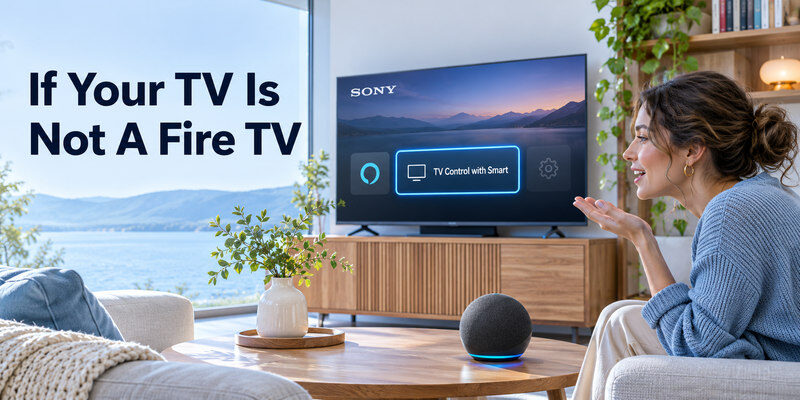
A Sony, LG, Samsung, or other TV may expose Alexa controls through its manufacturer integration, and the steps differ by model year and country. For example, Sony’s official Alexa skill listing instructs owners to open TV Control with Smart Speakers on supported TVs, sign in, enable the matching skill in Alexa, link accounts, discover devices, and finish on the TV. Older Sony models can use a different basic skill. Do not apply the Fire TV TV & Video menu path as a universal rule.
| Device | Typical route | Common limitation |
| Fire TV Stick/Streamer | Alexa app TV & Video > Fire TV | TV power/volume needs CEC or IR setup |
| Fire TV Smart TV | Register TV, link Alexa device | Standby voice varies by model |
| Supported Sony TV | TV’s control app plus Sony Alexa skill | Skill/model-year and remote-start differences |
| Other Alexa-compatible TV | Maker’s official app/skill instructions | Feature set varies by model and region |
Check an official compatibility page
A “works with Alexa” label may mean that an Echo can launch apps, or only that a voice remote has Alexa built in. Some TVs have microphones for hands-free commands; others require pressing a remote button. Verify exact SKU, year, country, and supported command types. A retailer’s generic filter cannot tell you whether volume, input, and standby power all work. If you also want a physical backup, check whether you can use a universal remote with Fire TV and which controls the exact remote supports.
Enable the manufacturer’s skill only when needed
Use the skill named in the TV’s official setup guide and follow account-link prompts. Avoid a similarly named third-party skill that asks for credentials unnecessarily. If the TV’s app does not display the expected setup feature, check whether your model is on the maker’s list. Rebooting or factory resetting cannot add an unsupported Alexa integration.
Read more: Best Smart TV for Streaming in 2026: Platform and Picture Guide
Alexa Commands to Try After Pairing
| Task | Example phrase | Verify |
| Content | “Alexa, play a movie on Fire TV” | App and subscription integration |
| Playback | “Alexa, pause Fire TV” | Active content and linked device |
| Volume | “Alexa, turn up the TV volume” | TV or soundbar control route |
| Input | “Alexa, switch to HDMI 1 on TV” | Manufacturer/TV support |
| Power | “Alexa, turn off the living room TV” | Standby and device support |
The examples are tests, not universal guarantees. Amazon’s official Fire TV smart-TV help gives power, volume, and input examples for compatible devices, with qualifications. A Sony skill may support additional menu commands for some models. If a command fails, find which control category is unsupported before re-linking everything. For a Samsung setup, explore Samsung smart remote and connected-device controls, including voice options on supported models and in supported regions.
Name the TV clearly
“Living Room Fire TV” and “Bedroom Sony TV” are easier to distinguish than two devices named “TV.” A smart speaker may otherwise control the wrong screen. Use the same name in the TV, Alexa app, and manufacturer skill where possible, then try the full name in a command. If Alexa has a default playback device, confirm it points to the one you intend.
Avoid assuming app navigation is universal
A voice request may open a service or search for a title but not navigate every menu within a third-party app. Subscription, region, and app integration govern results. Keep the remote handy for sign-in screens, accessibility settings, and content choices. Alexa commands do not bypass a service’s paid plan.
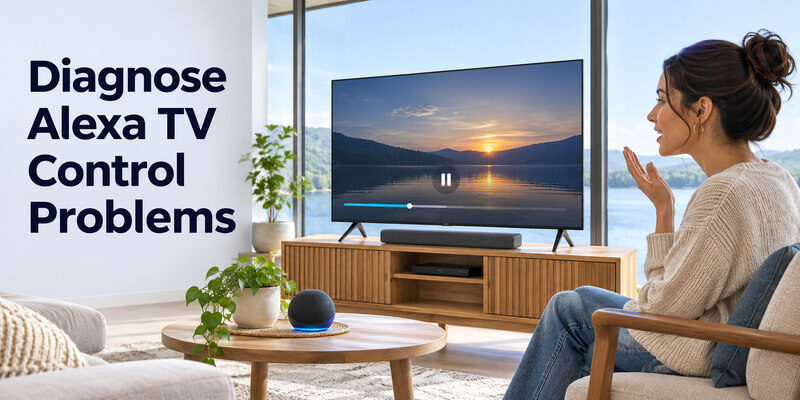
Diagnose Alexa TV Control Problems
| Symptom | First check | Next action |
| Fire TV not found | Same Amazon account and network | Reopen TV & Video linking |
| Echo controls another TV | Duplicate device names/default | Rename and select target |
| Playback works, power fails | Standby/CEC/IR support | Enable supported TV power setting |
| Skill says offline | TV network and maker account | Restart TV, re-link official skill |
| Wrong response to command | Language/phrasing/app | Try simple supported command |
Start with the TV on and use a known playback command. If that works, the link is probably intact; power may need a separate setting. Amazon explicitly notes standby limits on Fire TV smart televisions, including an Alexa Anytime exception for eligible Omni models. If no commands work, check account registration and Echo connectivity before deleting devices.
HDMI-CEC and soundbars
A Fire TV Stick can request TV power and volume through HDMI-CEC on compatible equipment. A soundbar or receiver can change the route. Enable CEC under your TV maker’s name and confirm the Fire TV remote’s equipment-control settings. Test direct TV speakers if volume fails through the bar. An HDMI cable alone does not guarantee CEC is enabled or that the TV wakes from deep standby. For navigation and text entry on a supported device, the Fire TV Stick remote app can provide a phone-based alternative when the Stick is powered and connected to the required network.
Privacy and microphone state
Fire TV Omni models may have a physical microphone switch; Amazon says a muted switch lights red. Other devices rely on remote buttons or Echo microphone controls. Check whether you intended hands-free listening and review the relevant settings. A muted Echo can still be linked but will not hear your voice. Do not confuse microphone privacy with network failure.
Read more: Best TV Under 500 Dollars: A 2026 Buying Guide
Remote and Phone Alternatives
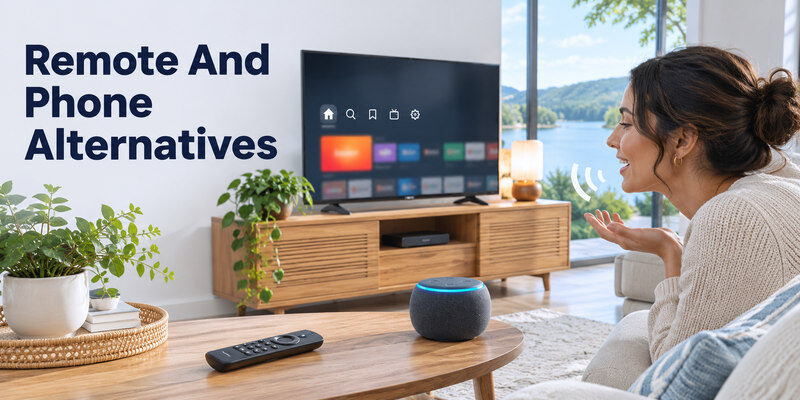
A linked Echo is useful for common playback but not every first-time setup or recovery screen. Keep the included Fire TV remote accessible. If it is missing, a compatible app-based controller can be a fallback after the device and phone share the required network. The can help navigate supported TVs, but it does not itself grant Alexa support or bypass Amazon account linking.
Power-outage recovery
After a power or router outage, allow the TV and Echo to reconnect before testing commands. Confirm the TV can open an app with its physical remote, then ask Alexa. If a Fire TV Stick is powered from a TV USB port, it may not receive power while the TV is off; use the recommended power adapter where applicable. A voice speaker cannot control an unpowered streamer.
When a factory reset is excessive
Do not reset the TV merely because one command fails. Check the app link, account, device name, standby setting, and CEC first. A reset erases Wi-Fi and app sign-ins and can leave you needing a physical remote. Use it only after official model-specific troubleshooting supports it.
Read more: Best TV for Gaming: 2026 Picks for PS5, Xbox, and PC
Alexa TV Control FAQ
Can Alexa turn on any smart TV?
No. The TV or attached streamer needs compatible integration and power-state support. Some Fire TV smart TVs do not respond while off or in standby; eligible Omni models can have a specific setting. Check the exact model.
Does an Echo need the same account as Fire TV?
Yes, Amazon’s Fire TV link instructions say the Alexa-enabled device and Fire TV should be registered to the same account. Match registrations before troubleshooting discovery.
Can I use Alexa without an Echo?
Often, a compatible Alexa Voice Remote lets you press its microphone button and speak. Hands-free operation requires a device with an enabled microphone and supported integration. Check the specific TV or Fire TV model.
Will Alexa control a soundbar?
Possibly, through supported TV HDMI-CEC/IR control or a separate soundbar Alexa integration. Test TV volume first, then the soundbar route. Capability varies by equipment and settings.
Why can Alexa pause but not power on the TV?
Playback and power use different paths. Check standby wake support, Turn on TV with Alexa, HDMI-CEC or IR equipment control, and whether an external streamer has power while the TV is off.
Alexa Control Setups by Hardware
Fire TV Stick and an Echo
Register the Fire TV Stick and Echo to the same Amazon account and link them from Alexa’s TV & Video menu. Give the stick a room-based name, then try a playback request while the television is already on its HDMI input. Alexa tv control setup for this configuration also needs the underlying TV’s power and volume route if you want more than Fire TV app commands. HDMI-CEC or IR equipment control may provide it. Test the Fire TV remote’s power button separately from the Echo. If the stick draws power only from a TV USB port, it may be offline when the TV is off.
Fire TV smart television
The TV itself runs Fire TV, so Alexa can address supported TV functions without an external streamer. Amazon’s help lists examples for volume, inputs, and power, with standby caveats. Set up the TV’s network and registration, then use its Alexa Voice Remote for a basic search. To add an Echo, link it in the app. Alexa tv control setup does not make every Fire TV set listen while off. Amazon says eligible Omni models can have Alexa Anytime; check the exact setting and physical microphone privacy switch. Try each command category while awake before judging standby.
Supported Sony TV with a maker skill
Sony’s official Alexa skill listing says some models need the TV Control with Smart Speakers application, Sony account, matching Alexa skill, account link, device discovery, and a final TV-side step. Some older sets use a different basic skill. A generic Fire TV pairing guide does not apply to this Sony path. For alexa tv control setup on a third-party television, follow its precise model list and app name; avoid an unofficial similarly named skill. Test the first command with the TV awake, then check Remote Start if its maker requires it for power-on.
More than one TV and speaker
Give devices unique names such as “Bedroom Fire TV” and “Living Room Sony TV.” Link the intended Echo to the intended Fire TV or set a default device as supported. If Alexa asks “Which TV?” or controls the wrong screen, rename before deleting devices. Alexa tv control setup in a multi-room home is a naming and account problem as much as a pairing problem. Confirm each screen’s registration and TV & Video entry, then try commands from the corresponding room. Document the working names for other household members.
A soundbar controls volume
A request to raise TV volume may adjust internal speakers while a soundbar handles actual sound, or fail if HDMI-CEC is disabled. First use the physical remote to verify the soundbar source and TV external-audio output. Test Alexa volume while a built-in TV app plays. If the bar does not respond, check whether its control is routed via CEC/IR or requires a separate Alexa skill. Alexa tv control setup should not be declared broken because a third-party bar does not obey a TV command. PCM audio troubleshooting and volume control are different layers.
A command succeeds only when on
Amazon warns that some Fire TV smart televisions do not respond while powered off or in standby; a particular Omni setting can change that on eligible models. A Fire TV Stick may depend on CEC and continued power. Alexa tv control setup for standby needs a deliberate test: first power off normally, wait, and ask the exact named TV to wake. If that fails but playback works while awake, retain the link and investigate the power path. A factory reset would erase useful configuration without proving new hardware capability.
Privacy and guest commands
A microphone on an Echo, voice remote, and hands-free TV can each have a separate mute control. Decide which device should listen in the room and review voice history and purchase permissions in the household account. Guests may be able to launch apps but should not gain access to purchases or private results without deliberate settings. Alexa tv control setup is easier to maintain when the physical remote remains available for passwords, app sign-ins, and recovery. A red mic indicator on eligible Fire TV Omni models means the TV microphone is muted, according to Amazon.
Final Thoughts
Complete alexa tv control setup by matching Amazon accounts and linking Fire TV in Alexa’s TV & Video settings. For another smart-TV brand, use its documented official skill and app. Test playback, volume, input, and standby power independently, because each may require a different integration or setting.
