
Voice Command TV Not Working? Diagnose the Failed Control Path
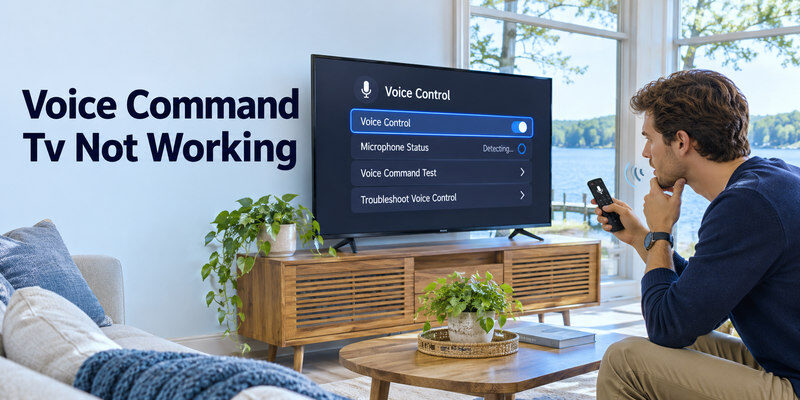
Short answer: If a voice command TV not working, test a simple command while the TV is on, then check microphone, pairing, internet, account, and assistant settings in that order.
A search failure and a power-on failure have different causes. A voice remote can hear speech while an app refuses a title; a smart speaker can reach the internet yet fail to find the TV. Diagnose which part breaks before resetting the device. This guide gives fast fixes first, then symptom-specific steps for Google Assistant, Alexa, Siri, and hands-free control.
Voice Command TV Not Working: Five Fast Checks
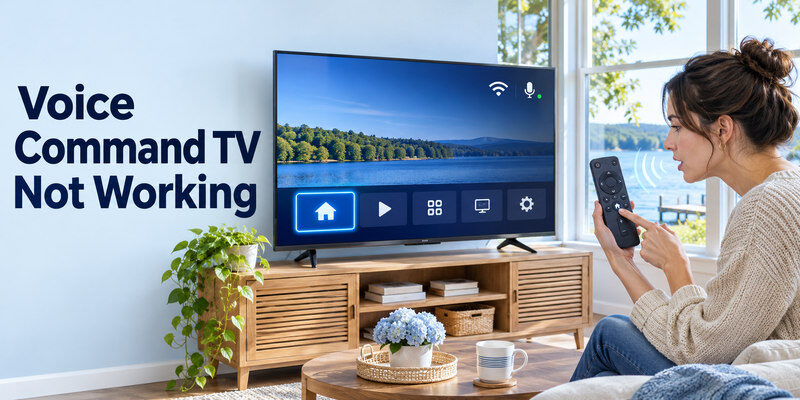
1 – Test ordinary remote buttons
Can the remote’s arrows, Home, and volume work? If no buttons respond, charge or replace batteries and re-pair according to the exact model’s manual. A remote may control power through IR while its voice feature needs Bluetooth pairing, so partial operation does not prove the microphone is paired. Move close to the TV and check for an on-screen pairing message. If both navigation and voice fail on a Google TV device, follow the steps to fix a Google TV remote that is not working before changing assistant settings.
2 – Check the microphone state
Press and hold the remote voice button rather than tapping it if your platform requires that. Google’s official voice remote guidance specifies holding its Assistant button. Inspect any physical microphone privacy switch on the TV or speaker. Amazon says eligible Fire TV Omni sets have a switch that lights red when muted. A muted mic or blocked remote opening cannot hear your request.
3 – Test internet and the platform home screen
Open an app or check the TV’s network status. Voice recognition and search commonly need internet, even if basic remote buttons work offline. Restart router and TV only if the connection is actually unstable. If an HDMI streamer is attached, ensure it has power and the TV is on its input. A streamer powered only from a TV USB port may shut down with the TV.
4 – Try a basic supported command
With the TV awake, say “Open YouTube” on a platform where that app is installed. This avoids subscription and title-search complications. If that works, test pause, volume, input, and power separately. The failed category points to a narrower setting. Do not factory reset a working assistant because one third-party app refuses a title.
5 – Verify account and language
Confirm the device is signed in, the voice assistant is enabled, and the selected language is supported for that model and region. Google TV’s help lists supported Assistant languages; features can still vary by device. Alexa and Fire TV must share the relevant Amazon registration for Echo linking. Siri Home control requires an Apple TV or compatible AirPlay TV added to a Home room.
Read more: Alexa Compatible Smart TV: Built-In and Works-With Choices
Match the Symptom to the Likely Cause
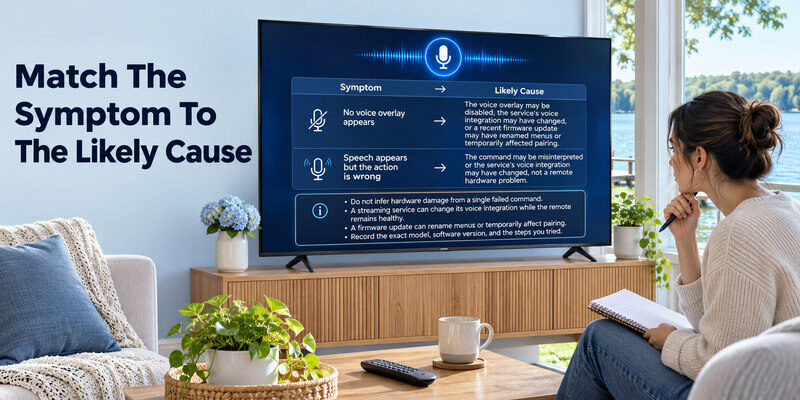
| Symptom | Most useful first test | Likely area |
| Mic button does nothing | Normal remote buttons and pairing | Battery, voice pairing, mic switch |
| TV hears words but no result | Common installed app | Network, language, service integration |
| Search works, power fails | Command while TV awake | Standby, CEC, IR, remote start |
| Speaker controls lights, not TV | TV in Home/Alexa devices | Account linking, name, network |
| One app fails | Another searchable app | App permission, subscription, region |
| Works intermittently | Quiet room and stable network | Noise, weak connection, firmware |
Do not infer hardware damage from a single failed command. A streaming service can change its voice integration while the remote remains healthy. A firmware update can rename menus or temporarily affect pairing. Record the exact model, software version, failed phrase, and whether the TV displayed speech text. That evidence speeds diagnosis.
No voice overlay appears
Check batteries, Bluetooth pairing, microphone button, privacy switch, and the assistant setting. A remote that uses IR for power can appear “alive” even if voice pairing is lost. Follow the manufacturer’s re-pairing sequence, not a generic button combination. If the TV has physical buttons, use them to navigate setup. Check warranty or a model-specific replacement remote only after these tests.
Speech appears but the action is wrong
If transcription is correct, the microphone is probably functioning. Use the TV’s exact device name for a smart-speaker request and confirm the app or input supports the command. A command such as “open settings” may be unavailable even when “open YouTube” works. Disable conflicting default TVs in the speaker’s room if it targets another screen. If you are unsure whether the assistant was enabled correctly, review how to set up voice control on your TV and check the microphone and language settings for your platform.
Google Assistant Troubleshooting
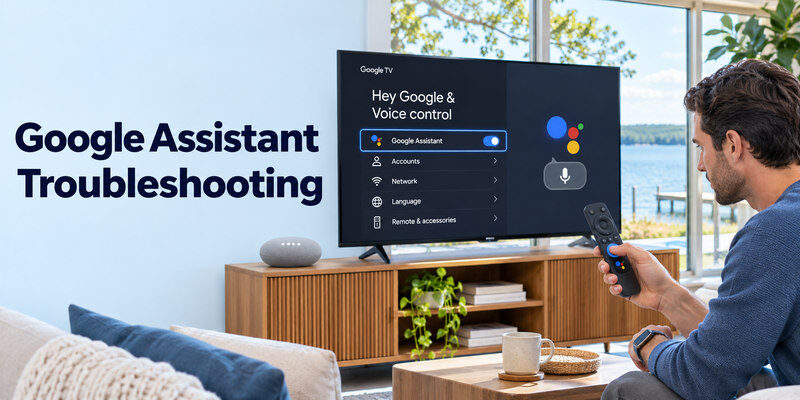
Google’s Google TV support says Assistant can be enabled during setup or later, and its voice remote uses a held Assistant button. Check that the remote is paired, the Google account and network work, and the language is supported. On supported Google TV devices, Google documents Privacy > Google Assistant > Searchable apps. If voice search misses one service, inspect that list and the app’s sign-in before replacing the remote.
Phone or Nest speaker cannot see the TV
Check the Google Home household and account, device name, TV/streamer network, and supported integration. A TV that supports casting may not expose every voice-control function. Test with the TV on. If remote Assistant works but speaker control fails, the TV’s microphone is not the problem; investigate linking and device selection. If voice requests time out and streaming is also unstable, learn how to diagnose a slow TV Wi-Fi connection at the television’s actual location.
Power or input alone fails
A Google TV streamer may search its own apps but use HDMI-CEC or configured IR to control the physical TV. Turn on the TV’s CEC setting if supported, then test direct connection without a problematic switch or receiver. Network standby can affect a built-in TV. A fully unplugged screen cannot wake by voice.
Read more: Siri TV Control: Apple TV, AirPlay TVs, and Voice Commands
Alexa and Fire TV Troubleshooting
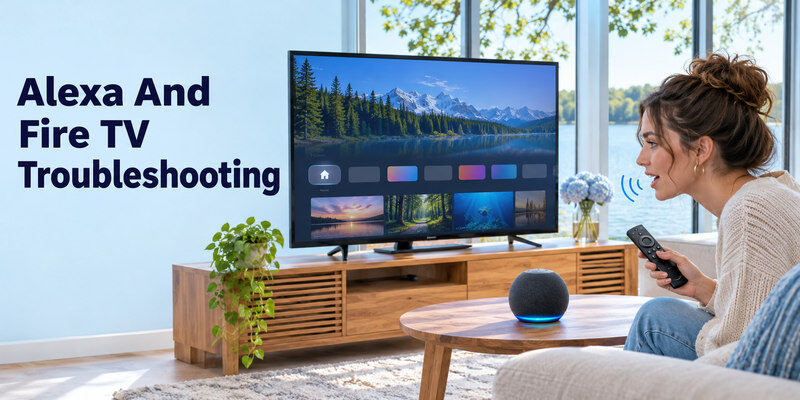
Amazon’s Fire TV linking instructions require the Alexa device and Fire TV to use the same Amazon account, then link through Alexa > More > Settings > TV & Video > Fire TV. Confirm the Fire TV remote works and the Echo is online. If Alexa says no TV is found, check registration, app link, and duplicate device names before deleting the TV from your account. If the affected service will not open manually either, use our guide to fix a TV app that will not load and compare it with another installed app.
Alexa works while on, not in standby
Amazon explicitly warns that some Fire TV smart TVs do not respond to commands while off or in standby; eligible Omni models offer Alexa Anytime. Check the model’s setting and Turn on TV with Alexa if offered. For an external Fire TV Stick, CEC/IR power control and continuous power to the stick can matter. A successful pause command cannot prove standby wake support.
Manufacturer skill offline
A Sony or other TV using a maker skill may need its own companion TV app, account link, and device discovery. Sony’s official Alexa skill listing describes TV Control with Smart Speakers for supported models and a different basic skill for some older ones. Check the exact model and skill. Re-link the official integration only after network and account checks.
Siri and Apple Home Troubleshooting
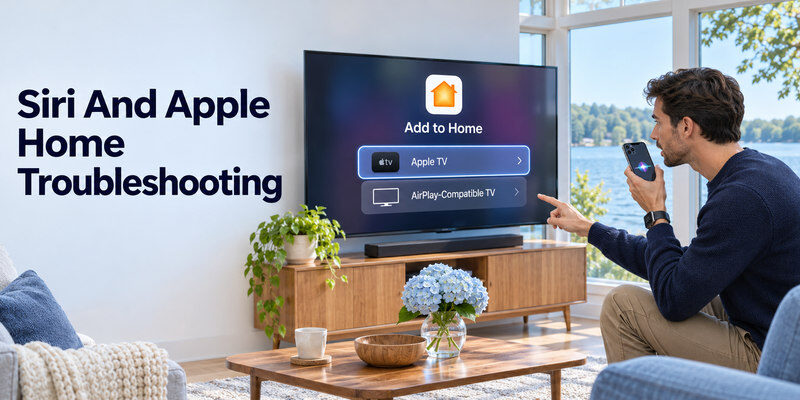
Apple says to add an Apple TV or AirPlay-compatible TV to the Home app and assign a room before asking Siri on iPhone, iPad, or HomePod to control video. If the TV is absent from Home, verify its Home pairing code/QR, network, and exact model support. A Siri Remote addresses Apple TV, not every TV’s native menu. Test a supported playback request while awake before checking standby.
Home sees the wrong screen
Give Apple TV and AirPlay TVs distinct names and rooms. Say “on the living room TV” rather than “on TV.” Check the Home account and permissions. If the phone can AirPlay manually but Siri cannot act, verify that the TV was added to Home, not merely selected as a one-time AirPlay target.
AirPlay works but power fails
Playback and power are separate functions. Check the TV’s standby/network and Apple TV’s HDMI-CEC/IR arrangement if an external box is involved. Apple notes Siri availability and commands vary by language and region. Do not assume a successful cast guarantees all TV power and input commands.
Read more: Cheap Smart TV Review: What You Gain and Give Up in 2026
Fix Intermittent Voice Recognition
Move closer to the remote microphone, avoid covering it, and lower room noise. A weak Wi-Fi connection or overloaded network can make voice service appear inconsistent. Check whether ordinary streaming also buffers. If one device fails only after a firmware update, consult the maker’s current support notice and restart according to its instructions. Do not promise that a generic reset sequence applies to every model.
Privacy settings and permissions
A household member may have intentionally disabled the TV mic, Alexa microphone, voice activity, or app search permission. Respect those choices and re-enable only the feature you want. A physical switch can override software. A phone remote may need local-network permission to discover the TV; that is different from microphone permission for speech input.
Keep a working fallback
Use the original remote or physical TV buttons while repairing voice. A compatible may navigate supported TVs on the required network after initial setup. It does not repair a dead microphone or add unsupported Google, Alexa, or Siri integration. Network changes and factory reset may require a physical control method.
For a Google TV microphone that fails along with navigation buttons, use the checks before changing assistant account settings.
Voice Command TV FAQ
Why does my TV remote work but voice not work?
Basic buttons may use IR while voice uses Bluetooth and an internet assistant. Check voice pairing, microphone, privacy switch, language, and network. Test a simple command on the platform home screen.
Why does Alexa pause a show but not turn on the TV?
Playback and standby power use different integrations. Check model support, Alexa Anytime or power settings where offered, CEC/IR, and whether an external streamer is powered while the TV is off.
Why can Google Assistant search only one app?
App integration, account, region, and the searchable-app setting can limit results. Check the installed app and its login. A successful search elsewhere suggests the microphone itself works.
Will a factory reset fix voice commands?
Sometimes, but it is a disruptive last step. First check batteries, pairing, mic state, network, account, and supported commands. Reset erases setup and may require the physical remote.
Can I use a phone if the voice remote is broken?
Often for supported TVs already on the network, but phone apps vary. A phone controller may not replicate a platform assistant’s voice features or complete first-time setup without the original remote.
Read more: Which TV Brand Is Most Reliable in 2026?
Troubleshooting Scenarios by What Still Works
Navigation works but the voice overlay never appears
Basic buttons can use IR while voice uses a paired Bluetooth link. Charge or replace the batteries, hold the microphone button as the maker instructs, and check a hardware privacy switch. On Google TV, Google’s support describes holding the Assistant button on its remote. When voice command tv not working is limited to the button, a TV-wide reset is premature. Follow the exact remote’s re-pairing instructions and test close to the screen. If the maker offers a microphone diagnostic, use it before buying a replacement. Record whether any on-screen indicator appears.
Words appear but the wrong app opens
A correct transcript indicates the microphone heard you. Check the TV’s device name, installed apps, service login, and regional availability. A speaker may target a different TV with the same name. If voice command tv not working only for one service, try an app-launch request on the platform home screen. Google TV’s searchable-app setting can exclude a service; a Fire TV or Apple TV app may have its own integration limits. Paid content still requires a subscription. Re-link the specific service rather than erasing the entire TV.
The smart speaker says the TV is offline
Check whether the TV itself is connected and whether the phone and speaker use the correct Home/Alexa account. Amazon’s Fire TV link requires matching Amazon registrations. Apple Home requires a compatible TV assigned to a room. A guest network can block local discovery. When voice command tv not working from a speaker but the remote mic succeeds, focus on linking, naming, and network reachability. Test while the television is awake; standby is a separate issue. Avoid creating duplicate TV entries during repeated setup attempts.
Playback works but power does not
This is a common split: playback commands address an online streamer, while TV power may need CEC, IR, network standby, or a maker-specific setting. Amazon notes that some Fire TV smart TVs do not respond in standby; eligible Omni models have Alexa Anytime. A Google TV streamer may lose power from a TV USB port. If voice command tv not working only after the screen is off, do not replace a functional microphone. Test power-off and wake separately and consult the exact TV’s standby behavior. A fully unplugged set cannot be woken by speech.
Volume works on TV speakers but not a soundbar
Check the television’s external-audio output and soundbar input. HDMI ARC/eARC with CEC can relay volume, while optical may require another remote or an IR learning feature. A voice assistant recognizing “volume up” does not prove it knows which audio device is active. For voice command tv not working with the bar, test TV speakers first, then the bar. Ensure the bar is powered and not muted. Fix the equipment-control route before changing account or language settings.
Recognition fails in one room
Move close to the remote, reduce background noise, and compare a simple request. A TV mic behind a cabinet, a muted Echo, or a noisy fan can interfere. Check network quality if commands time out, especially if streaming also buffers. Voice command tv not working intermittently may reflect signal or service conditions rather than a permanent hardware fault. Try the same command at another time and record the result. A model-specific firmware update or manufacturer notice may explain a sudden change after software installation.
An update changed the menu
Assistant names, privacy menus, and pairing screens can move across firmware versions. Read the current official instructions for the exact model. Verify whether the feature remains supported in the selected language and region. If voice command tv not working began immediately after an update, restart once according to maker guidance and test the simplest command. Do not follow a random reset sequence from a different model; it can erase network and app setup while leaving the underlying service issue unresolved.
Final Thoughts
When voice command tv not working, isolate the failed layer: microphone and pairing, speech recognition, account/app integration, or power-control route. Start with a simple command while the TV is on and move outward. A successful search with failed power is a different problem from a silent mic, and fixing the right path saves unnecessary resets and purchases.
