
Apple TV Remote Android: How to Control Apple TV From Android
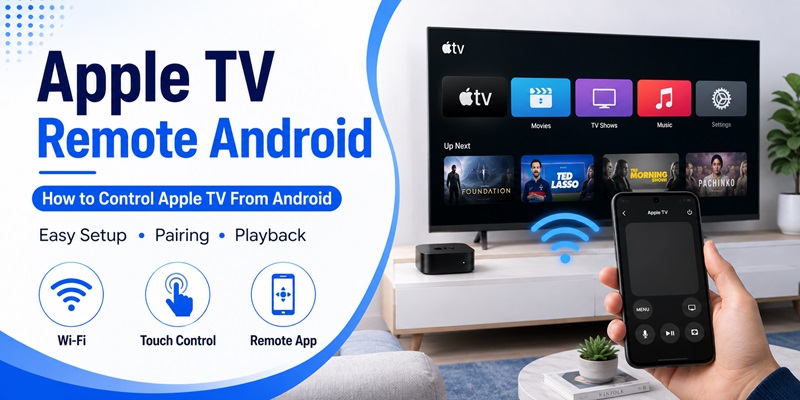
Yes, you can use an Android phone as a remote for a compatible Apple TV with a third-party remote-control app. The easiest method is usually to connect your Android phone and Apple TV to the same local network, install an app that supports your Apple TV model, select the device, and complete the pairing process.
Quick answer: How to use an Apple TV remote on Android
- Open Google Play on your Android phone.
- Find a remote app that explicitly supports your Apple TV model.
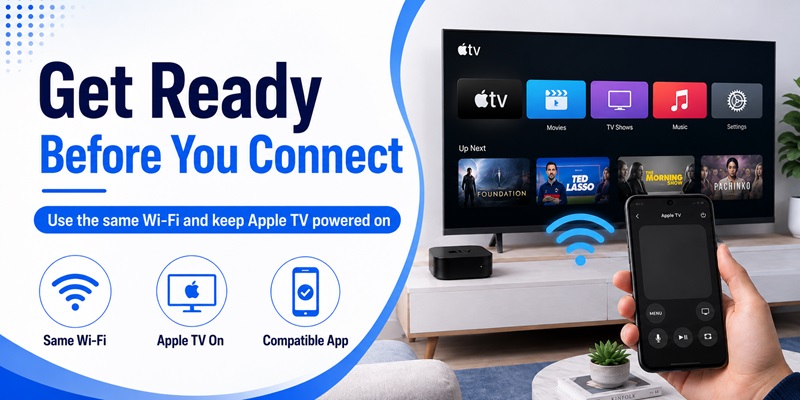
- Connect your Android phone and Apple TV to the same reachable local network.
- Open the app and select your Apple TV.
- Enter or confirm the pairing code if requested.
- Test navigation, Select, Back, and Play/Pause.
Important: Apple’s official Apple TV app for Android is designed for watching streaming content. It is not the same as Apple’s built-in Apple TV Remote for iPhone and iPad.
Some third-party Android remotes work through Wi-Fi, while others require a phone with an infrared (IR) blaster. Check the connection method before installing an app.
This guide explains how to choose an Apple TV remote Android app, connect it to Apple TV, use essential controls, and troubleshoot common problems.
1. Can You Use an Android Phone as an Apple TV Remote?
Yes, but Android does not include Apple’s built-in Control Center Remote.
On supported iPhones and iPads, Apple TV Remote is available through Apple’s own remote-control interface.
Android users generally need a compatible third-party application.
Whether it works depends on the app, Apple TV generation, network configuration, and supported control features.
Apple TV Remote Options: Android vs. iPhone
| Feature | Android phone | iPhone or iPad |
|---|---|---|
| Apple’s built-in Control Center Remote | No | Yes |
| Third-party Apple TV remote apps | Yes | Availability varies |
| Wi-Fi-based Apple TV control | With compatible app | Through Apple’s supported Remote |
| Pairing authorization | App-dependent | Apple-supported process |
| Keyboard input | App-dependent | Supported by Apple’s Remote |
| Siri Remote-specific features | Not guaranteed | Depends on supported device |
| Subscription or in-app purchases | Depends on app | Built-in Remote is free |
If you have an iPhone available, Apple’s built-in Remote is generally the simplest option.
See our Apple TV Remote for iPhone guide for the official setup method.
Apple TV App vs. Apple TV Remote App on Android
These two app categories serve different purposes.
Apple TV app for Android
Apple released its official Apple TV streaming app for Android in February 2025.
It allows users to watch supported Apple TV content, manage a Watchlist, continue watching shows, and download supported content for offline viewing.
It is primarily a streaming application.
Apple TV remote app for Android
A compatible third-party remote app sends control commands to Apple TV hardware.
Depending on the application, it may support:
- Directional navigation
- Touchpad gestures
- Select and Back
- Home or TV controls
- Play and Pause
- Keyboard input
- Volume control on supported setups
Installing Apple’s streaming app does not automatically provide a virtual Siri Remote.
2. Best Apple TV Remote Apps for Android
There are several third-party Android apps that advertise Apple TV remote functionality.
Before choosing one, check the developer’s compatibility information, connection method, pricing, permissions, and recent user reviews.
Android Apple TV Remote App Comparison
| App | Connection method | Advertised features | Important limitation |
|---|---|---|---|
| Remote for Apple TV — KRAFTWERK 9 | Wi-Fi | Touchpad, keyboard, playback, automatic discovery | Model support and some features vary |
| Remote for Apple TV — Outofcontext | Wi-Fi | Touchpad, keyboard, playback, pairing | Verify supported Apple TV software |
| Remote for Apple TV — Remotevio | Infrared | IR remote commands | Requires an Android phone with an IR blaster |
| Remote for Apple TV — LECASTLE Studios | Wi-Fi | D-pad, trackpad, playback, Wear OS | Some features require a premium purchase |
These features come from the developers’ Google Play descriptions. Actual performance and availability may change.
Option 1: Remote for Apple TV by KRAFTWERK 9
This application advertises network-based Apple TV control.
Its listed features include:
- Touchpad navigation
- Keyboard text entry
- Playback controls
- Device discovery
- Automatic reconnection
- Wear OS support
The developer lists support for selected Apple TV generations and software versions.
Best suited for: Users who want a Wi-Fi remote with navigation and keyboard functionality.
Before installing: Verify your Apple TV model and review the current app permissions, pricing, and compatibility information.
Option 2: Remote for Apple TV by Outofcontext
This app also advertises Apple TV control over the local Wi-Fi network.
According to its listing, it provides:
- Touchpad navigation
- Keyboard input
- Playback controls
- Automatic device connection
- A pairing process for compatible Apple TV hardware
Best suited for: Users who prefer a network remote and want a straightforward pairing workflow.
The app is not an official Apple product.
Option 3: Remote for Apple TV by Remotevio
This option is different from the Wi-Fi applications above.
The developer states that it works only on Android devices equipped with an IR blaster.
An IR blaster allows a compatible phone to transmit infrared remote-control signals.
Best suited for: Users with an Android phone that has compatible infrared hardware and an Apple TV setup supported by the app.
Important: Most Android phones do not have an IR blaster. Installing an IR-only app cannot add infrared hardware to your phone.
Check whether your Apple TV generation supports the relevant infrared commands.
Option 4: Remote for Apple TV by LECASTLE Studios
This application advertises Wi-Fi control and features such as:
- D-pad navigation
- Trackpad gestures
- Playback controls
- Wear OS support
- Keyboard input on supported paid plans
- Multiple-device control on supported paid plans
Best suited for: Users interested in phone and smartwatch remote functionality.
Review the free and premium feature lists before paying.
How to Choose the Right Android Apple TV Remote
Use this checklist:
- Apple TV compatibility: Does the developer list your model?
- Connection method: Does it use Wi-Fi or IR?
- Android compatibility: Does it support your phone and Android version?
- Core controls: Does it include Home, Back, Select, and playback?
- Keyboard support: Is text entry available or paid?
- Privacy: Are the requested permissions reasonable?
- Pricing: Does it require a subscription?
- Reviews: Are recent users reporting successful connections?
For additional free and paid considerations, read our free Apple TV remote alternatives guide.
Safety tip: Prefer Google Play or another trusted app marketplace over unofficial APK download sites.
3. How to Set Up an Apple TV Remote Android
Once the devices are ready, setting up an apple tv remote android should only require a few basic steps.
Step 1: Find a compatible Android remote app
Open your normal Android app marketplace and search for an application that specifically states support for Apple TV.
Do not confuse the official Apple TV Android application with an apple tv remote app for android.
Apple’s official Android Apple TV app provides access to Apple TV entertainment, subscriptions, Watchlist, Continue Watching, downloads, and other viewing features. Apple launched the Android version in February 2025.
That does not mean it functions as the same Apple TV Remote found in iOS Control Center.
Step 2: Install and open the remote
After choosing a compatible app:
- Install the application.
- Open it on your Android phone.
- Allow nearby-device or network-related permissions when legitimately required.
- Start device discovery.
- Wait for your Apple TV to appear.
A good apple tv remote android should clearly indicate which Apple TV it has found before you begin pairing.
Avoid granting unrelated permissions unless a particular optional feature genuinely needs them.
📖 Read More Guides: Download Remote TV Android: How to Install and Set Up a TV Remote App
4. How to Pair Your Android Phone With Apple TV
Pairing is the most important part of the setup.
Many users assume that installing an apple tv remote android means the phone will instantly control the television. In practice, Apple TV may first require authorization.
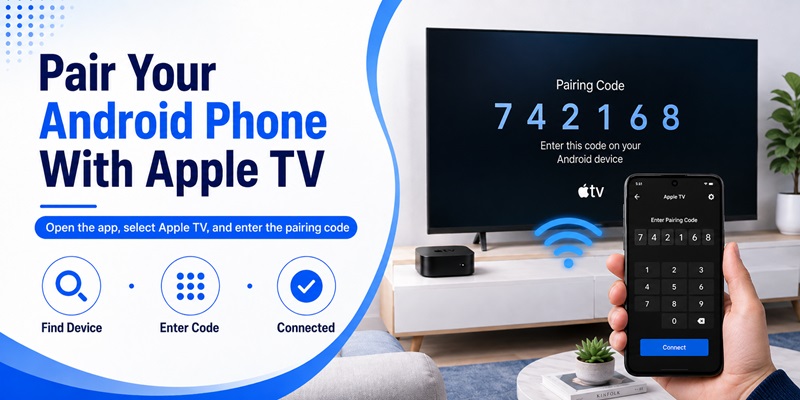
Select your Apple TV
Open your remote app and look for a device discovery screen.
Your Apple TV may appear using its configured device or room name.
Tap the correct device.
Some Android Apple TV remote applications describe a simple pairing routine after both devices are connected to the same Wi-Fi network.
Enter or confirm the pairing code
Depending on the remote application and setup, a pairing code or confirmation request may appear.
Follow the instructions shown on your Android phone and Apple TV.
Apple’s own remote pairing process on iPhone and iPad can also require a four-digit passcode during setup, demonstrating the general principle that Apple TV may require authorization before accepting remote commands.
Once pairing succeeds, test your apple tv remote android by pressing a directional button or swiping on the touchpad.
If Apple TV responds immediately, the basic connection is working.
Explore Articles: Download a Remote TV App for Android: Control Your TV With Your Phone
5. How to Use Apple TV Remote Controls on Android
After pairing, the remote interface should feel familiar even if you normally use a Siri Remote.
Most apple tv remote android applications try to reproduce the controls required for everyday navigation.
Navigate Apple TV menus
The main interface may use either directional buttons or a touchpad.
With directional controls, tap:
- Up
- Down
- Left
- Right
- Select or OK
- Back
- Home
With a touchpad interface, you can usually swipe in the direction you want to move and tap to select an item.
Third-party Android remote listings currently advertise touchpad navigation among their Apple TV control features.
Control movies and shows
When media is playing, your apple tv remote android may provide:
- Play
- Pause
- Rewind
- Fast forward
- Previous
- Next
These controls are particularly useful if your physical Siri Remote is temporarily missing.
Some apps may also provide volume controls. Whether volume adjustment works as expected can depend on how Apple TV, your television, soundbar, receiver, and HDMI control are configured. Apple’s own documentation notes that Apple TV volume control can involve compatible speakers or home-theater configurations.
6. How to Type and Search on Apple TV From Android
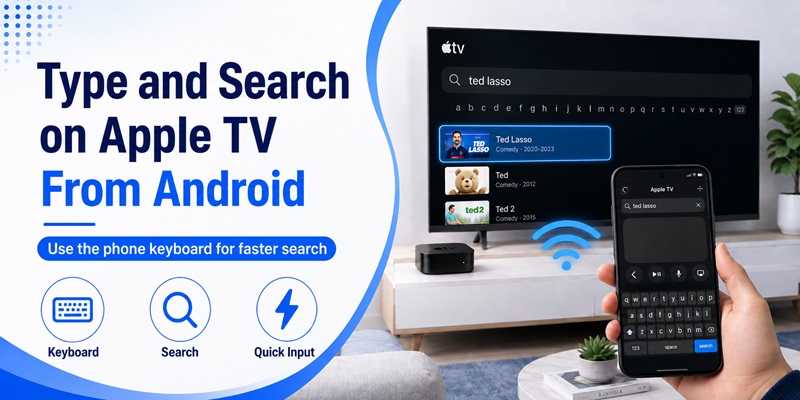
One of the most useful reasons to set up an apple tv remote android is text entry.
Entering a long movie title or password one letter at a time with an on-screen TV keyboard can be frustrating.
Use the Android keyboard
Some compatible remote applications include keyboard input.
When a text field appears on Apple TV, open the keyboard function inside your remote application and type using the keyboard on your Android phone.
Current Android Apple TV remote listings describe keyboard support for convenient text entry.
This can make searching much faster.
Use it for common searches
Keyboard control is particularly useful when:
- Searching for movies
- Searching for TV shows
- Entering usernames
- Entering search terms
- Browsing apps with text search
Be cautious when entering passwords through any third-party application. Use software from a developer you trust and review its privacy information before using sensitive text-entry features.
For basic navigation and search, however, keyboard support can make an apple tv remote on android more practical than relying entirely on a physical remote.
7. How to Fix Apple TV Remote Android Connection Problems
If your apple tv remote android cannot find or control Apple TV, do not immediately assume the app is broken.
Start with the network.
Check the Wi-Fi network
Confirm that your phone and Apple TV are connected to the same local network.
For example:
Android phone: HomeWiFi
Apple TV: HomeWiFi
This is what you want.
If the phone is using a guest network while Apple TV is connected to your main network, discovery may fail because some routers isolate guest devices.
Restart the connection
Try these steps in order:
- Close the remote app.
- Disable Wi-Fi on your Android phone.
- Enable Wi-Fi again.
- Reopen the remote app.
- Search for Apple TV again.
If that does not work, restart Apple TV and your Android phone.
Apple recommends checking the same network, updating devices, and restarting devices when its official Apple TV Remote cannot connect from an iPhone or iPad.
Although a third-party apple tv remote android is different software, those network troubleshooting steps are still useful starting points.
Pair the device again
If the app can see Apple TV but buttons no longer respond, remove the saved connection and repeat pairing.
Also ensure another Apple TV with a similar name has not accidentally been selected.
📖 Read More Guides: Free TV Remote App Android: Free Setup and Usage Guide
8. Can You Control Apple TV Without Wi-Fi?
Usually, a third-party apple tv remote android relies heavily on network connectivity.
This is different from the physical Siri Remote supplied with Apple TV.
The physical Apple remote uses Bluetooth
Apple documents that recent Siri Remote and Apple TV Remote models communicate with Apple TV through Bluetooth, while IR can be used for controlling other equipment.
An Android application cannot automatically reproduce that behavior simply because Bluetooth exists on the phone.
Its developer must specifically support a compatible communication method.
Wi-Fi is generally the easiest method
Current third-party Android Apple TV remote applications commonly instruct users to connect the Android device and Apple TV to the same Wi-Fi network.
Therefore, if you are setting up an apple tv remote android, assume that a working local network is required unless your selected app explicitly documents another supported method.
If Apple TV has never been connected to your current network and you have lost the physical remote, initial setup can become more difficult. In that situation, restoring access with the original remote or another supported Apple device may be necessary before a network remote can work.
9. Apple TV App vs Apple TV Remote on Android
This distinction causes a lot of confusion.
A user may search is there an apple tv remote app for android, see Apple’s official Apple TV application in Google Play, install it, and then expect a virtual Siri Remote.
These are different functions.
Apple TV app for Android
Apple’s official Apple TV Android app is designed primarily for watching Apple TV content.
Apple states that the Android application supports features including Continue Watching, Watchlist, streaming, subscriptions, and offline downloads.
Think of it as a streaming and entertainment application.
Apple TV remote functionality
The official remote-control experience documented by Apple is integrated into supported Apple devices such as iPhone and iPad through Apple TV Remote in Control Center. Apple also documents remote use from Apple Watch.
For Android, users looking specifically for an apple tv remote android generally need compatible remote-control software from another developer.
This is also different from searching for an android tv remote app ios, which refers to controlling Android TV from an Apple device rather than controlling Apple TV from Android.
Understanding the direction of control helps you install the correct application.
10. Tips for Using an Apple TV Remote Android Every Day
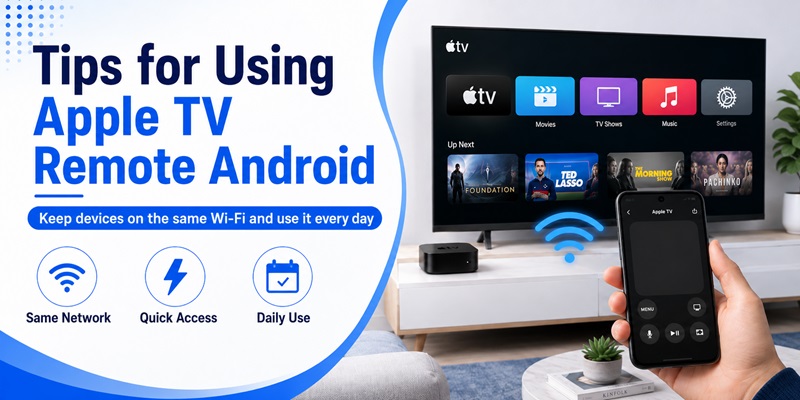
Once your apple tv remote android is paired and working, a few simple habits can make it much more reliable.
Keep both devices on the same network
If your Android phone automatically switches between networks, the remote may suddenly stop detecting Apple TV.
When this happens, check Wi-Fi before changing any other settings.
Save the correct Apple TV
If your home has more than one Apple TV, give each device a recognizable name.
For example:
- Living Room Apple TV
- Bedroom Apple TV
- Office Apple TV
Then select the right device inside your Remote TV App instead of repeating discovery every time.
Keep the physical remote when possible
An apple tv remote android is extremely useful as a backup, but keeping the Siri Remote available is still worthwhile.
The physical remote can help when:
- Wi-Fi is unavailable.
- Network settings change.
- Apple TV needs initial setup.
- The remote application cannot discover Apple TV.
- You need a feature that the Android app does not support.
Test important controls after setup
Do not stop after confirming that directional navigation works.
Test:
- Home
- Back
- Play and pause
- Touchpad navigation
- Keyboard input
- Volume, if supported
- Reconnection after closing the app
This tells you whether your apple tv remote android can genuinely replace the physical remote for your normal viewing routine.
Final Thoughts
Using an Android phone to control Apple TV is possible, but the process is slightly different from the experience on an iPhone.
Apple currently documents its integrated Apple TV Remote for devices such as iPhone, iPad, and Apple Watch, while the official Apple TV application available on Android focuses on viewing Apple TV content.
For users who specifically need an apple tv remote android, the practical approach is to use a compatible Android remote application.
Start by connecting your phone and Apple TV to the same Wi-Fi network. Open the remote application, discover Apple TV, complete the pairing process, and then test navigation and playback.
If the connection fails, check the Wi-Fi network first. Restart the app and devices, search for Apple TV again, and repeat pairing if necessary.
Once properly configured, an apple tv remote android can provide convenient navigation, playback controls, touchpad input, and potentially keyboard entry directly from the Android phone you already carry.
It may not reproduce every feature of Apple’s Siri Remote, but for everyday navigation and media control, a compatible apple tv remote android can be a practical backup whenever the physical remote is missing, out of reach, or unavailable.
Download TV Remote APP