
Large Button Remote for Seniors: Size, Contrast, and Compatibility
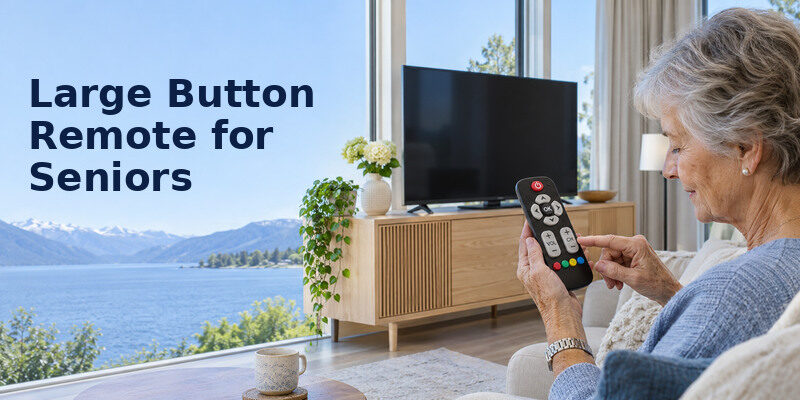
Short answer: Pick a large-button remote with high-contrast labels and the exact keys needed for the TV or cable box, then test it from the viewer’s usual chair.
A large button remote for seniors can reduce missed presses, but big keys alone cannot solve an unsupported smart-TV protocol or a confusing menu. The best choice depends on whether the viewer watches live channels or streaming apps, how the remote feels in the hand, and what happens when the TV changes input. This guide compares button layouts, named examples and a practical home trial without assuming every older adult needs the same control.
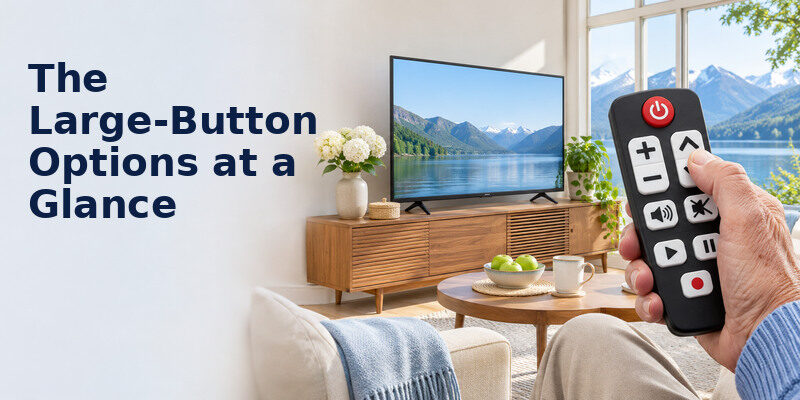
The Large-Button Options at a Glance
| Layout | Named example to investigate | Good for | Check |
| Six essential keys | Flipper Big Button Remote | Stable live-channel routine | TV/box codes, no full app navigation |
| Large navigation keys | One For All URC6821 Big Button | TV plus second IR device | Learning/code support, app controls |
| Minimal TV-only keys | One For All URC6812 Zappy | Basic TV commands | Exact model and input recovery |
| On-screen large text | Compatible phone remote app | Caregiver backup or touch preference | Network, touch accuracy, pairing |
Flipper’s official page describes six functions—power, channel up/down, volume up/down and mute—and a TV/cable-box combination. One For All lists URC6821 as a two-device big-button remote with learning, and URC6812 as a simple one-device layout. These are product examples, not a guarantee of compatibility with your television or streamer. A large button remote for seniors should be verified by full model code and actual function, not a picture of large keys.
A six-key remote for live channels
This layout can prevent accidental trips into app stores or settings. It suits a viewer whose TV starts on a familiar cable or antenna source. It may fail when the TV opens on HDMI 2 instead of Cable because there is no Input key. Keep a physical recovery route and test the daily startup after standby. If the household uses Netflix or YouTube, six keys are unlikely to provide the necessary arrows, OK, Home and Back.
Large navigation for smart-TV apps
A remote with visible, spaced directional keys can help a viewer choose tiles and titles. Check that Home and Back work with the exact TV or streaming device. A learning IR remote may handle TV power and volume while a Fire TV or Apple TV box requires a different pairing protocol for navigation. A large button remote for seniors who stream must work beyond the manufacturer’s home screen. Test an actual search and playback session.
Read more: Easy to Use Remote for Elderly: A Task-Based Buying Guide
What “Large” Should Mean in the Hand
Measure comfort by the person using it. Buttons should be large enough to identify and press separately, with tactile boundaries and labels visible in normal room lighting. Remote weight and thickness matter: a device can have excellent keys yet feel too wide or heavy to hold. Try one-handed Power and Volume from the usual chair. Avoid assuming age predicts hand strength or preferred grip.
Spacing and accidental presses
Two large keys placed too close together can cause errors. Test Channel Up versus Volume Up without looking, then try the center Select/OK key. Slightly raised keys and a distinct power shape can help. A viewer who presses twice when a TV responds slowly may benefit from clearer feedback or a more responsive interface, not an even larger remote. A large button remote for seniors should be evaluated with the actual TV’s delay. For more help comparing easy-to-use layouts and essential buttons, see our guide to choosing a simple TV remote for elderly viewers.
Labels and contrast
High-contrast lettering that remains legible at arm’s length is more useful than decorative colors. Check the labels under evening lighting. A remote with illuminated keys can help in a dark room but may increase charging or battery needs. Use the person’s glasses and normal seating distance for the test. Large print on a phone screen can be an alternative, though a touchscreen lacks tactile separation.
Buttons that deserve prominence
Power, volume and mute are essential for most households. A streaming user also needs Home, Back, arrows and OK; a live-TV user may need Channel and a favorite list. Input is a critical recovery key when an HDMI source changes. A large button remote for seniors should not hide the one key that restores a “No Signal” screen. Write down the six daily actions and compare layouts against them.
Read more: Senior Friendly Technology: Choose Tools That Fit Real Routines
Compatibility: IR, Bluetooth, and Device Modes
Infrared sends commands to a receiver by line of sight. Bluetooth or RF remotes pair with a specific device and can navigate some streaming platforms without pointing at the TV. A “universal” IR remote may operate TV power but not an Apple TV or Fire TV’s app controls. Some official remotes mix IR for TV volume with Bluetooth for streaming navigation. Check the exact TV, box and remote model numbers before ordering.
TV and cable box
If the cable box supplies channels, the remote’s Channel keys must be programmed for that box, while Power and Volume may address the TV. Verify two-device programming. A partial code match can turn the TV off but fail Mute or Input. Test every required key after setup. A soundbar may take volume over HDMI-CEC or need separate learning if it is connected by optical.
Streaming stick or smart-TV platform
Find the official remote compatibility list for the streamer. If a large-button remote lacks Bluetooth/RF pairing, it may not open apps even if the TV responds to IR. An alternative is to simplify the platform’s Home screen and use its original remote, perhaps with a large-print guide. A large button remote for seniors cannot create functions missing from its protocol or key layout.
Return policy and model suffix
Marketplace listings can show a generic remote photo for several variants. Check the part number, supported brands, battery type and return terms. Try the remote within the return window with the complete system. A remote that works at two feet from the TV but not the main chair may be unsuitable. A remote that needs a hidden mode switch to change devices may be technically compatible but hard to use daily. If the household uses a Fire TV device, check whether a universal remote works with Fire TV before choosing a large-button replacement.
Read more: Best TV for Elderly Parents: A Practical 2026 Gift Guide
Set Up a Large-Button Remote in a Real Home
Program basic TV keys
Start with known-good original remote and fresh batteries. Follow the new remote’s manual for code entry, auto-search or learning. Test Power, Volume Up/Down and Mute. If the device does not respond, check IR line of sight and the correct code list before repeating the whole setup. Record the working code where the manual recommends, without storing private account details.
Add channels and the second device
Program the cable box or tuner separately if required. Test Channel Up/Down and any favorites. Do not assume the TV’s built-in channel keys control an external box. If a remote has TV/Box mode, set the daily default and show the viewer how to tell which mode is active. A large button remote for seniors is not simplified if its keys silently switch targets after a wrong mode press.
Prove the recovery route
Open the wrong HDMI input deliberately. Can the new remote get back to the usual picture? If it has no Input key, test the TV’s physical button or original remote and write that step on a card. Mute and unmute; switch the soundbar off and on. A daily remote should make ordinary mistakes easy to undo. If it cannot, keep the original in a consistent accessible place. To avoid trying codes from the wrong remote revision, learn how to find the right universal remote code list for your controller and TV.
Let the viewer run the test
Ask the intended user to start a favorite channel, adjust sound and turn off without prompts. Repeat after a normal standby and again another day. Observe the action that causes a missed press. A large button remote for seniors is successful only when the person finds it easier, not when a helper finishes programming. If the layout feels unfamiliar, consider preserving the original remote with a simpler TV setup.
Read more: How to Teach Seniors to Use Smart TV: A Calm, Repeatable Lesson
Can a Phone App Replace Large Physical Buttons?
A phone can enlarge on-screen controls and use its own accessibility settings. It can also show the wrong screen, lock, receive a call or lose the TV when Wi-Fi changes. Tactile physical keys remain valuable to many viewers. A compatible can be a backup for supported TVs after pairing, especially for a caregiver changing settings. Check its text size and touch targets with the intended user before calling it an accessible replacement.
Network and first-time pairing
Many phone remotes need the TV and phone on the same reachable network and an on-screen confirmation. An unplugged or factory-reset TV may not be controllable from the phone. Test a phone route while the original remote is present and save a physical fallback. A large button remote for seniors using IR can still handle basic power during a Wi-Fi outage if it supports the TV.
Privacy and subscriptions
Use an official or trusted app and inspect permissions. A remote app should not require a streaming-service password merely to send basic navigation commands. Free downloads can have ads or subscriptions, so read current terms. Large text is useful only if the app’s main controls remain easy to find. Let the viewer decide whether a touchscreen feels comfortable.
Four Real-World Fit Tests
Read from the sofa
Hold the candidate at normal viewing distance and lighting. Can the user distinguish Power from Mute and Volume Up from Channel Up? A large button remote for seniors needs contrast, spacing and labels that remain legible, not merely oversized rubber keys. Some models omit important functions; verify Input and Home if the household streams. Ask the intended user to locate buttons without a helper pointing at them.
Press with the intended grip
A button may be large but require high force or sit on a heavy remote. Try several presses with the person’s normal hand position. Tactile ridges can help low-vision users, while raised keys may also catch in a bag or blanket. A large button remote for seniors should feel stable on a table and in the hand. Do not select solely from a photograph or a caregiver’s preference.
Control every necessary device
Test TV power and soundbar volume, then cable channel or streaming navigation. A basic IR model may handle a TV and cable box but not a Bluetooth-only smart-TV menu. A learning remote may require the original during setup. A large button remote for seniors is only useful if the daily viewing path works from the cold start. Keep a list of unsupported functions and decide whether they are truly occasional or essential.
Recover from a mistake
Press Input or Home accidentally, then ask the viewer to return to the favorite show. If a mode switch causes confusion, label it or choose a different layout. A large button remote for seniors should reduce errors, not merely enlarge them. A short recovery card can help, but an everyday command should not require calling a relative. Test for a week during the seller’s return window and observe the real failure points.
Compare with an app fairly
A high-contrast phone interface can enlarge text dynamically, yet it adds phone unlocking, battery and network dependence. The physical remote works immediately in many situations, while an app may serve as backup for advanced functions. A large button remote for seniors can therefore coexist with a compatible app. Let the viewer choose which feels more predictable after trying both in their own room.
Read more: How to Control TV With Voice Without Remote: Phone & Smart Speaker Guide
The Store Test in Ten Minutes

Compare labels in low light
Look at the keys under the same dim light used for evening viewing. The volume and channel labels should be distinct, with enough spacing to avoid accidental presses. A large button remote for seniors that relies only on color can be hard to use when contrast is poor. Ask the viewer to find Mute and Power without guidance, then test the required pressure.
Simulate the actual signal path
If the home has a cable box and TV, make sure one device’s channel changes do not leave the other stranded on the wrong input. Ask about learning and setup codes for the exact models. A large button remote for seniors should handle the real path from power-on to a favorite program, not just turn one display on during a store demo.
Verify the return policy
Compatibility lists can be incomplete for a particular model year or Bluetooth-only function. A trial at home is the final check. A large button remote for seniors may feel quite different in the user’s chair, with the soundbar and room lighting in place. Keep the packaging until the user can recover from a wrong screen and adjust sound independently.
The viewer should be able to recover from a wrong input without a helper. A large button remote for seniors may need a clearly labeled Home or Input key; if it does not provide one, keep an accessible fallback. Test the remote on the actual TV and source devices after fresh batteries are fitted, then practice the recovery twice. Consider a tactile marker only if it does not obscure a button or damage the remote. A product that succeeds in the store but fails in the user’s room should be exchanged during the return window.
For a broader replacement shortlist, see and filter by the large-button layout and exact device compatibility.
The best trial is a normal evening, not a product photo. Ask the viewer to locate volume by touch, change a channel, mute and recover from the wrong input. A large button remote for seniors should have clear tactile separation and a grip that does not fatigue the hand. If a mode button switches between TV and cable box, note whether the change is visible. Return the device if the essential path fails despite correct programming; bigger keys cannot compensate for incompatible commands.
Large-Button Remote FAQ
Will any big-button remote work with my smart TV?
No. Check the exact TV and remote protocols and supported models. Basic IR power may work while app navigation or voice does not. Test required keys during the return period.
Is a six-button remote good for Netflix?
Usually not. Streaming apps typically need Home, Back, arrows and OK. Six-function designs are better suited to stable live-channel routines.
Can a big-button remote control a soundbar?
Sometimes through TV HDMI-CEC volume or programmable IR learning. Optical audio may need the soundbar’s own remote. Verify the exact combination.
Are large buttons enough for low vision?
Not always. Contrast, clear labels, lighting and TV text settings also matter. Ask the viewer to try the remote from the normal chair with familiar content.
Should I buy a phone remote with large text instead?
It can be useful if the viewer likes touchscreens and the TV is already paired on the network. A physical remote is often better for tactile feedback and network-outage recovery.
Final Thoughts
A large button remote for seniors should have the right buttons, tactile spacing and contrast for the person’s real viewing routine. Compare a six-key live-TV option with a full-navigation big-button model, verify exact device compatibility, and test wrong-input recovery. The viewer’s independent use is the decisive result.
