
Smart TV Accessibility Features: Vision, Hearing, and Control
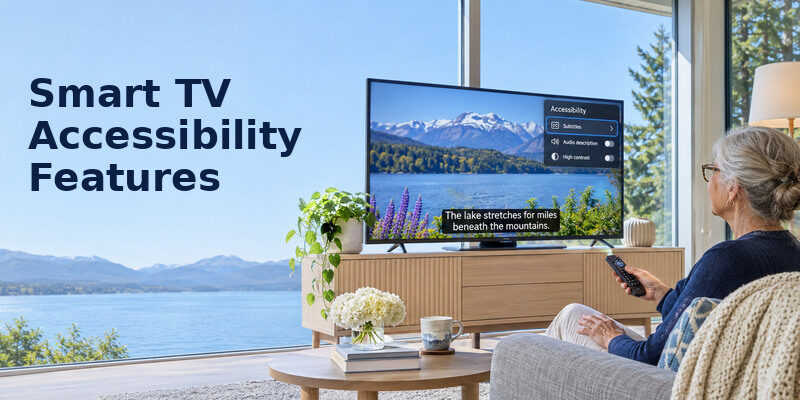
Short answer: Start with captions, screen reader, text/contrast settings, audio description, and remote-control options, then test them in the exact app and TV model.
Smart tv accessibility features differ by manufacturer, software version, country and input. A TV menu setting may not apply to Netflix, a cable box or an HDMI streamer. This guide organizes the features by the barrier they address and explains how to test them without turning on every option at once. Use the viewer’s preferences as the measure of success; an accessibility mode helpful to one person may be distracting to another.
Smart TV Accessibility Features at a Glance
| Need | Feature | What it does | Where to verify |
| Read spoken dialogue | Closed captions/subtitles | Shows text for speech and sounds | TV, app and box separately |
| Navigate without seeing menus | Screen reader/Voice Guide | Speaks menu items | TV platform and language |
| See menu labels | High Contrast/large text/Zoom | Improves display of controls | Exact TV and app |
| Understand visual action | Audio description | Narrates program action | Title, app, audio track |
| Easier physical input | Large-button/voice/phone remote | Alternative navigation | TV and device compatibility |
| Hear privately | Headphones/private listening | Sends audio to a listener | Bluetooth/phone/remote route |
Samsung’s official TV accessibility guide describes captions, High Contrast and larger font on supported models, with model and software caveats. LG’s Audio Guidance help shows a Mute-button shortcut on certain remotes. Roku documents a text-to-speech screen reader on eligible US products; Amazon documents VoiceView on Fire TV and notes that its phone remote app does not support VoiceView. These are examples, not an assurance that every TV exposes the same menu or language.
Read more: Easy Smart TV for Seniors: What to Buy and How to Set It Up
Captions: The First Hearing-Related Check
Closed captions display speech and sometimes sound cues. Start a familiar program and find the caption control in the actual source. A TV’s broadcast caption setting may not carry into an app or HDMI box. Samsung explicitly warns that some streaming apps have their own closed-caption controls. If captions do not appear, confirm the content has a caption track before deciding the television setting is broken.
TV broadcast versus app captions
An antenna broadcast may follow the TV’s accessibility menu. Netflix or another app can have a playback-screen subtitle menu. A cable or satellite box may supply its own captions. Smart tv accessibility features should be tested separately across the sources the person actually watches. Keep a short instruction for the relevant app rather than a generic path that fails when the input changes.
Caption size and contrast
Some apps permit larger font, background shading or text color. Choose a style readable over both bright and dark scenes from the normal seat. TV system font size may not change an app’s subtitles. A larger screen can help but does not fix a low-contrast caption style. Pause a scene with text and ask the viewer which version is most comfortable; avoid assuming maximum size is best. Smart tv accessibility features can differ across model years even within the same brand. For a practical way to introduce captions and other controls, see how to teach seniors to use smart TV accessibility settings through short, repeatable tasks.
Live versus on-demand availability
An on-demand title may offer multiple subtitle languages; live broadcasts and local channels vary. If one title lacks the desired captions, try another known captioned program before troubleshooting. A service subscription or region can affect available audio and caption tracks. Record the exact source when contacting the service’s support. A TV cannot generate a high-quality official caption track for content that does not provide one.
Read more: Easy to Use Remote for Elderly: A Task-Based Buying Guide
Screen Readers and Spoken Menus
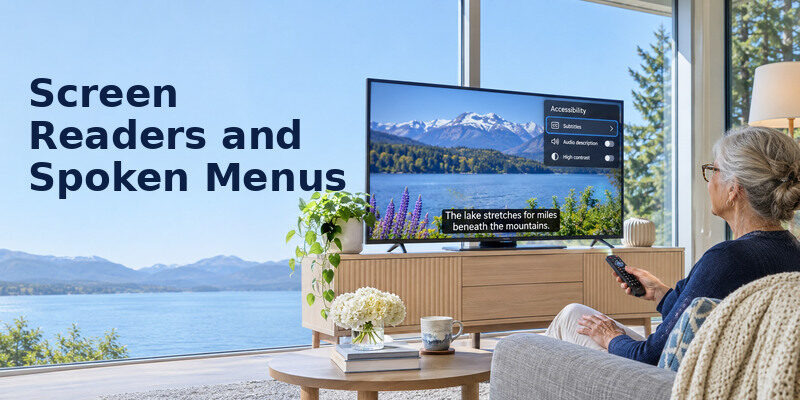
A screen reader announces interface text and navigation items. Samsung calls a related feature Voice Guide on supported TVs; LG uses Audio Guidance; Roku’s support says its screen reader was formerly called Audio Guide; Amazon uses VoiceView for Fire TV. The names and shortcuts differ. Smart tv accessibility features should be checked on the exact device and language because an HDMI streaming box may have its own reader separate from the television.
If the viewer wants to stop spoken menu navigation on a compatible LG television, follow our guide to turn off Audio Guidance on an LG TV while checking that the desired audio description remains available.
Menu narration versus audio description
A menu screen reader says “Settings” or “Volume”; audio description narrates what is happening within a show. If a TV suddenly “talks,” identify whether the voice appears only in menus or during the program. LG’s official guidance makes this distinction. Turning off the wrong feature can remove a tool the viewer needs while leaving the unwanted narration. Ask which kind of speech the person wants to keep.
Start and stop safely
Read the model’s official shortcut before enabling a screen reader, especially if the viewer relies on it to navigate. LG documents holding Mute to reach Accessibility on supported remotes, but the menu varies by webOS version. Roku’s current support gives a product- and region-specific screen-reader list. Fire TV’s VoiceView is in Settings > Accessibility on supported devices. Keep an accessible way to turn the feature off again if a trial is not comfortable. The actual program is the best test of smart tv accessibility features such as captions and audio description.
External boxes have separate readers
An Apple TV, Fire TV or Google TV streamer may narrate its own home screen while the TV’s settings remain silent. Conversely, the TV’s screen reader may not navigate an HDMI box. Smart tv accessibility features are layered by device. Label which remote opens which menu and test the complete chain. Amazon specifically notes VoiceView does not work in the Fire TV Remote App, so a phone remote should not be assumed equivalent to the physical one for that feature.
Read more: Best TV for Elderly Parents: A Practical 2026 Gift Guide
Visual Settings: Contrast, Text, and Magnification
High Contrast can make menu text easier to distinguish; larger text can reduce squinting; zoom or magnification can enlarge a portion of the interface. Exact availability and the range of adjustment vary. Try one setting at a time with familiar content and remember its original state. Some changes affect TV menus but not the graphics generated by a third-party app or cable box.
High contrast and color
Samsung’s support describes High Contrast for visibility on compatible TVs. It may change menu colors significantly, so confirm the viewer prefers it and can still recognize selected items. A TV picture mode is a separate setting from interface contrast; boosting overall brightness may worsen glare or eye comfort without helping menu labels. Check from the actual seating position under normal room light.
For supported Samsung models, learn about Samsung remote buttons and accessibility shortcuts that may provide quicker access to settings such as Voice Guide and captions.
Enlarged text
Increase font size where the platform supports it, then open the favorite app and compare. If app text remains small, its own accessibility settings or a different platform may help. A closer chair or larger screen can be considered, but position should remain comfortable. Smart tv accessibility features are effective only where the person actually needs to read, not solely on the Settings page.
Audio navigation when text remains difficult
A screen reader, voice search or a predictable physical remote can complement larger text. Test spoken labels and button feedback. Voice search requires compatible microphone, language, account and network, while a screen reader may work through the platform interface. Keep a button-based fallback. No single mode solves every visual task, especially when content comes from several devices. Smart tv accessibility features should remain easy to restore after an app or firmware update.
Audio Description and Dialogue
Audio description is a separate audio track that describes action between lines of dialogue when provided by the program. Look in the app or broadcast audio-language settings and test a title known to offer it. Do not confuse it with menu narration. For hearing speech, captions, a dialogue sound mode, a compatible soundbar or private listening may be more useful. Ask the viewer what they are missing before choosing a feature.
Dialogue enhancement and soundbar
Some TVs have a speech or clear-voice mode. Test at a comfortable level with a scene containing music and dialogue; overly aggressive processing can sound unnatural. An external soundbar adds its own power, input and volume route. HDMI ARC/eARC with CEC can simplify volume on supported devices; optical can need another control. The accessibility benefit should exceed the complexity added by the equipment.
Headphones and private listening
A TV may offer Bluetooth headphones, a wired jack, or platform-specific private listening through a remote or phone. Compatibility and lip-sync delay differ. Test all relevant sources, not only a built-in app. Some TVs mute speakers when headphones connect; others have a dual-audio mode. If two viewers need independent volume, confirm the exact model’s supported route before buying extra hardware.
Read more: How to Control TV With Voice Without Remote: Phone & Smart Speaker Guide
Remote, Voice, and Motor Accessibility
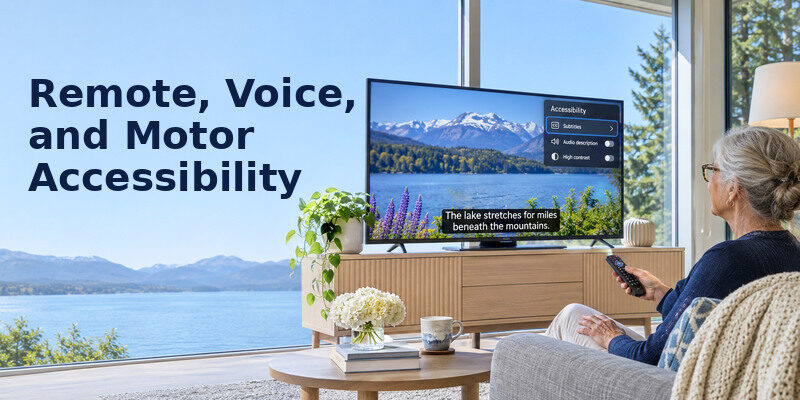
Remote buttons should be legible, separated and comfortable to press. A large-button IR remote may handle TV power but lack Bluetooth app navigation; a voice button may reduce typing while adding a network and language dependency. A phone controller may enlarge touch targets but loses tactile feedback. Smart tv accessibility features include the whole control chain, not just options in a software menu.
Test a daily task
Ask the viewer to turn on, open a favorite source, adjust volume, turn on captions and return Home. Observe whether the issue is seeing a label, pressing a key, or understanding a menu state. Choose one fix and repeat. A device marketed as accessible can still be difficult with a particular streaming box. A compatible may provide phone navigation for supported TVs after setup, but it is not a guaranteed screen-reader substitute. A screen reader and audio description are distinct smart tv accessibility features with different coverage.
Voice control limitations
Google Assistant, Alexa and Siri routes depend on exact devices, regions and app integrations. A remote mic may require a held button, while hands-free mode needs an enabled TV or smart-speaker microphone. Power-on can fail when network standby is off. Test the viewer’s own voice and desired commands; do not assume it is easier than a tactile remote. Review microphone privacy choices together.
Recovery when controls fail
Keep the original remote and know the TV’s physical power/input button. A factory reset can erase Wi-Fi, apps and accessibility settings, so do not use it for a minor wrong input. A large-print card can list “Home,” the main source and how to unmute. Smart tv accessibility features should remain usable after a software update or a misplaced phone; a recovery plan is part of accessibility.
Set and Verify Accessibility in Four Passes
- Choose the task: Identify the program, app and device where the barrier occurs.
- Change one setting: Enable captions, contrast, reader or audio mode on that source.
- Test in context: Watch and navigate from the actual seat, including after standby.
- Record the toggle: Note how to return to the original setting and recheck after updates.
A TV that works in its own menu but fails in an external app needs the app’s setting, not another TV-wide adjustment. Manufacturer manuals can change with firmware; use the exact model’s current help. If a feature is absent in the viewer’s language or region, consider a supported streamer or alternative device rather than claiming an undocumented workaround.
Read more: Best Smart TV for Streaming in 2026: Platform and Picture Guide
Test Accessibility With Actual Content
Captions on two different services
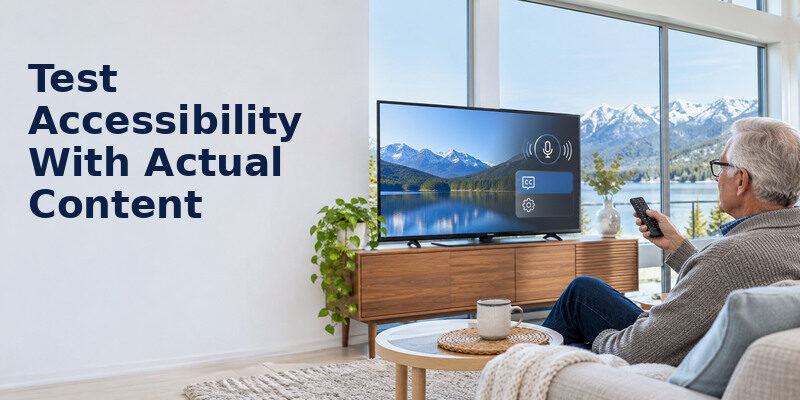
Enable captions in a broadcast channel and a streaming app. Note whether style, size and language settings carry across. Some platforms use system captions while apps expose separate controls. Smart tv accessibility features are only useful if the viewer can find them during a program. Ask them to turn captions off and back on, then save the menu path in large print. Check contrast against both bright and dark scenes. Smart tv accessibility features are most useful when the intended viewer can enable them without a helper.
Spoken menu versus audio description
A screen reader announces interface controls; audio description narrates action within supported programs. They solve different problems and availability differs by app, title, model and region. On compatible Roku devices, the Screen Reader setting covers interface navigation; Amazon’s Fire TV uses VoiceView on supported devices. Smart tv accessibility features should be tested on the exact content and model, not inferred from a generic feature list.
Voice search in a noisy room
A microphone button can help someone who struggles with typing, but recognition may be affected by language, noise and network access. Test a favorite show and a simple command, then identify a button-based fallback. Smart tv accessibility features should preserve choice; not every viewer wants an always-listening device. Check whether voice commands need a particular remote and whether the microphone can be disabled.
Remote reach and motor needs
Tactile keys, one-handed grip and well-spaced buttons may matter more than a larger TV. A compatible phone controller can offer configurable text size but may require unlocking and Wi-Fi. Smart tv accessibility features should be evaluated as a complete task: power on, find a program, adjust sound, recover. If a caregiver does every step in a demo, the test has not shown that the intended viewer can use the system independently.
Preserve the setup after updates
Write down caption style, screen reader shortcut, sound output and favorite input. Firmware or app changes may move menus. Smart tv accessibility features are more reliable when someone knows how to restore them. Recheck after a major update and involve the viewer in choosing the settings. Do not assume a brand’s feature appears on every model year or in every region.
Smart tv accessibility features deserve a second test after a firmware update because menus and app behavior can change.
LG viewers who need to change spoken menus can use the as a model-specific starting point.
After choosing settings, write down the exact model, menu path and the app where each feature was tested. Smart tv accessibility features can change after an update or vary by region, so a short recovery card matters. Test with the intended viewer on real content, ask whether the spoken feedback is too fast and whether captions cover important picture details. Preserve a fallback physical button path if voice search fails. Accessibility is a usable workflow, not a checklist of advertised capabilities.
Smart TV Accessibility FAQ
Do TV captions work in every streaming app?
No. Some apps have their own subtitle controls, and a cable box or HDMI streamer may have separate settings. Test the exact source and title.
Is Audio Guidance the same as audio description?
No. Audio Guidance or a screen reader speaks menus; audio description narrates program action when a track is available. Identify which voice is active before turning anything off.
Can I enlarge all smart-TV text?
Usually not uniformly. A TV’s larger-font setting may affect system menus while apps supply their own text and caption controls. Check the exact model and service.
Does a phone remote support the TV screen reader?
Not necessarily. Amazon explicitly says Fire TV VoiceView does not support its Remote App. Other phone routes vary by platform; test rather than assuming feature parity.
What is the best accessibility setting for seniors?
There is no single setting. Ask the viewer which task is difficult and test captions, contrast, spoken menus, remote design or audio accordingly. Avoid enabling features they do not want.
Final Thoughts
Smart tv accessibility features can make menus, dialogue and controls easier when matched to a real task. Begin with captions, screen-reader and contrast options on the exact TV or app, then test audio and remote alternatives. Record the working route and keep a physical recovery option so a minor wrong button does not undo the benefit.
