
How to Connect Laptop to TV HDMI: Picture, Sound, and Display Modes
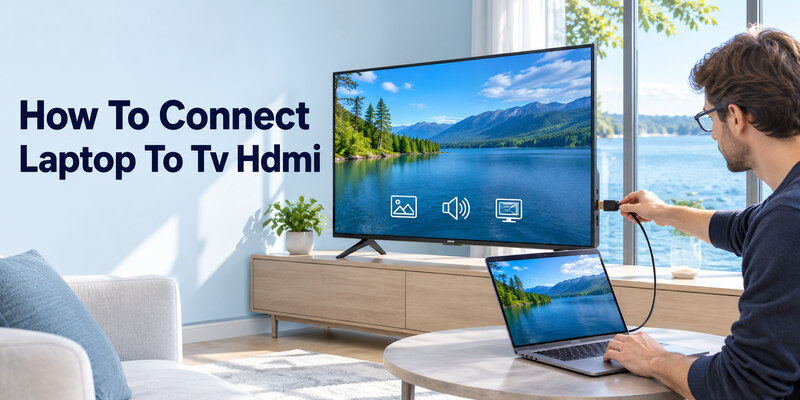
Short answer: How to Connect Laptop to TV HDMI? Connect the laptop’s HDMI output to a TV HDMI input, select that input, and choose Duplicate or Extend in the laptop’s display settings.
If the laptop has only USB-C or Thunderbolt, first check whether that port supports video output and use a compatible HDMI adapter. Start with a direct cable and a basic picture. Then set the TV as the audio output, adjust resolution, and troubleshoot a missing signal. The exact names vary by Windows and macOS version.
How to Connect Laptop to TV HDMI? Connect a Laptop to a TV in Six Steps
Step 1 – Identify the laptop’s video output
A full-size HDMI port can connect directly to the TV. A USB-C port needs display output support; its shape alone does not prove it carries video. Check the laptop maker’s specification for DisplayPort Alt Mode, Thunderbolt, or supported HDMI adapters. If an adapter claims 4K but only at 30 Hz, it may be fine for slides and frustrating for cursor movement. Check its supported resolution and refresh rate before buying.
Step 2 – Choose the TV input and cable
Find a free HDMI input and note its number. Connect a short, known-good cable from the laptop output or adapter to the TV. Avoid an HDMI switch, docking station, or wall cable during the first test; add those only after the direct route works. A regular TV HDMI input receives video. The port labeled ARC/eARC primarily describes its audio-return capability and does not by itself change the basic laptop connection.
Step 3 – Power on and select that HDMI number
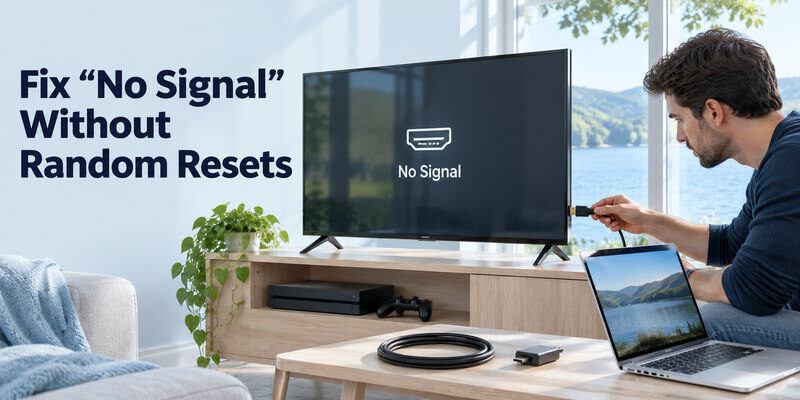
Turn on the television and select the precise input, such as HDMI 2. Wake the laptop and give the TV a moment to negotiate a picture. Some sets show a blank screen while changing format; persistent “No Signal” means check the input, cable, adapter, and laptop display mode. Do not reset the TV before trying a second known-good source on the same input.
Step 4 – Choose Duplicate or Extend
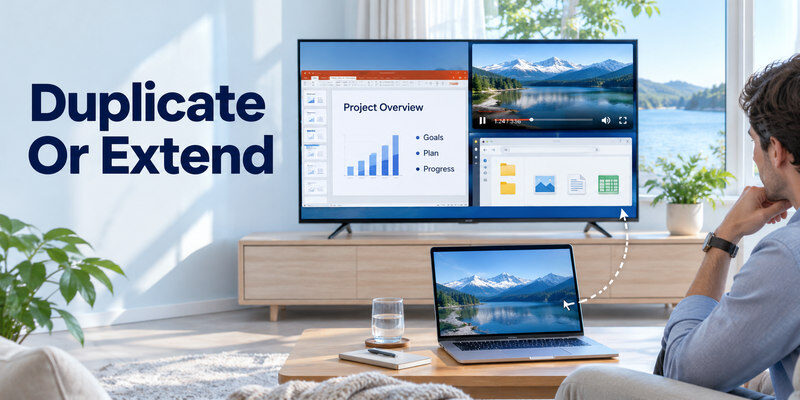
On Windows, press Windows + P and select Duplicate to show the same screen on both devices, or Extend to make the TV another desktop. Microsoft recommends checking this projection mode when an external display is not working. On a Mac, open System Settings → Displays and choose the desired arrangement or mirroring option. If the TV appears as a second display but shows only wallpaper, the desktop is extended; drag a window onto it or switch to mirroring.
Step 5 – Set resolution and scaling
Start with the laptop’s recommended or automatically detected display setting. A 4K TV can show a 1080p laptop output; a sharpness complaint is separate from a missing signal. If text is too small, adjust operating-system scaling rather than forcing a low resolution immediately. Confirm the TV’s overscan or aspect-ratio setting when edges are cut off. For gaming, select a refresh rate supported by the exact TV input, cable, adapter, and laptop output.
Step 6 – Send sound to the TV
On Windows, select the TV/HDMI device under Sound output. On a Mac, Apple directs users to System Settings → Sound → Output and the connected display. Test a local sound at low volume, then a browser video. A picture with laptop-only audio is usually an output-selection issue. If the TV sends audio onward to a soundbar, verify that TV sound-output route separately.
Read more: How to Connect PS5 to TV: HDMI Setup, 4K, HDR, and 120 Hz
Duplicate or Extend: Which Display Mode Fits?
| Mode | What the TV shows | Best for | Common surprise |
| Duplicate/Mirror | Same desktop as laptop | Presentations and shared viewing | Resolution may be limited by both screens |
| Extend | Separate desktop area | Multitasking, video on TV | A window may remain on the laptop |
| TV only/Second screen only | Laptop display disabled or blanked | Focused couch viewing | Harder to recover if TV input is wrong |
Choose the mode before changing hardware. A television that shows a background image without the app window is often working correctly in Extend mode. The mouse can move off the laptop edge into the TV’s desktop. Position the TV in the operating system’s display arrangement so the cursor moves in the expected direction. If the TV is the only active screen and then loses signal, use the laptop keyboard projection shortcut or reconnect its internal display.
If another source also fails on the television, use our guide to troubleshoot common smart TV problems, including HDMI input and connection checks.
Presentation with readable text
Duplicate is straightforward for a meeting, but laptop and TV may have different aspect ratios and pixel densities. Check slides from the back of the room rather than judging them on the laptop. Turn off private notifications before sharing the whole desktop. If a projector or capture device is also attached, verify which display is being mirrored and which is extended.
Video and multitasking
Extend lets a video play on the TV while the laptop remains useful. Move the player window to the TV and choose full screen there. Some protected services limit external display behavior or copy-protected output; a black video window in one app is not evidence of a bad cable when the desktop and other apps display normally. Check that service’s support policy instead of changing all TV picture settings.
Read more: How to Connect Xbox to TV: HDMI, 4K, 120 Hz, and Sound
Windows HDMI Setup and Recovery
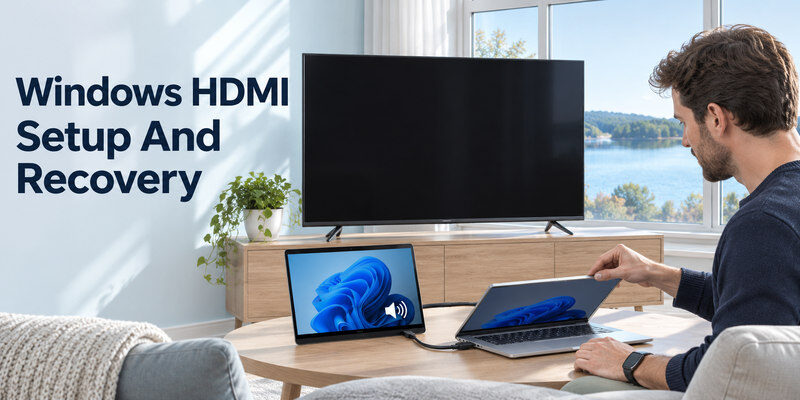
Windows should detect a compatible TV as an external monitor. If it does not, use Settings → System → Display and check display detection, then Windows + P. Microsoft support advises securing the cable and selecting Extend when diagnosing external-monitor connections. Menu labels can change, so use the OS search if the path differs. A driver or firmware update is a later step after a direct cable test.
The TV is detected but blank
Verify the TV is on the input actually used. Switch to Duplicate as a baseline. If the screen went blank immediately after choosing a high refresh rate or HDR mode, revert to a supported mode from the laptop display. Test 1080p at 60 Hz, then step upward one feature at a time. An HDMI splitter or USB-C dock may cap the output even when the TV can accept more.
If you also want a cable-free option, learn how to set up a wireless display from a compatible Windows laptop and choose Duplicate or Extend after connecting.
Picture appears but sound stays on the laptop
Open the Windows output selector and choose the TV’s HDMI audio device. Check the app volume and TV mute state. If the TV is visible as a display but absent from audio devices, reseat the connection, restart the app, and inspect the graphics/audio driver from the laptop maker. Do not assume an analog adapter carries sound: some older video outputs require a separate audio route.
The laptop lid changes the connection
Closing the lid may put the laptop to sleep rather than continue playing on the TV. Check the laptop’s power and lid settings before using it closed, and keep ventilation clear. A battery-only laptop can also dim or throttle during a film or game. Test the exact arrangement you intend to use, including lid position, power connection, and whether audio returns after waking.
Mac HDMI and USB-C Adapter Setup
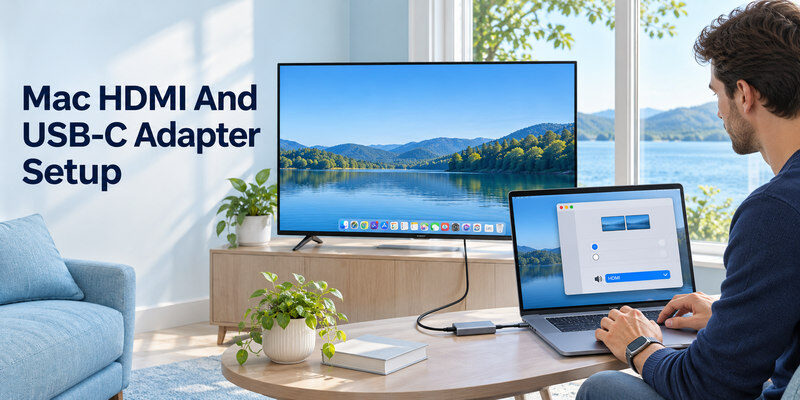
Apple says a Mac can use its HDMI or Thunderbolt port, or a compatible adapter, to connect an external display. The number of displays and maximum resolution depend on the exact Mac model. Check the model’s display-support specification instead of assuming all USB-C ports or hubs behave alike. A charging-only cable or a USB-C dongle without video output will not create a picture.
Arrange or mirror the displays
Open System Settings → Displays. If the TV appears there, choose whether it mirrors the Mac or extends the desktop and place its arrangement icon on the proper side. If an app appears to vanish, move the pointer toward the TV and look for the window there. For a presentation, test the speaker notes view and the TV’s visible slide before the audience arrives.
Select HDMI audio on the Mac
Open System Settings → Sound → Output and choose the TV or HDMI device, as Apple’s HDMI guidance explains. Then check TV volume and any soundbar selected as TV output. If sound works in one app but not another, inspect that app’s own output or protected-content behavior. A USB-C adapter’s specification should say whether it carries HDMI audio along with video.
Read more: Best TV Brand 2026: Choose by Picture, Budget, Gaming, and Software
Fix “No Signal” Without Random Resets
| Observation | Fast comparison | Next step |
| TV says No Signal on one port | Another source on that port | Cable, port, or selected input |
| Laptop sees TV, TV stays black | Duplicate at 1080p/60 | Unsupported mode or input path |
| Direct cable works, dock fails | Same cable without dock | Dock bandwidth or adapter support |
| Picture works, no sound | Laptop HDMI output selector | Output format, TV mute, soundbar route |
| TV desktop works, one film is black | Another local video or app | App/service copy protection |
Start with one known-good cable and a direct connection. Test another TV HDMI input if available, then a second source on the original input. If the laptop works on another display, focus on the TV route. If the TV accepts another source but not the laptop, inspect laptop output mode and adapter capability. Keep track of each change so you know what fixed the link.
Check cable and adapter limits
HDMI Licensing Administrator categories describe certified bandwidth for cable families: Premium High Speed supports configurations up to 18 Gbps, including many 4K/60 use cases; Ultra High Speed is intended for up to 48 Gbps and 4K/120. The adapter, laptop, and TV port must also support the chosen mode. A more expensive cable cannot make a USB-C port output video if the computer lacks that function.
When to update software
Update the laptop graphics driver and TV firmware from official channels when a known-good direct connection still fails or an advanced mode remains unstable. Preserve the basic working resolution before changing HDR or refresh rate. If an HDMI connector is visibly loose or damaged, stop forcing it and seek qualified repair. A factory reset removes settings and accounts but does not repair a broken port.
If the television is still silent after selecting HDMI audio on the laptop, follow the steps to fix a TV with no sound and test its speakers and audio output.
Read more: Best Budget Smart TV: Choose a Good Picture Without Paying for Extras
Make the TV Picture and Sound Comfortable
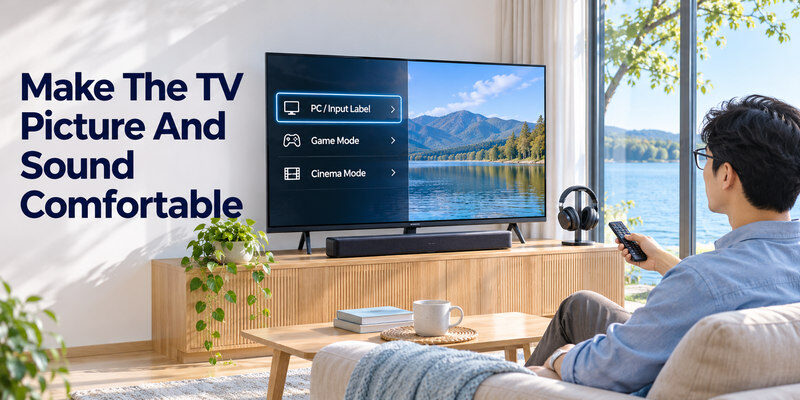
A TV used as a monitor may show overscan, heavy sharpening, or high input lag. Try its PC/input label or Game Mode if supported, then compare text clarity and cursor response. For films, a cinema-like mode may be preferable. Do not change the laptop resolution, TV picture mode, HDR, and audio output at once; each affects a different symptom.
Readable scaling and aspect ratio
If the desktop extends beyond the edges, choose the TV’s Just Scan, Screen Fit, or equivalent aspect setting. On Windows and Mac, adjust scaling for comfortable text. A 4K signal is not automatically easier to read than 1080p when the TV is across the room. Test the actual seating distance and app interface rather than relying on a pixel count alone.
Soundbar and headphone paths
When a soundbar is connected to the TV by ARC/eARC or optical, the laptop’s HDMI audio first reaches the TV, then follows the TV’s selected sound output. If TV speakers play but the bar does not, diagnose that second leg separately. If Bluetooth headphones are paired to the laptop, sound may never be sent over HDMI. Select the intended output in one place at a time.
Remote Control and Input Switching
The laptop controls its desktop; the television controls HDMI input selection and its own sound menu. A supported, reachable TV can be navigated with a compatible if the physical handset is missing. The phone app does not add HDMI video output to a laptop or fix a damaged TV port. Keep the TV’s physical input button available during first setup.
If the desktop appears blurry or the colors look unusual, learn how to diagnose common TV picture quality issues and compare the HDMI source with the television’s own menus.
Label the working setup
Record the HDMI port number, cable or adapter used, display mode, resolution, and audio output. A household member can then restore a missing picture after a source switch without changing unrelated settings. If a dock is part of the normal arrangement, test one full disconnect and reconnect after the direct-cable baseline works.
Disconnect cleanly
Exit full-screen video, return to the laptop’s preferred display arrangement, and then unplug the cable. An app window can remain positioned on the absent TV when you reconnect later; use the OS display controls to move it back. If the TV resumes a different input automatically through HDMI-CEC, switch back to the desired source rather than treating the laptop as still connected.
Read more: Best TV for Gaming: 2026 Picks for PS5, Xbox, and PC
Laptop to TV HDMI FAQ
Why does the TV show my wallpaper but not my laptop window?
The laptop is probably in Extend mode. Drag the window to the TV or switch to Duplicate/Mirror. Check the display arrangement so the pointer moves in the expected direction.
Can any USB-C laptop connect to HDMI?
No. The port or adapter must support video output. Check the exact laptop specification for DisplayPort Alt Mode, Thunderbolt, or a supported video adapter. A charging-only USB-C connection is insufficient.
Why is there picture but no TV sound?
Choose the HDMI/TV output in Windows or macOS Sound settings, then check TV mute and external-speaker output. If a soundbar is connected, test TV speakers first to isolate the laptop-to-TV leg.
Do I need an Ultra High Speed cable for a presentation?
Usually not for a basic 1080p or 4K/60 presentation on compatible equipment. Choose a certified cable suited to the desired mode. For 4K/120 gaming, verify the full 48 Gbps-capable path where required.
Does HDMI need Wi-Fi?
No. HDMI carries picture and sound directly through the cable. A streaming app on the laptop may need internet, but the TV can display the laptop desktop without the TV joining Wi-Fi.
Real Laptop-to-TV HDMI Situations
A laptop sees the TV but the picture is cropped
A detected display with cut-off edges is different from no signal. In how to connect laptop to tv hdmi, set the laptop to the TV’s native resolution, often 3,840 × 2,160 for a 4K set, and check the TV’s aspect or overscan setting. Look for labels such as Just Scan, Screen Fit, or 1:1 pixel mapping in the exact manual. Do not compensate by lowering resolution until text is blurry. A TV input named PC can sometimes change scaling and processing. Test at the normal seating distance and confirm the taskbar corners are visible.
A presentation needs the laptop screen too
Choose Duplicate when the same slide should show on both displays, or Extend when the TV should be a separate desktop. On Windows, Win+P opens the projection choices; on macOS, use Displays settings for mirroring or arrangement. How to connect laptop to tv hdmi for a meeting includes checking which screen shows speaker notes before the audience arrives. Test audio output independently; a duplicated picture may still play sound from laptop speakers. Keep notifications and private windows off the projected display.
A USB-C adapter is the weak link
A USB-C connector does not by itself guarantee video output. Check that the laptop port supports DisplayPort Alt Mode or another documented video path and that the adapter supports the desired resolution and refresh. A cheap hub may offer 4K only at 30 Hz, making a mouse feel slow. Connect a simple direct adapter and cable before adding a dock, then inspect the operating system’s detected displays. If how to connect laptop to tv hdmi works without the hub, the hub’s specification or power may be the limitation.
A film has picture but no sound
Select the television as the computer’s audio output device. On Windows, open Sound output; on macOS, choose the HDMI display in Sound settings. Check TV mute and any soundbar route. Some apps hold on to the previous output until restarted. If a TV app has sound but the laptop does not, focus on computer output and HDMI negotiation, not the TV speakers. A disconnected HDMI cable can remove the output device, so choose it again after reconnecting.
Final Thoughts
To learn how to connect laptop to tv hdmi, make the direct physical connection, select the TV input, and set Duplicate or Extend. Then choose HDMI audio and adjust scaling. For a missing picture, compare the input, cable, adapter, and output mode one at a time. Source basis: Microsoft external-display troubleshooting, Apple HDMI and display guidance, and HDMI Licensing Administrator cable categories.
