
TV Remote Technology and How It Works
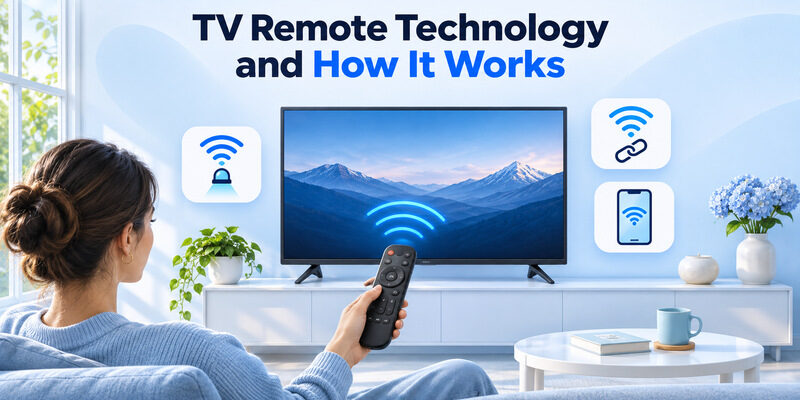
Short answer: TV remotes use infrared, paired radio signals such as Bluetooth, or local network connections to send commands.
TV remote technology varies by model and even by button. A basic remote often uses infrared light for every command. A voice remote can use a paired wireless link to navigate a streaming player and infrared to adjust the television’s volume. A phone remote typically connects through your home network. HDMI-CEC can also carry a command from one device to another over an HDMI cable.
If one button works and another fails, start by identifying which box each button controls. The comparison below helps you work out what signal to test before replacing a remote, changing the TV’s settings, or trying an app.
TV Remote Technology at a Glance
| Technology | Typical use | What the connection needs |
|---|---|---|
| Infrared | Power, volume, channel, and navigation | Compatible codes and a clear path to the receiver |
| Paired radio | Navigation, voice, and features on supported devices | Power and a paired remote within range |
| Local network | Phone-based menus and controls | A reachable compatible TV or player |
| HDMI-CEC | A player or TV passes a command to another HDMI device | Compatible devices, an HDMI link, and relevant settings |
The quickest way to identify TV remote technology is to find the device receiving the command. You might hold a remote sold with a streaming player while its volume key operates the TV or a receiver. A directional key can use one connection and a power or volume key another. Check the model numbers for the TV, remote, and any player before treating them as a single device.
The same distinction helps when a phone remote only navigates the player’s home screen. If you are watching a streaming stick on an HDMI input, the phone app may have found the stick while the television itself is still a separate target. Press a direction button with the screen you intend to control open and see which highlight moves.
For a useful TV remote technology comparison, try the television home screen and the player home screen separately. If the phone app only moves the selection on the player, check the TV maker’s own control options before troubleshooting the phone app. To configure a compatible controller, learn how to find the correct TV code for a universal remote and test the functions you use most.
Read more: Apple TV Remote Technology Behind Siri Remote
How Infrared Remotes Send Commands
A light pulse carries a device-specific command
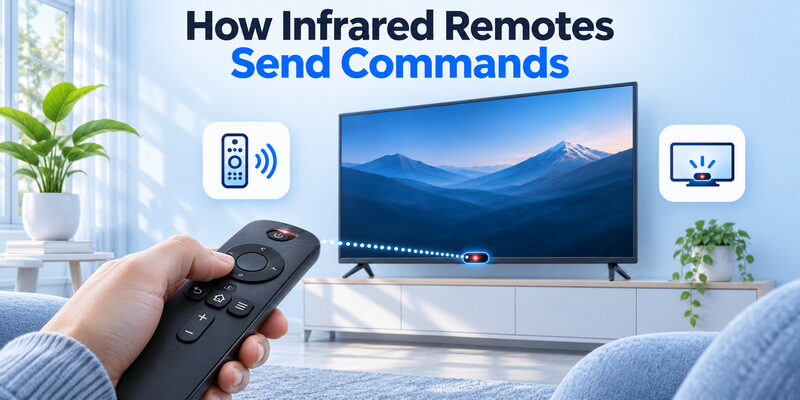
IR remote technology uses a small emitter, often in the leading edge of the remote. Pressing a key sends a pattern of invisible light. The television’s receiver interprets the pattern and acts if it recognizes the command. Aim toward the receiver and keep the path clear. A soundbar that sits across the lower bezel, for example, can make a working remote seem unreliable.
For a basic television, TV remote technology can be entirely infrared. A standard IR remote generally needs no wireless pairing with the TV. A universal IR remote still needs to be configured with a compatible set of codes. Matching the TV brand alone may leave some buttons unused, so test navigation and input selection in addition to power.
A camera check can reveal a transmitting remote
Sony’s support guide for testing an infrared signal describes using a digital camera or compatible phone camera. Point the emitter toward the camera and press a button. Look on the camera preview for a flash. Some cameras filter infrared, so first try a known working IR remote on that same camera. An IR flash shows the remote is transmitting light. You still need to check the remote’s codes and the receiver’s line of sight.
When diagnosing TV remote technology on a hybrid remote, test the button you suspect uses IR. A directional button may travel over Bluetooth and produce no visible flash, even though the same remote can send IR for power or volume. The manufacturer’s documentation is the best reference for which function uses which signal. For a brand-specific example, compare Samsung Smart Remote and infrared controls and check which connection your television supports.
How Paired Remotes Use Radio
Pairing links the remote to a device
Bluetooth and other radio-based TV remote technology use a wireless link. A paired remote typically works without aiming directly at the receiver. The remote and device need to recognize each other, which is why many voice remotes have a setup sequence or pairing button. Use the procedure for the exact remote model. Pairing steps for one generation may do nothing on another.
To check the connection, wake the player or TV and test a directional key with the appropriate home screen visible. Move closer if you suspect a weak connection. Check power and pairing before assuming a cabinet door is blocking a radio signal. Distance, equipment placement, and nearby electronics can still affect the connection.
Radio links can support commands beyond a key press
A paired remote may send microphone audio or report motion, depending on the product. A TV with a pointer remote can receive motion input separately from a normal button press. With TV remote technology that includes extra features, test a simple key before troubleshooting voice or pointer behavior. If the on-screen focus moves but the microphone fails, you have narrowed the problem to a feature rather than every command.
Some remotes are compatible with one family of TVs or players and can pair with only supported hardware. Look up both model identifiers before buying a replacement. Two remotes with similar microphone buttons can still require different connections or support different products. Radio-based TV remote technology also depends on a working battery or charge. If the remote only works close to the receiver, charge it or use fresh batteries as its manual specifies, then repeat the same navigation test from your usual seat.
Read more: Roku Remote Technology and How to Identify It
Why One Remote Can Use Two Signals
Navigation and television volume can have different destinations
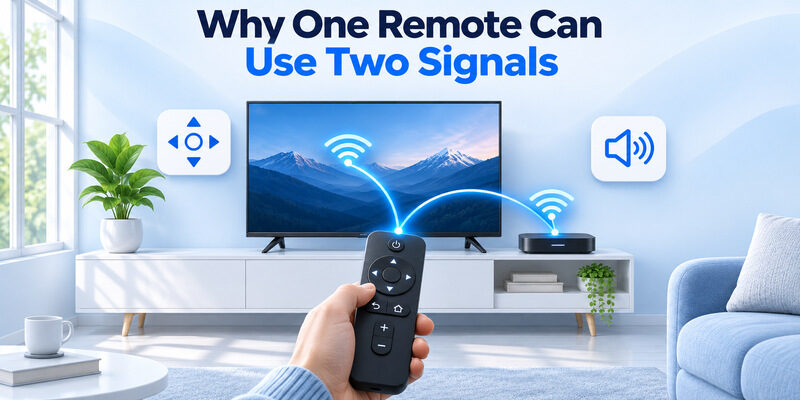
Apple Support’s Apple TV remote identification guide describes modern Siri Remotes using Bluetooth to communicate with Apple TV and infrared for other equipment. In a setup like this, pressing Right can navigate the player while pressing Volume Up sends a separate command to a TV or audio device. Test a navigation key and a volume key separately.
Hybrid TV remote technology can explain why menus still work when volume fails. Check which device is actually playing the audio. A TV with built-in speakers, a soundbar with its own IR receiver, and a receiver controlled over HDMI can each need a different setting. Verify the target in the device’s audio or remote settings before pairing the same remote again.
One power button may control more than one box
On some setups a power command wakes the streaming player and the player wakes the TV over HDMI. Other remotes can send infrared directly to the television. If the TV wakes but stays on the wrong input, check which action succeeded first. This makes it easier to trace TV remote technology through the setup instead of assuming every device follows the same command.
For a quick test, switch to the player’s HDMI input manually. Try navigation, then test TV power or volume as a separate function. If navigation responds consistently, the remote is reaching the player. Use the separate result to decide whether to inspect the TV’s IR receiver, equipment-control configuration, or HDMI settings. If you need a replacement with microphone support, check voice remote compatibility for the exact TV or streaming device before buying.
Where HDMI-CEC Fits
CEC carries a command along the HDMI connection
HDMI-CEC lets compatible equipment pass selected control commands over HDMI. A remote might reach the streaming player by Bluetooth, then the player sends the relevant action onward. This is why TV remote technology can involve more than one link. Check the HDMI-CEC settings on the devices in the path if a player responds and the TV or audio system does not follow.
The names and available functions vary. Roku Support’s HDMI-CEC guide lists different menu names by TV brand. When investigating TV remote technology in a mixed-brand setup, look for the manufacturer’s name for the feature. Confirm that the television’s relevant HDMI port and the attached device are the ones you expect to control. Some combinations support power and input selection, while others also support audio volume in a compatible setup. Confirm the function in the manual for both devices. An HDMI connection that carries a picture does not by itself establish that every CEC action will work.
Test the device chain one function at a time
Keep the television on the intended HDMI input and try one simple action. If the remote can navigate the player and the TV fails to follow power or input changes, review CEC on both. If audio comes from a soundbar, identify which device receives the volume command. If there are multiple sources or a receiver in between, note the complete path so you know where to check next.
Read more: Samsung TV Remote Technology and How It Works
How Phone Remotes Use the Local Network
Connect to a reachable television or streaming player
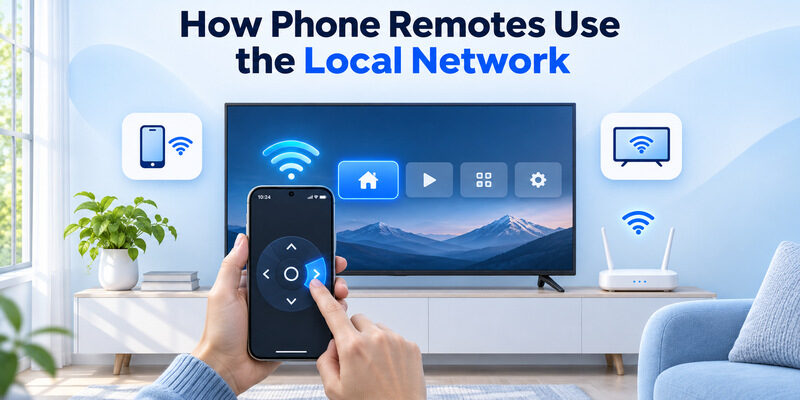
Many Wi-Fi phone remotes discover compatible devices on the home network. Google TV Help, for example, describes connecting the phone and TV to the same Wi-Fi for its virtual remote. Join the intended main home network and open a fresh device scan with the television awake. If the app shows a code, enter the code currently displayed on the screen.
This form of TV remote technology can work without pointing the phone at the screen. It still depends on app permissions and a usable path to the television. Guest isolation can hide the TV even if both devices reach the internet. On iPhone, Apple Support explains where to review an app’s Local Network permission. Check the permission for the app you are using.
Distinguish network control from a phone’s IR feature
Some phones have infrared hardware and can use a supported app to send IR commands directly. Most local-network apps use the phone’s connection to the home router. When comparing phone-based TV remote technology, check the phone’s hardware and app requirements. An app that depends on infrared needs a compatible emitter and a line of sight. A Wi-Fi app needs the television to be reachable.
If the physical remote is unavailable and an iPhone can already reach a compatible smart TV, can provide a backup. Find the TV in the device picker and test a navigation command while it is awake. Check the physical control options if the television has dropped off Wi-Fi.
Read more: How to Clean TV Screen Safely: Steps for OLED and LCD
What Voice and Motion Add
A microphone or pointer can be a useful clue to TV remote technology, but use the model documentation to confirm the connection. The presence of a voice button suggests the remote can send more than a basic IR command. Test button input before diagnosing the voice service. If navigation works, look at how the model activates its microphone and whether that feature requires the TV or player to be online.
An on-screen pointer can depend on the remote’s pairing and motion capabilities. A replacement that only supports basic keys can still operate compatible menus and leave motion features unavailable. Choose the remote based on the commands you use regularly. Check power, volume, input, voice, and pointer support separately if those features matter to you.
Identify the Technology in Your Remote
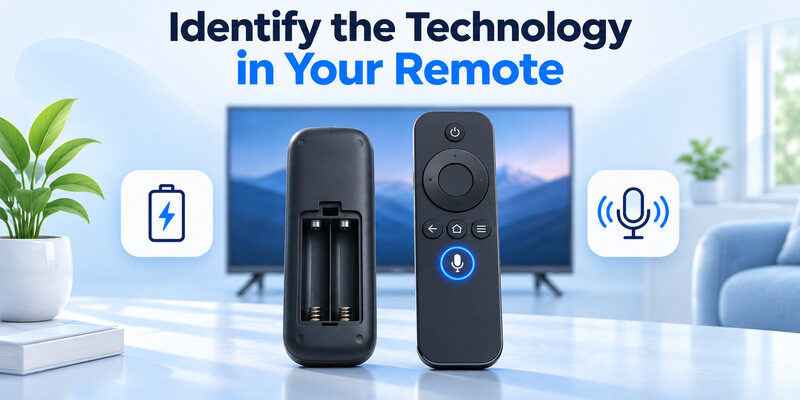
Look for a model number and pairing instructions
If you searched “which of these technology is used in your tv remote,” start with the remote model printed on its back, inside the battery compartment, or listed by the manufacturer. Match the number to the TV or player. A manual that describes a pairing sequence can help identify a radio link. A simple remote that works when aimed at the receiver may use IR. A voice button is a clue, but it does not explain how volume or power is sent.
Compare behavior from two positions
Test a navigation key while aiming at the television, then try the same key with the remote turned away. If it works both ways, check whether the device pairs over radio. If the response depends on aiming, check the receiver’s location and remove anything blocking it. Reflections can allow some IR signals to work indirectly, so use the model information to confirm the result.
One TV remote technology test can answer a narrow question. A camera can check whether an IR emitter sends light, while a pairing status can show whether a radio remote is connected. Use the test that matches the button and device you are trying to diagnose.
Diagnose One Failed Function at a Time
| Symptom | First check |
|---|---|
| No keys work and the remote uses IR | Batteries, the emitter, and a clear receiver path |
| Menu navigation works and TV volume fails | Audio target, equipment control, and IR or CEC settings |
| Voice fails and directional keys work | Microphone activation and service requirements |
| Phone app cannot find the TV | Network reachability, app permission, and awake state |
Keep the working function as a baseline. If the volume button fails while navigation works, do not replace batteries or reset a pairing without checking the separate command path. Stand in front of the TV or soundbar, test the volume key once, and look for a volume indicator. If you need to change a setting, test the same key again before changing another one.
TV remote technology can make the failure look inconsistent when the hardware is behaving exactly as designed. A local phone remote may stop finding a TV in deep standby while the physical remote still turns it on. That result is worth checking against the television’s documented wake behavior instead of treating it as a general failure of the app.
Read more: Easy to Use Remote for Elderly: A Task-Based Buying Guide
Choose a Replacement That Matches the TV
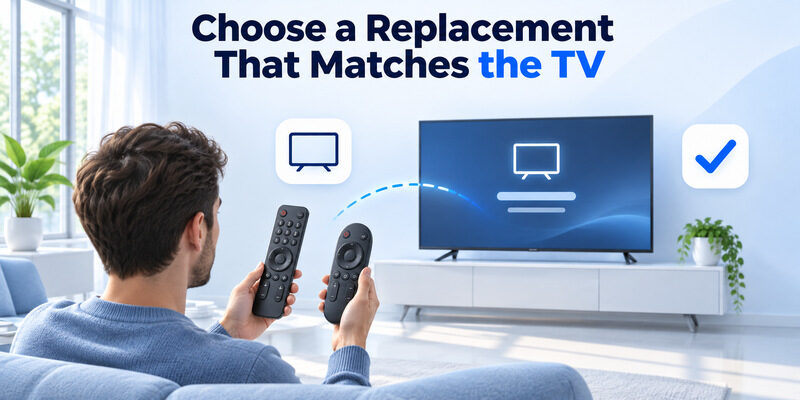
Choose a model-matched remote for advanced features
Check the TV or player model and the supported remote part number. Match the features you need, including any voice button, pointer, programmable key, or rechargeable battery. A model-matched remote is often the straightforward choice when those features depend on pairing. If the manufacturer offers a newer replacement, verify that it explicitly lists your generation.
Check a universal remote for basic controls
A universal IR remote can be a useful option for devices with supported infrared codes. Verify that it can operate the TV and audio equipment you want to control. After setup, test volume, input, and the arrow keys. A model that only responds to power may need another supported code. TV remote technology varies across streaming sticks, so check whether a player accepts infrared before buying a universal model for it.
Frequently Asked Questions
Can a Bluetooth remote work from behind a cabinet door?
Often, if it stays within range and remains paired. Cabinet materials and equipment placement can affect the connection. A hybrid remote may still need a clear path to a TV or soundbar for an infrared volume command. Test navigation and volume separately before moving the player.
Does an IR universal remote work with every television?
No. The remote needs a code the TV recognizes, and the TV must accept the command through IR. Check the remote maker’s compatibility information. Test the commands you use regularly after setup, since one compatible power code does not guarantee every key behaves as expected. If you are comparing TV remote technology across a TV and soundbar, use the code list for each target and test them separately.
Can a phone replace a remote when the TV is offline?
A local Wi-Fi app usually needs a reachable TV on the home network. If the television has lost its network connection, use its buttons or a compatible physical remote to restore access. A phone with compatible infrared hardware can be a separate option for an IR-controlled TV.
Is a remote’s power command the same as its volume command?
The answer depends on the model and setup. Some remotes use one signal for both. Hybrid remotes can send volume through infrared or control connected equipment through HDMI-CEC. Use the TV and player manuals to check what the specific button controls.
Final Thoughts
The practical way to understand TV remote technology is to trace each button to the device and connection it uses. Check line of sight for infrared, pairing for a radio remote, and local reachability for a phone app. When navigation works and volume fails, inspect the separate audio or HDMI control path before replacing the remote.
