
Apple TV Remote Reconnect: How to Reconnect and Pair Your Remote Again
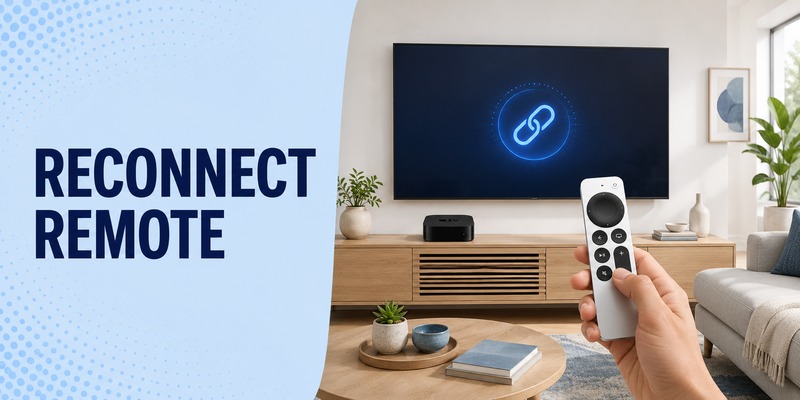
To reconnect an Apple TV Remote, place it close to your Apple TV and hold the Back button—or Menu on older remotes—together with Volume Up for about five seconds.
Keep the remote pointed toward the front of Apple TV and within roughly 3 inches (7.5 cm) during pairing. If prompted, place the remote on top of the Apple TV to finish the connection.
An Apple TV Remote reconnect is useful when the Siri Remote stops responding, shows a disconnected message, loses pairing after a restart, or has been replaced with another compatible remote.
If normal pairing fails, Apple recommends restarting the remote, power-cycling Apple TV, checking the battery, and then trying the pairing process again.
1. What an Apple TV Remote Reconnect Actually Does
An apple tv remote reconnect restores communication between your Siri Remote or Apple TV Remote and the Apple TV box. Current Siri Remote and Apple TV Remote models primarily communicate with Apple TV over Bluetooth, while some functions such as television volume or power may also involve infrared or HDMI-CEC.
That distinction matters because not every control problem means the remote has disconnected. If you can move around the Apple TV interface, open apps, and use the Back button, the remote is already communicating with Apple TV. If only volume or television power fails, reconnecting the remote may not be necessary.
A reconnect is most useful when the remote does not navigate Apple TV, when a new or replacement remote has not yet been paired, or when the remote disconnected and did not recover automatically. In those situations, the apple tv remote reconnect procedure creates or restores the remote-to-box connection.
Use this quick diagnosis before changing anything:
| Symptom | Most likely issue | First action |
| No navigation buttons work | Pairing or remote power | Charge, then reconnect |
| Remote works only at short range | Weak Bluetooth signal | Check distance and RSSI |
| Remote drops every few minutes | Battery, signal, or connection state | Restart and test |
| Navigation works but volume fails | TV or audio control | Check HDMI-CEC or IR settings |
| Replacement remote does nothing | Not paired | Perform manual pairing |
Starting with the symptom helps you avoid unnecessary resets and keeps the apple tv remote reconnect process focused.
Download LG TV Remote2. Why Does an Apple TV Remote Disconnect?
An Apple TV Remote can lose its connection for several reasons.
Some are temporary and easy to fix.
| Symptom | Possible cause | Best first action |
|---|---|---|
| Remote does nothing | Lost pairing | Pair it again |
| “Remote Disconnected” appears | Connection interrupted | Wait briefly, then reconnect |
| Remote reconnects and drops again | Weak signal or interference | Move closer and remove obstacles |
| Remote will not pair | Low battery | Charge for at least 30 minutes |
| New remote will not connect | Another remote is paired | Run manual pairing |
| Buttons work inconsistently | Connection or hardware issue | Restart remote |
The Siri Remote communicates primarily with Apple TV over Bluetooth. Newer models can also use infrared for controlling some television or audio functions.
That means a remote can sometimes still control TV volume while appearing disconnected from Apple TV navigation—or the reverse.
So test the Apple TV interface itself rather than judging connection status from Volume alone.
🛠️ Learn with Step-by-Step Guides: Apple TV Remote Icon: What It Means and How to Use It
3. How to Manually Reconnect an Apple TV Remote
If the remote does not reconnect automatically, manually pair it again.
For Current Siri Remote Models
Place the remote close to Apple TV.
Then press and hold:
Back + Volume Up
for approximately 5 seconds.
Keep the remote pointed toward Apple TV.
If Apple TV asks you to place the remote on top of the box, do so until pairing completes.
For Older Apple TV Remotes
If your remote has a Menu button rather than Back, use:
Menu + Volume Up
Again, keep the remote close to Apple TV while doing this.
The button combination matters because pressing Volume Up alone or holding the TV button does not start the standard pairing process.
When the Apple TV Remote reconnect succeeds, Apple TV should display a connection or pairing confirmation.
If it still does not connect, the next step is restarting the remote rather than repeatedly attempting pairing.
 Discover Helpful Guides
Apple remote tv app: Complete Apple TV Remote Guide for iPhone, Siri Remote, Pairing & Fixes
4. Restart the Remote Before Trying Apple TV Remote Reconnect Again
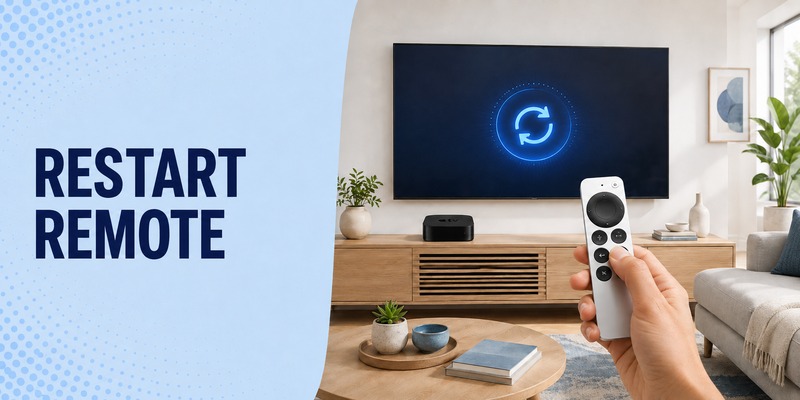
Apple provides a separate remote restart procedure.
This is useful when the remote seems frozen, repeatedly disconnects, or refuses to pair normally.
Press and hold:
TV/Control Center + Volume Down
at the same time.
Hold both buttons for around 5 seconds, or until the status light on Apple TV turns off and back on.
Then:
- Release both buttons.
- Wait about 5–10 seconds.
- Press any button on the remote.
- Watch for a Remote Connected message.
During the restart process, you may briefly see a Remote Disconnected notification.
That is expected.
Once the restart is complete, test the remote again.
If it still does not reconnect, repeat the standard pairing sequence:
Back/Menu + Volume Up
This restart is different from simply turning Apple TV off and on.
If you need the complete reset workflow, see how to reset apple tv remote.
Discover Helpful Guides: Apple TV Remote Replacement: Buying and Setup Guide
5. Apple TV Remote Reconnect Still Not Working? Restart Apple TV
If pairing the remote and restarting it do not work, restart the Apple TV hardware.
Apple’s current troubleshooting guidance recommends power-cycling Apple TV when the remote will not pair.
The process is simple:
- Unplug Apple TV from power.
- Wait about 6 seconds.
- Plug Apple TV back in.
- Let it start normally.
- Bring the remote close to Apple TV.
- Try Back/Menu + Volume Up again.
This clears temporary connection states that may prevent pairing.
It is especially worth trying when the remote worked normally before but stopped reconnecting after:
- A tvOS update
- A power outage
- Moving Apple TV
- Changing remotes
- Restarting connected home-theater equipment
If the Apple TV Remote reconnect works immediately after the power cycle, the problem was likely temporary rather than a failed remote.
Discover Helpful Guides: How to Reset Your Apple TV Remote: Pairing, Volume, and No-Remote Fixes
6. Fix Repeated Disconnecting and Reconnecting
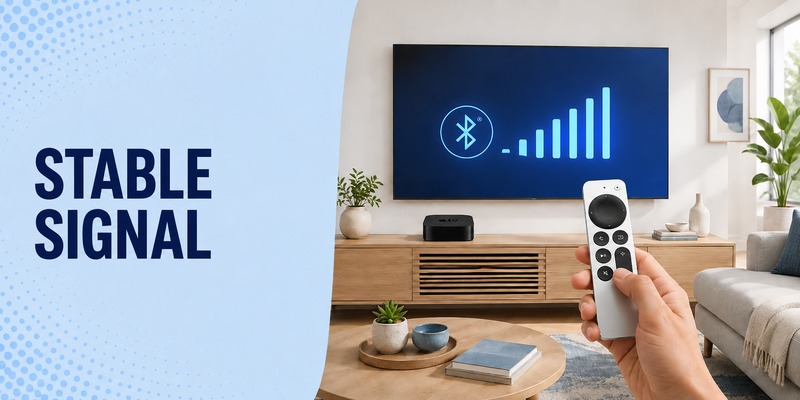
When apple tv remote reconnect works but the remote repeatedly drops the connection, the problem has shifted from basic pairing to stability. At this point, repeatedly using Back/Menu and Volume Up is unlikely to help if pairing already completes successfully.
On Apple TV with tvOS 18 or later, Apple provides a Bluetooth RSSI signal-strength indicator. Go to Settings > Remotes and Devices > Remote and review the signal indicator. If the signal is weak, move closer to Apple TV and remove objects that may block the path around the Apple TV box, television, receiver, or soundbar.
Apple recommends testing within about 20 feet, or six meters, of Apple TV. A stable connection at short range but unreliable behavior farther away is a strong sign that pairing itself is not the main issue.
If you experience apple tv remote keeps disconnecting and reconnecting, use this checklist:
- Fully charge the remote.
- Restart the remote once.
- Test it from close range.
- Check Bluetooth RSSI on tvOS 18 or later.
- Remove obvious obstructions around the entertainment center.
- Update Apple TV to the latest tvOS available for the device.
- Reconnect only if the remote actually loses its paired state.
This approach makes apple tv remote reconnect troubleshooting much more efficient. You are testing battery, signal, software, and connection state separately instead of treating every disconnect as a fresh pairing failure.
7. Why the Remote May Disconnect After Working Normally
A successful apple tv remote reconnect does not mean a remote can never disconnect again. Bluetooth reliability depends on power, range, the physical environment, and the current state of both the remote and Apple TV.
Low charge is one practical cause. Another is weak signal, especially when Apple TV is positioned behind dense objects or the remote is used farther from the box. Temporary software or connection states can also cause a remote to stop responding until one side is restarted.
When apple tv remote disconnecting and reconnecting happens occasionally, note the conditions. Does it happen only at a certain distance? Does the remote reconnect after one button press? Does charging reduce the problem? Does the RSSI indicator show weak signal?
Those details help distinguish three common situations:
| Behavior | Likely direction | What to test |
| Disconnects when battery is low | Power | Charge fully |
| Disconnects farther from Apple TV | Signal | Distance and obstructions |
| Stops responding until restart | Connection state | Restart remote |
| Will not pair at all | Pairing | Manual reconnect |
| Navigation stable but volume fails | TV/audio control | HDMI-CEC or IR |
A targeted apple tv remote reconnect should be used when pairing is actually lost. If the remote reconnects by itself but remains unstable, signal and power checks are more useful than constant manual pairing. This keeps apple tv remote reconnect focused on true connection loss rather than every missed button press.
 Explore Articles: Apple TV Remote for iPhone: How to Set Up and Use Your iPhone as an Apple TV Remote
8. Use an iPhone While You Complete Apple TV Remote Reconnect
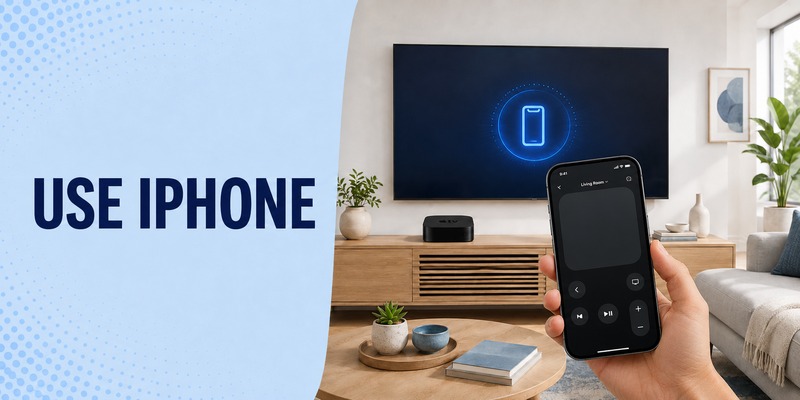
If the physical remote will not stay connected, an iPhone or iPad can provide temporary access to Apple TV while you work through apple tv remote reconnect. Apple TV Remote is available from Control Center on compatible devices.
Open Control Center, select Apple TV Remote, choose your Apple TV, and follow the onscreen instructions if a passcode appears. The phone and Apple TV need the appropriate network connection for this software remote setup, so confirm both devices are on the expected Wi-Fi network if the phone cannot find Apple TV.
Using an iPhone is useful because you can still open Settings, check for tvOS updates, restart Apple TV, or review Remotes and Devices while the physical remote is unavailable. It separates the need to control Apple TV from the need to repair the remote immediately.
For compatible televisions, a Remote TV App can be another phone-based backup when you need convenient TV control while troubleshooting the physical remote. It does not replace the Bluetooth pairing procedure for the Siri Remote, but it can keep basic control accessible during the repair process.
Once apple tv remote reconnect succeeds, return to the physical remote and test it for several minutes. If it remains stable, you can stop using the temporary phone control.
9. When Reconnecting Is Not the Right Fix
Not every remote problem requires apple tv remote reconnect. If basic navigation works, your remote is already talking to Apple TV. Problems with television volume, mute, or power may involve HDMI-CEC, infrared, a receiver, or a soundbar rather than the remote’s Bluetooth pairing.
This is especially important when users repeatedly pair a remote because the volume buttons fail. Re-pairing may appear to do nothing because the actual issue is in the television or audio-control path.
Before starting another apple tv remote reconnect, ask:
- Can I navigate the Apple TV Home Screen?
- Does Select work?
- Does Back work?
- Do playback controls work?
- Is only TV volume or power failing?
If navigation works normally, focus on the specific function that fails. Reconnect only when Apple TV is no longer responding to the remote as a controller.
The same logic applies to phone control. A phone failing to find Apple TV does not prove the physical remote is disconnected. It may indicate a network issue affecting the phone-based controller.
Knowing when not to reconnect prevents unnecessary troubleshooting. A good apple tv remote reconnect workflow always starts by identifying whether Bluetooth pairing is actually the problem.
 Find the Right Guide: Apple TV Remote iPad: How to Set Up and Control Apple TV From Your iPad
10. Apple TV Remote Reconnect FAQs
How Do I Reconnect My Apple TV Remote?
Hold the remote close to Apple TV, then press and hold Back + Volume Up for about five seconds. On older remotes, use Menu + Volume Up. Follow any onscreen instructions to finish pairing.
How Close Should the Remote Be During Pairing?
Apple recommends keeping the remote approximately 3 inches (7.5 cm) from Apple TV while pairing. If prompted, place the remote directly on top of Apple TV.
Why Won’t My Apple TV Remote Reconnect?
Common reasons include low battery, a temporary Bluetooth problem, remote software state, weak signal, or Apple TV needing a power cycle. Charge the remote, restart it, unplug Apple TV for six seconds, then try pairing again.
How Do I Restart an Apple TV Remote?
Hold TV/Control Center + Volume Down for about five seconds or until the Apple TV status light turns off and on again. Release the buttons, wait briefly, then press any remote button.
Can I Use My iPhone If the Apple TV Remote Will Not Connect?
Yes. Apple TV Remote is built into Control Center on supported iPhones. You can use it to control Apple TV, update tvOS, and troubleshoot the physical remote.
Does Reconnecting the Remote Fix Volume Problems?
Not always. If navigation works but Volume does not, the remote is already connected. Restart the remote and check Apple TV’s Remotes and Devices → Volume Control settings instead.
11. Final Thoughts
An Apple TV Remote reconnect usually takes only one pairing sequence:
Move close to Apple TV → hold Back/Menu + Volume Up for about five seconds → follow the onscreen pairing prompt.
If that fails, work through the problem in this order:
Charge the remote → restart the remote → power-cycle Apple TV → pair again → check signal strength.
Apple currently recommends keeping the remote about 3 inches (7.5 cm) from Apple TV during pairing. If the remote still will not connect, charge it for at least 30 minutes and try again.
If you need access to Apple TV while troubleshooting, use the built-in Apple TV Remote on your iPhone.
The key is to separate a true connection problem from battery, signal, volume-control, or hardware issues rather than repeatedly trying to pair a remote that may already be connected.
Download LG TV Remote