
Smart AC Control App: Compare ThinQ, SmartThings, Midea SmartHome, and Home Dashboards
By the Remote TV App Team
Last updated: November 2026
A smart ac control app lets you control a compatible air conditioner from your phone through built-in Wi-Fi or a separate infrared (IR) controller.
The easiest solution is to use your AC manufacturer’s official app if your unit supports Wi-Fi. For an older air conditioner that uses a traditional infrared remote, a compatible smart IR hub can add phone control without replacing the AC.
With the right smart ac control app, you can adjust temperature, change cooling modes, set schedules, and sometimes manage your air conditioner while away from home. However, not every app supports every AC model, and some features require additional hardware.
This guide explains how to choose the right connection method, install an app, troubleshoot common problems, and use smart cooling features efficiently.
1. Smart AC Control App: Which Setup Works for Your Air Conditioner?
Before downloading an app, identify how your air conditioner receives commands. Your AC’s hardware determines which remote-control solution will work.
A smart ac control app generally communicates through one of three methods: built-in Wi-Fi, a separate Wi-Fi-to-IR controller, or an infrared transmitter built into a compatible Android phone.
Each method offers different capabilities.
| Connection method | Requirements | Remote access | Best for |
|---|---|---|---|
| Built-in Wi-Fi | Wi-Fi-enabled AC and compatible app | Usually, with internet access | Modern smart AC units |
| Wi-Fi IR hub | AC with IR remote and compatible hub | Usually, with internet access | Older split, window, and portable ACs |
| Phone IR blaster | Android phone with IR hardware | Usually local only | Basic infrared control |
| Bluetooth | Compatible AC and phone | Usually limited by range | Specific supported models |
Built-in Wi-Fi control
Modern smart air conditioners may connect directly to a home network. Their official apps communicate with the unit using the manufacturer’s supported system.
This approach often provides the most complete experience, including accurate device status, operating modes, and scheduled cooling.
External infrared controllers
Traditional air conditioners usually respond to infrared commands from handheld remotes.
A smart IR controller connects to Wi-Fi and sends those same commands toward the AC. This allows compatible units to receive instructions initiated from a smartphone.
For example, Sensibo describes its controllers as Wi-Fi-connected devices that reproduce infrared remote commands.
Important: A regular Wi-Fi connection does not automatically make an older AC smart. The air conditioner must have compatible network hardware or a supported external controller.
Choosing a smart ac control app that matches your existing hardware prevents unnecessary downloads and failed pairing attempts.
Download TV Remote App2. How to Check Whether Your AC Supports Phone Control
Not all air conditioners advertised as modern or energy-efficient offer smartphone connectivity.
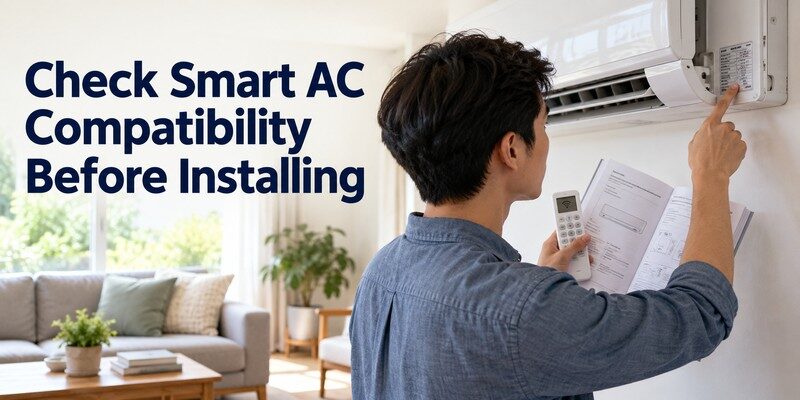
Before installing a smart ac control app, check the unit’s exact model number and technical specifications.
The easiest place to start is the manufacturer’s product documentation.
Check your AC model and Wi-Fi features
Look for the model number on the indoor unit, product label, purchase receipt, or user manual.
Then check whether its documentation mentions:
- Wi-Fi or wireless LAN connectivity.
- Smartphone or mobile application control.
- A compatible wireless adapter.
- Smart home platform integration.
- App-based scheduling or remote operation.
Some air conditioners support optional Wi-Fi modules rather than providing wireless connectivity as standard equipment.
Do not assume every model in the same product series has identical connectivity features.
Identify the type of remote control
If your air conditioner uses a traditional handheld IR remote, check whether a compatible smart controller supports its command set.
You can often identify an infrared remote by the small transmitting window at its front, although the manufacturer’s specifications provide better confirmation.
An older AC with a working infrared remote may be suitable for a Wi-Fi IR hub.
For users researching how to control ac with phone, this hardware check should come before choosing an app.
Understand smartphone limitations
Some Android phones have built-in IR blasters. When paired with a compatible remote application, these phones may control certain air conditioners directly.
Most iPhones do not include an infrared transmitter for controlling appliances.
Therefore, an iPhone normally requires a Wi-Fi-enabled air conditioner or an external smart controller.
The right smart ac control app should clearly explain its supported connection methods instead of promising universal compatibility.
📘 Find the Right Guide: AC Remote Control App: Which Option Actually Works for Your Air Conditioner?
3. How to Set Up a Wi-Fi Smart AC Control App
Connecting a compatible air conditioner to your smartphone is usually straightforward, although pairing instructions vary by manufacturer and model.
Follow these steps to configure a smart ac control app safely.
Step 1: Download the manufacturer’s official application
Find the application listed in your air conditioner’s manual or official product support page.
Common examples include LG ThinQ, Samsung SmartThings, and Daikin Onecta for supported models.
Download the application from your phone’s official app store and verify the publisher.
Avoid third-party download websites that distribute modified installation packages.
Step 2: Prepare your Wi-Fi connection
Turn on your air conditioner and confirm that your router has a working internet connection.
During initial setup, connect your phone to the network specified by the manufacturer.
Many connected appliances require 2.4 GHz Wi-Fi, particularly during pairing. For example, Samsung’s official air conditioner setup guidance specifies a 2.4 GHz connection.
A 5 GHz-only network may prevent some devices from connecting.
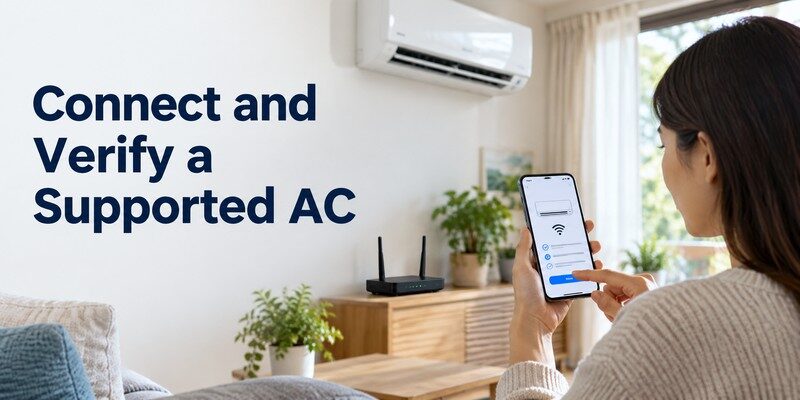
Step 3: Add your air conditioner
Open the application and sign in or create an account if required.
Select the option to add a device, then choose the air conditioner category.
You may need to:
- Select the AC brand or model.
- Activate Wi-Fi pairing mode on the unit.
- Enter your home network credentials.
- Wait for the app to detect the device.
- Assign the AC to a room.
Some units require holding a particular button on the physical remote to enter pairing mode. Always follow the specific manual rather than guessing the button combination.
Step 4: Test basic commands
Once connected, test power, temperature, operating mode, and fan speed.
Confirm that the physical air conditioner responds correctly.
Then close and reopen the smart ac control app to check whether the device remains registered.
If your system supports internet-based remote operation, test that capability separately using mobile data after completing local setup.
A successful local connection does not always guarantee remote access outside your home.
💡 Discover Helpful Guides: Smart AC Control App: How to Control Your Air Conditioner From Your Phone
4. How to Control a Regular Air Conditioner With an IR Hub
You do not necessarily need to purchase a new air conditioner to use smartphone controls.
A compatible smart infrared hub can make many traditional AC units accessible through an application.
This is particularly useful for split systems, portable air conditioners, and window units controlled by infrared remotes.
What a smart IR hub does
A Wi-Fi IR hub receives commands from an app and translates them into infrared signals.
For example, when you select a temperature, the hub sends the corresponding remote-control command to the air conditioner.
This process allows a smart ac control app to operate equipment that does not have built-in Wi-Fi.
However, an IR hub generally requires a suitable placement within infrared range of the AC.
Walls and other obstacles can prevent signals from reaching the receiver.
Setting up a smart IR controller
The installation process typically involves:
- Placing the controller where it can communicate with the AC.
- Connecting the controller to a power source.
- Downloading the manufacturer’s companion app.
- Pairing the controller with your Wi-Fi network.
- Selecting the AC manufacturer and compatible remote profile.
- Testing temperature and power commands.
Some controllers identify remote signals automatically, while others require you to select a model or teach the device commands using the original remote.
Sensibo states that its compatibility system covers more than 10,000 AC models, although this is a manufacturer-reported figure and individual compatibility should still be checked.
Understand the limitations
IR control is often one-way communication.
The controller sends a command, but the air conditioner may not send its current status back to the hub.
For example, someone might change the AC temperature with a physical remote without updating the mobile app.
As a result, the displayed temperature or power state may become inaccurate.
A smart ac control app using an IR hub can provide useful convenience, but it does not necessarily offer the same device feedback as a native Wi-Fi system.
📖 Read More Guides: Fan Remote Control App: Best Options for Smart, Ceiling, and IR Fans
5. Best Smart AC Apps for Different Air Conditioners
The best smart ac app depends primarily on the air conditioner’s brand, connectivity features, and available controller hardware.
There is no single application guaranteed to operate every AC model.
For built-in Wi-Fi systems, an official manufacturer app is usually the most reliable first choice.
| App or platform | Compatible setup | Notable capabilities |
|---|---|---|
| LG ThinQ | Supported LG smart ACs | Temperature, modes, schedules, remote operation |
| Samsung SmartThings | Supported Samsung ACs | Remote control, routines, device management |
| Daikin Onecta | Supported Daikin systems | Climate control, scheduling, selected energy information |
| Sensibo | Compatible IR-controlled ACs with Sensibo hardware | Remote commands, scheduling, climate automations |
| Cielo Home | Compatible ACs with Cielo controllers | Remote commands, schedules, smart cooling functions |
LG ThinQ
LG ThinQ is designed to connect compatible LG smart appliances, including supported air conditioners.
According to LG’s official documentation, the application can allow users to turn on cooling remotely, adjust settings, and create routines.
The exact functions depend on the specific model and region.
For owners of supported LG units, ThinQ is a logical smart ac control app because it uses the manufacturer’s intended connectivity system.
Samsung SmartThings
Samsung SmartThings allows users to register compatible air conditioners and manage them from a smartphone.
Samsung’s June 2026 support guidance explains how to add an air conditioner, choose a room, and complete Wi-Fi registration.
Compatible setups may also support smart home routines.
SmartThings is particularly useful for households already using other compatible Samsung smart appliances.
Daikin Onecta
Daikin Onecta is designed for supported Daikin heating and cooling systems.
It provides functions such as temperature management and scheduling, with energy-consumption monitoring available on certain compatible units.
Daikin specifically notes that supported capabilities vary by indoor unit.
Check your model number before selecting Onecta as your smart ac control app.
Sensibo and Cielo
Sensibo and Cielo focus on adding smart controls to compatible air conditioners using external hardware.
They can be suitable alternatives when a conventional AC lacks built-in Wi-Fi.
Sensibo offers scheduling, geofencing, and selected voice integrations. Cielo offers smart controllers for supported IR-controlled AC units.
Neither product should be treated as a software-only solution for every air conditioner.
The important distinction is that these systems require a compatible controller in addition to the mobile application.
A general smart ac controller app may look attractive, but verified hardware compatibility matters more than the number of advertised features.
📘 Find the Right Guide: How to Control AC With Phone: Wi-Fi, IR Blaster, and Hub Steps
6. Smart Features That Make AC Control Easier
After connecting your air conditioner successfully, the next step is to use features that genuinely improve comfort and convenience.
A useful smart ac control app should simplify everyday cooling rather than introduce complicated controls.
Temperature and operating modes
Most compatible applications provide temperature adjustments and basic power controls.
Depending on the AC, you may also see:
- Cool, heat, dry, and fan modes.
- Fan-speed controls.
- Airflow or swing adjustments.
- Sleep settings.
- Eco or energy-saving modes.
Not all functions are available on every system.
For example, cooling-only air conditioners cannot provide heating merely because an application displays a heat mode.
Scheduling and routines
Scheduled operation is one of the most practical smart AC features.
Instead of manually turning the AC on every evening, users can configure supported devices around regular routines.
For example, a weekday schedule might start cooling shortly before someone returns home and adjust to a more economical setting during sleep.
The objective is to avoid unnecessary operation while keeping the room comfortable when occupied.
However, frequent on-and-off schedules may not suit every variable-speed system. Follow the manufacturer’s recommendations.
Voice control and geofencing
Some smart AC platforms integrate with voice assistants or location-based automations.
A supported voice command may adjust the temperature without opening the phone.
Geofencing can also trigger actions when a household member enters or leaves a defined area.
These features require careful configuration, particularly in homes with multiple occupants.
A smart ac control app should never turn off cooling that another household member still needs simply because one phone leaves the property.
For shared households, fixed schedules or presence-aware routines may be more appropriate.
📘 Find the Right Guide: IR Remote Control App for Android: What Works With an IR Blaster?
7. How Smart AC Control Can Help Reduce Energy Costs
Energy management is a major reason people consider smart air conditioner controls.
A smart ac control app can make efficient habits easier to maintain through scheduling, temperature adjustments, and remote access.
However, installing an application does not automatically reduce electricity consumption.
Savings depend on how the air conditioner operates, local weather, insulation, equipment efficiency, and household behavior.
Use temperature setbacks strategically
The U.S. Department of Energy reports that suitable thermostat setbacks of 7–10°F for approximately eight hours per day can save up to 10% annually on heating and cooling.
That estimate concerns thermostat management in appropriate heating and cooling systems. It is not a guaranteed saving from installing an AC app, and it should not be applied unchanged to every heat pump or inverter air conditioner.
A good starting point is to adjust the temperature based on whether the room is occupied, rather than cooling an empty room continuously.
Choose a comfortable cooling temperature
ENERGY STAR suggests setting a room air conditioner thermostat as high as is comfortable, typically around 78°F (26°C), to help control cooling costs.
Individual comfort and humidity conditions vary.
A practical approach is to:
- Start with a comfortable temperature.
- Raise the setpoint slightly when the room is unoccupied.
- Use ceiling or circulation fans when appropriate.
- Close unnecessary sources of warm outdoor air.
- Avoid lowering the temperature excessively to cool the room faster.
Setting an AC to an unusually low temperature does not necessarily make it cool faster; it may simply cause longer operation.
Monitor usage where supported
Some connected air conditioners provide energy information through their official apps.
ENERGY STAR identifies remote control, scheduling, and energy-use feedback as benefits available on connected room AC models.
These features can help users understand operating patterns and identify avoidable usage.
For example, if an AC regularly runs for several hours after everyone has left, a schedule may help reduce that unnecessary operation.
A smart ac control app with reliable energy reporting can make such patterns easier to identify.
Maintain the air conditioner itself
Smart controls cannot compensate for neglected maintenance.
Clean or replace filters according to the manufacturer’s recommendations, keep airflow unobstructed, and ensure the unit is correctly sized for the room.
ENERGY STAR also emphasizes that an oversized room AC can perform inefficiently and provide less effective humidity control.
Efficient equipment, appropriate temperature settings, and sensible schedules work together. The app is a management tool, not a substitute for those fundamentals.
8. Smart AC Control App Not Working? Common Fixes
Connection failures are among the most common problems encountered when controlling an AC from a phone.
If your smart ac control app stops responding, identify whether the problem involves Wi-Fi, device registration, infrared commands, or the manufacturer’s cloud service.
| Problem | Possible cause | Recommended action |
|---|---|---|
| AC not discovered | Unsupported network or pairing mode | Check Wi-Fi requirements and pairing instructions |
| Device appears offline | Weak connection or internet outage | Check router, AC power, and network status |
| App connects but AC ignores commands | IR obstruction or incompatible profile | Reposition hub and verify remote profile |
| Commands work at home but not outside | Remote access unavailable or interrupted | Check cloud connection and account status |
| Temperature displayed incorrectly | One-way IR communication | Resynchronize the app and physical AC state |
Fix Wi-Fi pairing failures
First, verify that the AC actually supports the selected application.
Then check the network requirements in the product documentation.
For devices requiring 2.4 GHz Wi-Fi, use an appropriate network during initial setup.
Move the router closer if the signal is weak. Restart the application and repeat registration if the manufacturer’s troubleshooting instructions recommend it.
Avoid resetting the entire air conditioner before trying simpler network checks.
Fix infrared command failures
If the app shows a successful connection but the AC does not respond, inspect the IR controller’s placement.
Confirm that the hub faces the AC receiver and is not blocked by furniture.
Test power and temperature commands separately.
If power works but temperature changes fail, the selected remote profile may not fully match the air conditioner.
Try another supported profile or repeat the controller’s remote-learning procedure.
Fix delayed commands or incorrect device status
An AC may respond several seconds after a command, especially when communication passes through an internet service.
Wait for the device to respond before repeatedly pressing the same control.
With IR-based systems, remember that the app may not receive confirmation from the air conditioner.
If your smart ac control app displays an incorrect power state, use the manufacturer’s synchronization procedure where available.
When problems continue, check for app updates or current service notices before deleting device settings.
9. Security and Privacy Tips for Smart AC Apps
Connecting a home appliance to the internet introduces additional privacy and account-security considerations.
A smart ac control app may require access to Wi-Fi information, device identifiers, an online account, or selected smartphone permissions.
These requirements vary by platform.
Use the following precautions:
- Download from trusted sources. Prefer official app stores and verify the publisher.
- Protect your account. Use a unique password and enable two-factor authentication when supported.
- Keep software updated. Install legitimate application and device firmware updates.
- Review permissions. Understand why the application requests location, Bluetooth, or local network access.
- Secure home Wi-Fi. Use modern router security and avoid sharing the network password unnecessarily.
- Remove unused access. Delete device associations or shared user access that is no longer needed.
Some pairing workflows require location or Bluetooth permissions to discover nearby devices. This does not mean every app needs continuous background location access.
Review the product’s privacy policy before enabling optional services.
Should you control your AC from public Wi-Fi?
Remote access can be convenient, but avoid entering sensitive account information through suspicious websites or untrusted links.
Use the manufacturer’s official application, keep the operating system updated, and enable account security features.
A properly configured smart ac control app should provide convenience without requiring users to disable important phone or network protections.
10. Can a Universal TV Remote App Control an Air Conditioner?
A TV remote application and an air conditioner controller may look similar, but they are designed for different device categories.
A TV remote app should not be assumed to control an air conditioner.
For example, the Remote TV app is intended for controlling compatible televisions rather than providing general-purpose air conditioner control.
Its supported functions focus on activities such as navigating TV menus, adjusting volume, switching channels, and controlling compatible smart TVs.
Users looking for universal remote tv control can use the dedicated iPhone or iPad application for supported televisions.
Likewise, a universal remote control app designed for smart TVs is not necessarily compatible with HVAC equipment.
If your goal is to manage both cooling and entertainment equipment from your phone, choose the appropriate app for each device.
A smart ac control app should handle your air conditioner, while a dedicated TV remote app can manage compatible television functions.
Want to control your TV from your iPhone? Download Universal Remote TV Control on the App Store.
11. Frequently Asked Questions
Can I control any air conditioner with my phone?
No. Smartphone control depends on the air conditioner’s connectivity and available hardware.
A Wi-Fi-enabled AC may work with its official application, while a traditional infrared-controlled model may need a compatible IR hub. Some Android phones can also send IR commands directly if they contain the necessary transmitter.
Can I use a smart AC control app without Wi-Fi?
Sometimes. A phone equipped with an IR blaster may control a compatible air conditioner directly without Wi-Fi.
However, most native smart AC applications and Wi-Fi IR hubs need a network connection for setup and remote access. Their offline capabilities vary by manufacturer.
Is there a free app for controlling air conditioners?
Yes. Many manufacturers provide free companion applications for compatible Wi-Fi-enabled air conditioners.
However, controlling a conventional AC may require purchasing an external IR hub. Some platforms also offer optional paid features, so review the current requirements before downloading.
Can I control my AC when I am away from home?
Yes, if your setup supports internet-based remote operation.
The AC or controller generally needs power and an active network connection. You also need a working internet connection on your phone. Remote access may stop working during service outages or network interruptions.
Which app should I choose for a smart air conditioner?
Start with your air conditioner’s official supported application.
For example, compatible LG models may use ThinQ, Samsung models may use SmartThings, and selected Daikin systems may use Onecta. Older IR-controlled units may benefit from compatible external controllers such as Sensibo or Cielo.
12. Final Thoughts

A smart ac control app can make air conditioner management more convenient by bringing temperature adjustments, schedules, and supported remote features to your smartphone.
For a Wi-Fi-enabled AC, start with the manufacturer’s official app. For a traditional infrared-controlled unit, consider a compatible Wi-Fi IR hub.
Always confirm model compatibility before downloading software or buying additional hardware.
The most useful setup is not necessarily the one with the longest feature list. It is the one that provides dependable controls, appropriate security, and practical cooling schedules for your household.
With the right combination of equipment and applications, you can manage your home cooling more conveniently while maintaining comfortable, energy-conscious settings.
Download TV Remote App