
Fan Remote Control App: Best Options for Smart, Ceiling, and IR Fans
By the Remote TV App Team
Last updated: November 4, 2026
Quick answer: The best fan remote control app is the official application for your compatible smart fan, or a supported bridge app if your existing fan uses a radio-frequency remote. A basic pull-chain fan cannot become phone-controlled through software alone. First identify whether your fan uses Wi-Fi, Bluetooth, radio frequency (RF), infrared (IR), or a wall switch. Then choose the app and hardware that support that exact system.
This guide explains how to check compatibility, connect a ceiling fan, add an older remote-controlled model, and solve common failures. It also distinguishes genuine fan-control tools from TV remote apps, so you can avoid downloading software that will never operate your fan.
1. How to Choose a Fan Remote Control App That Actually Works
If you need a fan remote control app today, look at the fan’s model and original controls before choosing an app. Brand names alone are not enough: a company may sell pull-chain fans, remote-controlled fans, and Wi-Fi models under the same name. Their connection requirements are different.
| Fan setup | Phone-control route | What you need | Main limitation |
|---|---|---|---|
| Wi-Fi smart ceiling fan | Manufacturer’s app | Compatible fan and home network | Model-specific features |
| Bluetooth-enabled fan | Matching Bluetooth app | Supported fan and phone nearby | Usually limited range |
| RF remote-controlled ceiling fan | Compatible smart RF bridge | Bridge plus supported remote protocol | Not all RF remotes are supported |
| IR-controlled pedestal or tower fan | IR phone or smart IR hub | Compatible IR transmitter | Line of sight may matter |
| Pull-chain or basic wall-switch fan | Compatible smart controller or replacement hardware | Correctly rated hardware and installation | An app alone cannot control it |
A ceiling fan remote app is useful only when the fan has a compatible receiver, wireless module, or controller. The safe purchasing order is fan model → communication method → supported app → optional hardware. Reverse that order and you risk buying a subscription or hub that cannot send the right commands. A fan remote control app is only as universal as the hardware and protocols it supports.
📖 Read More Guides: Smart Plug Control App: Setup, Features & Best Options
2. Identify Your Fan’s Control Technology Before Downloading
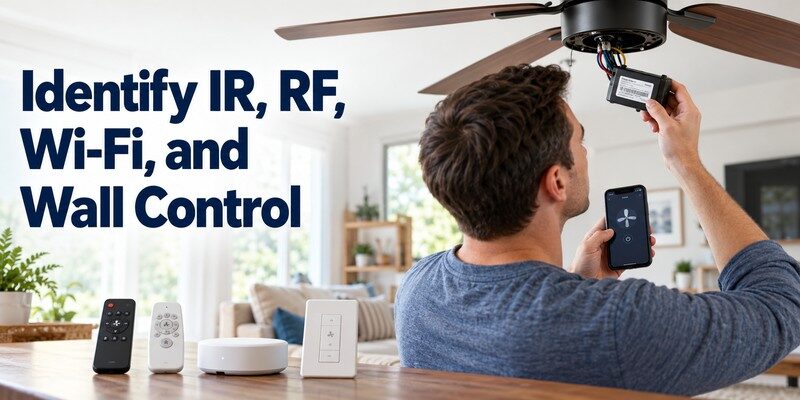
The term fan remote control app covers several very different technical methods. Knowing which one you have determines whether your phone can send commands directly, needs an internet connection, or requires a separate bridge.
Wi-Fi and Bluetooth fans
A Wi-Fi fan contains, or supports, a network-connected control module. Its app may work around the home and, where the manufacturer offers the feature, away from home. Some models require a 2.4 GHz Wi-Fi network for pairing. Bluetooth fans instead use short-range wireless connections; their apps should not be assumed to support internet-based remote operation.
RF and infrared remotes
Many ceiling fan handsets transmit RF signals, which can work without pointing straight at the fan. A common mistake is assuming that a phone’s infrared blaster can imitate any ceiling fan handset. It cannot reproduce RF commands. Infrared-controlled fans are a separate category; compatible IR transmitters generally need a clear path to the receiver.
Wall switches and pull chains
A traditional fan with only a pull chain may have no wireless receiver at all. A wired smart speed controller or appropriately installed smart fan module may offer app access, but electrical compatibility matters. Do not use an ordinary lighting dimmer as a substitute for a fan-rated speed controller. When in doubt, consult a qualified electrician and the fan manufacturer.
Before installing a fan remote control app, record the model number on the fan housing, the remote’s model or FCC identifier if available, and any smart-home markings in the manual. These details are more valuable than a generic promise to support “all fans.”
📘 Find the Right Guide: IR Remote Control App for Android: What Works With an IR Blaster?
3. Which Fan Apps and Smart Bridges Are Worth Considering?
A dependable fan remote control app should come from the manufacturer of a supported fan or controller. The following are examples, not a universal compatibility guarantee; check current model requirements before downloading or buying accessories.
| Option | Intended equipment | Useful capability | Check first |
|---|---|---|---|
| HunterSMART / SIMPLEconnect | Supported Hunter Wi-Fi fans | Fan and light control | Exact fan generation and app |
| Big Ass Fans mobile app | Supported connected Haiku and other listed models | Fan settings and groups | Installed Wi-Fi module and model |
| Bond Home with Bond Bridge | Many compatible RF remote-controlled fans | Duplicate selected remote commands | Remote frequency and protocol |
| Lutron Caséta with compatible fan control | Eligible wired ceiling fan installations | Fan-speed adjustment | Motor type, wiring, and separate light circuit |
HunterSMART and connected ceiling fans
Hunter Fan’s official support information, updated November 2, 2026, describes pairing supported HunterSMART Wi-Fi fans with its iOS app. The instructions specify a 2.4 GHz network and, on supported systems, a HomeKit setup code located inside the remote. The Android HunterSMART listing also describes fan and light control, but its current listing says the app does not support Bluetooth technology. Do not assume every historical SIMPLEconnect device uses the same app. The fan remote control app you choose should follow the support instructions for that exact product generation.
Bond Bridge and other retrofit options
Bond’s official documentation describes registering a non-smart fan and reproducing compatible RF remote signals through its bridge. Bond identifies a 300–450 MHz RF range for supported Bridge products, but frequency alone does not guarantee that a remote’s protocol will work. Lutron’s Caséta fan controller is a different approach: it controls eligible wired fan motors, with restrictions on integrated remotes and lighting circuits.
Choose a smart fan control app that matches the actual hardware rather than selecting the app with the longest feature list.
📘 Find the Right Guide: How to Control AC With Phone: Wi-Fi, IR Blaster, and Hub Steps
4. How to Pair a Wi-Fi Ceiling Fan With Your Phone
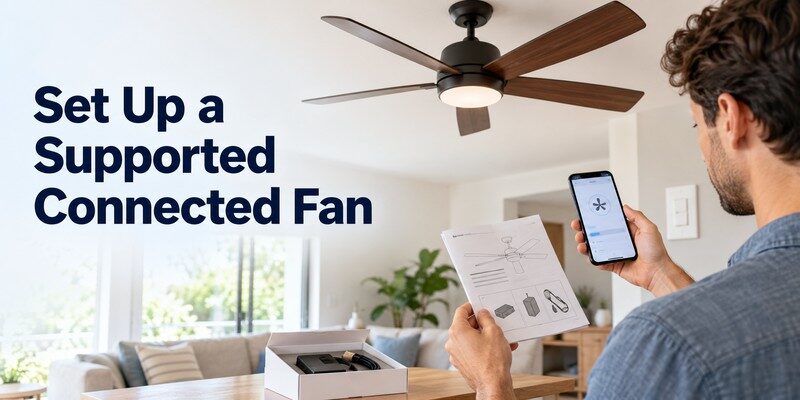
For a supported smart model, a fan remote control app usually needs a short device-registration process. The menus below are general; use the maker’s exact instructions if they differ.
Prepare the network and fan
- Find the fan’s exact model and confirm its designated mobile app.
- Install the latest official app from your phone’s app store.
- Connect the phone to the recommended home network. Many fan setups specifically require 2.4 GHz Wi-Fi, even when your router also offers 5 GHz.
- Turn on the fan’s wall power and verify it responds to its original handheld control, if one was supplied.
- Keep any QR code, pairing code, or remote battery-compartment label nearby.
Add the device and test it
Open the app, sign in if required, choose Add Device, and follow the fan’s pairing instructions. For applicable HunterSMART fans, Hunter recommends turning off other fans during pairing so the correct unit is selected. Your model may require a reset, power cycle, or QR-code scan; do not copy another model’s button sequence blindly.
After registration, use the fan remote control app to test power, low and high speed, and the light kit if fitted. Name the fan by room, such as Bedroom Ceiling Fan, and confirm the phone can find it again after reopening the app. If the fan appears online but ignores commands, revisit its pairing state before deleting your account or resetting every smart-home device.
5. How to Make an RF Ceiling Fan Work With a Phone
An older fan can sometimes use a fan remote control app even without built-in Wi-Fi. The key is a compatible bridge that receives phone commands and transmits the fan’s RF remote signals. Bond Bridge is one example of this approach; support still depends on the original remote and receiver.
Verify the original handset first
Make sure the handheld remote works. Replace weak batteries, note its model or FCC code, and test fan speed and light buttons. Bond’s compatibility information allows searches by remote identifier. A remote missing from a tested-device list is not necessarily incompatible, but it is also not confirmed to work.
Add the fan through the bridge
Place the bridge in its recommended location and connect it to the home network. In its companion app, choose Add Device, select Ceiling Fan, identify the bridge, and follow the remote-learning or database-selection flow. Test Power, Speed, Light, and Direction only if the fan and remote offer those commands. Some remotes use unusual codes, encrypted signals, or unsupported protocols.
A paired bridge may lack direct feedback about the fan’s true state. If someone uses the physical remote, the app’s displayed on/off status might become inaccurate. Keep the original remote available and check whether your bridge offers a status-reconciliation feature. A fan remote control app connected through a bridge may expose fewer functions than the original handset.
📖 Read More Guides: Fan Remote Control App: Best Options for Smart, Ceiling, and IR Fans
6. Can You Control a Regular Desk or Tower Fan Without Wi-Fi?
Sometimes, but the fan remote control app cannot create connectivity that does not exist. A standing fan with an IR handset may work through a compatible phone IR blaster or smart IR hub. An RF-controlled model needs an RF-compatible solution. A fan controlled only by physical buttons cannot receive app commands without additional suitable equipment.
For a simple on/off-only fan, a properly rated smart plug may sometimes provide power switching, but only if the fan is designed to resume safely after power is restored. It generally cannot select a different speed, move an oscillating head, or change a timer setting. Some electronic fans remain off when power returns, making plug-based control ineffective. A fan remote control app cannot add speed selection through a plug that only switches power.
Never bypass thermal protection, modify internal wiring casually, or assume a fan is safe for unattended restarting. Follow the manufacturer’s safety instructions. For installed ceiling fans, a qualified electrician should assess smart controllers and wiring. The objective is convenient control, not turning an incompatible motor into an unpredictable electrical load.
7. What Features Can a Fan App Really Control?
The best fan remote control app supports the specific actions you use every day, with accurate status feedback. Feature availability depends on hardware, firmware, and whether the communication method supports two-way reporting.
Speed, power, light, and direction
Basic controls include on/off and multiple speed settings. A ceiling fan with a light kit may also expose light on/off or dimming, but a fan-speed controller does not automatically control the light circuit. Summer and winter reversal can be app-controlled on some models; on others it still requires a physical switch. Always stop the blades before changing direction when the manufacturer instructs you to do so.
Schedules, scenes, and remote access
Some smart fans allow sleep timers, room schedules, grouped control, or integration with supported smart-home platforms. A schedule is useful for turning the fan off after bedtime or ensuring that an empty room is not running a fan indefinitely. Away-from-home control requires a supported network or cloud path; Bluetooth-only operation generally does not provide it.
A fan remote control app may also display a fan’s status or energy information, but these readouts are not universal. Before relying on an automation, test what happens after a power outage, a router restart, and a manual remote command. A routine that works on a perfect network but fails silently every week is not convenient.
8. Free Fan Apps vs. Paid Hardware: What Will You Spend?
A fan remote control app can be free to install while the entire control setup still costs money. Manufacturer software may be included with a compatible smart fan, but retrofitting an older fan often requires a separately purchased RF bridge, IR hub, or rated wall controller.
When comparing a free fan remote app with a commercial platform, consider the full cost, not just the download button. Ask whether the app requires a subscription for scenes or remote access, whether you must buy a proprietary hub, and whether the physical remote remains functional without the internet.
A useful fan remote app for android should also disclose which fan models it actually supports and which wireless method it uses. If a listing claims that any Android phone can control any RF ceiling fan with no hardware, be skeptical: ordinary phone radios do not reproduce arbitrary household remote protocols.
The most useful fan remote control app also keeps its basic controls available without surprising charges. Look at the permission prompts, too. Bluetooth discovery, local-network access, or location permissions may sometimes be relevant to pairing, depending on the operating system. Broad access to contacts, messages, or unrelated files is not a normal requirement for changing a fan’s speed. Review the developer’s privacy explanation and use official distribution channels.
💡 Discover Helpful Guides: Smart AC Control App: How to Control Your Air Conditioner From Your Phone
9. Fan Remote App Not Working? Diagnose the Problem
When the fan remote control app cannot connect, separate discovery problems from command problems. A fan that never appears in the device list needs a different fix from one that appears online but does not respond.
| Symptom | Likely reason | First thing to try |
|---|---|---|
| Fan not found during Wi-Fi setup | Wrong band, pairing mode, or isolation | Confirm network requirements and pairing mode |
| App finds fan but speed does not change | Incomplete pairing or unsupported command | Test the original remote and recheck model |
| RF bridge cannot learn buttons | Unsupported remote protocol or signal | Verify remote ID and bridge compatibility |
| Works nearby, fails away from home | Cloud, router, or account issue | Check internet and remote-access support |
| Fan works, app shows wrong status | One-way RF signals or manual changes | Use supported sync function if available |
Wi-Fi and Bluetooth fixes
Move the phone close to the fan or router during setup. Confirm that the fan has power, the right network is selected, and the app has the necessary local-network or Bluetooth permissions. For relevant Hunter models, the manufacturer specifies a 2.4 GHz network and instructs users to isolate the fan being paired. Restart the app before attempting a full reset.
RF, IR, and wall-control fixes
If the old remote works but the bridge does not, check the bridge’s compatibility and placement. An RF bridge cannot necessarily learn encrypted or unsupported codes; an IR transmitter may need an unobstructed path. If a wall-based fan controller does not work correctly, do not experiment with live wiring. Check the documented compatible motor and installation requirements, then ask a licensed electrician to inspect the setup.
After fixing an issue, send several different commands. A fan remote control app might connect successfully but still lack a particular command. A successful power toggle alone does not prove that speed, light, or reverse functions are supported.
10. Use Fan Automation for Comfort and Energy Efficiency
A fan remote control app can help reduce wasted runtime through schedules, but it does not automatically make the fan motor more efficient. The biggest improvement often comes from switching off fans when people leave, selecting a comfortable speed, and using air movement wisely alongside air conditioning.
ENERGY STAR reports that certified ceiling fans can be up to 44% more efficient than conventional fans. That figure describes qualifying fan hardware, not savings produced by downloading software. Its ceiling-fan guidance also stresses that fans cool people rather than rooms, so leaving them on in an empty room provides little comfort benefit.
The U.S. Department of Energy’s Building America guidance states that ceiling fans can let occupants raise the cooling thermostat setpoint by about 4°F without a noticeable reduction in comfort in suitable conditions. The benefit comes from air movement allowing less intensive air-conditioning, not from the fan cooling the room’s air temperature.
For daily use, set a fan to run while a room is occupied, pair it with a reasonable thermostat setpoint, and turn it off when no one needs the breeze. A fan remote control app is particularly helpful when its schedule actually follows that routine. Check your electricity rates, climate, occupancy, and equipment before expecting a particular bill reduction.
11. Privacy, Electrical Safety, and Reliable Everyday Control
A network-connected fan remote control app becomes part of your household’s smart-home environment. Protect it as you would another connected device: use strong account credentials, keep the app and fan firmware updated, and secure the home Wi-Fi network. Where supported, turn on multifactor authentication for the account controlling household devices.
Avoid sideloaded APKs from unfamiliar sites, especially when they claim unlimited brand support or request permissions unrelated to operation. Remove devices you no longer own from the app’s account. If you sell or replace the fan, follow the manufacturer’s reset procedure so the next owner can register it normally.
Electrical safety deserves equal attention. Lutron’s official guidance for a specific Caséta fan-speed controller explains that it is meant for eligible paddle-type ceiling fans and cannot operate a fan’s light kit through the same fan-speed output. It also restricts certain fans with integrated controls. A generic light dimmer is not an acceptable substitute for a fan-rated controller.
Retain a working physical method of control where possible. It is useful during router outages, app-service interruptions, and when another household member needs to turn the fan off immediately.
📘 Find the Right Guide: AC Remote Control App: Which Option Actually Works for Your Air Conditioner?
12. Fan Remote Apps and TV Remote Apps Are Not Interchangeable
A fan remote control app sends commands intended for fan electronics. A television remote app uses a different set of supported devices and control methods. Even if both products say “universal,” TV compatibility does not establish fan compatibility.
If you also need smartphone control for a television, the Remote TV app is designed for compatible TVs, not ceiling or pedestal fans. You can explore universal remote tv control for supported television operation on an iPhone, including TV-focused navigation and everyday remote functions.
Similarly, someone searching for a universal remote control app should read the supported-device description carefully. For a fan, return to the fan manufacturer’s app or a verified controller; for a television, choose software explicitly listing the TV brand and model. One app cannot be assumed to control unrelated appliances just because they both have remotes.
13. Frequently Asked Questions
Can I control any ceiling fan with my phone?
No. A fan remote control app needs compatible electronics. A Wi-Fi fan can usually use its designated app, while some RF remote-controlled models work through a supported bridge. A pull-chain fan without smart hardware needs compatible installed controls before phone operation is possible.
Can I use a fan app without Wi-Fi?
Sometimes. A Bluetooth fan may support nearby control without home Wi-Fi, and a phone with an IR blaster can operate a compatible IR fan. Neither method automatically provides away-from-home access. Check the actual radio technology used by your fan.
Why will my phone not connect to my Hunter fan?
First confirm the exact fan generation and app. Hunter’s current HunterSMART Wi-Fi pairing guidance refers to a 2.4 GHz network, a compatible setup code, and model-specific pairing steps. Older product generations may use different instructions; do not assume every SIMPLEconnect model is identical.
Can a phone change my fan’s direction or light brightness?
Only when those functions are supported. Some smart fans expose direction reversal and lighting controls, while others offer speed and power only. A bridge cannot send a command that the original remote or receiver does not support. Confirm each feature after pairing.
Does using a smart fan app reduce electricity bills?
Not by itself. A fan remote control app can help by scheduling shutoff and making it easier to adjust comfort settings. Actual savings depend on the fan’s efficiency, usage, local climate, and whether reduced air-conditioning demand outweighs fan electricity consumption.
14. Final Thoughts
The right fan remote control app is the one that matches your fan’s hardware, not the one that promises the greatest number of brands. Identify the model and whether it uses Wi-Fi, Bluetooth, RF, IR, or wired control. Then choose the official app or a verified bridge, test every important button, and keep a safe manual backup.
If you want to control your television as well, Download the TV remote app for iPhone. It is a TV-focused app and should not be presented as a ceiling-fan controller.
Sources reviewed (titles only; no outbound links): Hunter Fan Support, “Fan Controls & Pull Chains: Choosing the Best System for You” (May 2026) and HunterSMART pairing guidance (November 2026); Bond Help Center, “Setting up non smart fans, lights, and generic devices”; Lutron Caséta product-selection guidance for fan controls; ENERGY STAR, “Ceiling Fans”; U.S. Department of Energy, Building America Best Practices: Hot-Humid Climate.
