
How to Mirror iPhone to TV: AirPlay and HDMI Steps
By the Remote TV App Team
Last updated: November 6, 2026
To mirror your iPhone to a TV, connect both devices to the same Wi-Fi network, open Control Center, tap Screen Mirroring, and select your AirPlay-compatible television.
If your TV doesn’t support AirPlay, you can use an HDMI adapter, an external streaming device, or a compatible casting solution instead.
Learning how to mirror iphone to tv makes it easier to display photos, videos, presentations, websites, and mobile apps on a larger screen. Whether you own a Samsung, LG, Sony, Roku, or older television, there is usually a connection method worth trying.
This iphone screen mirroring guide explains the setup process, compatibility requirements, connection alternatives, and practical troubleshooting steps.
1. How to Mirror iPhone to TV Using AirPlay
AirPlay is Apple’s built-in wireless streaming technology and usually the simplest way to display your iPhone screen on a compatible television.
It doesn’t require a separate screen-mirroring application. However, your TV must support AirPlay or connect to an AirPlay-compatible receiver.
Step 1: Connect Both Devices to the Same Wi-Fi
Before starting, confirm that your iPhone and television use the same local network.
On your iPhone, open Settings → Wi-Fi and check the connected network.
Then open the television’s network settings and verify its connection.
Even if both devices have internet access, they may not discover each other if they are connected to isolated guest networks.
Step 2: Open Control Center
On an iPhone with Face ID, swipe down from the upper-right corner.
On an older iPhone with a Home button, swipe up from the bottom edge.
Find the Screen Mirroring button, represented by two overlapping rectangles.
Step 3: Select Your Television
- Tap Screen Mirroring.
- Wait for available devices to appear.
- Select your TV from the list.
- Enter the AirPlay passcode if the TV displays one.
- Wait for your iPhone screen to appear on the television.
Once connected, rotating your phone may change the displayed orientation, depending on the application.
To stop, reopen Control Center, select Screen Mirroring, and tap Stop Mirroring.
Important: If you are learning how to mirror iphone to tv, remember that AirPlay compatibility matters more than whether the television is simply advertised as a Smart TV.
Download TV Remote App2. Check iPhone and TV Compatibility Before Mirroring
Before choosing how to mirror iphone to tv, identify your television’s operating system and available connection options.
Not every Smart TV supports Apple’s wireless mirroring protocol, and some televisions support casting videos without supporting full-screen mirroring.
| TV or device type | Recommended method | Main requirement |
|---|---|---|
| Apple TV 4K | AirPlay | Compatible Apple device |
| Samsung Smart TV | AirPlay | Supported model and firmware |
| LG Smart TV | AirPlay | Supported model |
| Roku TV or player | AirPlay | Compatible Roku hardware and software |
| Android TV or Google TV | Google Cast or AirPlay if supported | Appropriate receiver or app |
| Older non-smart TV | HDMI adapter | Working HDMI input |
Check Your iPhone
Open Settings → General → About to check your device model and iOS version.
Apple’s current guidance recommends keeping devices updated for the most reliable compatibility.
For older devices, check the software requirements of your TV’s AirPlay implementation rather than assuming every iPhone can connect.
Check Your Television
Look for AirPlay settings under menus such as:
- Settings → General → Apple AirPlay Settings
- Settings → Connection → Apple AirPlay
- Settings → Apple AirPlay and HomeKit
The location varies by manufacturer and model year.
Samsung documents AirPlay support beginning with its 2018 Smart TV models, while Roku lists compatible hardware and minimum Roku OS requirements.
Tip: A television that supports Netflix, YouTube, or Google Cast is not automatically compatible with native iPhone Screen Mirroring.
Checking this distinction early prevents unnecessary app installations and connection attempts.
🗺️ Browse How-To Guides: How to Screen Mirror Android to TV: Easy Methods for 2026
3. How to Mirror iPhone to Samsung Smart TV
Samsung Smart TVs are among the common devices used for wireless iPhone mirroring.
According to Samsung’s official support guidance, AirPlay is available on Samsung Smart TV models released from 2018 onward, subject to model and regional availability.
Enable AirPlay on Samsung TV
- Turn on your Samsung Smart TV.
- Open Settings.
- Navigate to All Settings and find Apple AirPlay Settings.
- Turn AirPlay on.
- Connect the television and iPhone to the same Wi-Fi.
- Open Control Center on your iPhone.
- Select Screen Mirroring.
- Choose your Samsung TV.
If Samsung displays a verification code, enter it on your iPhone to authorize the connection.
Your screen should then appear on the television.
Menu names may vary across Tizen versions.
What If Your Samsung TV Doesn’t Appear?
If you’re checking how to mirror iphone to tv and cannot discover your Samsung television, verify that AirPlay remains enabled after any firmware update.
Restart both devices and check whether the TV appears in the iPhone’s Screen Mirroring menu.
For everyday television navigation, a compatible samsung tv remote app can also help you change settings, adjust volume, or select the appropriate input.
However, remote-control functionality and full-screen mirroring are different features.
Practical tip: If the TV requests an AirPlay code repeatedly, check its password requirement settings rather than disabling all access controls.
4. How to Mirror iPhone to LG, Roku, and Other Smart TVs
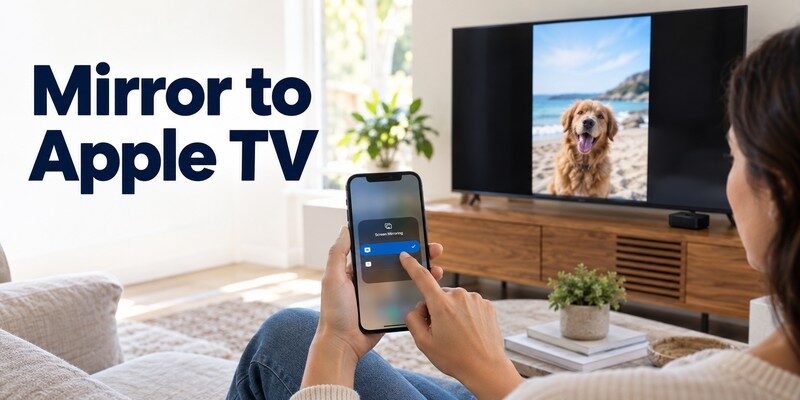
The process for how to mirror iphone to tv is similar across many manufacturers, but the menus and compatibility requirements differ.
Mirror iPhone to LG Smart TV
Many supported LG televisions include Apple AirPlay.
To connect:
- Open the Home Dashboard or relevant connection settings on your LG TV.
- Find AirPlay and enable it.
- Verify that both devices are using the same Wi-Fi.
- Open your iPhone’s Control Center.
- Tap Screen Mirroring and select the LG television.
- Enter the code displayed on your TV if requested.
If the television doesn’t appear, check its model specifications and webOS version.
Some older LG televisions don’t support AirPlay natively, even though they have internet connectivity and streaming apps.
Mirror iPhone to Roku TV
Compatible Roku TVs and streaming devices also support AirPlay.
On Roku:
- Open Settings.
- Select Apple AirPlay and HomeKit.
- Enable AirPlay.
- Open Screen Mirroring on your iPhone.
- Choose the Roku device.
- Confirm any requested code.
Roku’s official documentation lists specific compatible models. Several models require Roku OS 9.4 or later, while others have different software requirements.
Therefore, don’t assume an older Roku device supports AirPlay merely because it can play streaming content.
If you use Roku frequently, a phone-based remote can also simplify navigation.
For readers researching how to mirror iphone to tv, the important distinction is that Roku’s AirPlay feature handles mirroring, while its remote-control functions handle navigation.
💡 Discover Helpful Guides: Miracast Setup Guide: How to Connect Phone or PC to TV
5. How to Screen Mirror iPhone to Android TV or Google TV
Many Sony, TCL, Hisense, and Philips televisions use Android TV or Google TV.
These platforms frequently support Google Cast, but Google Cast and Apple’s AirPlay are different technologies.
If you want to screen mirror iphone to android tv, first check whether your television also includes native AirPlay support.
Method 1: Use AirPlay When Available
Some Android TV and Google TV manufacturers integrate AirPlay into supported models.
If your TV includes AirPlay, enable it and follow the standard iPhone Screen Mirroring steps.
This provides a straightforward way to display your entire iPhone screen.
Method 2: Cast Content With Google Cast
If your TV doesn’t support AirPlay, you can often cast content from supported iPhone apps.
- Connect your iPhone and Google TV to the same Wi-Fi.
- Open a Google Cast-enabled app.
- Find the Cast icon.
- Select your television.
- Choose the video or content you want to play.
- Tap Disconnect when finished.
Google’s documentation states that Google Cast-enabled apps support iPhone and iPad devices running iOS 14 or later, with compatible receiver hardware.
For discovery on supported iOS versions, you may need to grant Local Network permission to the app.
Can Google Cast Mirror the Entire iPhone?
Not through the standard iOS Google Cast workflow.
Casting a YouTube video or other supported media is different from duplicating your entire iPhone interface.
To show your Home Screen, messages, or arbitrary apps, you need an AirPlay-compatible receiver, a compatible third-party mirroring solution, or a wired connection.
Understanding this difference is essential when deciding how to mirror iphone to tv without Apple’s own streaming hardware.
6. How to Mirror iPhone to Non-Smart TV With HDMI
You don’t need a Smart TV to display your iPhone screen.
If you’re searching for a way to mirror iphone to non smart tv, an HDMI connection is often the simplest and most reliable option.
Unlike wireless mirroring, an HDMI connection doesn’t depend on Wi-Fi discovery or compatibility with AirPlay.
For iPhones With a Lightning Port
Many older iPhones use Apple’s Lightning connector.
You will need:
- A compatible Lightning Digital AV Adapter
- An HDMI cable
- A television with an HDMI input
Follow these steps:
- Connect the Lightning adapter to your iPhone.
- Connect an HDMI cable to the adapter.
- Plug the other end into the television.
- Turn on the TV.
- Select the matching HDMI input.
- Wait for the iPhone display to appear.
Apple’s official Lightning Digital AV Adapter supports video mirroring and output at up to 1080p HD.
That is a maximum supported output specification, not a guarantee that every app or video will display at that resolution.
For iPhones With USB-C
iPhone models with USB-C can connect to compatible external displays using an appropriate USB-C-to-HDMI adapter or cable.
- Connect the compatible adapter to your iPhone.
- Attach the HDMI cable.
- Connect the television.
- Select the correct HDMI source.
- Open the content you want to display.
Apple documents support for output up to 4K at 60 Hz with compatible USB-C HDMI equipment and supported iPhone models.
The actual output depends on the device, cable, adapter, display, and content.
Important: Certain streaming services restrict external playback because of digital rights management. A black screen in one protected app doesn’t necessarily mean your HDMI connection is faulty.
For people asking how to mirror iphone to tv without replacing their television, a compatible HDMI adapter is frequently the best starting point.
💡 Discover Helpful Guides: AirPlay for Android: How to Cast and Mirror to Any TV in 2026
7. How to Mirror iPhone to TV Without Apple TV
An Apple TV streaming box is not required for every iPhone screen-mirroring setup.
If you want to connect iphone to tv without apple tv, several alternatives are available.
Use Your TV’s Built-In AirPlay
This is the easiest option when supported.
Samsung, LG, Roku, and other compatible televisions can receive an AirPlay connection directly.
Simply enable AirPlay on the TV and select it from your iPhone.
Connect an HDMI Adapter
HDMI is a practical alternative for older televisions, travel setups, and networks where wireless discovery is unreliable.
A wired adapter can provide a stable connection with fewer network-related interruptions.
Use an External Receiver
An older television can gain compatible wireless features through an external streaming device or receiver.
However, choose hardware that specifically supports AirPlay if you need full iPhone screen mirroring.
A standard Google Cast receiver alone does not provide native iOS-wide screen mirroring.
Use a Compatible Third-Party Solution
Some third-party applications can send selected media to compatible TVs, while others provide screen-mirroring capabilities through an additional receiver app.
Check what each solution actually supports before installing it.
For anyone researching how to mirror iphone to tv, AirPlay is preferable when available, while HDMI is the more broadly compatible fallback.
8. Can You Mirror iPhone to TV Without Wi-Fi?
Yes, you can mirror an iPhone to a television without Wi-Fi using a compatible wired video connection.
The correct method depends on whether you lack internet access or lack a local wireless network entirely.
Without Internet Access
A local Wi-Fi network and an internet connection are not the same thing.
AirPlay commonly uses a local network to discover and communicate with compatible devices. Some local-network setups can function even when internet service is unavailable, although device configuration and protected streaming content may impose additional requirements.
Therefore, a temporary internet outage doesn’t always prevent local screen mirroring.
Without a Wi-Fi Network
If there is no usable Wi-Fi network, connect your iPhone directly to the television through HDMI.
This is especially helpful for:
- Older TVs without wireless networking
- Hotel rooms with restrictive Wi-Fi
- Classroom presentations
- Locations with unstable routers
- Displaying locally stored photos or presentations
Some Apple devices also offer peer-to-peer AirPlay capabilities, but compatibility and setup requirements differ. Don’t assume every smart television supports that connection mode.
Is HDMI Better Than Wireless Mirroring?
HDMI can reduce network-related delays and interruptions because it doesn’t rely on wireless communication.
However, its actual performance depends on the adapter, cable, iPhone, and display.
Wireless mirroring offers more mobility, while HDMI is usually easier to troubleshoot.
When deciding how to mirror iphone to tv without wireless access, choose HDMI first unless your exact hardware documents another supported connection method.
💡 Discover Helpful Guides: How to Cast Phone to TV Without WiFi: 5 Reliable
9. How to Fix iPhone Screen Mirroring Not Working
If your television doesn’t appear or the connection drops, start with the network and compatibility checks.
Most troubleshooting steps are simple and don’t require resetting your entire television.
Quick Troubleshooting Table
| Problem | Possible cause | Recommended fix |
|---|---|---|
| TV not appearing | AirPlay disabled or incompatible TV | Enable AirPlay and check support |
| Connection fails | Different or isolated networks | Connect both devices to the same Wi-Fi |
| Mirroring disconnects | Unstable network | Restart devices and router |
| Black screen in an app | Content protection | Check app-specific restrictions |
| Video stutters | Network congestion | Improve Wi-Fi signal |
| Audio missing | Incorrect output or adapter | Check audio output and HDMI connection |
Fix 1: Check the Wi-Fi Network
Start by checking the network name on both devices.
A common issue is connecting the iPhone to the primary network while the television uses an isolated guest network.
Even when both connections have internet access, device discovery may be blocked.
If you are troubleshooting how to mirror iphone to tv, test from the same normal home network before changing advanced router settings.
Fix 2: Restart Both Devices
Restart your iPhone and television.
Then turn AirPlay off and back on in your television’s settings.
Temporary network discovery problems sometimes disappear after both devices establish fresh connections.
If necessary, restart your router as well.
Fix 3: Update Software
Open Settings → General → Software Update on your iPhone.
For your TV, look for Software Update, System Update, or the equivalent manufacturer menu.
Updates can resolve compatibility and connection issues, although they don’t add AirPlay support to every older television.
Fix 4: Check App Restrictions
If your Home Screen mirrors correctly but a specific movie remains black, test another app or a photo from your gallery.
Some streaming services limit external playback.
This behavior may be caused by protected content rather than a faulty AirPlay connection.
Fix 5: Test With Another Method
If AirPlay still fails, try a compatible HDMI adapter.
This helps distinguish a network or receiver problem from an issue affecting the content itself.
Practical tip: Test a photo from your iPhone’s Photos app before testing a streaming service. Photos are a useful baseline because they avoid many subscription and video-protection complications.
Knowing how to mirror iphone to tv also means understanding when to switch methods instead of repeatedly reconnecting the same devices.
💡 Discover Helpful Guides: Screen Mirroring App Free: Best Apps to Cast Phone to TV
10. Screen Mirroring vs Casting vs Remote TV Apps
Screen mirroring, media casting, and remote control are related features, but they aren’t interchangeable.
Understanding the difference helps you choose the right tool for your television.
| Feature | Screen Mirroring | Media Casting | Remote TV App |
|---|---|---|---|
| Shows entire iPhone display | Yes | Usually no | Not necessarily |
| Plays supported videos on TV | Yes, subject to restrictions | Yes | Available on supported setups |
| Controls TV volume or navigation | Limited or device-dependent | Playback controls | Yes, on compatible TVs |
| Requires compatible receiving hardware | Yes | Yes | Yes |
| Main purpose | Duplicate your screen | Play selected media | Control your television |
When Should You Use AirPlay?
Choose AirPlay if you want to display your iPhone interface, browse photos, share presentations, or demonstrate an app.
AirPlay is particularly convenient when your television supports it directly.
When Should You Use a Remote TV App?
A Remote TV app is useful when you want to control a compatible television from your phone.
For example, Begamob’s Universal Remote TV Control app offers supported functions such as volume adjustment, navigation, channel control, and photo or video casting.
A compatible universal remote tv control application can be helpful when your physical remote is missing or when you use multiple TV brands.
The application is free to download and offers optional in-app purchases.
However, casting photos or videos does not automatically mean an application can mirror every screen and app on your iPhone. Full-screen mirroring still depends on the supported connection method.
For a broader comparison of phone-based and physical controllers, see our guide to the best universal tv remote.
How to Get Started With Remote TV Control
- Install the application on your compatible iPhone.
- Connect your phone and smart TV to the same Wi-Fi.
- Open the application.
- Select a compatible television.
- Authorize the connection if requested.
- Use the available remote-control or media-sharing features.
If your main goal is changing channels, adjusting volume, or navigating TV settings, a remote app may be more convenient than displaying your entire phone screen.
For users exploring how to mirror iphone to tv, it can also serve as a useful companion when the TV’s physical controls are inconvenient.
Download universal remote tv control to explore compatible TV control and media-sharing features.
Product information: Begamob Global Limited, Universal Remote TV Control official App Store listing, checked November 2026.
11. Frequently Asked Questions
Can I Mirror My iPhone to Any Smart TV?
No. Your television must support a compatible screen-mirroring method.
Many modern smart televisions support AirPlay, but some models only offer Google Cast or proprietary sharing features. If your TV lacks compatible wireless mirroring, an HDMI adapter may be an alternative.
How Do I Mirror My iPhone to TV for Free?
If your TV already supports AirPlay, you can use the built-in iPhone Screen Mirroring feature without purchasing a separate mirroring app.
Connect both devices to the same Wi-Fi, open Control Center, and select your TV.
Additional hardware may involve a purchase.
Can I Mirror iPhone to TV Using Bluetooth?
Generally, Bluetooth alone cannot provide ordinary full-screen iPhone-to-TV mirroring.
AirPlay normally relies on Wi-Fi networking, while wired mirroring uses an appropriate video connection.
Bluetooth may assist certain discovery or pairing functions but isn’t a direct replacement for these methods.
Why Is My TV Not Showing Up on iPhone Screen Mirroring?
Check that AirPlay is enabled, the TV supports it, and both devices use the same local network.
Also verify software updates and restart both devices.
If the television still doesn’t appear, check whether it needs an external AirPlay-compatible receiver.
Can I Mirror iPhone to TV Without an App?
Yes. AirPlay is built into iOS, so a compatible television doesn’t require an additional mirroring app on your iPhone.
A wired HDMI adapter is another option that doesn’t require screen-mirroring software.
What Is the Best Way to Mirror iPhone to TV?
The best method depends on your setup.
For compatible Smart TVs, AirPlay is usually the most convenient. For older televisions or unreliable wireless connections, HDMI is often a better choice.
For Google TV devices without AirPlay, app-based casting works for supported media but not necessarily your entire screen.
12. Final Thoughts
Learning how to mirror iphone to tv is straightforward once you identify which technologies your television supports.
AirPlay is the easiest wireless option for compatible Smart TVs, while HDMI offers a practical alternative for older TVs and situations without reliable Wi-Fi.
Google Cast is useful for sending supported content to Android TV and Google TV, but it shouldn’t be confused with complete iPhone screen mirroring.
If you also want to navigate menus, control playback, or replace a missing physical remote, the Remote TV App by Begamob offers a convenient option for compatible televisions.
Choose the method that matches your hardware, verify the connection requirements, and enjoy viewing your iPhone content on a larger screen.
Download TV Remote App