
How to Set Up Nvidia Shield TV & Shield TV Pro (Step-by-Step)
Short answer: Connect Nvidia Shield TV to your television by HDMI and its supplied power, select that input, then complete the on-screen network and Google account setup with the Shield remote. Update the system and play a short video before changing advanced display or audio options. Shield TV and Shield TV Pro share the basic setup flow, although their ports and expansion options differ. This guide follows the first-time sequence and then isolates common problems with the picture, remote, Wi-Fi, and sound.
Check which Shield TV model you have
How to set up Nvidia Shield TV starts with identifying the tube-shaped Shield TV or the set-top Shield TV Pro. Both run the Shield interface and use a remote, but the Pro offers expansion and Plex Media Server features that the standard unit does not share in the same way. NVIDIA’s current product and support pages list model-specific ports and accessories. Use the power supply supplied for your model, and check the printed quick-start guide before buying extra cables or storage.
| Setup item | Shield TV | Shield TV Pro |
|---|---|---|
| TV connection | HDMI to a compatible TV | HDMI to a compatible TV |
| Network | Wi-Fi; Ethernet where available | Wi-Fi or built-in Ethernet |
| Storage and USB expansion | Model-specific, limited | USB ports and Plex server use cases |
| Basic first run | Remote, network, Google sign-in | Remote, network, Google sign-in |
Find the ports and included parts
Lay out the Shield unit, its designated power adapter, remote, and an HDMI cable suited to the TV and video formats you intend to use. The Pro is a box placed on a shelf; the standard Shield TV has a different physical shape and port arrangement. A nvidia shield setup guide that assumes every unit has USB ports can send standard-model owners down the wrong path. If you are learning how to set up Nvidia Shield TV from a secondhand purchase, check that the adapter belongs to this unit. Do not attach a drive or controller until the basic TV picture works.
For the mobile pairing and discovery steps, follow the NVIDIA Shield TV remote app guide and keep the physical remote available for network recovery.
Check the TV and network first
Note the TV’s HDMI port label and have your Wi-Fi credentials or Ethernet cable ready. If an AV receiver or soundbar sits between the Shield and TV, it adds another input and compatibility check. A working Google account helps install apps and sync preferences during setup. You can decide on subscriptions later. For how to set up Nvidia Shield TV, a clear signal path and stable network matter more initially than custom playback settings.
Connect Shield TV to the television and power
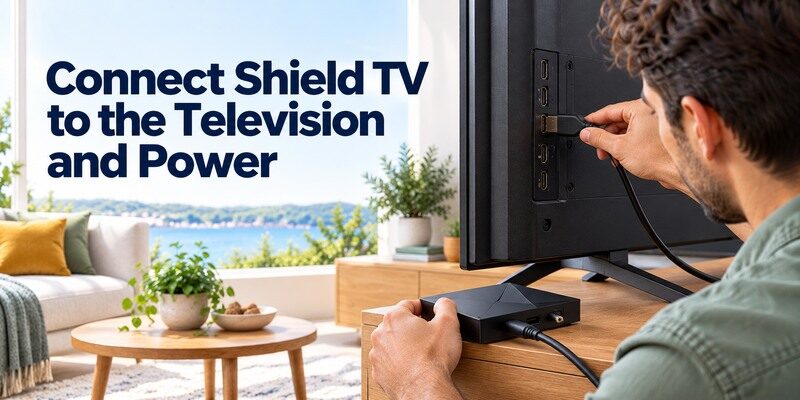
The physical part of how to set up Nvidia Shield TV is simple: connect the Shield’s HDMI output to a TV HDMI input, then attach its supplied power adapter. Select the same HDMI input on the TV. NVIDIA’s user guide begins with these connections and the remote. HDMI and power are separate, so a correctly seated HDMI cable will show nothing if the unit has no power or the TV displays a different port.
Keep the TV’s original remote within reach throughout the first run. It is the easiest way to confirm the selected input, even after the Shield handset has begun controlling its own menus.
Make a direct HDMI test
For the first boot, connect directly to the TV if possible. This reduces the number of inputs to debug. If a receiver is necessary, confirm that both its input and the TV’s input are selected. Use a cable appropriate for the resolution and refresh rate you plan to use; a basic welcome screen can appear even when a later 4K or HDR signal exposes a marginal cable. When explaining how to set up Nvidia Shield TV to someone else, recording the HDMI port number makes later troubleshooting much easier. A nvidia shield installation steps checklist should include it.
Let the Shield finish starting
Plug the designated adapter into power and give the device time to display its welcome screen. Do not repeatedly remove power during the first boot. If there is no image, test the TV input, cable seating, and power connection in that order. If the TV reports a signal but shows a black screen, temporarily bypass a receiver or soundbar to narrow the path. This is a display problem before it is a Wi-Fi problem.
Read more: How to Set Up Chromecast
Complete the Shield first-time setup screens
After the picture appears, how to set up Nvidia Shield TV moves to language, network, Google account, and preferences. NVIDIA’s Shield support guide describes the on-screen setup and system upgrade controls. Screen wording may change with Shield Experience updates, so follow the current prompt rather than a years-old screenshot. Keep the remote close and avoid skipping a network step you need for app downloads.
Choose language and network
Use the Shield remote’s direction and Select buttons to choose a language. Select your home Wi-Fi and enter the password, or connect the Ethernet cable if your model and setup allow it. A wired connection can simplify troubleshooting when the router is far from the TV. If the network is missing, check whether another device sees it from the same room. The nvidia shield first time setup should use the network you intend to keep, especially if you later control it from a phone. The answer to how to set up Nvidia Shield TV over Ethernet still includes confirming internet access on screen.
Sign in to Google and finish preferences
Follow the on-screen Google account process. It may offer a phone-assisted method or manual entry, depending on software and region. Choose only the permissions and services you want. Individual streaming apps may request separate sign-ins after you reach the home screen. How to set up Nvidia Shield TV is not complete merely because the account screen closed; confirm navigation, updates, and a playable title before adding optional games or a media server.
Read more: How to Set Up Fire TV Stick
Pair and test the Shield remote
The Shield remote is normally paired out of the box, according to NVIDIA’s guide. If it does not navigate, how to set up Nvidia Shield TV includes checking batteries or remote power, proximity, and the accessory pairing flow. The exact remote generation and model can change its buttons and power source. Verify Home, direction, Select, and Back before testing TV volume; those commands reveal whether the Shield itself is receiving input.
When the remote works immediately
Move through the welcome prompts and home tiles, then test Back and Home. Do not start a re-pairing procedure if the remote already controls the Shield. TV power and volume can be handled through equipment-control settings and may depend on the connected TV or receiver. A volume failure is not proof that Shield navigation has failed. For how to set up Nvidia Shield TV without confusion, test those two control paths separately. Keep the TV’s own remote available to switch HDMI inputs during setup.
On a compatible Android TV device, the Google TV remote app for Android may be another phone-control option once the device is reachable on the local network.
When the remote does not respond
Check its power source and give the Shield time to boot. NVIDIA’s support explains pairing a replacement accessory from the Shield accessories menu when an existing controller works, and model-specific recovery for a remote that cannot connect. Avoid assuming an old controller’s combination applies to a newer Shield remote. If you can already reach the Shield over the network, NVIDIA’s official Shield TV Remote app can provide navigation while you diagnose the physical handset.
Connect Wi-Fi or Ethernet reliably
A stable connection is central to how to set up Nvidia Shield TV because app installation, streaming, and updates depend on it. Wi-Fi convenience may be enough near the router; Ethernet can remove wireless interference where the model offers it. Do not assume an Ethernet cable fixes a service login problem. First identify whether the Shield has no local network, no internet, or only one failing app.
If Wi-Fi does not appear
Refresh the available network list and confirm the router is broadcasting. Compare with a phone in the same room. Check that the correct password is being entered and that a guest network is not isolating devices used for phone control. Restart the Shield and router if discovery remains unstable. For how to connect nvidia shield to tv, the HDMI path is separate from Wi-Fi; a visible home screen means you can troubleshoot the network without rewiring the television.
If you prefer wired networking
Connect Ethernet to the appropriate port on a supported Shield model and the router, then confirm the on-screen network status. The Pro’s built-in Ethernet is especially useful for a fixed media setup. If the internet still fails, test the cable and router port with another device. The cable does not replace the HDMI or power connections. A phone remote typically requires the phone and Shield to reach each other on the local network, whether the Shield side is wired or wireless.
Install updates before advanced customization
How to set up Nvidia Shield TV for daily use includes checking system updates after network connection. NVIDIA’s Shield support says the device can download upgrades automatically and provides a manual route under Settings, Device Preferences, About, System upgrade. Menu labels can shift with Shield Experience versions. Let an update finish without unplugging power. Test ordinary streaming after it restarts, before adding custom launchers or changing audio formats.
For another network-based option, compare an Android TV box remote control app and verify its Shield compatibility before relying on it.
Check the system upgrade screen
Open the Shield settings and use the update path shown on your device. Read the version and prompt before installing; updates can alter features or app compatibility. If the Shield asks to restart, let it finish. A device that seems slow immediately after the first sign-in may still be downloading apps or updates. How to set up Nvidia Shield TV does not require changing developer options or installing files from unknown sources.
Add streaming apps one at a time
Install a familiar app from the supported store and sign in. Test a short title before adding others. If that title plays, the basic network, account, remote, and display chain are functional. A single app’s error could involve its subscription, region, or service rather than the Shield hardware. How to set up Nvidia Shield TV for a family is easier to verify with one working service first. This staged approach makes it easier to find which change preceded a problem than installing ten apps and altering picture settings at once.
Test picture and audio on your TV
After the first run, how to set up Nvidia Shield TV continues with a playback test on the actual display and speakers. NVIDIA advertises 4K upscaling and supported HDR and surround formats for specific Shield models, but the TV, content, app, receiver, and cables also have to cooperate. A menu that looks fine is not enough evidence that a Dolby Vision or surround title will play as intended. Begin with a normal clip.
If the audio device is a soundbar, the soundbar remote app guide can help identify whether volume is handled by the bar, the TV, or a separate control route.
Verify picture before forcing 4K or HDR
Play an ordinary title, then try a known 4K or HDR title only if the equipment supports it. If the screen blanks when the format changes, inspect the TV’s HDMI input mode and any receiver in the chain. NVIDIA’s support includes model-specific HDR guidance. Do not claim every Shield TV version or app outputs the same format. A safe nvidia shield setup guide treats advanced video modes as a second-stage optimization, after stable navigation and playback.
Trace sound through the chain
Check whether audio should come from the TV speakers, soundbar, AV receiver, or headphones. Select the right input on that device. If picture works but sound is absent, test another app and a simple stereo clip before forcing surround output. HDMI audio pass-through depends on connected equipment and source format. People searching how to set up Nvidia Shield TV with a soundbar should note which box owns the volume command. A phone remote’s navigation success does not necessarily control external speaker volume; configure it separately.
Diagnose setup failures by symptom
When how to set up Nvidia Shield TV stalls, the visible symptom is more useful than a broad factory reset. Work from the part you can observe: power, HDMI image, remote navigation, network, account, or playback. NVIDIA’s troubleshooting guide offers model-specific recovery if the basic checks fail. Keep any successful setup state while you test a narrower fix.
| Symptom | Likely area | First check |
|---|---|---|
| No picture | Input, cable, or power | Select correct HDMI and confirm adapter |
| Remote cannot navigate | Remote pairing or power | Test batteries and model-specific pairing |
| No Wi-Fi network | Router or radio discovery | Compare with phone; restart devices |
| App will not sign in | Account or service | Test account and network separately |
| Video works, sound absent | TV or soundbar routing | Check selected audio output and input |
Separate a blank TV from a frozen Shield
Use the TV’s own input menu to confirm the selected HDMI port. If the TV reports no signal, recheck power and cable. If a Shield screen is visible but frozen, give any update time to complete before restarting. Repeatedly disconnecting power during an upgrade can complicate recovery. How to set up Nvidia Shield TV after a restart resumes at the last successful prompt unless you deliberately reset the device.
Reset only when simpler fixes fail
Factory reset erases local settings and sends you through setup again. Use NVIDIA’s instructions for your exact model and software version when a reset is justified, such as transferring a used device whose previous account cannot be removed. Do not use it merely because a particular streaming app requests a new password. Record the current network and account details before any reset so you can complete the next first run.
Use phone control as a practical fallback
Once how to set up Nvidia Shield TV has reached a stable network connection, a phone can substitute for a misplaced remote. NVIDIA offers a Shield TV Remote app that can navigate the device over the local network. Verify that the phone and Shield can communicate, then test direction and Select before relying on text entry or volume. A phone app cannot discover an offline Shield by magic. The physical TV input and device power still need a way to be controlled.
Pair the official Shield phone remote
Install NVIDIA’s official app from the phone’s app store, select the detected Shield, and complete any on-screen approval. If the Shield is connected by Ethernet while the phone uses Wi-Fi, both still need local-network reachability. A guest Wi-Fi that isolates devices can prevent discovery. The app is especially useful for entering account credentials with a phone keyboard after the Shield is online, but keep the original remote for network recovery.
Consider a compatible multi-TV app
If you control several TV platforms at home, the can be a contextual fallback where the Shield device and phone app are compatible. Check support for the actual model and app version before assuming identical controls to NVIDIA’s official app. TV power and receiver volume may require a separate equipment-control route. Keep the physical Shield remote accessible after changing routers, because a phone that cannot find the device cannot repair its new Wi-Fi credentials.
Final Thoughts
How to set up Nvidia Shield TV is a sequence: identify the model, connect HDMI and its own power, select the TV input, use the paired remote, join a network, sign in, update, and test one stream. The standard Shield TV and Pro share that basic flow, but their ports and expansion possibilities differ. Diagnose a failure at the screen where it appears before changing unrelated settings. Once the Shield is online, phone control can help with daily navigation, while the physical remote remains useful when the network changes.
