
Apple TV Remote Not Responding? Fix Pairing & iPhone App Issues
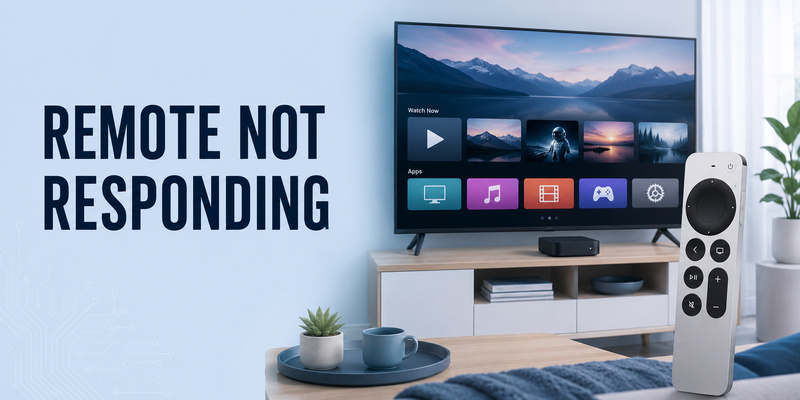
Quick Answer: If your Apple TV remote is not responding, first check whether the problem affects your physical Siri Remote or the Apple TV Remote on your iPhone. For a physical remote, charge it for 30 minutes, restart it by holding TV/Control Center + Volume Down for about five seconds, and pair it again using Back (or Menu) + Volume Up. For an iPhone remote that is not working, make sure the iPhone and Apple TV are connected to the same Wi-Fi network, restart both devices, and reconnect through Control Center.
These fixes address the most common Apple TV remote connection, pairing, and responsiveness issues without factory-resetting your Apple TV.
Why Is My Apple TV Remote Not Responding?
An Apple TV remote can stop responding because of a low battery, a lost wireless connection, a temporary software problem, or incorrect TV-control settings.
The first step is identifying which remote is affected.
| Problem | Likely Cause | Recommended Fix |
|---|---|---|
| Siri Remote buttons do nothing | Battery or connection problem | Charge, restart, and pair |
| Apple TV remote pairing not working | Lost or incomplete pairing | Re-pair close to Apple TV |
| Apple TV Remote app not working | Wi-Fi or device discovery problem | Check network and Control Center |
| Remote connects but disconnects | Weak signal or interference | Move closer and check signal |
| Volume buttons do not work | IR/HDMI-CEC configuration | Change Volume Control settings |
| Touchpad or clickpad is unresponsive | Connection or hardware problem | Restart and test navigation |
| iPhone remote asks for a code | Pairing authorization | Enter the displayed passcode |
| Older Apple Remote does not work | Battery, infrared, or compatibility issue | Follow model-specific steps |
Important: The Siri Remote, older aluminum Apple Remote, and Apple TV Remote on iPhone do not all use the same connection method. Choose the instructions that match your device.
Fix Apple TV Siri Remote Not Responding
If the physical Siri Remote or newer Apple TV Remote stops responding, try the following solutions in order.
1. Charge the Apple TV Remote
A low battery can prevent the remote from working reliably.
- Connect the remote to a compatible USB-C or Lightning charging cable, depending on the model.
- Use a suitable USB power source.
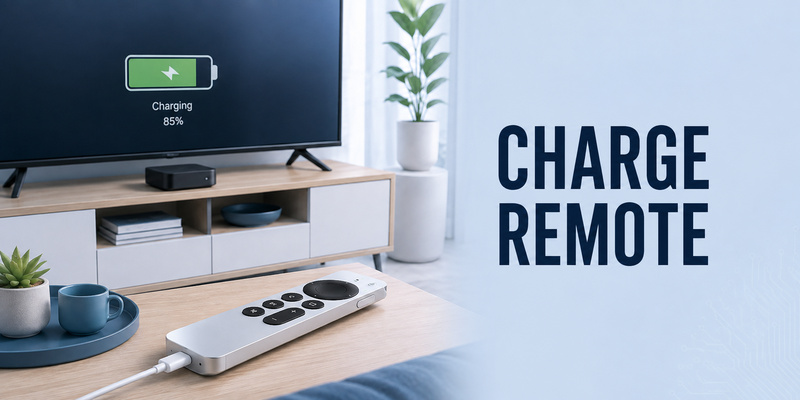
- Charge it for at least 30 minutes.
- Disconnect the cable.
- Test the remote again.
Newer Siri Remote models have rechargeable batteries. Older Apple Remote models use replaceable batteries and require different battery instructions.
For charging information, see our Apple TV remote charging guide.
2. Restart the Siri Remote
Apple recommends restarting the remote if it is not working correctly.
- Turn on your Apple TV.
- Press and hold TV/Control Center + Volume Down simultaneously.
- Continue holding for approximately five seconds, or until the status light on Apple TV turns off and on again.
- Release both buttons.
- Wait five to ten seconds.
- Press any remote button.
- Look for the Remote Connected notification.
If the remote does not reconnect, try pairing it again.
This process restarts the remote. It does not erase your Apple TV apps or settings.
For more information, read our how to reset Apple TV remote guide.
3. Restart Your Apple TV
If the remote is still unresponsive, restart the Apple TV device.
When you cannot access Settings:
- Disconnect Apple TV from its power source.
- Wait at least six seconds.
- Reconnect power.
- Allow Apple TV to finish starting.
- Test the remote again.
Do not confuse restarting the Apple TV with a factory reset.
A normal restart does not erase your account or installed apps.
4. Check the Remote’s Wireless Signal
If your remote pairs but responds inconsistently, the wireless signal may be weak.
On Apple TV running tvOS 18.0 or later:
- Open Settings.
- Select Remotes and Devices.
- Select Remote.
- Check the Bluetooth signal strength indicator if available.
Move closer to Apple TV and reduce nearby interference.
Apple recommends remaining within approximately 20 feet (six meters) of the device when troubleshooting weak remote signals.
Apple TV Remote Pairing Not Working? How to Fix It
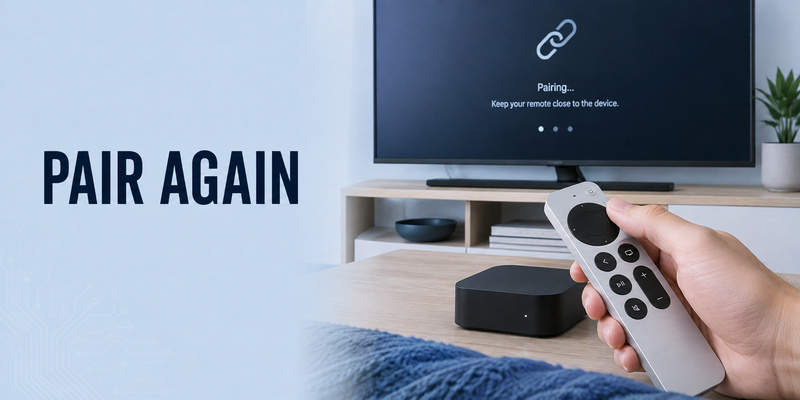
If your Apple TV remote pairing is not working, the device may not recognize the remote or the pairing process may have failed.
How to Pair a Siri Remote With Apple TV
For supported Siri Remote and newer Apple TV Remote models:
- Turn on Apple TV.
- Hold the remote approximately three inches (7.5 cm) from the Apple TV device.
- Point the remote toward Apple TV.
- Press and hold Back + Volume Up for about five seconds.
- If your remote has a Menu button instead of Back, use Menu + Volume Up.
- Follow any instructions displayed on the television.
- If prompted, place the remote on top of Apple TV to complete pairing.
- Test navigation.
If pairing succeeds, Apple TV should recognize the remote.
What If the Apple TV Remote Still Won’t Pair?
Try these additional steps:
- Charge the remote for at least 30 minutes.
- Restart the Apple TV.
- Move the remote closer to the device.
- Restart the remote using TV/Control Center + Volume Down.
- Retry pairing using Back/Menu + Volume Up.
If you are replacing an existing Apple TV 4K remote, remember that only one Apple TV 4K remote can be paired as the primary remote at a time.
Pairing a new remote may disconnect the previously paired one.
Apple TV Remote Pairing Code Not Working
The physical Siri Remote pairing process is different from the four-digit passcode that may appear when connecting the Apple TV Remote on iPhone.
If your iPhone asks for a passcode:
- Check the code displayed on the television.
- Enter it on your iPhone.
- Make sure you selected the correct Apple TV.
- Retry if the code expires or pairing fails.
If the physical Siri Remote is not pairing, follow the button-combination instructions instead of looking for an iPhone passcode.
Pairing Fails After an Apple TV Update
A temporary connection problem may occur after software changes.
Restart Apple TV, charge the remote, and attempt pairing again.
If you can control Apple TV with your iPhone, open Settings and check whether another tvOS update is available.
For more information, see our how to pair Apple TV remote guide.
Apple TV Remote App Not Working on iPhone or iPad
If the Apple TV Remote on your iPhone is not working, the issue is usually different from a physical Siri Remote problem.
The built-in Apple TV Remote is available through Control Center on supported iPhones and iPads.
It uses network connectivity to communicate with Apple TV or supported smart TVs.
1. Check That Both Devices Use the Same Wi-Fi
Apple recommends connecting the iPhone or iPad and Apple TV to the same Wi-Fi network.
On iPhone:
- Open Settings.
- Select Wi-Fi.
- Check the connected network.
On Apple TV:
- Open Settings.
- Select Network.
- Check its connection.
If the devices are on different networks, connect them to the same accessible network and try again.
2. Open Apple TV Remote in Control Center
On most modern iPhones:
- Swipe down from the upper-right corner to open Control Center.
- Tap the Apple TV Remote icon.
- Select your Apple TV.
- Enter the displayed passcode if prompted.
- Test the remote controls.
If the Remote control is missing, add it to Control Center.
On current iOS versions, open Control Center, choose Add a Control, and search for Remote.
For iOS 17 and earlier, the control can be added from Settings > Control Center.
For a detailed walkthrough, see our Apple TV remote for iPhone guide.
3. Apple TV Not Showing in iPhone Remote
If your Apple TV does not appear:
- Confirm Apple TV is powered on.
- Check both devices’ Wi-Fi connections.
- Make sure you are selecting the correct Apple TV.
- Restart the iPhone.
- Restart Apple TV.
- Update iOS and tvOS.
- Open Control Center and try again.
Some guest networks prevent connected devices from discovering each other.
If your home network has client isolation enabled, device discovery may fail.
4. Apple TV Remote App Connected but Not Responding
If the iPhone remote connects but commands do not work:
- Close and reopen the Remote control.
- Confirm that Apple TV is not frozen.
- Restart Apple TV.
- Restart your iPhone.
- Check for software updates.
- Reconnect through Control Center.
Test navigation and selection before troubleshooting volume or power controls.
5. Apple TV Remote App Keeps Disconnecting
Intermittent disconnections may be related to unstable network connectivity.
Try:
- Moving the iPhone closer to your Wi-Fi router.
- Checking whether Apple TV remains connected to the network.
- Restarting the router if other devices also have connection problems.
- Avoiding guest-network isolation.
- Updating both devices.
If the physical Siri Remote works but the iPhone remote does not, investigate the network connection before resetting the physical remote.
6. Do You Need to Download a Separate Apple TV Remote App?
For supported iPhones and iPads, the Apple TV Remote is built into Control Center.
You generally do not need to install a separate Apple TV Remote application.
Third-party universal remote apps may offer additional features for supported devices, but compatibility varies.
For setup details, read our Apple Remote TV app guide.
💡 Discover Helpful Guides: How to Reset Your Apple TV Remote: Pairing, Volume, and No-Remote Fixes
Apple TV Remote Buttons, Volume, or Touchpad Not Working
Sometimes the remote responds normally except for one control.
Apple TV Remote Volume Not Working
If navigation works but the volume buttons do not, check your audio-control settings.
- Open Settings on Apple TV.
- Select Remotes and Devices.
- Open Volume Control.
- Try another supported setting.
- Test Volume Up and Volume Down.
For example, Apple recommends trying TV via IR instead of Auto when appropriate.
If the issue persists, restart the Siri Remote using TV/Control Center + Volume Down.
For more information, see our Apple TV remote volume not working guide.
Apple TV Remote Power Button Not Working
Power-control behavior depends on your Apple TV model, television, and HDMI-CEC settings.
If navigation works but your TV does not turn off:
- Check whether HDMI-CEC is supported.
- Review the television’s CEC settings.
- Check Apple TV’s Remotes and Devices settings.
- Restart the devices if necessary.
Do not assume that a Power button problem means the remote has lost its main connection.
Apple TV Remote Touchpad or Clickpad Not Responding
If the clickpad or touch surface stops responding:
- Restart the remote.
- Test other buttons.
- Check the remote’s battery level.
- Restart Apple TV.
- Pair the remote again.
- Inspect the surface for physical damage.
Some navigation behavior also depends on the clickpad settings available for your remote model.
Apple TV Remote Is Slow or Lagging
Try the following:
- Move closer to Apple TV.
- Charge the remote.
- Reduce nearby wireless interference.
- Restart Apple TV.
- Check Bluetooth signal strength where supported.
- Update tvOS.
If the remote works normally at close range but fails from farther away, signal quality may be the issue.
📖 Explore Articles: Apple TV Remote for iPhone: How to Set Up and Use Your iPhone as an Apple TV Remote
What to Do If You Have No Working Apple TV Remote
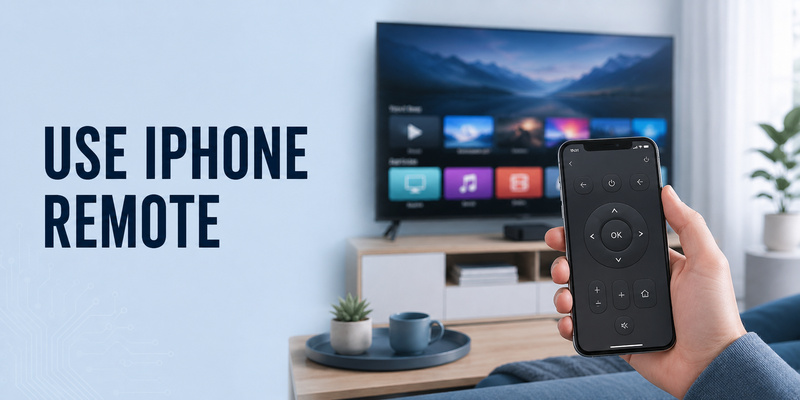
If the physical Apple TV remote is unresponsive, you may still be able to control the device with an iPhone or iPad.
Use Your iPhone as a Temporary Remote
- Connect the iPhone to the same Wi-Fi network as Apple TV.
- Open Control Center.
- Tap Apple TV Remote.
- Select your Apple TV.
- Complete pairing if prompted.
- Navigate to Settings.
This can help you check software updates, restart Apple TV, or troubleshoot the physical remote.
If Apple TV is not connected to a usable network, the iPhone remote may not be able to discover it.
For more alternatives, see our lost Apple TV remote guide.
Use a Compatible Replacement Remote
If charging, restarting, and pairing do not solve the problem, consider whether the remote has a hardware fault.
Before buying a replacement:
- Confirm the Apple TV model.
- Check which remote generations are compatible.
- Inspect the original remote for damage.
- Check warranty or service options.
- Verify the replacement’s charging and control features.
If you are considering a universal remote, check its Apple TV compatibility and supported features first.
FAQs About Apple TV Remote Not Responding
Why is my Apple TV remote not responding?
Common causes include a low battery, lost pairing, weak wireless signal, temporary software issues, or physical remote damage.
How do I restart an unresponsive Apple TV remote?
On supported Siri Remote models, hold TV/Control Center and Volume Down for about five seconds, release the buttons, wait briefly, and press any button to reconnect.
Why is my Apple TV remote pairing not working?
The remote may be low on battery, too far from Apple TV, or temporarily disconnected. Charge it, restart Apple TV, and try Back/Menu + Volume Up near the device.
How do I pair my Apple TV remote again?
Hold the remote approximately three inches from Apple TV and press Back (or Menu) + Volume Up for about five seconds. Follow any onscreen instructions.
Why is my Apple TV Remote app not working on iPhone?
The iPhone and Apple TV may be on different networks, the device may be offline, or software may need updating. Check Wi-Fi, restart both devices, and reconnect through Control Center.
Why is Apple TV not showing in the iPhone Remote?
Check that Apple TV is on, both devices are on the same network, and the network allows local device discovery.
Do I need to download Apple TV Remote on iPhone?
Usually not. The built-in Apple TV Remote is available through Control Center on supported iPhones and iPads.
What if the Apple TV Remote pairing code is not accepted?
Confirm you selected the correct Apple TV, enter the current code shown on screen, and restart the pairing process if necessary.
Why does my Apple TV remote work except for volume?
Volume controls may depend on IR, HDMI-CEC, or audio-device configuration. Check Settings > Remotes and Devices > Volume Control.
Can I fix my Apple TV remote without resetting Apple TV?
Yes. Charging, restarting the remote, restarting Apple TV, and re-pairing often resolve problems without a full factory reset.
Can I use my iPhone if the physical Apple TV remote is broken?
Yes, provided your iPhone and Apple TV can communicate through a supported network connection and complete any required pairing.
Why does my Apple TV remote keep disconnecting?
Possible causes include low battery, weak Bluetooth signal, interference, or temporary software problems.
Does the Apple TV Remote app work without Wi-Fi?
The built-in iPhone remote generally requires supported network connectivity with Apple TV. It is not a direct infrared replacement.
Will a factory reset fix an Apple TV remote?
A full Apple TV factory reset is usually unnecessary as an initial troubleshooting step and can erase device settings and data.
📘 Find the Right Guide: Apple TV Remote iPad: How to Set Up and Control Apple TV From Your iPad
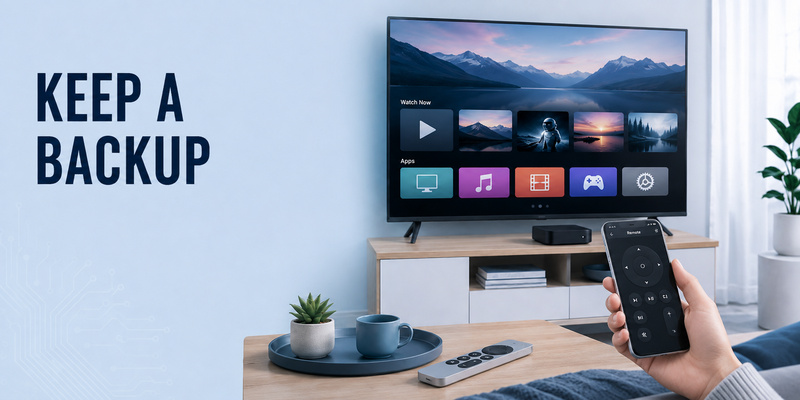
If the physical remote remains unusable, Apple TV Remote on iPhone or iPad can keep your Apple TV accessible while you troubleshoot. A compatible Remote TV App can also provide broader phone-based TV control for supported setups. This backup is especially practical when apple tv remote not responding blocks access to the settings you need for further diagnosis.
In most cases, apple tv remote not responding can be narrowed down without replacing the entire Apple TV box. Work through pairing, restart, charging, signal, software, and individual-button checks in that order, and only move to repair or replacement when the evidence points to a genuine hardware problem. If apple tv remote not responding remains after every connection and power test, hardware service becomes a much more reasonable next step.
