
Smart Light Control App: Best Choice for Hue, WiZ, Govee, and Mixed Homes
By the Remote TV App Team
A smart light control app lets you turn compatible lights on or off, dim them, change colors, and create schedules from your phone. Start with the bulb manufacturer’s app or a compatible smart home platform, then connect each light through its supported Wi-Fi, Bluetooth, Zigbee, or Matter setup. An ordinary bulb cannot gain wireless control from software alone; it needs smart hardware or a correctly rated smart switch.
The right smart light control app can make a single bedside lamp easier to manage or coordinate lighting across an entire home. This guide explains how to check compatibility, connect your lights, compare major apps, build practical automations, and fix the problems that commonly interrupt remote control.
1. How to Choose the Right Smart Light Control App
The best starting point is the exact model printed on your bulb or its packaging. Apps cannot communicate with every light simply because both products are described as smart. Check the manufacturer’s compatibility list before downloading anything or purchasing a hub.
A smart light control app should support the way your light communicates, provide the functions you actually need, and work with your phone’s operating system. Some brands provide their own apps, while broader platforms bring supported products from different manufacturers into one dashboard.
For a single Wi-Fi bulb, the official smart light control app may be all you need. If you plan to manage dozens of fixtures, evaluate hub requirements, local reliability, and household sharing before expanding. The simplest compatible setup is usually better than installing multiple overlapping applications.
📘 Find the Right Guide: AC Remote Control App: Which Option Actually Works for Your Air Conditioner?
2. How Smart Lighting Apps Connect to Your Lights
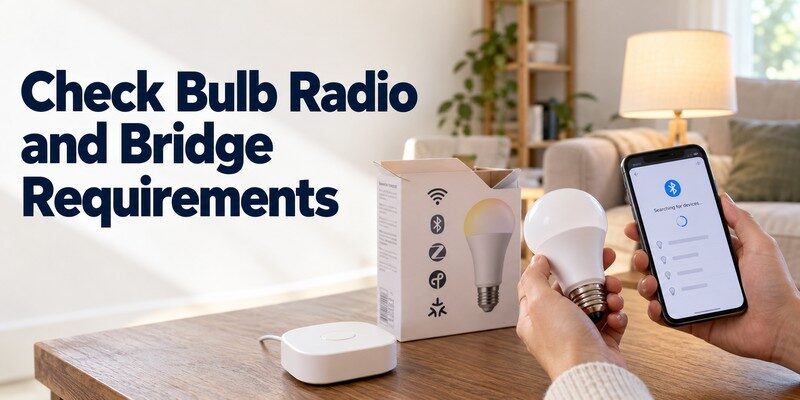
| Technology | Typical setup | Main benefit | Important limitation |
|---|---|---|---|
| Wi-Fi | Bulb connects to home router | Familiar setup; often no separate bridge | Some products depend on cloud services |
| Bluetooth | Phone pairs with nearby bulb | Basic local control without a router | Range and remote access are limited |
| Zigbee | Bulbs communicate through a compatible hub | Suitable for larger lighting systems | A bridge is usually needed |
| Matter over Wi-Fi | Matter bulb joins a compatible controller | Cross-platform compatibility | Requires supported devices and setup |
| Matter over Thread | Light uses a Thread network | Low-power mesh connectivity | Thread border-router needs vary by ecosystem |
Wi-Fi and Bluetooth bulbs
Wi-Fi bulbs connect to a router, although some use Bluetooth for initial discovery. Several popular Wi-Fi lighting systems require 2.4 GHz connectivity. Philips Hue also supports direct Bluetooth control for compatible bulbs, while a supported bridge enables broader lighting features and remote access.
Zigbee, Matter, and Thread
Zigbee lights commonly depend on a compatible coordinator or bridge. Matter is an interoperability standard, not a radio frequency: compatible devices can communicate over Wi-Fi, Thread, or another supported transport. Thread is a low-power mesh network, and many installations use a border router to connect it to the home network.
Matter branding does not mean that every feature works in every app. Manufacturer-specific effects, entertainment synchronization, or firmware settings may still require the original application. Check supported features rather than assuming a smart light control app will expose every setting.
💡 Discover Helpful Guides: Smart AC Control App: How to Control Your Air Conditioner From Your Phone
3. How to Set Up a Smart Light Control App
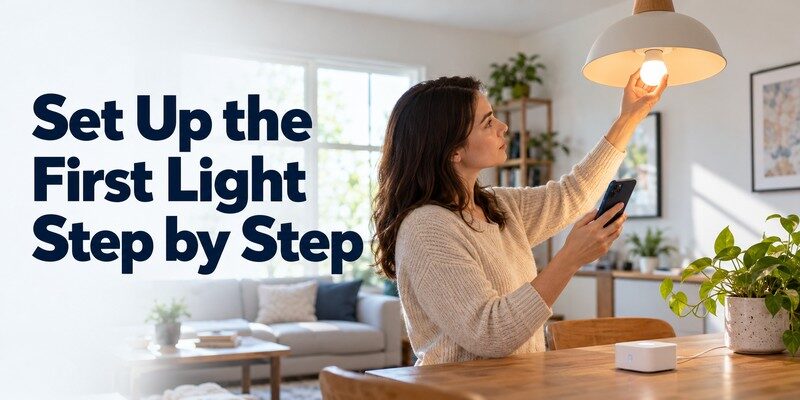
Step 1: Check the fixture and power
Turn off power before installing a bulb, confirm that the socket and voltage match the product rating, and then turn the light on. Keep the wall switch in the on position during pairing. If someone switches off power to a smart bulb, its app cannot reach it.
Do not install a smart bulb on an incompatible dimmer circuit. Some dimmers can cause flickering or unstable operation even when the bulb appears to fit the socket.
Step 2: Install the right application
Download the verified manufacturer’s app through your phone’s official app store. Create an account if required, then grant only the permissions needed for setup, such as Bluetooth or local-network discovery.
If you are searching for how to control lights with phone, avoid apps that claim to control ordinary LED bulbs without compatible hardware. An application is a control interface; it cannot replace the bulb’s receiver or an appropriate smart switch.
Step 3: Add the bulb
Choose Add device, select the lighting category, and follow the manufacturer’s pairing instructions. Some bulbs blink to indicate discovery mode; others display a temporary Wi-Fi network or a Matter QR code.
For example, TP-Link’s September 2026 Tapo setup guide instructs users to select the relevant bulb model, wait for the bulb to indicate pairing, select a network, and give the light a name. Pairing behavior differs between Tapo hardware versions.
Step 4: Test and organize
In your smart light control app, confirm power, brightness, and color adjustments, where supported. Name the device something understandable, such as Desk Lamp or Kitchen Ceiling, and assign it to a room. Then check whether the bulb responds after you close and reopen the app.
A properly configured smart light control app should show the correct device and make your most-used controls easy to reach. Test remote access separately on mobile data if the brand advertises it; successful local pairing does not prove that out-of-home control is available.
📖 Read More Guides: Fan Remote Control App: Best Options for Smart, Ceiling, and IR Fans
4. Best Smart Light Apps for Different Lighting Systems
There is no universal winner because apps differ in supported brands, hubs, and advanced features. The best smart light app for an existing installation is usually the one officially supported by your bulbs; a multi-brand platform is useful when its compatibility is confirmed.
| App | Typical compatible products | Useful strengths |
|---|---|---|
| Philips Hue | Philips Hue lights | Scenes, schedules, compatible bridge features |
| WiZ | Supported WiZ lights | Wi-Fi setup, rooms, lighting modes |
| TP-Link Tapo | Supported Tapo smart bulbs | Device setup, timers, routines |
| Google Home | Compatible linked or Matter lights | Room grouping and home automations |
| Apple Home | Compatible Apple Home or Matter lights | iPhone controls, scenes, automations |
| Amazon Alexa | Compatible linked smart lights | Voice commands, groups, routines |
Manufacturer apps: maximum product-specific control
Philips Hue’s official app supports lighting scenes, timers, and other functions depending on the bulb and whether a Bridge is present. Hue’s own support materials distinguish small Bluetooth setups from bridge-based installations that support more advanced features and remote operation.
A manufacturer’s smart bulb control app is generally the first place to configure firmware updates, specialized effects, or device settings. Do not assume those controls will automatically appear after linking the bulb to another platform.
Multi-brand platforms: fewer dashboards
Google Home can manage compatible third-party lighting products from a single interface. Google’s support documentation describes control of more than 50,000 supported smart home devices across categories, including lights; that figure is not a guarantee that every bulb will work.
When choosing a smart light app for android, compare Google Home and the bulb’s official Android app first. For an iPhone household, check Apple Home compatibility alongside the manufacturer app. A universal dashboard is useful only after the lights have been correctly commissioned.
5. Smart Lighting Features Worth Using
After installation, the greatest benefit often comes from small changes to daily routines rather than constantly opening an app to flip a virtual switch.
Brightness, color, and scenes
A useful smart light control app lets you save common settings and restore them with one tap. For example, a Movie Night scene could dim living-room fixtures while leaving a small pathway light on. This is more practical than editing four bulbs separately every time.
Timers, schedules, and automations
Schedules can turn lights on at a fixed time, dim them before bedtime, or switch off unneeded fixtures after a routine activity. Depending on the ecosystem, automations may also respond to sunset, a motion sensor, or a household member arriving home.
Remote access and household sharing
Some systems allow commands when your phone is away from home, provided the necessary hub, internet service, and account remain online. Others offer local-only control. Give household members appropriate access rather than sharing one account password.
📘 Find the Right Guide: How to Control AC With Phone: Wi-Fi, IR Blaster, and Hub Steps
6. How to Control Multiple Lights and Rooms
Open your smart light control app and start by creating room groups: Bedroom, Kitchen, Hallway, or Living Room. Then assign each bulb to the correct location and use distinct names for fixtures within the same room. Most supported systems allow group commands, although features differ by app.
A smart light control app becomes much easier to use when you create only a few meaningful scenes. Consider Morning, Dinner, and All Lights Off rather than dozens of nearly identical presets.
Practical check: Test your group command from the room farthest from the router, then check whether every assigned bulb responds. This simple test helps distinguish a grouping mistake from a weak-network problem.
7. Can Smart Lighting Apps Help Save Electricity?
ENERGY STAR’s Low- to No-Cost Tips for Saving Energy at Home says certified LED bulbs use up to 90% less energy and last up to 15 times longer than standard bulbs. Those are LED technology comparisons, not savings attributable to smartphone control.
A smart light control app adds another layer: it helps users manage when and how long compatible lights operate. For example, automated shutdown of an unused room can reduce wasted hours, while dimming may lower power use in supported bulbs.
A simple electricity example
Suppose an old 60-watt incandescent bulb is replaced by a 9-watt LED with similar intended light output. If both operate for four hours daily, their approximate yearly electricity use is:
- Incandescent: 60 W × 4 hours × 365 ÷ 1,000 = 87.6 kWh.
- LED: 9 W × 4 hours × 365 ÷ 1,000 = 13.14 kWh.
- Difference: 74.46 kWh per year, before accounting for standby draw or real-world usage changes.
This is an illustrative calculation, not a measured result for any particular household or product. Electricity prices, bulb wattages, schedules, and usage patterns determine actual savings.
A smart light control app can help further by switching off lights that would otherwise remain on. However, smart bulbs and hubs may consume a small amount of standby power, so their net benefit depends on the entire setup.
8. Smart Light Control App Not Working? Troubleshooting Guide
When a bulb does not respond, first determine whether the issue is power, network discovery, a bridge, or an incorrect account. Repeatedly resetting every device can erase working scenes and make diagnosis harder.
| Symptom | Likely cause | First action |
|---|---|---|
| Bulb is offline | Wall switch off or weak signal | Confirm power and network coverage |
| Bulb will not pair | Wrong network or pairing mode | Check model-specific setup instructions |
| Brightness works but colors do not | White-only bulb or limited integration | Check hardware capabilities and manufacturer app |
| Group command misses one light | Wrong room assignment or intermittent signal | Verify grouping and test the bulb individually |
| Remote control fails outside home | Cloud access or hub unavailable | Test local control, then check service status |
Fix Wi-Fi pairing and offline bulbs
Many bulbs that use Wi-Fi require a 2.4 GHz network. WiZ and TP-Link publish this requirement for their relevant products. If initial discovery fails, verify the network type, password, device power, and phone permissions.
If the smart light control app reports a bulb as offline, try controlling another smart device on the same network. That test helps determine whether the outage affects one bulb or the wider home network.
Fix bridge and Matter problems
For a Zigbee-based system, confirm that its bridge has power and network connectivity. For Matter devices, check that the intended controller and any required Thread border router are available.
Reset only after simpler checks
Reset procedures vary across products and hardware revisions. Some require specific power cycles; others provide in-app reset functions. A factory reset may erase registration, scenes, and automation assignments.
Use the official instructions for your exact model. A stable smart light control app relies on a stable hardware connection, so fixing the underlying network or pairing problem is usually more effective than reinstalling software repeatedly.
📘 Find the Right Guide: IR Remote Control App for Android: What Works With an IR Blaster?
9. How to Keep Your Smart Lighting System Secure
Smart lighting is convenient, but internet-connected devices also require basic security maintenance. Lights can reveal usage patterns, and linked accounts may control other connected accessories in the same household.
To keep a smart light control app and its devices secure, follow the U.S. Federal Trade Commission’s guidance for internet-connected home devices: it recommends keeping firmware updated, reviewing unused features, and removing old devices from networks.
Before granting remote access through a smart light control app, use these precautions:
- Install official software and verify the app publisher.
- Protect your account with a unique password and multifactor authentication when offered.
- Update bulbs, bridges, routers, and apps to current supported versions.
- Review household access and remove former members or unused integrations.
- Secure your Wi-Fi with modern encryption and a strong router password.
- Disable optional remote services if you do not use them.
📖 Read More Guides: Smart Plug Control App: Setup, Features & Best Options
10. Can a Universal TV Remote App Control Smart Lights?
A smart lighting system and a television remote solve different problems. Do not assume a television remote app can directly pair with light bulbs. Even when both use Wi-Fi, their supported protocols and device categories may differ.
The Remote TV app is intended for compatible televisions, not as a replacement for a lighting controller. It belongs in your home entertainment toolkit rather than the setup process for a smart light control app.
If you want to control a television from an iPhone or iPad, universal remote tv control provides a dedicated App Store option for supported TVs. The product’s compatibility should be checked independently from the lighting system.
Similarly, a universal remote control app designed for televisions does not automatically support Wi-Fi, Zigbee, or Matter light bulbs.
Want phone control for your TV as well? Download Universal Remote TV Control for supported televisions. For lamps and bulbs, continue using the lighting manufacturer’s app or a verified compatible smart home platform.
11. Frequently Asked Questions
Can I control normal light bulbs with a phone app?
Not directly. Ordinary bulbs have no receiver for smartphone commands. You need a smart bulb, a compatible smart switch, or another appropriately rated control device. For hardwired switches, installation should follow electrical safety requirements and may need a qualified electrician.
Can a smart light control app work without internet?
Sometimes. Some Bluetooth, hub-based, and local Matter functions can work without a live internet connection after setup. Cloud-dependent remote access, account features, and some automations may stop. Test the specific products rather than assuming every offline feature is supported.
Do smart lights need 2.4 GHz Wi-Fi?
Some do, but not all. Many Wi-Fi bulbs use 2.4 GHz for compatibility and range. Bluetooth or Zigbee bulbs may connect through another device instead, while Matter supports different network transports. Always check the requirements for your exact model.
Can I use one app for different light brands?
Yes, if those products support the same platform. Google Home, Apple Home, and Alexa can bring many compatible lights into one interface. Manufacturer-only features may still require separate apps, and sharing a Matter logo does not guarantee identical advanced controls.
Can I schedule my lights to turn off automatically?
Yes, on compatible systems. Set a fixed daily schedule, a bedtime scene, or a motion-triggered automation. Check how household members use the room before deploying schedules, so a light does not unexpectedly switch off while someone still needs it.
Download TV Remote App12. Final Thoughts
A smart light control app makes compatible lighting easier to manage through phone-based switching, dimming, room groups, and practical automations. Choose the application that officially supports your bulb and its connection technology before worrying about extra features.
For a simple setup, start with one bulb and verify pairing, controls, and reliability. For a larger home, plan the network, any required bridge, and a small set of useful scenes. A well-configured smart light control app should feel predictable, secure, and convenient—not like another complicated gadget to maintain.
